Complete a task
Mark a task as Done from the task list or the task detail page, and understand what Bulk changes and who it notifies when you do.
In Bulk, a task is a unit of work you track through to completion — for example a maintenance fix, a documentation update, or a follow-up from a quality issue. Every task carries a Status that shows where it stands. Completing a task means moving its Status to Done: the signal to your team that the work is finished and no further action is needed.
You complete a task the same way whether it came from a project, was created by hand, or was raised automatically by another part of Bulk. This guide covers the two places you can do it, what changes when a task is completed, and how to reopen one if you marked it Done too soon.
Task statuses, and what "complete" means
Each task moves through a fixed set of statuses:
- To Do — not started yet.
- In Progress — actively being worked on.
- Review — work is done and awaiting a check.
- Done — the completed state. This is what "complete a task" means.
- Cancelled — closed without being finished. This is not the same as completing a task; use it when the work is no longer needed.
Marking a task Done is a normal status change, so it is fully reversible — you can move a task back out of Done at any time.
Before you start
To change a task's status you need permission to update tasks. By default this permission is granted to the Super user, Entity admin, Manager, and Operator roles. Roles such as Tablet user, Quality, Safety, or Dashboards do not include it unless an administrator has added it. If you cannot change a task's status, this permission is the first thing to check with your administrator.
You also need access to the plant (called an entity in Bulk) and project that the task belongs to. If you open a task you cannot access, Bulk shows a Task not found page rather than the task.
Complete a task from the task list
Use this path when you are working through several tasks at once and do not need to open each one.
- Open Tasks from the main navigation to see the task list.
- Find the task you want to complete. Use the search box or the filters if the list is long.
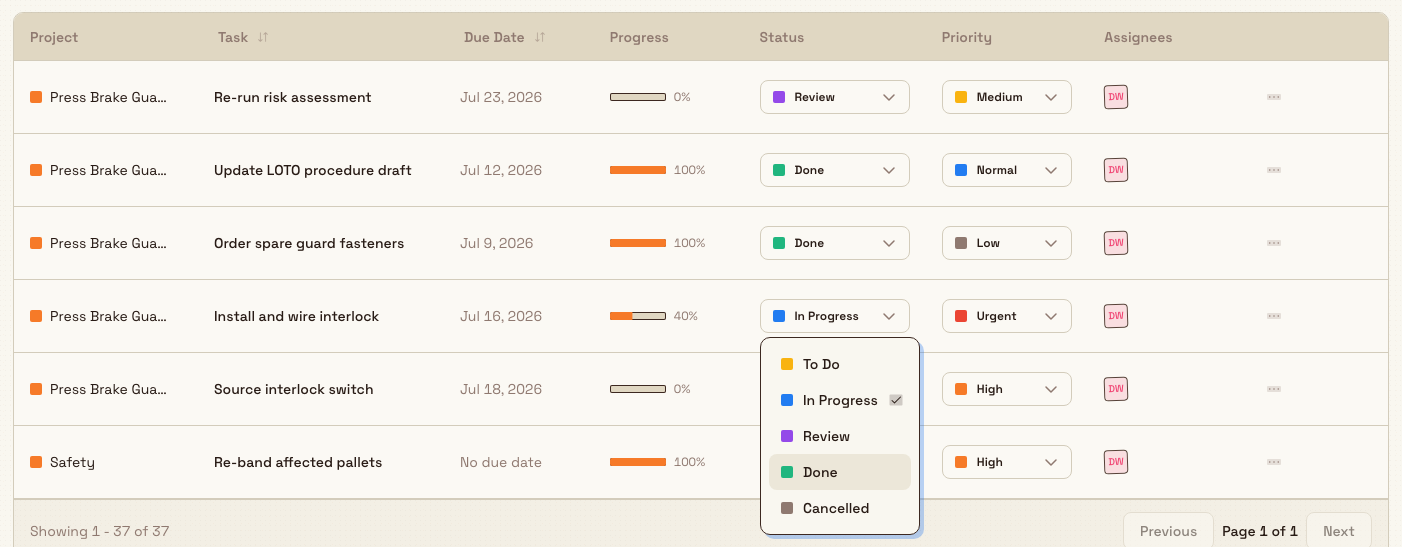
- In the Status column for that task, open the status dropdown and choose Done.
Bulk saves the change immediately and confirms it with the message Status changed to done. The row's status updates in place — you do not need to open the task.
tasks.complete-02
Complete a task from the detail page
Use this path when you are already reviewing a task's description, checklist, comments, or attachments.
- Open the task — click its row in the list, or follow a link to it — to reach the task detail page.
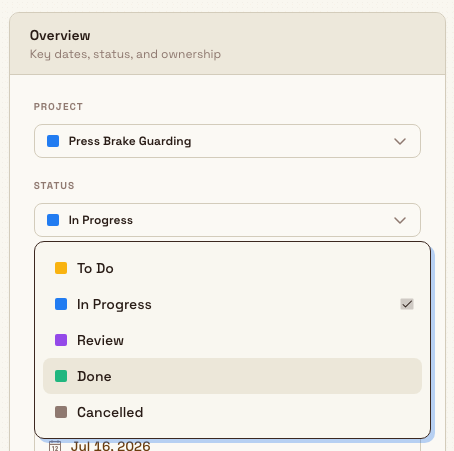
- On the right, find the Overview card (headed Overview — Key dates, status, and ownership).
- Under Status, open the selector and choose Done.
As with the list, Bulk saves the change and shows Status changed to done.
tasks.complete-01
Completing by reaching 100% progress
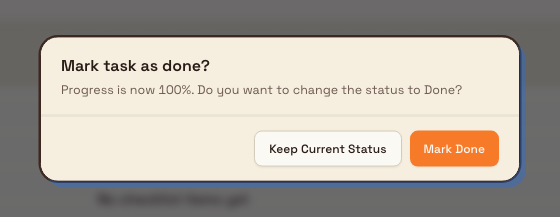
The Overview card also has a Progress control. If you drag progress to 100% on a task that is not already Done or Cancelled, Bulk asks whether you also want to complete it. A dialog titled Mark task as done? appears with the message "Progress is now 100%. Do you want to change the status to Done?" and two choices:
- Mark Done — sets the status to Done (and keeps progress at 100%).
- Keep Current Status — records the progress but leaves the status unchanged.
tasks.complete-03
What happens when a task is completed
Marking a task Done does three things:
- Progress jumps to 100%. Bulk sets the task's progress to 100% automatically, so a completed task always reads as fully done.
- The change is recorded. The task's activity history logs who changed the status and when, so completion is auditable.
- Followers and assignees are notified. Everyone assigned to or following the task — apart from you, the person who completed it — receives a notification that reads "[task name]" was marked as completed. Each recipient still controls their own in-app and email notification preferences, so a muted task will not notify them.
Example: closing out a maintenance fix at Granite Peak
At Granite Peak Manufacturing's Leeds Fabrication Plant, maintenance technician Priya Shah is assigned the task "Replace worn guide rollers on Line 3 press." She works through the task's checklist as she swaps each roller and runs a test cycle.
When the press is running cleanly again, Priya opens the task, sets Status to Done in the Overview card, and sees the Status changed to done confirmation. Because the shift supervisor, Tom Reyes, is following the task, he is notified that "Replace worn guide rollers on Line 3 press" was marked as completed — so he knows Line 3 is back in service without having to chase Priya for an update.
Reopen or correct a completed task
Because completing a task is just a status change, correcting a mistake is straightforward:
- Marked Done too soon? Open the task and set Status back to In Progress (or To Do or Review). Note that Bulk does not automatically move progress back down from 100% — adjust the Progress control yourself if it should reflect the remaining work.
- Finished the checklist but the task is still open? Completing every checklist item moves the task's Progress to 100%, but it does not change the Status on its own. To complete the task, set the Status to Done as described above.
Checklists track progress, not status
A finished checklist shows the task is 100% worked, but it never flips the status for you. Completion is always a deliberate step, so a task is only ever Done because someone chose to complete it.
If the Done option is missing or the status will not change, you most likely lack permission to update tasks, or you have opened a task in a plant you cannot access. Confirm your role with an administrator and check that you are working in the correct entity.
Related guidance
Link a task to another record
Connect a task to a related risk assessment, production order, or production job from the task description so your team can open the source record in one click.
Use AI assistance with tasks
Draft new tasks and refine task descriptions and checklists with Hugo, Bulk's built-in AI task assistant, which proposes every change as a plan you review and apply yourself.