For operators
What the Operator role does in Bulk: run workstations, complete audits and tasks, capture documents, and check stock, with a step-by-step guide for each.
Last updated
In Bulk: a Manufacturing Execution System (MES), the software your team uses to run day-to-day work on the shop floor: an operator is the person who does the hands-on work: running a machine or bench, booking jobs in and out, recording what was made, completing checks, and keeping the paperwork moving. This page explains what the built-in Operator role lets you do, where each job lives in the workspace, and links you to a short, step-by-step guide for every task. Read it top to bottom to get oriented, or jump straight to the job you need.
What operators do in Bulk
Most of an operator's day happens at a workstation: a single machine, bench, or bay where work is carried out. You open it from Workstations, the second item in the PLATFORM group of the left sidebar. Bulk shows the Select your asset. screen, where every workstation you can run appears as a tile, with live Running, Paused, Stopped, and Idle counts and a box to Filter by asset name, code, operator, or job. Pick the workstation you are at, and Bulk shows its queued work and focuses the rest of the screen on that bay. You still choose and confirm the work before it is loaded.
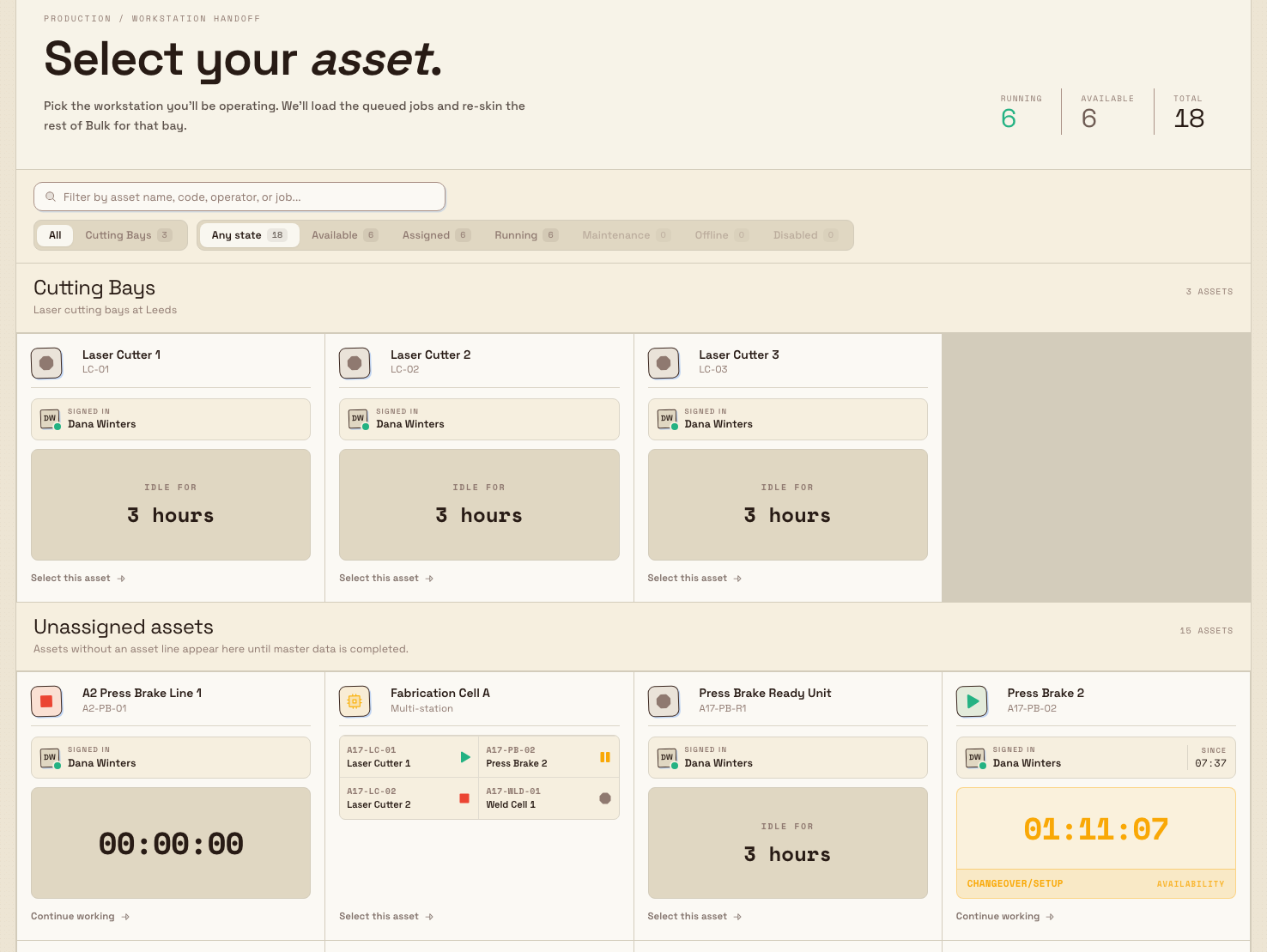
From there you load the order or job in front of you and run its steps in sequence: timers, quality checks, output counts, and any documents the job asks for: then unload the work when the phase is finished. Every one of those steps has its own guide, linked below, so this page stays a map rather than a manual.
Before you begin
To work as an operator you need two things in place:
- A Bulk account and access to at least one plant. Accounts are created by an administrator's email invitation, not open sign-up, and an administrator grants you access to the sites you work in. If you are not set up yet, start with Getting started.
- The Operator role, or another role with the same permissions. Operator is Bulk's standard app-user baseline: an administrator assigns it when they invite you, and it grants the everyday shop-floor permissions described on this page. Roles and access are managed by administrators: see Manage roles and permissions and Manage users.
Your menu reflects your access
The MODULES list in the sidebar only shows areas your role and plant allow, so two operators at different sites can see slightly different menus. If a module you expect is missing, it is almost always an access matter, not a fault: see Understand access and visible navigation.
What you can do as an operator
The Operator role is built around getting work done on the floor. Here is what it covers and where to find the detailed guide for each job.
Run work at a workstation
This is the heart of the role. You can view production, load orders and jobs onto a workstation, run the work, and record what happened.
- Open a workstation and Select an asset or workstation: get to the right bay from the Workstations screen.
- Load a production order and Load a job: bring the next piece of work onto the station.
- Run production timers, Record production output, and Record consumable use: capture time, quantities, and materials as you go.
- Record process cycles. You record cycle runs on Operate, see them on the Cycles card, and open assigned process and instruction PDFs there.
- Complete production quality steps and Complete production documentation steps: finish the checks and paperwork a job requires.
- Skip or complete a production phase and Unload production work: move the job on when the phase is done.
- Peak a job: book jobs in and out at a recording bench.
For the wider picture, see Production and Review production orders and jobs. For the full start-to-finish routine, follow the workflow Prepare and run a workstation safely.
Complete audits and pre-use checks
You can start and complete audits assigned to you: including the pre-use check that confirms a machine is safe and ready before you run it.
- Start an audit and Complete an audit response.
- Run a pre-use audit and Respond to a blocking pre-use check: some checks must pass before Bulk lets the job run.
A blocking pre-use check exists for a reason
When a pre-use check blocks a workstation, it is signalling that the equipment is not yet safe or ready to run. Complete the check honestly and raise anything that fails: do not work around a block to keep the job moving. The Respond to a blocking pre-use check guide explains what to do.
Track your work with tasks
You can create tasks, assign them, comment, and mark them complete: useful for flagging a maintenance niggle or handing something to the next shift.
Find and attach files
You can browse the plant's files and upload your own: a photo of a defect, a signed sheet, or a reference drawing.
- Files and Upload a file.
Capture inbound documents
Inbound is where paperwork that arrives with a delivery or job, such as delivery notes, certificates, and packing lists, is captured and turned into records. You can create inbound documents and submit them for approval.
Check stock and the plan
You can view stock levels and see the production schedule, which helps you understand what is coming and whether materials are on hand.
- Review stock levels: read-only for operators.
- Scheduling: see planned work and time windows.
What is outside the Operator role
The Operator role is deliberately focused on doing the work, not setting up or signing off the system. A few things are handled by managers or administrators:
- Approving documents and invoices. You can submit an inbound document for approval, and submit and confirm an invoice, but the approve step is reserved for managers and administrators.
- Setting up master data. You fill in forms and datasheets at the workstation, but building the assets, routings, forms, and pricing behind them is administrator and manager work.
- Managing people, roles, and plant settings. Inviting users, changing roles, and configuring the plant are administrator tasks.
- Executive analytics. Cross-plant and equipment-effectiveness dashboards such as Atlas and the OEE Timeline are reserved for managers.
If you need one of these, ask a manager or administrator. To see how those roles fit together, read For managers and For administrators.
A day at Wayne Corp
Say you are a machining operator at Wayne Corp, a UK precision-fabrication company, working at its Gotham Applied Sciences. An administrator has invited you, given you the Operator role, and granted access to Gotham.
- You sign in with your work email and land in the Gotham Hub.
- You open Workstations from the sidebar. On the Select your asset. screen you filter for your machine and pick Gotham Machining Centre 1 from the Available tiles.
- Bulk prompts a pre-use check. You confirm the guarding and extraction, mark it complete, and the machine unlocks for work.
- You load the order for a batch of bracket blanks, start the timer, and cut the batch.
- As you work you record output (48 good parts, 2 scrap), record the consumable sheet stock used, and complete the job's quality step by measuring the first part.
- You spot a worn nozzle, so you create a task for maintenance and add a photo from the Files upload.
- A steel delivery arrives; you scan the delivery note into Inbound and submit it for the office to approve.
- With the phase finished, you unload the work so the job moves to the next station.
By the end of the shift everything you did: time, quantities, checks, and documents: is recorded against the job, with nothing left on paper.
Expected result
Once you are set up with the Operator role and access to your plant, you can reliably:
- open the correct plant and the Workstations screen, and choose the machine or bench you are working at;
- load orders and jobs, run timers, and record output, consumables, quality, and documentation as you work;
- complete audits and pre-use checks, and respond correctly when a check blocks a job;
- raise and complete tasks, upload files, and capture inbound documents; and
- check stock levels and the schedule to stay ahead of your work.
Feature state and what to expect
The Operator role and the core production surface are generally available: Workstations, Production (Orders and Jobs), audits, tasks, files, inbound, and stock viewing are the standard, supported tools for shop-floor work.
A few areas you may reach from this role are still maturing and carry a Beta label in the menu, which means they work but their screens and behavior may change:
- Atlas carries a Beta label. Scheduling, Production Transactions, and the Quality menu entries pictured in current navigation do not carry one.
Treat Beta areas as previews rather than finished features, and expect the rest of your day-to-day tools to behave consistently.
Where to go next
- Getting started: sign in, choose your plant, and find your way around.
- Prepare and run a workstation safely: the end-to-end routine that ties the production steps together.
- Operations and Production: detailed reference for every module an operator touches.
- Browse by role: guides for the other roles you work alongside, including For managers and For quality and safety teams.
For managers
What the Manager role in Bulk covers: plan and oversee production, watch performance, approve quality, safety, absence, and invoice decisions, and more.
For quality and safety teams
What the Quality and Safety roles do in Bulk: log and resolve quality issues, run risk assessments and incident reports, and complete audits.