For managers
What the Manager role in Bulk covers: plan and oversee production, watch performance, approve quality, safety, absence, and invoice decisions, and more.
Last updated
The Manager role is one of Bulk's built-in roles for the people who run day-to-day operations at a plant. A role is the set of permissions that decides what you can see and do; the Manager role gives you broad, hands-on control across almost every module: planning and overseeing production, watching performance, and approving the decisions that keep work moving: without the organization-level setup that owners and administrators handle.
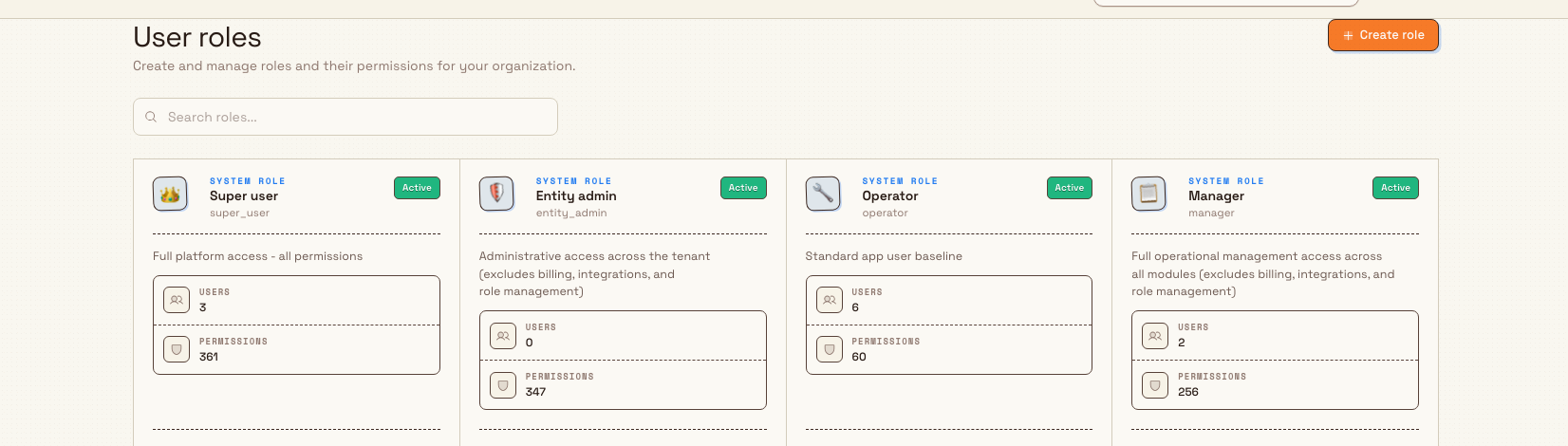
Bulk describes the role this way: full operational management access across all modules, excluding billing, integrations, and role management. This page is a map of what that access covers. Rather than repeat steps you can find elsewhere, each area links to the full task guide, so you can jump straight to the screen you need.
Before you begin
To work as a manager you need two things:
- The Manager role. It is a system role: a fixed, built-in role that an owner or administrator assigns to you. You do not set it up yourself, and its permissions cannot be edited: you either have the role or you do not. Administrators grant it from Settings → Organization → User roles (the users area). To request it, see Users.
- Access to at least one plant. A plant (Bulk also calls it a site or entity) is a single factory or workshop, and it is the context you work in. You can only manage the plants an administrator has granted you.
What you actually see also depends on which modules are enabled for your plant. If an area described below is missing from your navigation, it is almost always an access matter, not a fault.
Missing a whole area?
If you can sign in but an entire module is missing from your navigation, your plant access or the modules enabled for your site: not the Manager role: is usually the cause. Ask an administrator to check your access. See Understand access and visible navigation.
What you can do as a manager
Plan and oversee production
You configure how work is made and keep it flowing. That includes the master data behind production: production items, routings (the ordered steps a part passes through), and processes: plus planning and scheduling the work itself.
- Production reference: how orders and jobs run on the shop floor.
- Orders and jobs: the records that drive production.
- Scheduling and the planning board: place and move jobs across time and resources. Scheduling is no longer Beta.
- Prioritisation is a second module at
/prioritisation/home, not a rename of Scheduling. Use it to rank which step each machine runs next. - Workflow: Take customer work to production.
Watch performance
Managers get the full performance picture, from a single asset to the whole plant.
- Dashboards: live views such as OEE (Overall Equipment Effectiveness, a standard measure of how productively equipment runs).
- Analytics and the OEE timeline.
- KPIs: set targets and record entries.
- Cross-plant performance in Atlas: compare sites, if you manage more than one.
- Teamboards: shop-floor visual-management boards.
Keep quality and safety on track
You can act on issues, and you hold the approvals that others wait on.
- Quality: review issues and non-conformances.
- Safety, including approve a risk assessment and approve an incident.
- Audits: create, run, and override responses, and run an audit programme.
Manage your team
The Manager role includes real people-management authority.
- People: employees, departments, and shifts.
- Record and approve absences: you can approve requests and manage absence types and entitlements.
- Invite new users and reset passwords from Users. (Assigning existing roles is included; creating or editing roles is not: see the limits below.)
Handle materials, documents, and invoicing
- Inventory: stock levels, movements, and alerts.
- Inbound documents, including approval: capture and sign off supplier paperwork.
- Finance: production invoicing is included: create, approve, and issue invoices and credit notes. See Close the commercial loop.
Automate and coordinate work
- Workflows: build, publish, and run automations. See Automate and integrate safely.
- Tasks and Projects: assign and track work across your team.
A day at Wayne Corp
Priya is the production manager at the Gotham Applied Sciences, part of Wayne Corp, a UK precision-fabrication company. An administrator has given her the Manager role with access to the Gotham site. In a typical morning she:
- Opens an OEE dashboard and spots that the laser cutter lost time overnight.
- Goes to the planning board and moves a delayed job to a free machine so the customer's order stays on schedule.
- Approves an absence request from an operator who needs Friday off, checking it against the shift cover.
- Reviews a quality issue raised on a batch and approves the risk assessment for a new cutting process before it goes live.
- At month-end, approves the production invoices for a repeat customer so finance can issue them.
Every one of those actions is covered by the Manager role, on one plant, without waiting on an administrator.
Expected result
With the Manager role you can plan, schedule, and monitor production; approve quality, safety, absence, and invoice decisions; manage your team, materials, and documents; and build automations: across every plant you have access to: for the everyday running of the plant.
What the Manager role does not include
The Manager role deliberately stops short of organization-level administration. It excludes:
- Role management. You cannot create or edit roles, or change what any role is allowed to do. You can invite users and assign the roles that already exist, but designing roles is an administrator task. See Roles and permissions.
- Billing. Managing the account's billing is owner/administrator-only.
- Integration setup. Connecting Bulk to other systems: for example REST API keys and Microsoft Dynamics 365: is not part of the role.
One related boundary: training records and the skills matrix are governed by a separate set of permissions the Manager role does not carry. You manage people, shifts, and absences, but if your work also covers training administration, ask for the People and training access as well: see For people and training teams.
For anything on this list, an owner or administrator can help: see For administrators.
The Manager role is generally available. What you see day to day still depends on the modules enabled for your plant, and some newer areas carry a Beta label, meaning they work but may still change.
Troubleshooting
- A module you expect is missing. This is an access or module-availability matter, not the Manager role. Ask an administrator to confirm your plant access and that the module is enabled for your site: see Understand access and visible navigation.
- You cannot create or edit a role. That is expected: role management sits outside the Manager role. An administrator owns roles: see Roles and permissions.
- You do not have the Manager role yet. Ask an owner or administrator to assign it from Settings → Organization → User roles. Because it is a system role, it is assigned as-is and cannot be customised.
Related guidance
- Browse by role: the other role guides, including operators and quality and safety teams.
- Getting started: sign in, choose your plant, and navigate Bulk.
- Operations to management visibility: the end-to-end path from shop-floor data to the numbers you review.
For administrators
What administrators do in Bulk: set up the organization and sites, manage users, roles, and access, and configure master data, with links to each guide.
For operators
What the Operator role does in Bulk: run workstations, complete audits and tasks, capture documents, and check stock, with a step-by-step guide for each.