For administrators
What administrators do in Bulk: set up the organization and sites, manage users, roles, and access, and configure master data, with links to each guide.
Last updated
An administrator is the person who sets Bulk up and keeps it running for everyone else. Bulk is a Manufacturing Execution System (MES): the software your plant uses to run day-to-day production and the work around it: and almost everything the rest of your team does depends on configuration that an administrator owns: the sites people work in, the accounts and roles that decide who can see what, and the master data (customers, parts, routings, resources, assets, and pricing) that production, quality, scheduling, and finance all draw on.
This page is a map, not a single task. It explains what falls to an administrator, points you to where each job lives in the app, and links to the full step-by-step guide for each one. Read it top to bottom to understand the shape of the role, or jump to the responsibility you need.
Are you an administrator?
In Bulk, what you can see and do is decided by your role: a named bundle of permissions, where each permission unlocks one specific action (for example, viewing users or editing routings). Bulk ships with a set of default system roles, and two of them carry administrator-level access:
- Super user: full platform access, every permission. This is the top administrator role: it includes managing user roles, integrations, and billing on top of everything else.
- Entity admin: administrative access across your organization, but excluding role management, integrations, and billing. An Entity admin can run the day-to-day setup: users, sites, master data, and most settings: without the ability to rewrite roles or connect outside systems.
Your organization can also create its own custom roles that grant an equivalent mix of permissions, so the person who administers your Bulk may hold a role with a different name. What matters is the permissions behind it, not the label.
Not sure which role you have?
Your role controls which menus and settings appear for you. If the Settings area or a specific settings page is missing or read-only, your role probably does not include the permission it needs. Ask a Super user in your organization to check, or to grant the access you need through Manage roles and permissions.
Where administrators work: the Settings area
Most administration happens in one place: the Settings area, which you open from the left navigation. Settings groups every configuration surface an administrator touches into labelled sections:
- Organization: organization-wide settings, working hours, users, access requests, user roles, integrations, workflows, units, currencies, displays, and activity logs.
- Entity: settings that belong to a single site, including its invoicing profile and invoice fields.
- Master Data: the operational backbone: naming conventions, production modes and items, resources, customers, pricing, assets, parts, routings, processes, custom fields, forms, datasheets, and PDF templates.
- People: departments, job titles, absence types, shifts, and time clock settings.
- OEE, Quality, Safety, Audits, Inbound OCR, KPI, and Data: configuration for those individual modules, including exports, reports, and imports.
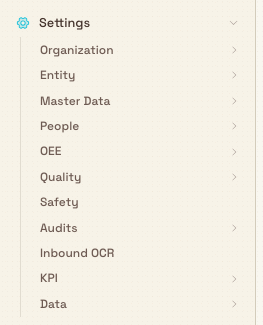
What appears here depends on your permissions. A Super user sees everything, including User roles and Integrations; an Entity admin sees the operational settings but not role management or integrations. If a group or page you expect is absent, it is almost always an access matter rather than a fault.
What administrators set up
Your organization and its sites
Your organization is your whole company in Bulk. Within it you run one or more entities: a single plant, factory, or workshop, which the app also calls a site. Each entity is a self-contained workspace with its own production, quality, people, and records.
From Organization Settings you manage the organization's name and localization (its timezone and locale), and the list of entities themselves. Adding a new site, renaming one, or adjusting organization-wide defaults all start here.
- Update organization settings: name, localization, and organization-wide preferences.
- Manage entities: create and maintain the sites your team works in.
- Update entity settings: configuration that belongs to one site rather than the whole organization.
People, roles, and access
Bulk does not offer open self-service sign-up. Administrators create accounts and decide what each person can reach, across three linked pages:
- Users: create accounts, invite people by email, assign each person a role, grant access to the sites they work in, and reset passwords when someone is locked out.
- User roles: create and maintain roles and the permissions inside them. The Type column identifies system and custom roles. System roles are read-only: you cannot edit, lock, or delete them: while custom roles are yours to shape. A custom role that still has users assigned to it cannot be deleted until you move those people to another role first.
- Access requests: approve or deny requests from users asking for access to a site.
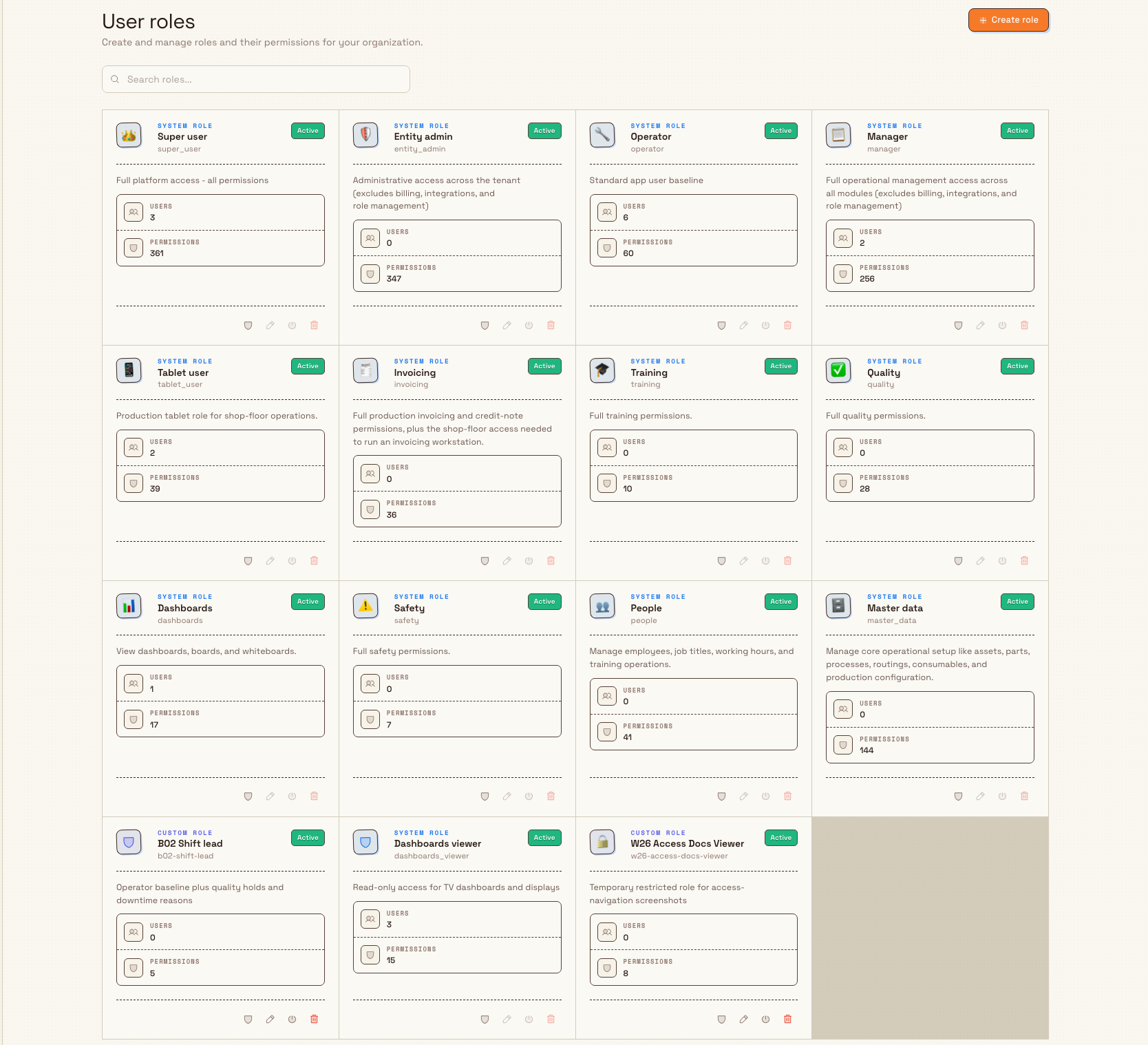
Full walkthroughs live in the access guides:
- Manage users: accounts, invitations, role assignment, and site access.
- Manage roles and permissions: build and adjust the roles behind that access.
- Review access requests: respond to requests for site access.
The master data behind production
Master data is the reference information the whole plant shares: the definitions everything else is built on. When a supervisor raises an order or an operator books a job, they are drawing on master data an administrator maintains: the customers you make for, the parts you produce, the routings (the ordered steps a job follows through the plant), the resources and assets (people, stations, and equipment), and the pricing used to quote and invoice. The Master Data group in Settings is where all of this is defined.
- Master data setup: the full set of master-data guides, from assets and routings to pricing and custom fields.
Oversight, data, and integrations
Beyond setup, administrators keep an eye on the system and connect it to the tools around it:
- Activity Logs record organization-wide activity for audit and compliance purposes. See Review activity logs.
- Data tools let you move information in and out: see Run data imports, Configure exports, and Configure reports.
- Integrations connect Bulk to other systems, such as the REST API, Microsoft Dynamics 365, and Model Context Protocol connections. Connecting outside systems requires the Super user role (or a custom role with the matching permissions); an Entity admin does not have integration access. See Integrations.
Apps
Apps is not a Settings group. On Home, open Your apps and select Browse apps.
Installing an app turns a launcher entry on for your workspace. It does not download software, grant roles, or prove a subscription. You need Edit account settings (advanced) (tenant.update) to install one. That permission is for the organization, not for one plant. The Super user role includes it. The Entity admin role does not. See Install workspace apps.
A day-one example at Wayne Corp
Wayne Corp, a UK precision-fabrication company, is bringing its Gotham Applied Sciences onto Bulk. Bruce Wayne, the organization's administrator, holds the Super user role.
- Bruce opens Organization Settings and confirms the organization name and timezone, then checks that the Gotham Applied Sciences entity exists under Entities.
- On User roles, Bruce reviews the default system roles and creates one custom role, Line Lead, that grants a supervisor slightly more than the standard Manager role: without touching the read-only system roles.
- On Users, Bruce invites the Gotham team by email, assigns each person a role (operators get the Operator role, supervisors get Line Lead), and grants everyone access to the Gotham Applied Sciences site.
- In Master Data, Bruce sets up the plant's assets and a couple of routings so production can start raising real jobs.
- A week later a new hire asks for access to a second Wayne Corp site. The request appears under Access requests, and Bruce approves it in a click.
By the end of the day the plant has its sites, its people, its roles, and enough master data for production to begin: all configured from the Settings area.
What you can expect to accomplish
As an administrator with the right role, you can:
- create and maintain your organization's sites, and set organization-wide and per-site settings;
- create user accounts, invite people, assign roles, and grant site access;
- design your own custom roles and adjust their permissions, while the default system roles stay protected;
- respond to access requests and reset passwords;
- maintain the master data that production, quality, scheduling, and finance depend on;
- review activity logs and, as a Super user, connect Bulk to other systems; and
- turn a workspace app on so its launcher entry appears, when your role includes Edit account settings (advanced) (
tenant.update).
Feature state and Beta areas
Administration is generally available: it is the standard, supported way to configure Bulk. A few points are worth knowing:
- Your access shapes what you see. The difference between Super user and Entity admin is real: role management, integrations, and billing are reserved for the Super user role (or an equivalent custom role). If a settings page is missing or read-only for you, that is by design.
- System roles are protected. You cannot edit, lock, or delete the built-in roles. Model your access with custom roles instead.
- Some administration areas are in Beta. A few settings: including Workflows, Currencies, and Displays under Organization, and Forms and Datasheets under Master Data: carry a Beta label in the product. They work, but they are still being refined and their behavior may change, so treat them as previews rather than finished features.
Troubleshooting
- The Settings area, or a page inside it, is missing. Your role does not include the permission that page needs. Ask a Super user to review your role in Manage roles and permissions, or to assign you a role that grants it.
- You cannot delete a custom role. A role with users still assigned to it is protected from deletion; the Users column tells you how many users are assigned. Reassign those people to another role on the Users page first, then delete the role.
- You cannot edit or delete a system role. That is expected: built-in system roles are read-only. Create a custom role to capture the permission set you want.
- A user says a whole plant is missing for them. They likely have an account but no access to that site. Grant it on the Users page, or approve their request under Access requests.
Related guidance
- Administration: the full set of configuration guides, grouped by area.
- Install workspace apps: turn a launcher entry on for your workspace when your role includes Edit account settings (advanced) (
tenant.update). - Manage users, Manage roles and permissions, and Review access requests: the access-control guides.
- Getting started: the first-run path every user follows, worth understanding so you can support your team.
- Browse by role: task guides for the other people who use Bulk, including managers, operators, quality and safety teams, people and training teams, and finance.
Browse by role
Find Bulk guidance by job: starting tracks for administrators, managers, operators, quality and safety, people and training, and finance teams.
For managers
What the Manager role in Bulk covers: plan and oversee production, watch performance, approve quality, safety, absence, and invoice decisions, and more.