For quality and safety teams
What the Quality and Safety roles do in Bulk: log and resolve quality issues, run risk assessments and incident reports, and complete audits.
Last updated
In Bulk: a Manufacturing Execution System (MES), the software your team uses to run day-to-day work on the shop floor: quality and safety work has its own home. If you investigate defects, disposition non-conforming parts, assess workplace hazards, or record incidents, this page is your map. It explains the two built-in roles that cover this work, the modules where each job lives, and links you to a short, step-by-step guide for every task. Read it top to bottom to get oriented, or jump straight to the job you need.
Quality and safety are handled by two separate roles in Bulk, because they are usually done by different people:
- Quality: logging and resolving quality problems: issues, non-conformances, corrective actions, holds, and structured problem-solving reports.
- Safety: protecting people: risk assessments, the risk matrix, and incident reporting.
You might hold one role or both, depending on how your plant is organised. A single quality-and-safety officer at a small site often has both; a larger site splits them.
Before you begin
To do quality or safety work you need two things in place:
- A Bulk account and access to at least one plant. A plant (Bulk also calls it a site or entity) is a single factory or workshop, and it is the context you work in. Accounts are created by an administrator's email invitation, not open sign-up, and an administrator grants you access to the sites you cover. If you are not set up yet, start with Getting started.
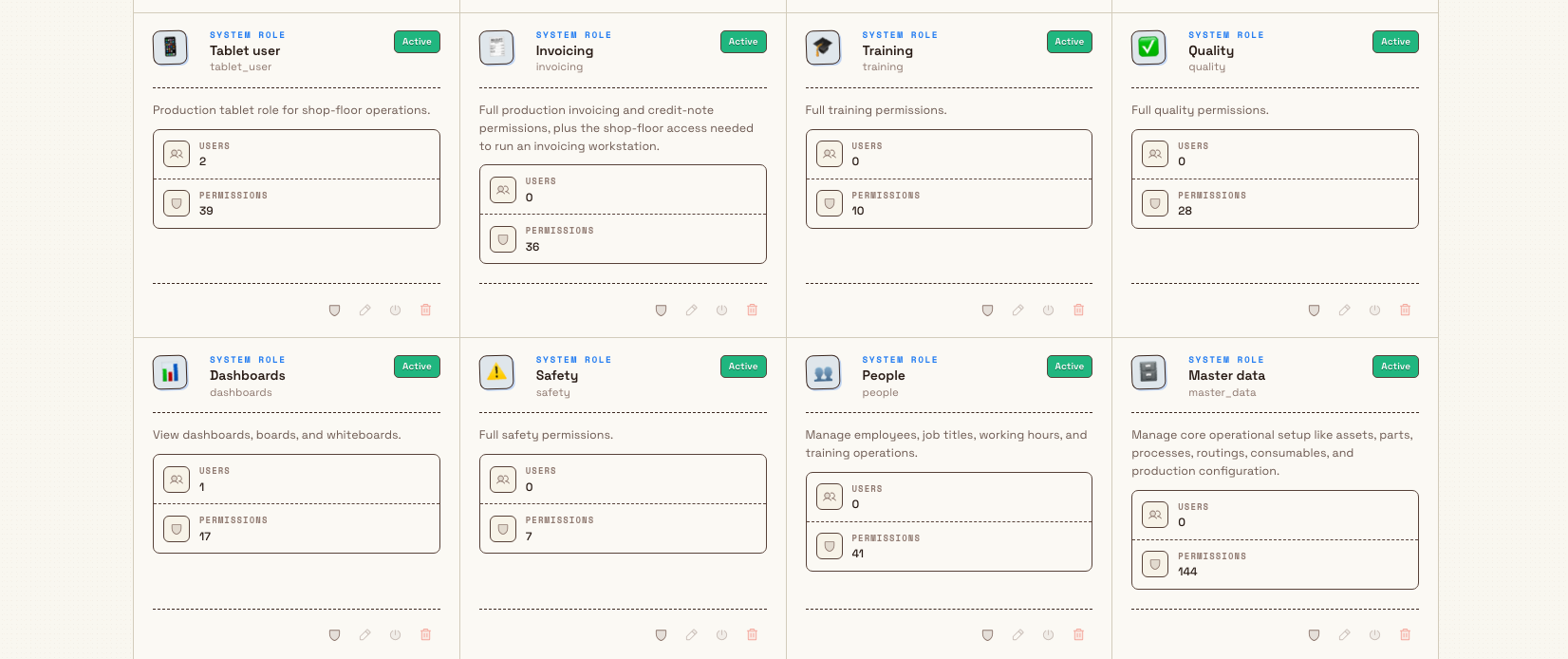
- The Quality role, the Safety role, or both. These are system roles: fixed, built-in roles that an owner or administrator assigns to you. You do not set them up yourself, and their permissions cannot be edited: you either have the role or you do not. An administrator assigns them from Settings → Organization → User roles. To request one, see Manage users and Manage roles and permissions.
Your menu reflects your access
The MODULES list in the left sidebar only shows areas your role and plant allow. If Quality, Safety, or Audits is missing when you expect it, that is almost always an access matter, not a fault: see Understand access and visible navigation.
What the Safety role lets you do
The Safety role (its icon in the roles list is ⚠️) is built around protecting people. It grants permission to view the Safety module, create and approve risk assessments, create and approve incidents, manage safety types, and manage the shared fishbone (cause-and-effect) categories used in investigations. You reach this work from the Safety module in the MODULES group of the sidebar, which opens on a page titled Safety.
Assess and control risk
A risk assessment documents a hazard, scores how serious and likely it is, and records the controls that reduce it. The Risk Assessments page lists them; New Assessment starts one. The separate Risk Matrix page plots your assessments by severity and likelihood so the highest risks stand out.
- Create a risk assessment and review a risk assessment.
- Score risk with the matrix: understand how severity and likelihood combine into a risk level.
- Approve a risk assessment: approval makes an assessment active and official, and is reserved for people who hold the Safety role (or a manager). The approve control only appears when Bulk has confirmed you may use it.
Report and investigate incidents
An incident is an accident, injury, or near-miss. The Incidents page (headed Incident Reporting) is where you capture what happened, investigate the cause, record immediate actions and preventive measures, and close it out.
- Report an incident and investigate an incident.
- Approve or close an incident: like assessments, closing an incident is an approval step gated to the Safety role or a manager.
Check that machines are safe to run
The Asset Readiness page in the Safety module shows, at a glance, which machines have passed the pre-use check that confirms equipment is safe before it runs, which are still outstanding, and which are running under a manager override.
The pre-use check itself is run as an audit (see the Audits section below), so acting on the checks may need audit access as well as the Safety role.
What the Quality role lets you do
The Quality role (its icon is ✅) covers finding, containing, and resolving quality problems. It grants permission to view the quality dashboard and production quality, work with issues, non-conformances (NCRs), corrective and preventive actions (CAPAs), quality holds, and structured 8D problem-solving reports, plus manage quality and fishbone categories. You reach it from the Quality module in the sidebar, which opens on a page titled Quality.
Log and resolve quality issues
A quality issue is the everyday record of a defect or problem. The Quality Issues page lists them. New Issue opens Create Quality Issue on one scrolling form. From an issue you set a disposition and link related records so the trail from problem to resolution stays connected.
Manage non-conformances and holds
A non-conformance report (NCR) is a formal record that a part or batch did not meet its requirement. The Non-Conformance Reports page tracks each one through review, an MRB (Material Review Board) decision, disposition, and closure. New NCR opens one scrolling form. A quality hold quarantines material so it cannot move forward until it is cleared. The New Quality Hold page is still a three-step wizard.
- Create an NCR and disposition an NCR. The MRB step decides what happens to non-conforming material.
- Place a quality hold and release a quality hold. The Quality Holds page lists what is currently held.
Drive corrective action and problem-solving
A CAPA (corrective and preventive action) is the action you take so a problem does not recur. An 8D report is a structured, eight-discipline problem-solving record for serious or repeat issues. New CAPA and New 8D Report each open one scrolling form. The Corrective & Preventive Actions page and the 8D Reports page manage these.
- Manage a CAPA and manage an 8D report.
- See how quality links to production. Issues, holds, and NCRs connect back to the orders and jobs they came from.
Completing audits
Much quality and safety work is verified through audits: structured checklists you complete against an area, a machine, or a process. Bulk groups them in the Audits module: Safety Audits, Pre-use Checks, Quality Audits, Maintenance Audits, and Custom Audits.
- Audits reference: the module overview.
- Start an audit and complete an audit response.
- Run a safety audit, run a quality audit, and run a pre-use audit.
Audits are governed separately
Audit access is not part of the Quality or Safety role. Auditing is controlled by its own permissions, which administrators, managers, and some operators hold. If you need to create, run, or sign off audits as well as your quality or safety work, ask an administrator to grant audit access alongside your role. See Run an audit programme.
A day at Wayne Corp
Say you are the quality-and-safety officer at Wayne Corp, a UK precision-fabrication company, working at its Gotham Applied Sciences. An administrator has given you both the Quality and Safety roles and access to Gotham.
- You sign in and open Quality from the sidebar.
- An operator flagged a batch of brackets with cracked welds. You open Quality Issues, choose New Issue, and record the defect on Create Quality Issue. That page is one scrolling form.
- Because the whole batch is suspect, you place a quality hold so the parts cannot ship, then raise an NCR to review them formally. At the MRB step you disposition the batch as rework.
- To stop it recurring, you open a CAPA to retrain the welding cell, and: because this has happened before: start an 8D report.
- Switching to Safety, you write a risk assessment for the new grinding station, score it on the Risk Matrix, and submit it. Your safety lead approves it, and it becomes active.
- Mid-afternoon a near-miss is reported. You open Incidents, capture what happened, log the immediate actions, and start the investigation.
By the end of the day every problem: quality and safety: is recorded, contained, and moving toward resolution, with the trail back to the job and the machine intact.
Expected result
With the Quality and/or Safety role and access to your plant, you can reliably:
- open the Quality and Safety modules and see the work that applies to your plant;
- log quality issues, raise and disposition NCRs, place and release holds, and drive CAPAs and 8D reports;
- write and (with the Safety role) approve risk assessments, score them on the risk matrix, and report and close incidents;
- check which machines are cleared to run on Asset Readiness; and
- complete audits where an administrator has also granted you audit access.
What is outside these roles
The Quality and Safety roles are focused on quality and safety work, not on running or configuring the wider system. A few related things sit elsewhere:
- Audits. As noted above, auditing has its own permissions and is not included in either role.
- Setting up master data and plant settings. Building assets, routings, forms, and configuring the plant is administrator and manager work.
- Managing people and roles. Inviting users, assigning roles, and changing plant access are administrator tasks.
- Approving production paperwork. Approving inbound documents and invoices is handled by managers and administrators, not by the quality or safety role.
If you need one of these, ask a manager or administrator. To see how the roles fit together, read For managers and For administrators.
Feature state and what to expect
The Quality and Safety roles and their core surfaces are generally available. The Safety module (risk assessments, the risk matrix, incidents, and asset readiness) and the Quality module (issues, NCRs, CAPAs, holds, and 8D reports) are the standard, supported tools for this work.
In the Quality menu, Home, Issues, NCRs, CAPAs, Holds, and 8D Reports do not carry a Beta label. What you see also depends on the modules enabled for your plant.
Troubleshooting
- The Quality or Safety module is missing from your sidebar. This is an access or module-availability matter, not a fault. Ask an administrator to confirm you hold the relevant role and that the module is enabled for your plant: see Understand access and visible navigation.
- You can open a risk assessment or incident but cannot approve it. Approval is a distinct permission. Creating is one grant; approving is another that the Safety role (or a manager) holds. If you need to approve, ask an administrator to confirm your role: see Manage roles and permissions.
- You can do quality or safety work but not audits. That is expected: audits are governed by separate permissions. Ask an administrator to grant audit access alongside your role.
- You do not have the role yet. Ask an owner or administrator to assign the Quality or Safety role from Settings → Organization → User roles. Because these are system roles, they are assigned as-is and cannot be customised.
Related guidance
- Manage safety risk and Resolve a quality problem: the end-to-end routines that tie these steps together.
- Improvement and compliance reference: full detail for the Quality, Safety, and Audits modules.
- Browse by role: guides for the roles you work alongside, including For operators, For managers, and For administrators.
For operators
What the Operator role does in Bulk: run workstations, complete audits and tasks, capture documents, and check stock, with a step-by-step guide for each.
For people and training teams
Your starting point for People and Training: who can open them, and where to manage employees, attendance, the time clock, absences, shifts, and training.