For people and training teams
Your starting point for People and Training: who can open them, and where to manage employees, attendance, the time clock, absences, shifts, and training.
Last updated
If your job is looking after the people at a plant: hiring and record-keeping, time off, shift cover, the org chart, and keeping everyone's training and certifications current: this page is your home base. Bulk is a Manufacturing Execution System (MES): the shared software your organization uses to run day-to-day work on the shop floor and in the offices around it. Two of its areas are built for you: People and Training. This guide explains what each area covers, who can open it, and links to the step-by-step article for every task, so you can read it top to bottom or jump straight to what you need.
A quick note on words used throughout Bulk. A plant (Bulk also calls these sites or entities) is a single site you operate: a factory, workshop, or fabrication plant: and each plant is its own workspace with its own employees, absences, and training. Your role is the set of permissions an administrator gives you; it decides which areas you can open and what you can change.
What the People and Training areas cover
In the navigation sidebar, People and Training are two separate areas that sit next to each other. Together they give a workforce or training team one place to manage everyone at the plant and everything they need to be qualified for the work.
- People handles the workforce itself: who works at the plant, how they are organized, when they are away, and who is on the clock. Its sidebar holds Home, News, Employees, Org Structure, Absences, Absence Calendar, and Attendance. Attendance stays hidden unless your role includes View attendance and timesheets (
attendance.view). Department, job title, shift, absence type, and time clock setup live in Settings. - Training handles skills, certifications, and compliance: what each person is trained for and what is due to expire. Its sidebar holds Home (the training dashboard), Records, Matrix, and Catalog.
The two areas are close companions: you create a person once in People, and their training then follows them in Training.
Before you begin
To use the People and Training areas you need to be:
- Signed in and working in a plant. After you sign in, Bulk opens your plant or asks you to choose one. See Navigate Bulk for how to move around the workspace.
- Given the right role. You see the People and Training areas when your role grants People or Training permissions. Bulk ships two ready-made roles for this: People: "Manage employees, job titles, working hours, and training operations": which covers both areas, and Training: "Full training permissions": for training-only specialists. Manager roles cover People without Training; administrator roles cover both. An administrator assigns your role; you cannot grant it to yourself.
Missing one of these areas?
If People or Training is not in your sidebar, it is almost always because your role does not include that area's permissions yet: not a fault. Ask your administrator to assign you the People or Training role, or to add the permissions to your existing role.
What you can do in People
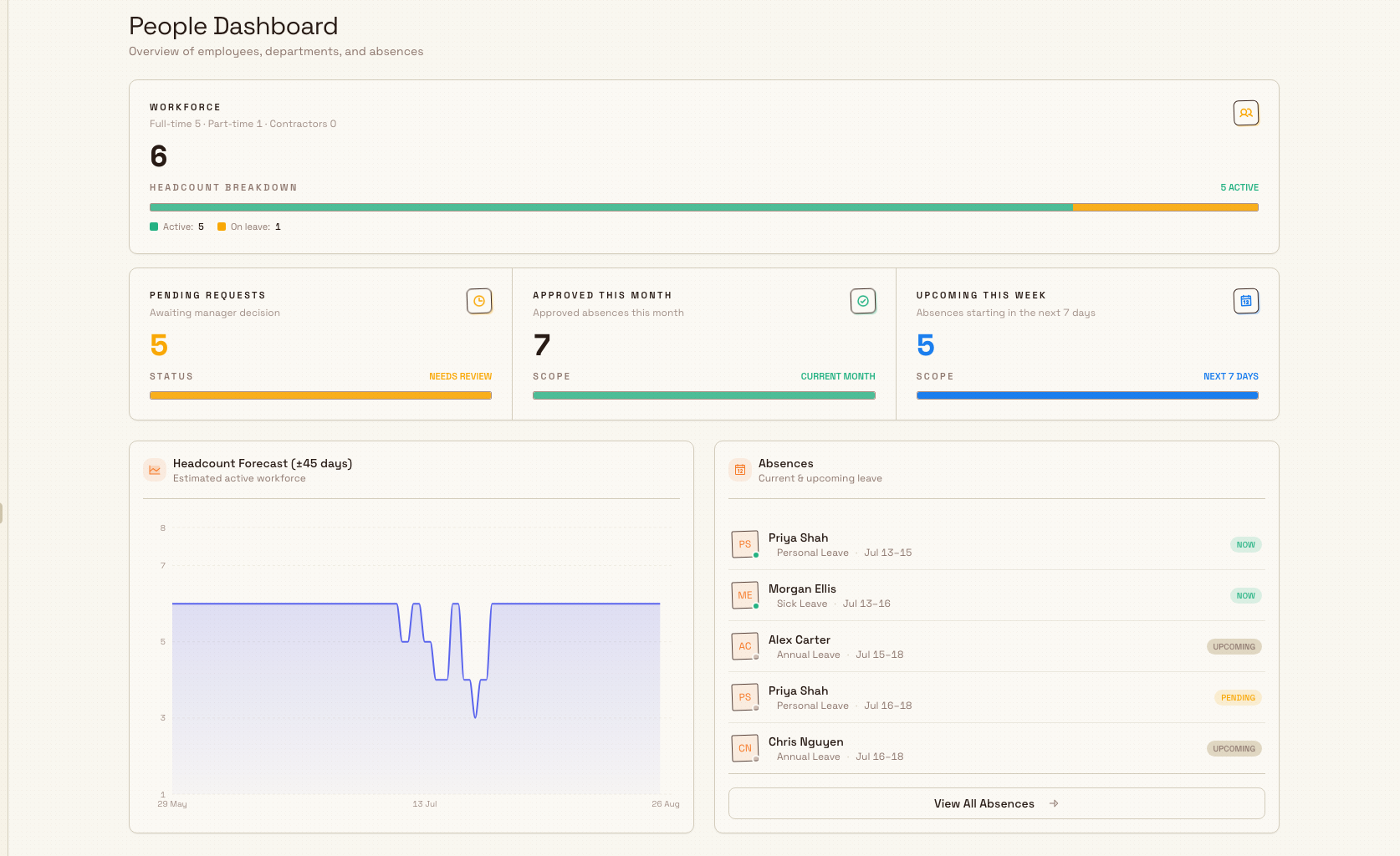
The People area opens on Home (/people/home). The page title is People, and there is no description under it. When your role includes attendance.view, the first panel is Today's floor. The line under that title is From the time clock, and the stamp in the header says whether the numbers are live. When the panel lists people, the counts are On the clock, Not in yet, On break, Due later, and Done. On break is the break counter. Under that count the note reads No breaks running, Counting break time, or Longest and a duration, ending with over limit when a break has passed the limit. Press a count to open Attendance for that group. This is a live floor panel, not a read-only headcount board. With attendance.manage you can Clock out someone who is on the clock or on a break, or Add punch for someone who is not in yet or due later and has no open entry. Open attendance goes to the full board. Workforce and absence summaries, including the headcount forecast, sit under the floor. Without attendance.view, Today's floor is not on the page, and the summaries still are. How to read the panel is in People. From Home you work with:
- Employees: the record for each person at the plant. Add a new starter, review someone's details, and keep records current. See Create an employee and Review an employee record.
- Departments and Job Titles: the groups and roles you sort people into. See Manage departments and Manage job titles.
- Org Structure: the reporting lines between people, shown as an organization chart. See View the organization structure.
- Absences and the Absence Calendar: record time off, approve requests, and see who is away at a glance. See Record an absence and Use the absence calendar.
- Shifts: the working patterns people are assigned to. See Manage shifts.
- News: plant-wide announcements you publish for everyone. See Publish company news.
- Attendance: who is on the clock today, with timesheets and punch history. The sidebar item is there only when you can view attendance. See Review attendance.
- Time clock tablet: the shared screen at
/clock, where a person enters a PIN to clock in, start a break, or clock out. It is not in the People sidebar, and it is not the Attendance board. See Use the time clock tablet.
The image below shows the workforce and absence cards on Home. Today's floor sits above these cards when you can view attendance.
What you can do in Training
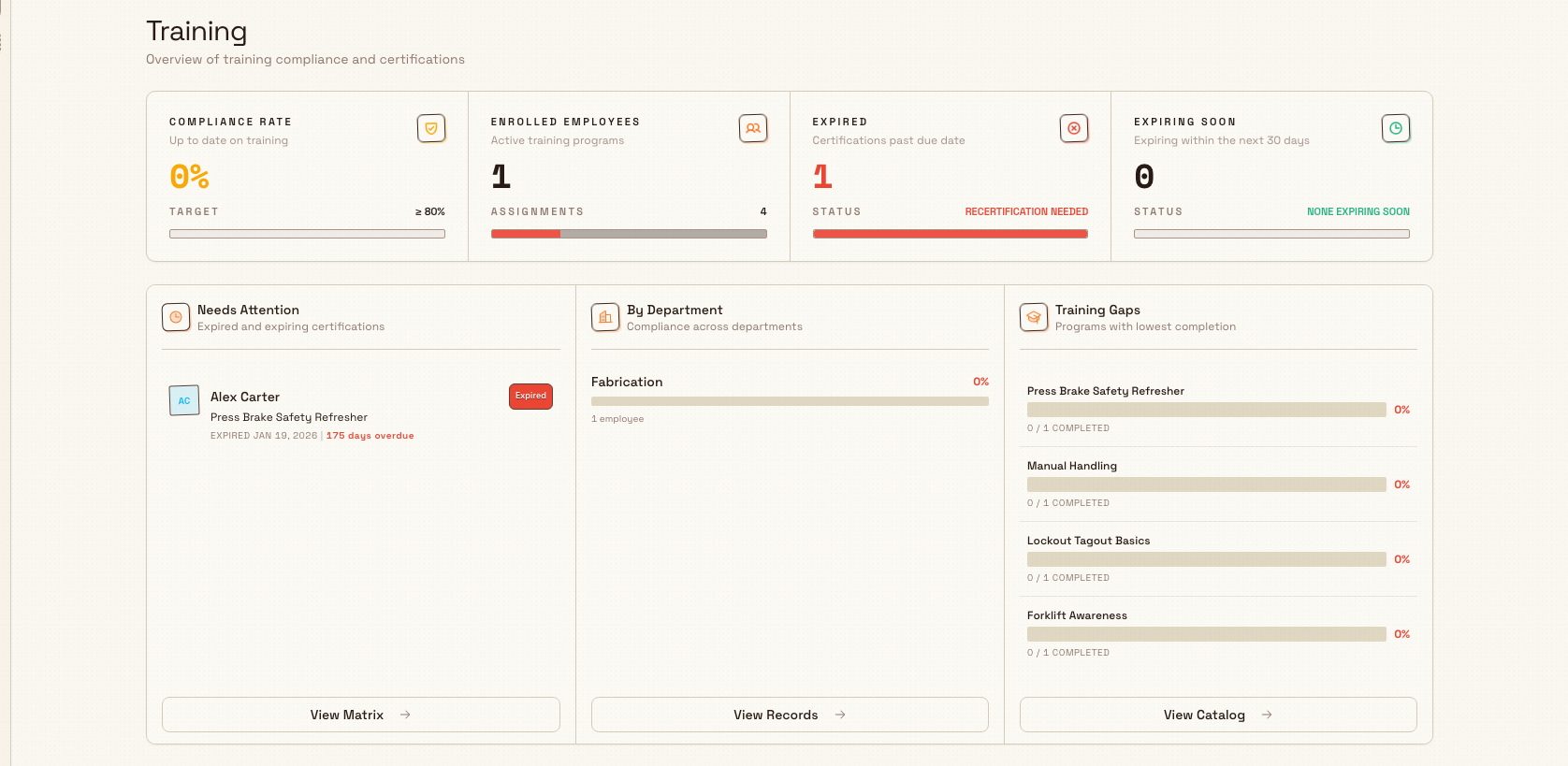
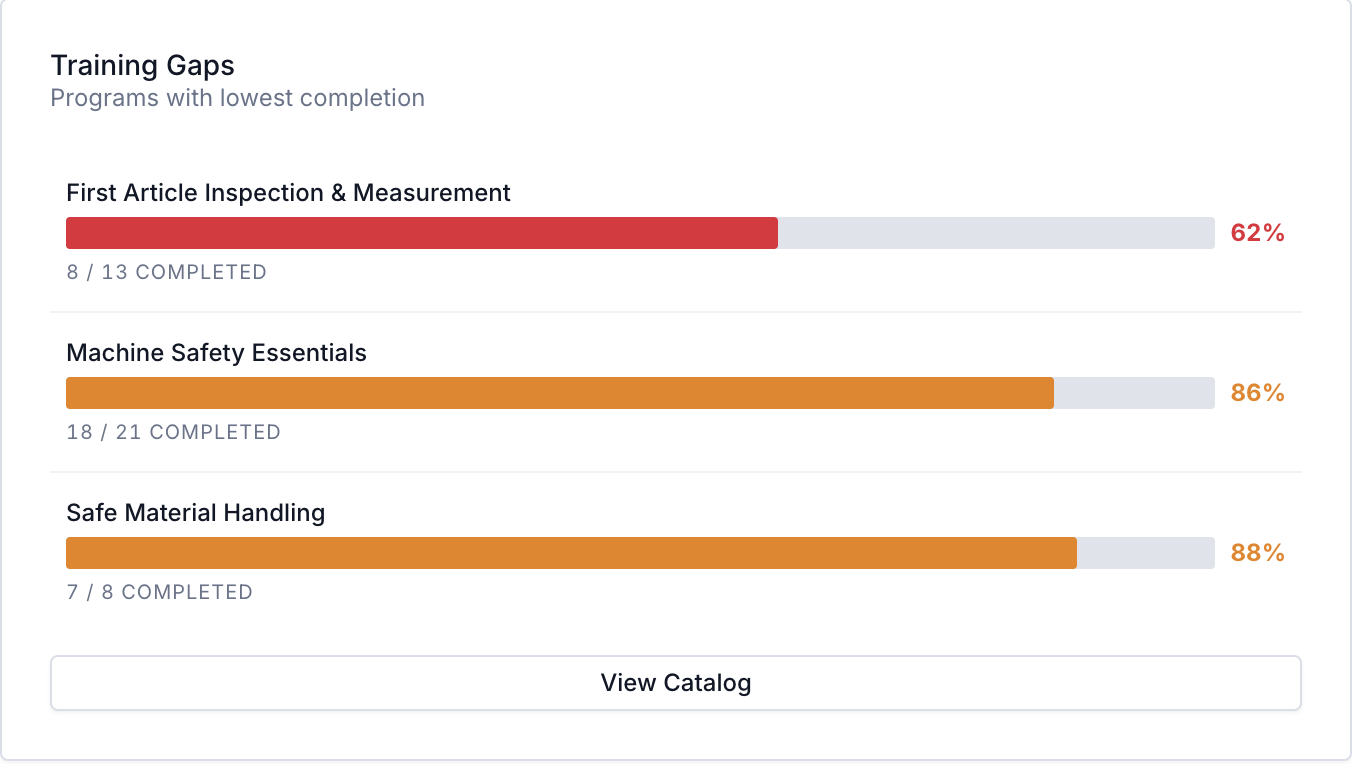
The Training area opens on a dashboard summarizing training compliance and certifications, with Needs Attention, By Department, and Training Gaps widgets. From there you work with:
- Records: each person's training assignments and their status. See Review training records and Assign training.
- Catalog: the library of training programs and the categories that organize them. Build a program, set what must be completed first, and browse what is available. See Browse the training catalog, Create a training program, Manage training categories, and Set training prerequisites.
- Matrix: a grid of people against trainings, titled the Versatility Matrix, that shows at a glance who is qualified for what and where your coverage is thin. You can save named layouts of specific people and trainings. See Use the training matrix and Save a training matrix layout.
- Completion and renewal: record that someone finished a training, attach evidence, and renew certifications before they expire. See Record training completion and evidence and Renew expiring training.
A day at Wayne Corp
Suppose you are Priya, the people and training coordinator at the Gotham Applied Sciences, part of Wayne Corp, a UK precision-fabrication company. A new welder, Sam, starts on Monday.
- In People → Employees you create Sam's employee record, set his job title to Welder, and add him to the Fabrication department.
- You assign Sam to the early shift so he shows up correctly on the rota and the Absence Calendar.
- In Training → Records you assign Sam the site induction and the coded-welding certification from the Catalog, which enforces the prerequisites you set on those programs.
- Later you open the Versatility Matrix and see that only two welders hold the pressure-vessel qualification. You raise it with the shift manager and schedule training to close the gap before a big order lands.
- When a welding certificate is a month from lapsing, the Training dashboard's Needs Attention widget flags it, and you renew it so the plant stays compliant.
In one place you have brought a new starter onto the plant, made sure the floor has the skills it needs, and kept certifications from lapsing.
Setup that lives in administration
A few things the People and Training areas depend on are configured once, in Settings, usually by an administrator:
- Configure departments and job titles
- Configure absence types: the kinds of leave people can book
- Configure shifts: the working patterns you assign people to
- Set up the time clock: pair a shared tablet and set the PIN, break, rounding, and auto clock-out rules for this site. Opening the page needs
time_clock.manage. The People role includes that permission. The Manager role does not.
See People configuration for the full setup overview. If you have a People or administrator role you may be able to manage some of this yourself; a training-only role will not.
Expected result
Once you are set up you can:
- keep an accurate record of everyone at the plant, organized into departments, job titles, and reporting lines;
- record and approve time off, and see plant coverage on the Absence Calendar;
- see who is on the clock on Home, and open Attendance for the timesheets behind it;
- assign, track, and complete training, and keep certifications current before they expire; and
- read the Versatility Matrix to spot where skills coverage is thin.
Feature state and what to expect
The People and Training areas are generally available: they are standard, supported parts of Bulk, and neither carries a Beta label. Two things are worth knowing:
- What you see depends on your access. People and Training permissions are granted separately, so a training specialist may see Training but not People, and vice versa. This is by design.
- Your plant's data drives every view. Today's floor, the summaries under it, the matrix, and the calendars reflect the employees, clock punches, absences, and training records that exist in your plant, so a new or lightly used plant will look sparse until records are added.
Related guidance
- People and training (product reference): the full reference for both areas
- People: every People task in detail
- Training: every Training task in detail
- People and training (workflows) and Manage workforce readiness: end-to-end processes that string these tasks together
- Review attendance: who is on the clock, timesheets, and corrections
- Use the time clock tablet: the shared tablet at
/clock - Set up the time clock: pair a tablet and set the clock rules
- People configuration: administrator setup for departments, job titles, absence types, shifts, and the time clock
- Browse by role: guides for other roles
- Navigate Bulk: find your way around the workspace
For quality and safety teams
What the Quality and Safety roles do in Bulk: log and resolve quality issues, run risk assessments and incident reports, and complete audits.
For finance teams
Where finance teams work in Bulk: raise, approve, and issue invoices and credit notes for production, and set up the pricing and currencies behind them.