Inbound
Understand how the Inbound module turns customer paperwork into structured inbound documents and production jobs, and where to manage each step.
Inbound is where customer work enters your plant. When a customer sends a purchase order, an order form, or a job sheet, you turn that paperwork into an inbound document — a structured record with line items (the individual parts or tasks to make) that can be reviewed, approved, and released into production. Use Inbound whenever a new order arrives and needs to become trackable work on the shop floor. Customer and contact pickers on the document controls stay aligned with the shared master-data customer records, including hiding archived customers from new selections.
An inbound document holds the order header (customer, references, dates, priority) and its line items. Once the document is approved, its items become production jobs, so Inbound is the bridge between "paperwork arrived" and "work is running".
Guidance for the Inbound document workspace lives in the documentation rather than a page-level tour. For instructions while you work, open Help → Search docs and use the Inbound guides.
The Upload → Inbound → Production pipeline
Every piece of inbound work moves through three stages, shown as a stepper on uploaded files: Upload (the file lands in Bulk), Inbound (the file is read and a document with items is created), and Production (jobs are created from the document's items). Keeping this pipeline in mind tells you where any order currently sits.
Where to find it
Open Inbound from the main sidebar. The group contains five destinations:
- New Document — start a document by hand, typing the header and items.
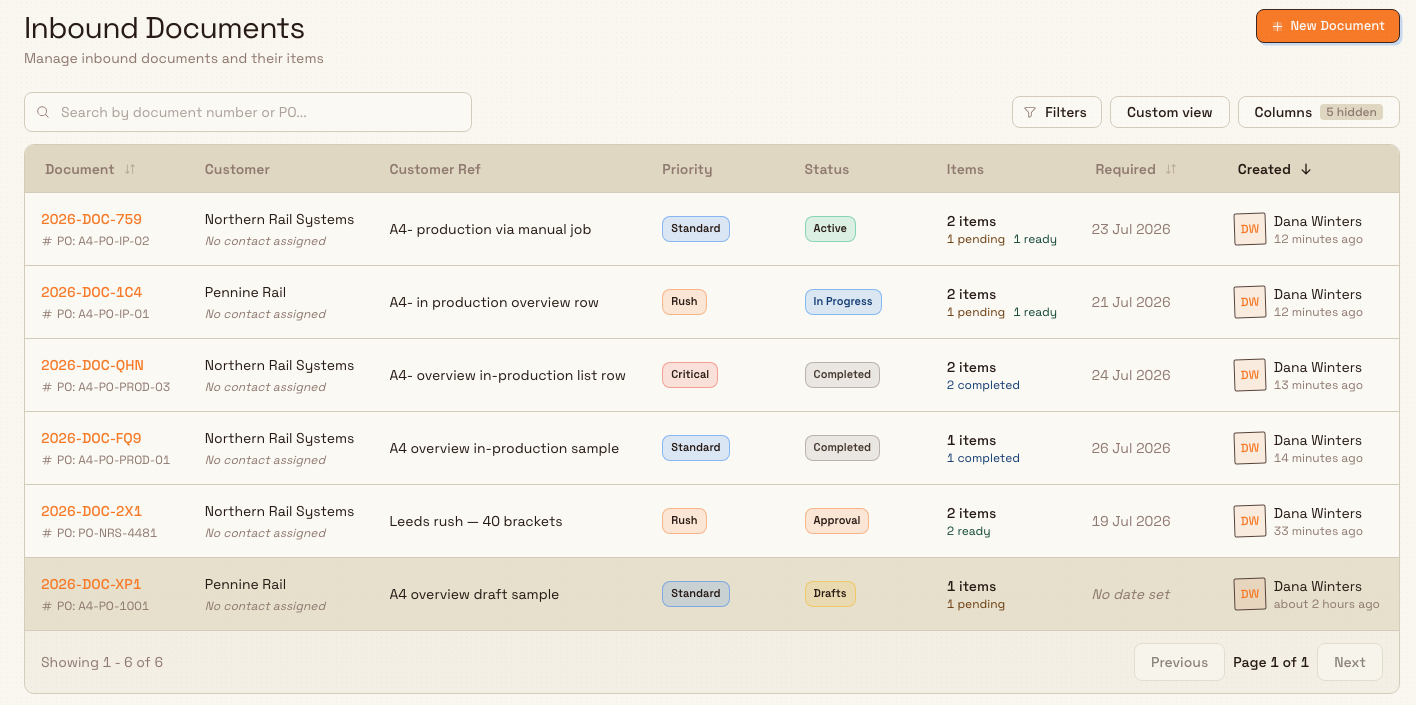
- Inbound Documents — the list of every inbound document and its status. This is also the screen you land on when you open Inbound.
- Scan & Process — a focused, one-item-at-a-time flow for scanning a label and completing an item.
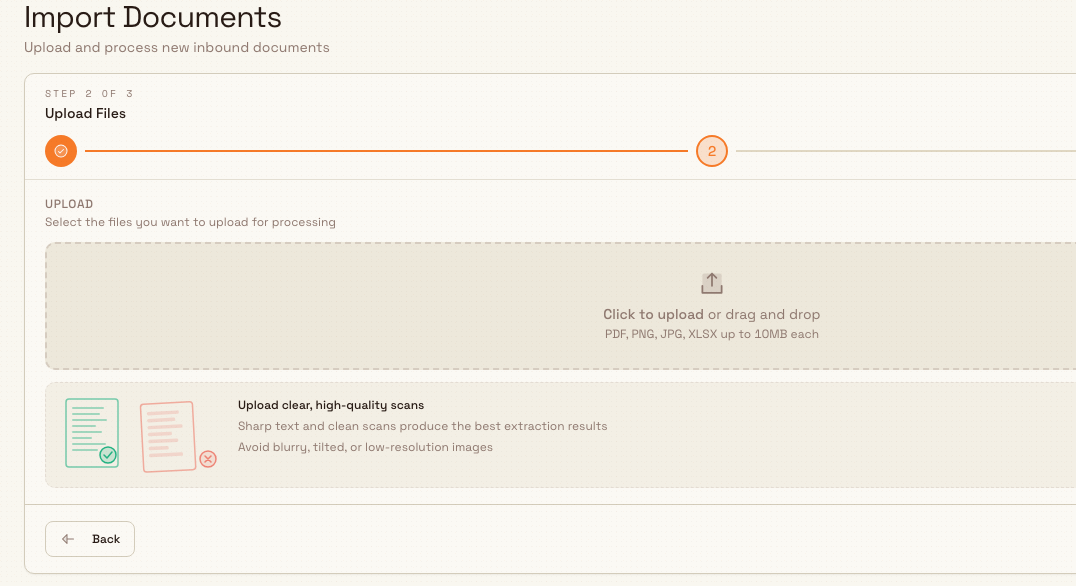
- Import Documents — upload customer files so Bulk can read them and build documents automatically.
- Import History — review past upload sessions and how each file was processed.
Opening a non-draft document always takes you to the current document workspace (document view V2). Older classic links and bookmarks redirect there automatically.
inbound.overview-01
The list uses status pills for quick filtering. Open Filters for customer, source, and date filters. Use the views control to show, hide, reorder, resize, or pin columns and save the layout.
Search matches the document number, PO number, customer reference, customer, assigned contact name or email, notes, and values stored in document custom fields. Match chips can appear under the document number to show what matched. They appear only while a search query is active.
Right-click a document row to Open, Open in new tab, Copy document number, Print labels, or Delete. Copying writes the visible document number to the clipboard and confirms Document number copied. Print labels is disabled when the document has no items, and Delete is disabled unless the document's state and your permissions allow it.
The item grid follows spreadsheet keyboard navigation. Enter moves down the current column and Shift+Enter moves up. For Part, Process, Routing, Services, and custom-field dropdowns, use F2, click, or start typing to open the picker. If the picker search is empty, pressing Enter closes it without replacing the selected value.
To repeat existing work, open the document's reuse action and choose Clone as draft. Bulk creates the new draft in the background and shows item-copy progress in the drawer, so documents with hundreds or thousands of line items do not need to stay within one save operation. Keep the drawer open until the clone completes; if it stops because the source changed or your access was removed, start a new clone from the current source.
Document dates, required dates, and custom fields configured as Date keep the selected calendar day across the document, item grid, Scan & Process flow, lists, and generated PDFs. They use the current plant's timezone, so changing your computer timezone does not move them to the previous or next day. Fields configured as Date and time, and event times such as when work was received, keep their exact recorded time. Weekly filters follow the organization's shared week-start rule, independent of the plant timezone.
Published workflows can respond when an inbound document or item moves through its normal status process. A Workflow Action never invents another approval or human sign-off stage: when a certified inbound Action is available, it calls the same underlying operation as the Inbound screen, applies the same validation and permissions, and writes the same history. Use the workflow run log to inspect a failure and retry it after the underlying problem is fixed.
Two ways work enters Inbound
Inbound documents are created in one of two ways, and the document records which source it came from:
- Import Documents (automatic). Upload a customer file — for example a scanned or emailed purchase order — under Import Documents. Bulk reads the file automatically (a process called extraction, which uses OCR to pull text and values off the page) and builds an inbound document with its line items filled in. Uploading several files at once creates an upload session, which you can revisit later under Import History. Clear, sharp scans extract far better than blurry or tilted images.
- New Document (manual). When there is no file to upload, choose New Document and type the header and items yourself. The draft also includes the same Forms section as an open document, so you can attach and fill required forms before you select Create document. This suits phone orders, walk-ins, or work you are recording after the fact.
When you select a customer, you can also assign one of that customer's contacts. Bulk carries that contact onto the production order and shows it below the customer on the Orders and Jobs lists.
If a customer allows more than one currency, the customer picker shows one row for each allowed currency and puts the customer's default first. Choosing a row sets both the customer and document currency. Choose the intended currency before adding items or services; a populated document blocks a direct currency re-pick so existing prices cannot be left under the wrong currency.
inbound.overview-02
The inbound document lifecycle
Every inbound document carries a status that shows where it is in its life. The list and each document header display this status so you always know what stage an order is at:
- Draft — being built; fully editable.
- In progress — actively being worked; still editable, and ready to be submitted for approval.
- Pending approval — submitted and waiting for an approver to accept or send it back.
- Approved — cleared to create production jobs.
- In production — jobs have been created and the work is running.
- Completed — finished. This is a final state.
- Cancelled — stopped and closed. This is also a final state.
- On hold — paused. Releasing a hold returns the document to whatever status it had before it was held.
A document can only be edited while it is in Draft or In progress. Line items follow their own shorter path — pending (still being prepared), ready (checked and cleared), then job created once the item has become a production job.
Bulk records each document and item status change with the previous status, the new status, who made the change, and when it happened. Automatic changes, such as approval creating jobs or all jobs completing a document, use the same history as manual changes. This keeps the document audit trail and historical reporting aligned with the status shown on screen.
Choose or convert the document currency
When you create a document manually, the customer picker shows one choice for each currency allowed on that customer. The customer's default currency appears first.
An empty editable document can be re-picked in another allowed currency. Once the document has an item or service, changing the picker would only relabel stored prices, so Bulk blocks that shortcut. Open Actions → Convert currency instead. Choose an allowed target, review the dated exchange rate and affected item and service counts, then start the conversion. Bulk updates the document in bounded background pages, shows progress, and writes one conversion entry to the document history.
Convert currency is unavailable when the document is closed or locked, has no customer, has no other allowed target, or your role cannot update inbound documents. The conversion also cannot start until the rate matrix has a rate covering the document's value date: its received date, or its required date when no received date is stored, or finally its creation date.
Who can do what
Inbound respects the role assigned to each person, so responsibilities can be separated between the people who prepare work and the people who approve it.
- Operators can create, edit, and submit inbound documents, upload and import files, and put work on hold — but they cannot approve a document or delete one.
- Managers can do everything operators can, and can also approve documents and delete them.
- Entity admins and Owners have full access, including approving, deleting, and configuring how files are read (see Feature state and limitations below).
Approval keeps a second set of eyes on the work
Because the person who submits a document usually cannot approve it, an approver (a Manager, Entity admin, or Owner) reviews the items before they turn into production jobs. Plan your team's roles so that at least one approver is available for the plants that use Inbound.
Example: an order at Granite Peak
At Granite Peak Manufacturing's Leeds Fabrication Plant, a coordinator receives an emailed purchase order (PO-88231) from a customer, Pennine Rail, for a batch of laser-cut mounting brackets. The coordinator opens Import Documents and uploads the PO. Bulk reads it and creates a new inbound document with the customer, the PO reference, and each bracket line already listed as an item.
The coordinator opens the document, checks the extracted quantities and part numbers against the original PO, fills in any required fields, and marks the items ready. They set the document to In progress and submit it for approval. A production manager opens the Pending approval document, confirms the details, and approves it. The items become production jobs, the document moves to In production, and the brackets are now scheduled work on the shop floor — all traceable back to Pennine Rail's original PO.
Print labels and documents
From an inbound document open Print, or right-click its row in the Inbound Documents list and select Print labels. You can also print from the document Actions menu. The same Print dialog is used across inbound and production: pick a category when both apply, choose a published template, select items or jobs, then export a merged PDF or a ZIP of separate files.
You can include up to 1,000 items in one export. Smaller batches finish right away; larger ones show a progress dialog while Bulk builds the file in the background, with Cancel and Download when ready. Only items you are allowed to view are included.
Published layouts are managed under Manage PDF templates.
Feature state and limitations
Inbound is generally available. A few things are worth knowing before you rely on it:
- Extraction is an assist, not a guarantee. Because files are read automatically, extracted values should always be checked against the original document before approval, especially quantities and part numbers. Poor-quality scans reduce accuracy.
- Some files need attention. A file can fail validation, extraction, or document creation. Failed extraction and failed document creation can be retried from the file; a file that fails validation cannot be retried and must be re-uploaded.
- Final statuses cannot be reopened. Once a document is Completed or Cancelled, it stays there — it is not a temporary pause. Use On hold when you only need to pause work.
- Configuring extraction is admin-only. How files are read is set up under Settings by an Entity admin or Owner; operators and managers work with the results rather than the configuration.
- Populated documents use explicit conversion. After an item or service exists, use Actions → Convert currency instead of re-picking the customer and currency.
Related guidance
Bring work in:
Review and prepare:
- Review an inbound document
- Edit an inbound document
- Work with the inbound grid
- Manage inbound services and items
- Update inbound custom fields
- Attach files to inbound work
- Scan and process an inbound item
Approve and produce:
Operations
How Bulk's operations areas — Inbound, Production, Scheduling, Inventory, and Finance — work together to turn incoming customer work into produced, tracked, and invoiced output.
Create an inbound document
Create an inbound document manually, reuse a saved document setup, add forms, and check the requirements before starting work.