Edit an inbound document
Change an in-progress inbound document's details and line items, and understand when editing is locked.
An inbound document is a customer order or purchase order that Bulk has captured — either extracted automatically from an uploaded PDF or entered by hand — so your plant can turn it into production work. After a document exists, its details rarely stay perfect: a customer sends a corrected PO number, a required date moves, a line quantity is wrong, or a part was matched to the wrong process. Editing lets you fix those details in place instead of starting over.
This page covers editing a document that is still being processed. It explains the two things you can change — the document's own details and its line items — when editing is allowed, and what happens when a document is locked.
Before you start
You can edit an inbound document only when both of these are true:
- You have the right permission. Changing a document's details needs the update inbound documents permission (
inbound_documents.update); changing its line items needs the update inbound items permission (inbound_items.update). In the default roles, both are granted to Operator, Manager, Entity admin, and Super user. If you do not have them, you can still open and read the document, but the edit controls are hidden or disabled. - The document is in an editable state. Bulk only allows edits while a document is a draft or in progress. Once it moves further along the workflow — pending approval, approved, in production, completed, cancelled, or on hold — it is read-only until it returns to an editable state.
Drafts open in the document editor
A document still in draft opens in the full document editor (the same screen you used to create it), not the view described here. The Edit document dialog and line-item editor on this page apply to documents that are in progress. See Create an inbound document.
Open the document
- Go to Inbound and open the Inbound Documents list.
- Select the document you want to change. An in-progress document opens on its detail page, showing the document details, its line items, and — where available — the original file alongside them.

inbound.edit-document-01
Edit the document details
The document's own details — customer, references, dates, priority, notes, and any custom fields — are changed in one place.
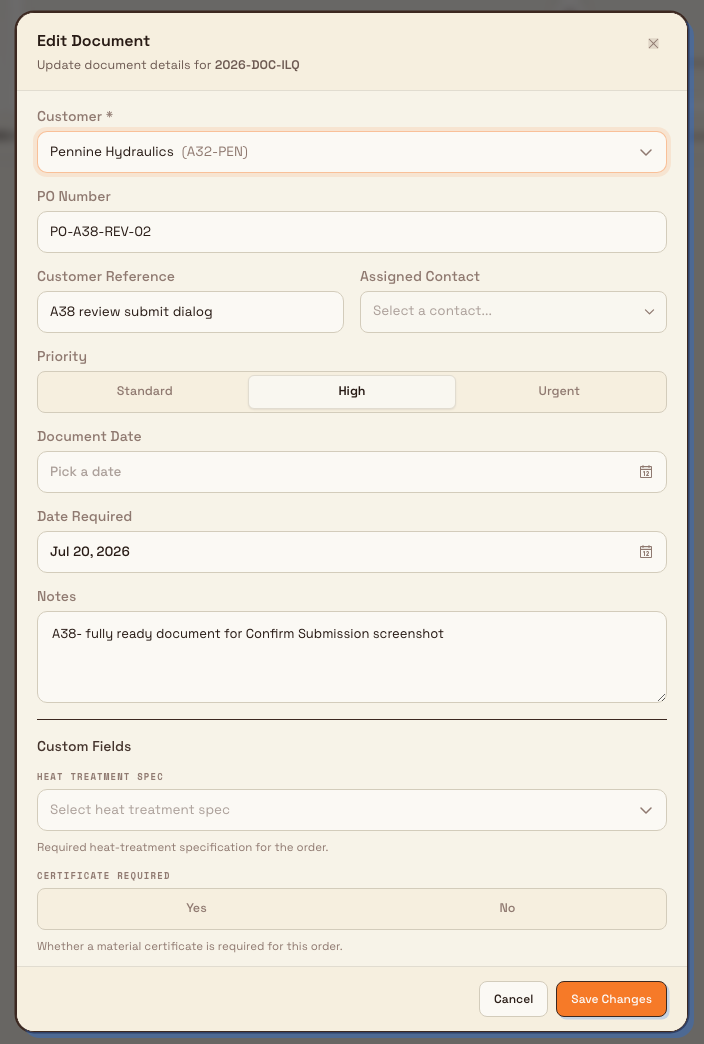
- In the action header, select Edit. The Edit Document dialog opens, titled Update document details for the document number.
- Change any of the available fields:
- Customer — the customer the order belongs to. This is required; changing it re-aligns the document's currency and customer-specific custom fields.
- PO Number — the customer's purchase-order number.
- Customer Reference — the customer's own reference for the order.
- Assigned Contact — the customer contact responsible for the order.
- Priority — Normal, High, or Urgent.
- Document Date and Date Required — the order date and the date the work is needed by, plus any custom date fields your plant has configured.
- Notes — free text about the order. You can @mention a teammate here to notify them.
- Custom Fields — any additional fields configured for the selected customer.
- Select Save Changes. Bulk confirms with a Document updated message and closes the dialog. Choose Cancel to discard your changes and close the dialog without saving.
inbound.edit-document-02
Edit the line items
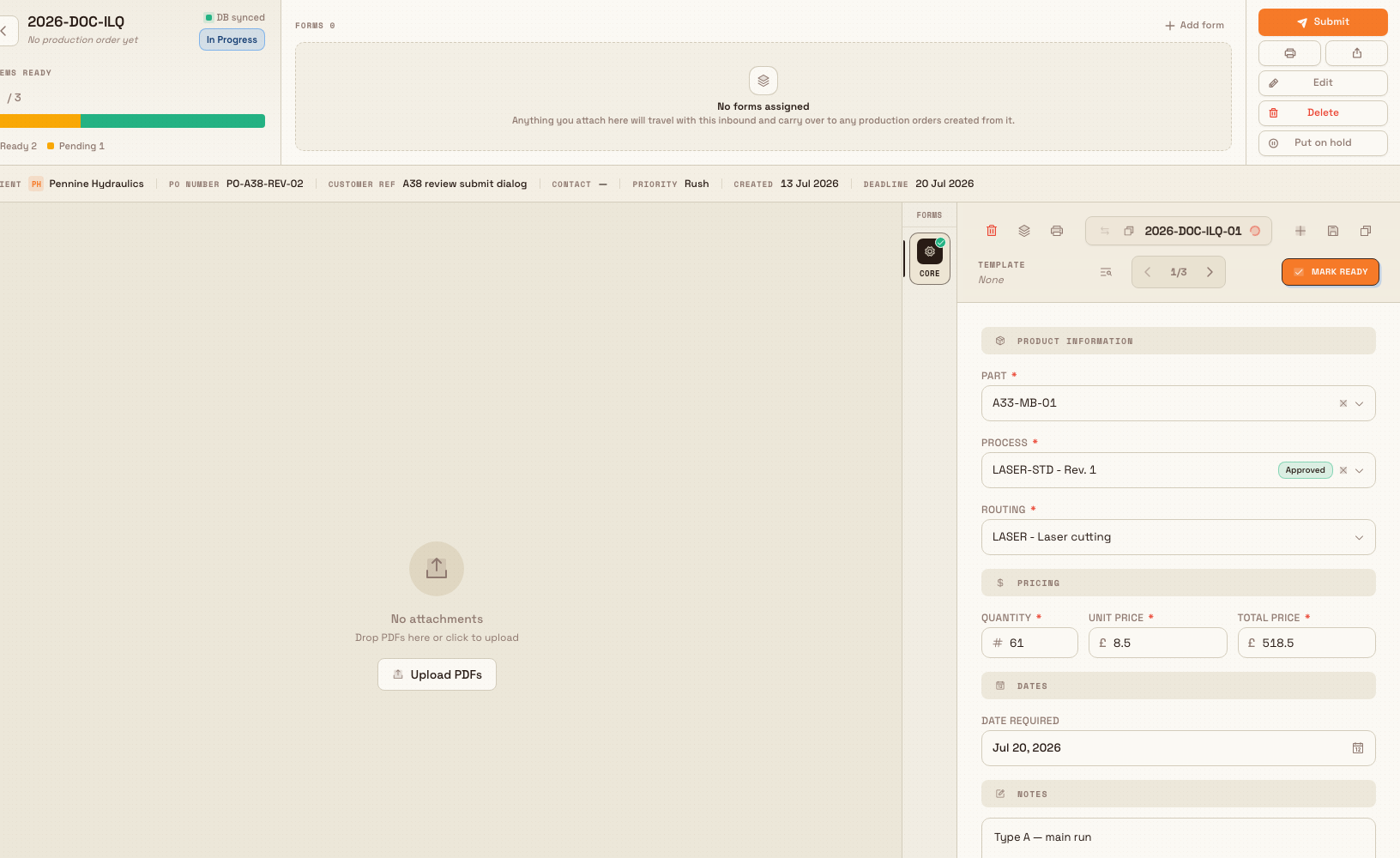
Each line item is one unit of work on the order — a part, the process and routing that make it, a quantity, and a price. You edit line items directly in the item editor beside the document.
Select a line item, then change any of its fields — Part, Process, Routing, Quantity, Unit Price, Total Price, Date Required, or Notes. You do not need a separate save step: line-item changes save automatically as you make them. A sync indicator in the document header shows the current state — Syncing… while a change is being written, DB synced once it is stored, and Sync error if a save could not complete.
More ways to work with line items
For faster bulk editing across every line at once, use the spreadsheet-style grid in Work with the inbound grid. To add services and charges to lines, see Manage inbound services and items. To fill in customer-specific fields, see Update inbound custom fields.
inbound.edit-document-03
When editing is locked
If a document has moved past the editable stage, the Edit button is disabled and its tooltip explains why. The message depends on the document's state:
- Cannot edit an approved document — the document has been approved.
- Cannot edit while in production — jobs are being produced from the document.
- Cannot edit a completed document — the document is finished.
- Cannot edit a cancelled document — the document was cancelled.
- Cannot edit while on hold — the document is paused on a hold.
- Editing is locked for this document — any other locked state, such as a document that is pending approval or has been temporarily locked while another action runs.
To make a document editable again, move it back to an editable state through the normal workflow. For example, cancel a pending approval request to return the document to in progress (see Submit or cancel inbound approval), or release a document from hold (see Put inbound work on hold). Approved, in-production, and completed documents cannot be edited — they must follow their own workflow.
Example: correcting a Granite Peak order
Granite Peak Manufacturing's Leeds Fabrication Plant is processing an in-progress inbound document for its customer Pennine Rail Components. The customer emails two corrections: the purchase-order number was mistyped, and they need the parts a week later than first stated. One line was also entered as 40 units instead of 60.
An operator opens the document, selects Edit, and in the Edit Document dialog updates the PO Number, pushes Date Required out by a week, and raises Priority to High because the later date now clashes with a busy week. They add a Note — "@Dana PO corrected per customer email 12 Jul" — and select Save Changes. Bulk shows Document updated.
Back on the detail page, the operator selects the affected line item and changes Quantity from 40 to 60. The header shows Syncing…, then DB synced a moment later — no separate save needed. The document now reflects the customer's corrections and is ready to continue toward approval.
Expected result
- Document-detail changes are saved when you select Save Changes, confirmed by a Document updated message, and immediately visible on the detail page.
- Line-item changes are saved automatically, confirmed by the DB synced indicator.
- Every saved change is recorded against the document — including which fields changed and who changed them — so the edit history stays auditable.
Troubleshooting
"Document was modified by another user. Please refresh and try again." Someone else saved a change to the same document between the moment you opened the Edit Document dialog and the moment you selected Save Changes. Your save is rejected so it cannot overwrite their change. Refresh the document to load the latest details, then re-apply your edit.
"This document changed before your save completed. Please try again with the latest data." The equivalent message for an auto-saved line-item change that collided with another update. Wait for the page to refresh the item, then make your change again.
The Edit button is disabled. The document is not in an editable state. Check the tooltip on the Edit button for the exact reason, and see When editing is locked above.
You cannot see the edit controls at all. Your role is missing the update inbound documents or update inbound items permission. Ask an administrator to grant the appropriate permission or role.
Feature state and limits
Editing inbound documents is generally available. Keep these limits in mind:
- Editing is restricted to draft and in progress documents. There is no way to edit a document once it is approved, in production, completed, cancelled, or on hold without first returning it to an editable state through the workflow.
- Free-text fields are bounded: PO number and customer reference are limited to 100 characters, and notes to 1,000 characters.
- Because the Edit Document dialog uses optimistic concurrency, simultaneous edits by two people are resolved by rejecting the second save rather than merging — the second person must refresh and re-apply.
Related
Review an inbound document
Check an inbound document in the grid, correct its items, complete required forms, and submit it for approval.
Put inbound work on hold
Pause an inbound document mid-workflow with a required reason, lock it against edits, and later release it back to the exact status it held before.