Put inbound work on hold
Pause an inbound document mid-workflow with a required reason, lock it against edits, and later release it back to the exact status it held before.
An inbound document is the intake record Bulk creates for customer work arriving into a plant: the order details, line items, and pricing that become production jobs once the document is approved. Putting a document on hold pauses that record part-way through its workflow without cancelling it. The document is locked so nobody can keep editing it, a reason you type is stored and shown to everyone who opens it, and when you release the hold the document returns to exactly the status it was in before.
Use a hold when work needs to stop for a reason outside the document itself, and you expect it to continue later: a customer queries a line, a material is short, a price needs checking, or a spec is unclear. A hold keeps the document intact and its history clear, so you avoid cancelling and re-creating work just to pause it.
Before you start
Placing and lifting a hold are governed by two separate permissions:
inbound_documents.put_on_hold— lets you place a document on hold.inbound_documents.release_from_hold— lets you release a document from hold.
In a standard Bulk setup these permissions are included in the Super user, Entity admin, Manager, and Operator roles. A custom role can also be granted either permission on its own, so in principle one person can be allowed to place holds while another is allowed to release them. If you do not hold the relevant permission, the matching control is hidden or disabled.
Which documents can be put on hold
A document can only be put on hold from a status where pausing is safe. Eligible statuses are:
- Drafts (a document still being built)
- In Progress (a document being worked before approval)
- Active while in production (jobs have been created and are running)
You cannot place a hold when a document is:
- Awaiting approval or already approved — these states have approval and job-creation steps running in the background, so let them finish or cancel the approval request first.
- Completed or Closed (cancelled) — these are final.
- Already On Hold.
If the control is greyed out, hover it to see the tooltip "Put on hold is not available for this document" — that means the document is in one of the statuses above, or you lack the permission.
Holds and cancellation
A document cannot be cancelled while it is on hold. Release it first, and it returns to its previous status where the normal Cancel action is available again. This keeps cancellation unambiguous — there is always a clear status to cancel from.
Put a document on hold
- Open Inbound in the sidebar, then Inbound Documents, and open the document you want to pause. The hold control is available in both the standard document view and the Excel-style grid view.
- In the action bar, select Put on hold.

inbound.holds-01
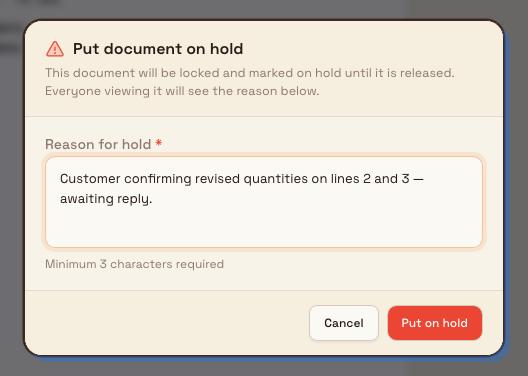
- In the Put document on hold dialog, type a Reason for hold. The reason is required — the confirm button stays disabled until you enter at least three characters, and the field placeholder prompts "Why is this document on hold?".
- Select Put on hold to confirm. To back out without pausing, select Cancel.
inbound.holds-02
When you confirm, the dialog shows Putting document on hold… while Bulk updates the document. You cannot close the dialog or submit the request again until the update finishes. If the update fails, the dialog keeps your reason and offers Try again and Cancel.
When the update succeeds, the document moves to On Hold, it is locked, and a confirmation message reads "Document put on hold".
What happens while a document is on hold
- The document status becomes On Hold and the record is locked. Its items cannot be edited, and it cannot be submitted, approved, cancelled, or deleted until it is released.
- An On hold banner appears at the top of the document. It shows the reason you entered, plus who placed the hold and how long ago, so anyone opening the document immediately sees why work has paused.
- The document's activity feed records a Put on hold entry, keeping a full audit trail of the pause and, later, the release.

inbound.holds-03
Release a document from hold
- Open the document that is on hold.
- Select Release from hold — it appears both on the On hold banner and in the action bar.
- In the Release from hold dialog, confirm the release. The dialog tells you which status the document will return to, for example "This document will return to its previous status (In Progress)."
- Select Release.
The dialog shows Releasing document… while Bulk updates the document. You cannot close the dialog or submit the request again until the update finishes. If the update fails, select Try again to retry or Cancel to close the dialog.
When the update succeeds, the document returns to the exact status and lock state it had before the hold, the hold reason is cleared, and a confirmation message reads "Document released from hold". Work continues from where it left off — a document held while In Progress goes back to In Progress; one held while in production returns to production.
Example: a change request at Leeds Fabrication Plant
A planner at Granite Peak Manufacturing's Leeds Fabrication Plant is working an inbound document for a repeat customer's purchase order. It is In Progress and nearly ready to submit when the customer emails to say two line quantities may change. Rather than cancel the document or guess, the planner opens it, selects Put on hold, and enters the reason "Customer confirming revised quantities on lines 2 and 3 — awaiting reply."
The document locks and shows the On hold banner, so a colleague who opens it later sees exactly why it is paused and does not submit it by mistake. Two days later the customer confirms the numbers. The planner opens the document, selects Release from hold, and it returns to In Progress. They update the quantities and submit as normal — with the whole pause captured in the document's history.
Limitations and behaviour to expect
- A reason is always required. You cannot place a hold without typing one, and the reason is stored and displayed rather than kept private.
- You cannot hold from every status. Documents awaiting approval or already approved must have their approval finished or cancelled first; completed and closed documents are final.
- Release is not a status picker. A released document always returns to the single status it held immediately before the hold — you do not choose a different destination.
- Holding locks the document. Editing, submitting, approving, cancelling, and deleting are all unavailable until the hold is released.
This capability is generally available in Bulk; it is not a beta or preview feature. The exact on-screen appearance of the dialogs and banner is confirmed during screenshot capture in the shared documentation environment.
Troubleshooting
- "Put on hold is not available for this document." The document is in a status that cannot be held (awaiting approval, approved, completed, closed, or already on hold), or your role lacks the
inbound_documents.put_on_holdpermission. Check the status badge, or ask an administrator to confirm your permissions. - The Put on hold button will not confirm. The reason field is empty or too short. Type a brief reason and the confirm button becomes active.
- The hold or release fails. Read the error shown in the dialog, then select Try again. Your hold reason remains in place when you retry. Select Cancel if you want to stop instead.
- "Document was modified. Please refresh and try again." Someone else changed the document since you opened it. Refresh the page and place or release the hold again.
- You need to cancel a held document. Release it from hold first; cancellation becomes available again once it returns to its previous status.
Related guidance
Edit an inbound document
Change an in-progress inbound document's details and line items, and understand when editing is locked.
Submit or cancel inbound approval
Send an inbound document for sign-off when its routing requires approval, and cancel a pending approval by withdrawing it so the document unlocks for edits.