Attach files to inbound work
Add PDF references — purchase orders, drawings, and specs — to an inbound document, view them beside your line items, and manage them while the document is still editable.
The Inbound area is where incoming customer paperwork — purchase orders, drawings, and specifications — is turned into work you can plan and run. An inbound document is one such record. As you enter its line items, it helps to keep the original paperwork right next to your work, so attachments let you pin one or more PDFs to the document. Bulk calls these reference PDFs: they travel with the document, appear beside your line items, and are visible to anyone who later picks up the document.
This guide covers attaching PDFs when you create an inbound document and adding, viewing, downloading, or removing them afterwards. Attachments are PDF only, up to 25 MB each.
Before you start
Two conditions must be met to add or remove attachments:
- The "Edit inbound documents" permission. In Bulk, a permission is the right to perform a specific action. Attaching and removing files uses Edit inbound documents (
inbound_documents.update). By default this belongs to the Entity admin, Manager, and Operator roles. Without it, you can still open a document and view its attachments, but the upload and delete controls do not appear. - The document must be editable. You can only change attachments while a document is in Draft or In progress — the states where it is still being built. Once it is submitted for approval, approved, completed, cancelled, or on hold, its attachments become read-only: you can still view and download them, but the add (+) and remove (X) controls disappear. A locked document is read-only for the same reason.
A reference PDF may be required
Your site can require at least one PDF on every inbound document before it can be created. An admin controls this at Settings → Operating rules with the toggle Require PDF before creating inbound documents ("Require at least one PDF attachment before a draft can be created"). When it is on and no PDF is attached, Bulk blocks creation and shows "Attach at least one reference PDF before creating this document."
Attach PDFs while creating a document
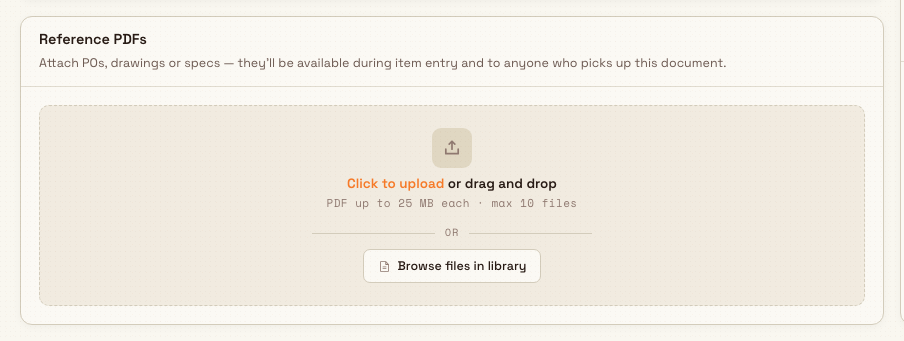
When you start a new inbound document (Inbound → New document), the form includes a Reference PDFs card described as "Attach POs, drawings or specs — they'll be available during item entry and to anyone who picks up this document." You have two ways to add files:
- Upload from your computer. Drag PDFs onto the dashed drop area, or select Click to upload to pick them. The hint reads "PDF up to 25 MB each · max 10 files" — you can add up to 10 files at a time here.
- Browse files in library. Select Browse files in library to open the Attach from file library picker. This lets you reuse a PDF that is already stored in your workspace ("Browse files already uploaded to this workspace and attach them to this document"). Search by name, select the files, and attach them.
Each attached file shows as a card. To take one off, use its remove control and confirm in the Remove reference PDF? dialog. A file you attached from the library stays in your library and can be reattached later; only the link to this document is removed.
inbound.attachments-01
Add, view, and remove PDFs on an existing document
Open a document from Inbound → Documents. Its detail view is split in two: the PDF panel on the left and the item editor on the right. The PDF panel is where attachments live.
When there are no attachments yet and you can edit the document, the panel shows No attachments with "Drop PDFs here or click to upload" and an Upload PDFs button. Drop PDFs onto it or select the button to add your first files. (If you cannot edit the document, the panel instead reads "This document has no attachments.")
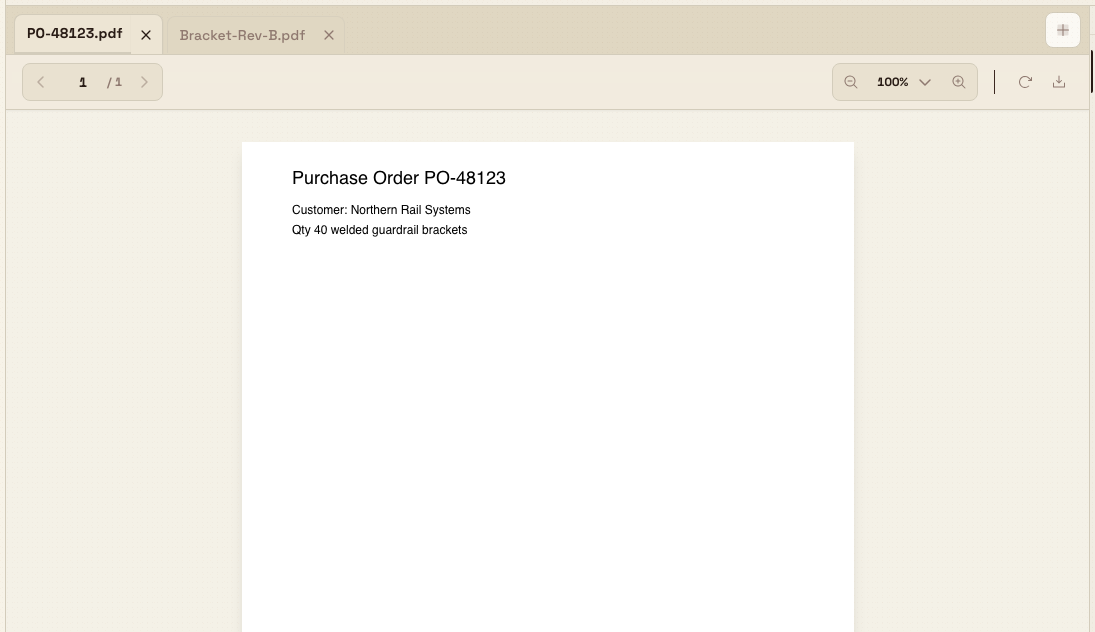
When attachments exist, each one becomes a tab across the top of the panel, labelled with the file name. Select a tab to open that PDF in the viewer; hovering a tab shows a thumbnail preview with the file's name and size. To add more, use the + button (labelled Upload PDF) at the end of the tab strip. While files upload you see "Uploading PDFs…" with a percentage, then a "PDF uploaded" confirmation (or "N PDFs uploaded" for several).
The viewer has a toolbar for working through a PDF: page back and forward, zoom, Fit to Width, Rotate, and Download.
inbound.attachments-02
To remove an attachment, select the X on its tab. Bulk asks you to confirm in a Delete attachment? dialog — "<name> will be removed from this inbound document. This action cannot be undone." — then shows "Attachment deleted."
Removing an uploaded PDF is permanent
Deleting an attachment that was uploaded (not attached from the library) cannot be undone — the file is removed from the document. If you attached the file from your file library, removing it here only detaches it; the original stays in the library. When in doubt, download the PDF first.
Example: a bracket order at Leeds Fabrication Plant
A customer emails Granite Peak Manufacturing's Leeds Fabrication Plant a purchase order and an engineering drawing for a batch of steel brackets. Priya, an operator, opens Inbound → New document and drags both PDFs — PO-48123.pdf and Bracket-Rev-B.pdf — onto the Reference PDFs card. Because the site has Require PDF before creating inbound documents switched on, having those two PDFs attached lets her create the document; without them she would see "Attach at least one reference PDF before creating this document."
Two days later the customer sends a revised drawing. Priya opens the document from Inbound → Documents, selects the + button in the PDF panel, and uploads Bracket-Rev-C.pdf. She confirms the new revision reads correctly in the viewer, then selects the X on the Bracket-Rev-B tab and confirms Delete attachment? so the superseded drawing no longer misleads the team. The purchase order and the current drawing now sit beside the line items for anyone who picks the document up.
Expected result
After attaching files:
- Each PDF appears as a tab in the document's PDF panel (and as a card on the create form), in the order you added it.
- You see a "PDF uploaded" / "N PDFs uploaded" confirmation for uploads, or a "PDF attached" confirmation when you attach from the library.
- Any teammate who opens the document sees the same attachments and can read or download them in the viewer.
- Each change is recorded in the document's history (for example "Added 1 attachment" or "Deleted attachment <name>").
Limits and feature state
Attaching files to inbound work is a generally available part of Bulk. Keep these limits in mind:
- PDF only. Only PDF files are accepted. Other file types are rejected before they attach.
- Size: 25 MB per file, checked as you add files and again on the server.
- Count when creating: the create form's Reference PDFs card accepts up to 10 files at a time. On an open document you can keep adding PDFs from the PDF panel.
- Editable documents only. Add and remove are available while a document is in Draft or In progress and unlocked. Submitted, approved, completed, cancelled, on-hold, or locked documents are view-and-download only.
Troubleshooting
- No upload or remove controls. You either lack the Edit inbound documents permission, or the document is no longer editable (it has moved past In progress, or it is locked). Check the document's status; ask an admin for the permission if you need it.
- "Only PDF files are supported." The file is not a PDF. Convert or export it to PDF and try again. On the create card, non-PDF files are skipped with a "Some files were not added" note.
- "Maximum file size is 25MB." The PDF is too large. Compress or split it, then re-add it.
- "Document was modified by another user. Please refresh and try again." Someone else changed the document while you were working. Refresh the page to load the latest version, then re-add or remove the attachment.
- Cannot create a document without a PDF. Your site requires a reference PDF ("Attach at least one reference PDF before creating this document"). Attach at least one PDF, or ask an admin to review the Require PDF before creating inbound documents rule under Settings → Operating rules.
Related
- Create an inbound document — start a document and attach its first reference PDFs.
- Edit an inbound document — change items and details while a document is editable.
- Update inbound custom fields — capture extra data that some documents require.
- Submit or cancel inbound approval — the step after which attachments become read-only.
- Inbound — overview of the Inbound area.
Manage inbound services and items
Add line items to an inbound document and attach billable catalogue services in the grid view to build the document's quote.
Update inbound custom fields
Fill in and change the customer-specific custom field values on an in-progress inbound document and its line items, using the document's Custom fields card and the items sheet.