Review an inbound document
Check an inbound document in the grid, correct its items, complete required forms, and submit it for approval.
Review is the step that turns a captured customer document into trusted production work. You check the document fields, services, and line items in the inbound grid before anything is approved or made.
Use this guide for the overall review. For detailed spreadsheet actions such as paste, fill, bulk changes, and a saved column layout, see Work with the inbound grid.
Before you start
You need access to the document's plant and these permissions for the actions you perform:
- View inbound documents — open the document and read its grid.
- Edit inbound documents and Edit inbound items — correct document fields, services, and line items.
- Submit inbound documents — send a finished document into approval.
- Approve inbound documents — review it after submission, when you are also the approver.
Drafts open in the new-document editor. Review happens while a document is In Progress, unless it is locked or on hold. Later states open in this workspace but are read-only. A document also becomes read-only as soon as Bulk accepts a submission for background processing, even while its status still says In Progress.
Open the document
- Open Inbound.
- Search or filter the document list.
- Select the document row.
The current document workspace opens directly. Old document links redirect here automatically.
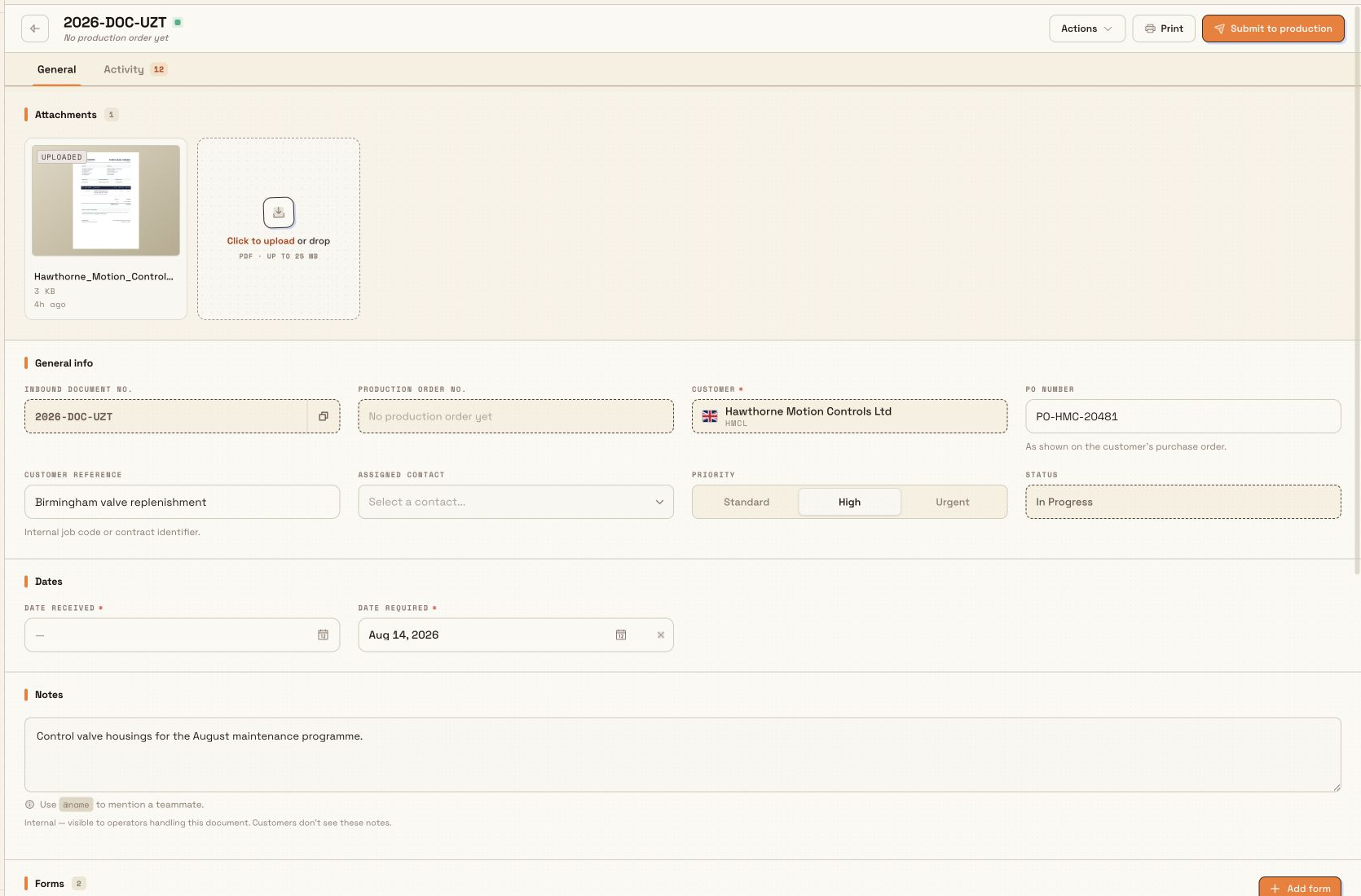
inbound.review-document-01
Check the document
Work from the top of the grid to the bottom:
- Check the document number, customer, contact, PO number, dates, priority, currency, and any required custom fields.
- Open the source file from Attachments and compare it with the captured information.
- Review the Services panel. Add or remove services and confirm which items use each service.
- Review every row in Document items. Check the part, process, routing, quantity, price, required date, notes, and required custom fields.
- Correct anything that is missing or wrong. Changes save as you work.
Use search, filters, paste, fill, and bulk actions when several rows need the same change. Edit item values directly in the grid.
Mark items ready
An item starts as Pending. When all required values are valid, change it to Ready.
- Select the row's Status cell for one item.
- Select several eligible rows and use the bulk action when they are ready together.
- If Bulk refuses, read the validation message and fill the missing value first.
Move a Ready item back to Pending if it needs another correction. An item becomes locked after its production job is created.
Complete forms and attachments
Open the document's Forms area and complete every required form. Add supporting files from Attachments when the reviewer or production team needs the original drawing, certificate, or customer document.
An unfinished required form blocks submission. See Attach files to inbound work and Work with inbound forms.
Submit for approval
When every item is Ready:
- Select Submit to production.
- Review the readiness summary.
- Correct anything listed as not ready.
- In Confirm Submission, select the final workflow action, commonly Submit to Production.
Bulk checks that the document has a customer and currency, at least one item, every item is Ready and valid, and every required form is complete. Customer status can show a warning or block submission.
The dialog closes once Bulk has safely queued the submission. It does not wait for every background check to finish. A status band above the approval cards then explains what Bulk is doing. You can leave the page and come back without stopping the work.
While submission is running, the band can show that Bulk is:
- checking each item;
- preparing the approval requirements;
- securing each item and its item forms;
- rechecking routing approval settings;
- publishing the submission; or
- closing earlier approval requests and notifying approvers.
The document stops accepting changes as soon as the run is queued. Item forms are locked as their items are secured. Those form locks remain while the document waits for approval and, after approval, while the matching production jobs are being created. If the submission fails before it is published, Bulk rolls back only the locks and approval requests owned by that run before making the document editable again.
If a routing needs sign-off, the document moves to Approval after the background submission finishes. If no approval is required, Bulk approves it and starts preparing the production jobs automatically.
Follow an approval decision
Approving, reopening, or requesting changes can also start a short background update. The Updating approval band appears above the approval actions while Bulk scans the saved decisions and locks or unlocks all affected items.
- An approval locks every item before the document becomes Approved and job creation starts.
- A request for changes unlocks every item and its submission-owned item forms before the document returns to In Progress. You never receive a partly unlocked editable document.
- Reopening or changing approval is blocked after even one production job has been created. Manage the production work instead.
If this update fails, the approval decision is still saved. Select Retry approval update to finish applying that same decision; do not approve or request changes a second time.
Choose the right retry
- Submission failed inside the confirmation dialog, with Try again — the initial handoff was not queued. Read the message, correct the problem if needed, and try from the same dialog.
- Submission needs attention, with Retry submission — background checks stopped before the document was submitted, and no production jobs were started. Correct the item, form, routing, or access problem named in the band, then retry. If rollback was interrupted, the retry finishes that cleanup before starting a clean submission.
- Approver notifications need attention, with Retry submission — the document was submitted, but one or more notifications were not sent. Retry sends the missing notification work; it does not create a second submission or duplicate approval requests.
- Approval update needs attention, with Retry approval update — the decision is already saved, but its document lock or status update stopped. Retry applies the existing decision and keeps the original decision maker in the history.
- Job creation failed, with Retry job creation — approval is complete and any displayed job count is saved. Retry continues from the same order and checkpoint without duplicating jobs already linked to items.
Retrying submission needs Submit inbound documents. Retrying an approval update needs Edit inbound documents. Retrying job creation needs Create production jobs. If the band says the requesting user lost access, restore the permission or plant access first, then retry as an authorised user.
Troubleshooting
- The grid is read-only. The document is locked, on hold, or past its editable stage, or your role lacks an edit permission.
- An item will not become Ready. Fill the field named in its validation message. Common missing values are Part, Process, Routing, Quantity, or a required custom field.
- Submit is unavailable. The document is not In Progress, an item is still Pending, or your role lacks the submit permission.
- A form blocks submission. Open the Forms area and complete every required field.
- The document changed while you reviewed it. Refresh, check the latest values, and repeat the action safely.
- A background band keeps failing. Use the action on that specific band. Do not use Submit again for an approval-update or job-creation failure. If the same error returns after its stated data or permission problem is fixed, copy the displayed error for your administrator.
Related guidance
Work with the inbound grid
Use the inbound grid — a spreadsheet-style layout of an inbound document — to edit, fill, and mark ready many line items at once before submitting them to production.
Edit an inbound document
Change an in-progress inbound document's details and line items, and understand when editing is locked.