Submit or cancel inbound approval
Send an inbound document for sign-off when its routing requires approval, and cancel a pending approval by withdrawing it so the document unlocks for edits.
An inbound document in Bulk is the record you build from a customer's incoming order — its parts, quantities, routings, and forms — before that work becomes production jobs. Submitting a document is how you hand it off for sign-off: when any routing used on the document requires approval, submitting raises an approval request and locks the document so nobody can change it while it waits for a decision.
You submit a document once you have reviewed its items and they are all ready. If you submitted too early, or an approver asks for something you would rather fix yourself, you cancel the pending approval by withdrawing it. Cancelling removes the sign-off gate and returns the document to an editable state, so you can correct it and submit again. This page covers both halves of that loop — submitting for approval and cancelling a pending approval — from the submitter's point of view.
Approval is driven by the routing, not the customer
A document only needs approval when at least one of its items uses a routing (process type) that is configured to require it. If no routing on the document requires approval, submitting skips the sign-off step entirely and goes straight to creating production jobs. An administrator sets which routings require approval, and who the approvers are, in Settings → Master data → Routings.
Before you start
To submit a document you need the Submit inbound documents permission
(inbound_documents.submit). In Bulk's default roles this is granted to
Operator, Manager, Entity admin, and Super user. If the
Submit button is greyed out and its tooltip says submit is not available,
your role or the document's status is the reason.
The document must also be in the right shape before it can go for sign-off. When you submit, Bulk checks that:
- the document is In progress (not a draft, and not already submitted, approved, or closed);
- a customer and a currency are set on the document;
- the document has at least one item;
- every item is marked ready and uses an approved process; and
- any required forms for the document are filled in.
If any check fails, the submission is refused and the reason is shown, so you can fix it and try again. Getting items to the ready state is covered in Review an inbound document.
Submit a document for approval
- Open Inbound → Inbound Documents from the navigation and open the document you want to submit.
- In the top-right action column of the document header, select Submit.
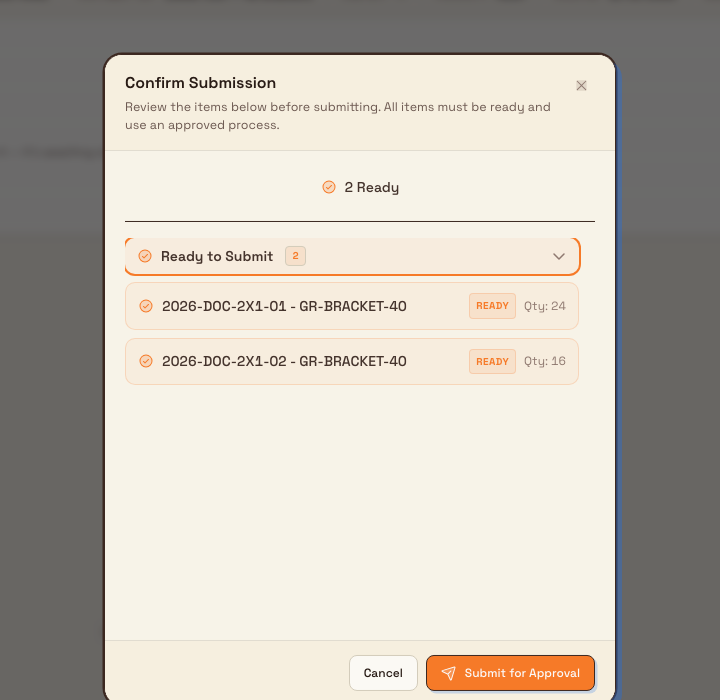
- Bulk opens the Confirm Submission dialog. It lists your items grouped into Not Ready and Ready to Submit, with a count of each. Every item must be ready and use an approved process, so the Not Ready group is shown first with the reason each item is blocked.
- When all items are ready, select Submit Document to confirm.

inbound.approval-01
What happens next depends on the routings your items use:
- A routing requires approval. The document moves to a pending approval state and is locked — you and everyone else can view it but not edit it. The confirmation reads Submitted for Approval, and an Awaiting approval card appears in the approval band directly below the document header, showing who submitted it and which approvers it is waiting on. Because you submitted it, you cannot approve it yourself.
- No routing requires approval. There is no sign-off step. Submitting validates the items and creates the production jobs directly. See Promote inbound work to production.
inbound.approval-02
Cancel a pending approval (withdraw)
While a document is awaiting approval, you — as the person who submitted it — can cancel that request by withdrawing it. Withdrawing removes the sign-off gate and hands the document back to you.
- Open the document that is awaiting approval. The approval band sits directly below the document header.
- On the Awaiting approval card, select Withdraw.
Once you withdraw, the approval request is cancelled. When all of the document's requests are withdrawn, the document returns to In progress and unlocks, so you can edit its items and submit it again when it is ready. Nothing you entered is lost — withdrawing only removes the pending sign-off.

inbound.approval-03
Approving, requesting changes, and reopening
This page covers the submitter's side. The same approval band also carries the approvers' actions: an eligible approver can Approve the document or Request changes (which returns the document to you for edits). After changes are requested you can Resubmit it, and an approver can Reopen a document they have already approved. Who can approve, and whether one approver or all of them must sign off, comes from the routing's approval settings.
Example: Granite Peak Manufacturing
The Leeds Fabrication Plant team at Granite Peak Manufacturing receives a rush order from a rail customer for 40 welded guardrail brackets. Dana Winters builds the inbound document, sets the customer and currency, adds the bracket items, and marks each one ready. Because the Welding routing at Leeds is configured to require approval, Dana opens the document, selects Submit, reviews the Confirm Submission dialog — all items sit under Ready to Submit — and chooses Submit Document. The document locks as pending approval and an Awaiting approval card appears, waiting on the welding supervisor. Because Dana submitted it, Dana cannot approve it.
A moment later Dana spots that two brackets were entered with the wrong finish. Rather than ask the supervisor to reject the whole document, Dana opens it, selects Withdraw on the Awaiting approval card, and the document drops back to In progress and unlocks. Dana corrects the two items, marks them ready again, and submits a second time — now the supervisor sees the corrected document awaiting their sign-off.
What submitting and cancelling change
- Submitting locks the document. A document awaiting approval is read-only for everyone until it is approved, has changes requested, or is withdrawn.
- One request per required routing. If items use several routings that each require approval, Bulk raises a separate request per distinct routing, and the document is approved only once all of them are approved.
- Withdrawing is reversible and non-destructive. Cancelling a pending approval unlocks the document with all its data intact; you can edit and resubmit.
- The submitter is never an approver. Bulk excludes you from the approver list for anything you submit, so approvals always involve someone else.
Troubleshooting
The Submit button is disabled. Submit is only available while the document is In progress and you hold the submit permission. The button's tooltip states the reason — for example, Document is awaiting approval once it has already been submitted. If the status is right but the button is still disabled, ask an administrator to confirm your role grants Submit inbound documents.
Confirm Submission says the document can't be submitted. If any item is not ready or does not use an approved process, the dialog shows a Cannot submit document warning and lists the blocked items under Not Ready with the reason for each. Fix those items — see Edit an inbound document — mark them ready, then submit again.
Submitting is refused because the routing has no eligible approver. A routing that requires approval must list at least one approver who is not you, because you cannot approve your own document. If you are the only listed approver, the message asks you to add at least one other approver to this routing in Settings → Master data → Routings. Add an approver there, then submit again — see Manage routings.
Submitting is blocked by a customer status warning. If the document's customer is set to an operational status that blocks new inbound work, the Confirm Submission dialog shows the block and the Submit Document button stays disabled. Resolve the customer's status, or use a customer that is clear to proceed.
Feature state
Submitting inbound documents and cancelling a pending approval by withdrawing are generally available. The sign-off step itself is routing-driven: it appears only for documents whose items use a routing configured to require approval. A document with no such routing is validated and turned into production jobs the moment you submit, with no approval to cancel. Approval settings — required or not, the approvers, and how many must sign off — are managed per routing by an administrator.
Related
Put inbound work on hold
Pause an inbound document mid-workflow with a required reason, lock it against edits, and later release it back to the exact status it held before.
Manage inbound services and items
Add line items to an inbound document and attach billable catalogue services in the grid view to build the document's quote.