Review production orders and jobs
Find, filter, and inspect customer production orders and the jobs they contain from the Production Orders and Production Jobs screens, then open either one to see its full detail.
The Production Orders and Production Jobs screens are where you look up and inspect production work from the back office — away from the shop-floor tablets. Use them to search for a customer's order, check how far its work has progressed, filter jobs by status or resource, and open any order or job to see its full detail.
In Bulk, a production order is a customer order that has been brought into production — usually created from an approved inbound document. A job is a single unit of work inside that order: one part or line item that travels through a routing, an ordered list of steps performed on your resources. One order groups one or more jobs, and each job created from inbound work belongs to exactly one order. Reviewing orders and jobs is how planners, supervisors, and administrators answer everyday questions such as "Is this customer's order on track?", "Which jobs are overdue?", and "What is the current step on this job?".
Reviewing versus running work
These screens are for back-office review and management, including editing records when your role allows it. To load, run, and sign off jobs at a workstation, use the shop-floor screens instead — see Load a production order, Load a job, and Peak a job.
How orders and jobs relate
An order sits above its jobs:
- Order — the customer-facing header. It carries the order number, the customer, a PO (purchase order) number, dates, a total value, and a count of the jobs it contains.
- Job — one work item under the order. It carries the job number, the part, the process, a quantity, a priority, a routing, and its own progress and status.
Process and Routing are chosen separately on items and jobs — a process no longer carries a routing. New assignments only accept active Approved process revisions; in-progress work keeps its existing process when a revision is later made inactive. Draft jobs may be routing-less until release; live work still needs a resolved routing.
An order's status summarises where its jobs are, while each job has its own status for the work in front of it.
Order statuses:
Reserved— an order number reserved from an inbound document, before jobs are set up.New— the order is created and its linked jobs are being set up.Open— released for production; work can start on the linked jobs.In Progress— production is underway on the linked jobs.Completed— all linked jobs are finished and the order is closed out.Cancelled— the order was cancelled; it stays visible in the list but is removed from production and reporting.
Job statuses:
Draft— the job is created but pending review before release.Awaiting approval— the routing needs approval and the job is locked until it is approved.Open— released to the floor and ready to be started.In Progress— work is actively being performed.Completed— all work is finished and output is recorded.Cancelled— the job was terminated or stopped.
Every order and job status change records the previous status, the new status, who made the change, and when it happened. Changes started by Inbound, workflows, or a parent-child cascade use the same history as a manual change. If a status change cannot be completed, Bulk leaves both the current status and its history unchanged rather than saving only one side.
Before you start
You need the following in place:
- Access to the Production area. Both screens live under Production in the sidebar. The permissions that govern them are
production_orders.viewfor orders andproduction_jobs.viewfor jobs. In the default roles these are included in Super user, Entity admin, Operator, Tablet user, and Invoicing. - Orders and jobs to review. Orders and jobs are not created on these screens. An order appears once it has been created from inbound processing, and jobs are created automatically when their inbound documents are approved. See Promote inbound work to production.
- Extra permissions for changes. Simply viewing needs only the view permissions. Editing a job or its routing needs
production_jobs.update, and cancelling a job needsproduction_jobs.cancel. On an order, editing needsproduction_orders.updateand cancelling needsproduction_orders.cancel. Without these, you can still open and read the record, but the change actions do not appear.
When a large inbound document creates jobs
Approving an inbound document queues its order and jobs for background creation. The approval can return as soon as the work is safely queued, so you can close the page or continue using Bulk while a large document is processed. The source document shows Creating production jobs and the saved created/total count as the run progresses. It remains Approved, and may not have a linked order yet, until the background process creates its first job. It does not move to In production until Bulk has reconciled the completed result.
Bulk retries temporary interruptions in the background. If the source document shows Job creation failed, its count tells you how many jobs were saved before the stop. Fix the displayed cause, then select Retry job creation. This action needs Create production jobs. The retry resumes the same order from its saved progress, keeps jobs that were already created, and skips their linked items instead of creating duplicates.
The failure band distinguishes a revoked permission, a document that left the Approved state, and another worker error. Restore the requesting user's plant access or permission before retrying a permission failure. Do not repeatedly retry when the band says the document left Approved: first have an administrator restore a safe document state. A completed Some items did not become jobs band is different from a failure; it lists the skipped count and reasons and does not offer Retry.
An order that is still receiving jobs from its source document cannot be cancelled. A failed partial run keeps the same protection until its source run is retried and finished. Bulk also does not automatically complete that order while creation is active, even if all jobs created so far are complete. Normal cancellation and status rules resume after the source run finishes, subject to the usual completed-job restriction.
Review production orders
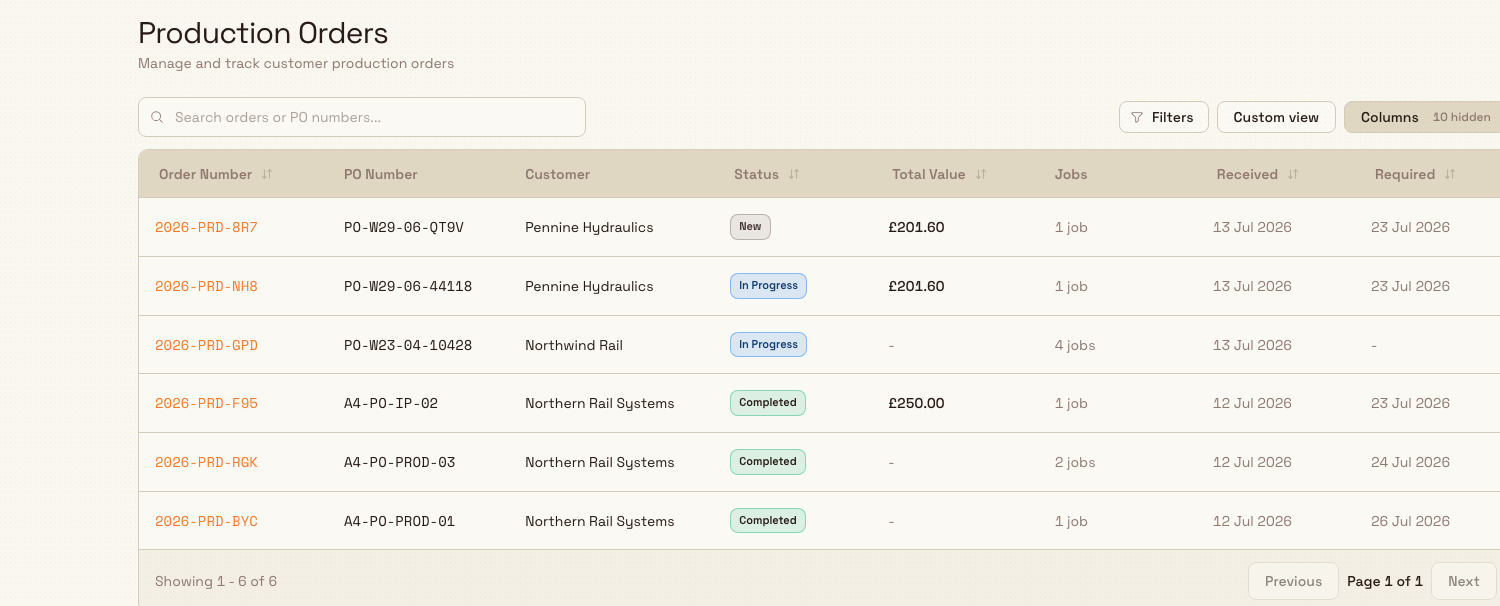
Open Production in the sidebar and select Orders. The Production Orders screen ("Manage and track customer production orders") lists every order in the current workspace as a searchable, sortable table.
Search and filter. Search matches the order number, PO number, customer, notes, and searchable values stored in order custom fields. Those custom-field values include text, numbers, true/false values, simple list entries, object titles, process codes and revisions, and currency amounts. Field names and file attachments are not search terms. The order Reference is a table column but is not included in free-text search. You can also filter by Customer, Received date, Required date, and Status. Clear removes the active search and filters.
Columns. Each row represents one order. The Customer column shows the assigned contact below the customer name. Created and Updated show the responsible person and relative time. Cancelled orders are never marked overdue.
Other columns include order and PO numbers, reference, status, value, quantities, jobs, currency, dates, and notes. Use the views control to show, hide, reorder, resize, pin, and save column layouts.
Required dates and custom fields configured as Date keep the selected calendar day in order and job forms, lists, cards, and PDFs. Bulk interprets those days in the plant's timezone, independently of the timezone on the computer viewing or printing them. Received, delivered, invoiced, workflow, and other date-and-time events keep their exact recorded moment and are formatted for the plant when included in a PDF. Weekly production views use the organization's shared week-start rule, so changing plants does not change the week number.
The table is search-backed and paginated on the server. When you have just created records elsewhere, a short note may appear reading "New records are still syncing. Latest results may not appear yet." while the search index catches up.
Right-click an order row to Open, Open in new tab, or Copy order number. Open uses the current tab; Open in new tab leaves the list open; and Copy order number copies that row's identifier and confirms Order number copied. Opening this menu or copying a number does not change the order.

production.orders-jobs-05
How job and order values are calculated
Each job keeps a base value from its saved total, or from unit price × quantity when unit pricing is used. Order services are then counted once and shared across the jobs assigned to them. For example, a £200 service assigned to 20 jobs adds £10 to each job. An ordinary fixed service that is not assigned to a job still contributes once to the order total, and signed discount lines reduce the total once. An unassigned timed service stays at zero because it has no assigned job timings to price.
The Total Value on an order is the sum of all job base values plus all order services. Bulk stores the resulting flat payable value on each job and the complete total on the order, then refreshes both when quantities, prices, services, assignments, currencies, cancellations, or deletions change. This keeps Production, invoicing, Value Flow, and Atlas on the same value without adding services again while the screen loads.
Value Flow reads those saved job values from complete production analytics snapshots. Large job volumes do not make its totals stop early; newly saved changes appear after the next automatic snapshot refresh.
Review a timed service by job
A Timed / process hours service uses recorded production time instead of a quantity typed by hand. Set up its hourly rate, chargeable resources, and time sources under Settings → Master Data → Pricing. Then open the production order's Jobs tab, add the service from the catalogue, and assign it to the jobs that should be charged. See Set up timed pricing.
Timed services are offered only from a production order's catalogue picker. They do not appear in inbound-document, rate-template, or standalone-invoice catalogue pickers because those places have no production jobs to time.
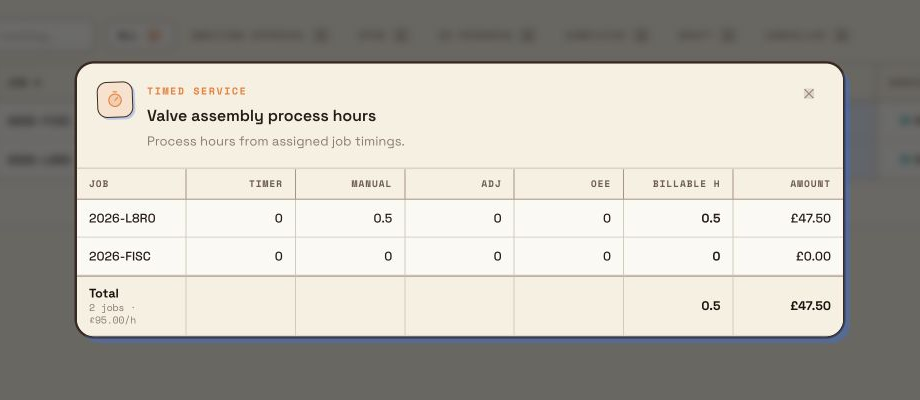
In the Services panel above the Jobs table, the timed line's Quantity is read-only and fills from the saved timings on its assigned jobs. Select that quantity to open the per-job breakdown. Each row shows Job, Timer, Manual, Adj (adjustment), OEE, Billable h, and Amount. The footer shows the number of assigned jobs, the hourly rate, total billable hours, and the billed total.
production.orders-jobs-07
All four time-source columns remain visible, but a source that was not selected
in Pricing contributes 0. With Selected resources, time counts only when it
belongs to a job step on one of those resources. A row marked incomplete
means the service's selected resources do not match any step on that job.
An assigned job appears as a zero-value row even before it has matching time. The No process hours yet empty state appears when the service has no assigned-job split to show. Running timers and open OEE events do not count. The quantity, breakdown, job values, and order total refresh after a timer is stopped, manual time or an adjustment is saved, an included OEE event closes, or the service's job assignments or hourly-rate line change.
Bulk adds the enabled source times and never lets a job's billable hours fall below zero, even when negative adjustments exceed its other time. It then rounds that job's hours and amount to two decimal places. The service total is the sum of those rounded job amounts, so it can differ by a few cents from multiplying the displayed total hours by the hourly rate.
The saved timed amount flows into the order total and the payable value of each assigned job. When Finance creates a standard invoice from the order, Bulk uses that saved service total once as its own service line rather than adding it to every job line again.
How service IDs and codes differ
Each service row on an order has its own short ID, such as SVC-01 or SVC-04. That ID is unique only inside its order and is what Bulk uses to assign the exact service row to jobs. A reusable registry service code describes the type of service and may appear on more than one row, so two rows can share a code while keeping different IDs, prices, descriptions, or job assignments.
When inbound work is cloned or applied from a full document template, Bulk recreates the selected service rows and reconnects the copied items using the new document-local IDs. Files, completed form answers, approvals, history, and existing production jobs are not copied into the draft.
production.orders-jobs-01
Open an order to see its jobs
Select an order number, or click its row, to open the order detail. The detail view opens with the order number in the header and a set of tabs:
- General — the order's header fields, notes, and any custom fields.
- Jobs — every job that belongs to this order, with a count on the tab. This is the direct link between the order and its jobs: from here you can open any individual job.
- Datasheets — order datasheets, when your role includes datasheet access.
- Output, Timers, Quality, Logs — the recorded output, time, quality issues, and activity history rolled up across the order's jobs.
The Jobs tab is the fastest way to move from a customer order to the specific piece of work you need. It lists each job's number, current step, and status, and lets you open a job directly.
The Datasheets tab is the only place where an order's Datasheets live. A Datasheet can fill rows or columns from the order's jobs and related inbound items, parts, processes, users, and setup fields, but it does not create a separate Datasheet on those source records. When a source record is removed, the generated row remains visibly marked as deleted until an editor removes it. Locked Datasheets keep the values and labels captured at lock time.
The Services panel above the Jobs table holds the order's chargeable services. Assign a service to the relevant jobs in the sheet. For a Timed service, select its read-only Quantity to inspect the process-hours breakdown.
In General info, use the copy button beside Production order no. or Source document no. to copy a locked identifier without selecting the text. The source-document button appears only when the order has a source document. These fields stay read-only even when you can edit the order; a successful copy confirms Copied.
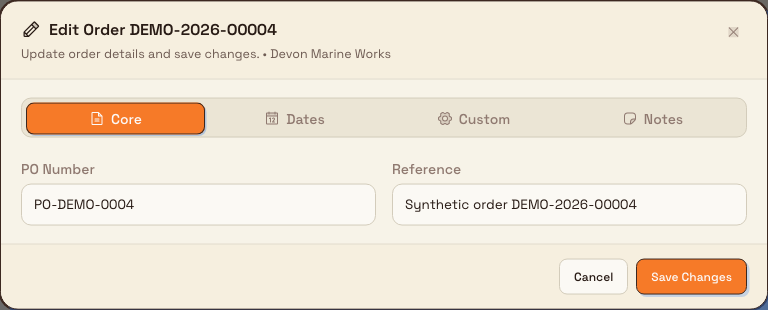
Edit an order
You need production_orders.update to see Edit order.
- Open the order, open Order actions (the three-dot menu), then select Edit order.
- Update the relevant tab:
- Core — PO Number and Reference.
- Dates — Date Received, Date Required, and configured custom dates.
- Custom — the custom fields captured for this order.
- Notes — order notes, up to 10,000 characters.
- Select Save Changes. Bulk confirms Order updated successfully when the update is complete.
The customer is fixed on a production order. It remains visible in General info but is not part of Edit order. The PO number is limited to 100 characters and the reference to 200; invalid or required values show a message to correct.
Completed and cancelled orders keep custom data editable
On a completed or cancelled order, Core fields, system dates, and Notes are locked. Users with update permission can still edit Custom fields and the custom dates under Dates, then save those changes.
production.orders-jobs-06
Freeze columns in the Jobs table
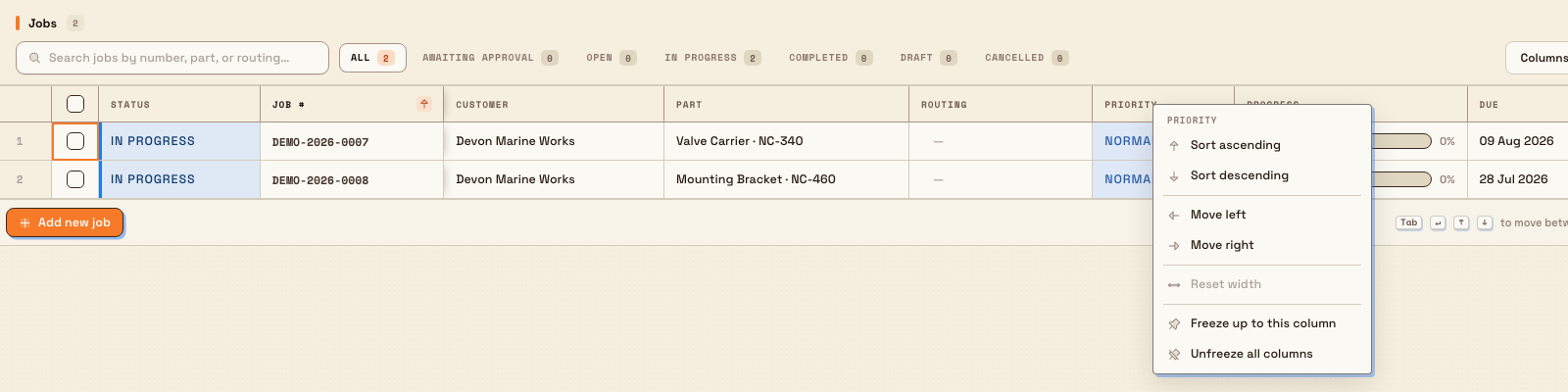
When an order has many jobs or a wide set of fields, freeze the identifying columns so they stay visible while you scroll sideways:
- Open the production order and select Jobs.
- Right-click the heading of the last column you want to keep visible.
- Select Freeze up to this column.
Bulk freezes that column and every data column to its left. To unfreeze the data columns, right-click any column heading and select Unfreeze all columns. The row controls and selection checkbox remain fixed so you can still identify and select rows while scrolling sideways.
production.orders-jobs-04
Convert an order's currency
On an editable order, open the order actions and select Convert currency. Choose one of the currencies allowed for the customer, review the dated exchange rate and the affected jobs and services, then start. The rate uses the order's received date, or its creation date when no received date is stored. Bulk converts the order, its jobs, and fixed service amounts in bounded background pages and shows progress until the run completes.
Do not convert orders with timed services yet
Currency conversion can change a timed service's hourly-rate line without recalculating its saved per-job amounts. Those amounts can then appear unchanged under the target currency. Until this is fixed, use Convert currency only on orders without Timed / process hours services.
Conversion belongs to the order, not to an individual job. It is blocked when the order is closed, has more than 300 active jobs, any job is completed or cancelled, the jobs do not all match the order's current currency, no other customer-approved target is available, or the rate matrix has no rate covering the value date. Your role also needs permission to update production orders.
Print an order or its jobs
On an open order, select Print in the header actions. Bulk opens a short print wizard:
- Choose Production Order to print a traveller for the whole order, or Production Jobs to print one or more job sheets.
- Select a published PDF template of the matching type (order templates for travellers; job templates for job sheets).
- For jobs, pick which jobs to include and whether to open one merged PDF or download a ZIP of separate files.
- Generate the PDF — Bulk opens it in a new browser tab (merged) or starts the ZIP download.
On a job that already belongs to production, Print skips the inbound or production choice and goes straight to production templates. When selecting jobs, you can search the list and select all rows currently shown.
One export can include up to 1,000 records. Batches of up to 100 download immediately. Larger batches run in the background with a progress dialog where you can watch the export, cancel it, or download the finished file. Jobs you cannot view are skipped.
The same Print flow is available from an inbound document when you choose the Production path there. Templates are managed under Settings → Master Data → PDF Templates — see Manage PDF templates.
Review production jobs
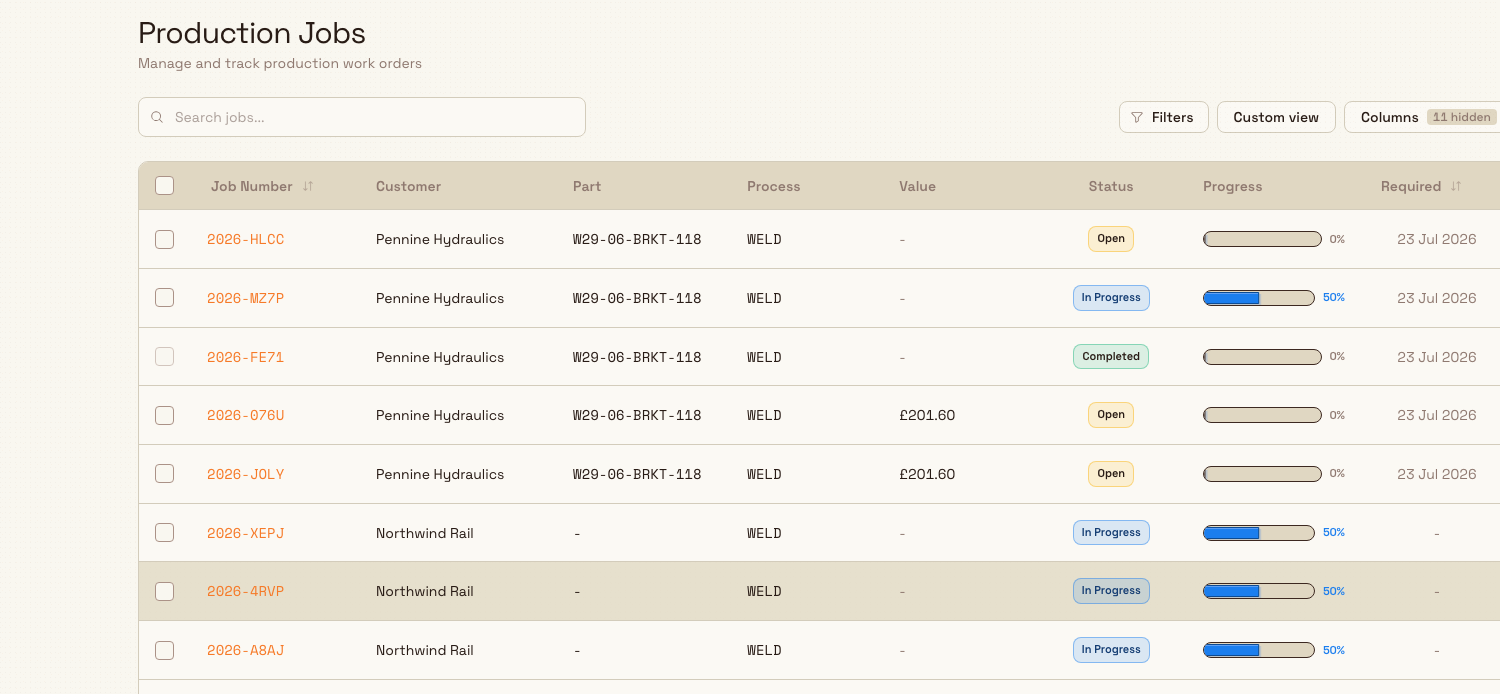
Open Production in the sidebar and select Jobs. The Production Jobs screen ("Manage and track production work orders") lists every job across all orders in the current workspace.
Search and filter. Search matches the job number, PO number, customer, part, current-step resource, notes, and the same searchable custom-field value types described for orders. Field names and file attachments are not search terms. Use the Process filter for a process; process is not part of the job list's free-text search. Filters cover Status, Customer, Priority, Required date, Part, Process, and Resource. Status chips show a count for each state.
Columns. The Job Number column shows the production order beneath the job link. The Customer column shows the assigned contact. Progress shows how many steps are complete, and overdue required dates are highlighted.
Other columns cover the PO, part, process, quantity, value, status, priority, dates, notes, and custom fields. As with orders, you can show, hide, reorder, resize, pin, and save column layouts.
Right-click a job row to Open, Open in new tab, or Copy job number. The three actions follow the same current-tab, new-tab, and clipboard behaviour as the order menu, with Job number copied after a successful row copy. On an open job, use the copy button beside the locked Job no. field; it confirms Copied and does not require edit permission.
Bulk edit. If your role includes production_jobs.update, a checkbox appears on each editable row. Select several jobs and an action bar lets you Edit them together — useful for setting a shared priority or required date across a batch. Completed, cancelled, and approval-locked jobs cannot be bulk-edited and their checkboxes are disabled.
Production order, job, and routed-item changes can start a published workflow. Where the Workflow Action catalog offers a production Action, it uses the same operation, state rules, permissions, and history as the matching Production screen. It does not create a separate production process or add extra staff steps. A failed Action appears in the workflow run log and can be retried after the production record or the user's access is corrected.
production.orders-jobs-03
Open a job to see its detail
Select a job number, or click a row, to open the job detail. The header shows the job number with the customer and part beneath it, and the body is organised into tabs:
- General — the job's fields, files, custom fields, forms, and any attached invoices.
- Routing — the ordered steps the job runs through, with a count on the tab. This is where you see the current step and how the job moves through its routing.
- Output — the quantities recorded against the job.
- Timers — the time logged against the job.
- Quality — quality issues raised on the job.
- Logs — the job's activity history.
An actions menu on the job header (labelled Job actions) offers Edit job, Edit routing, and Cancel job, subject to your permissions and whether the job is still editable. For the underlying activities behind these tabs, see Run production timers, Record production output, Skip or complete a production phase, and Edit a production routing.
Jobs waiting to be scheduled
An open job appears in the Scheduling work queue for as long as it has routing steps nobody has planned onto a machine yet. Plan its last unplanned step and the job leaves the queue; return a step to the queue, add a step, or split one, and it comes back. Jobs are ordered there by required date, then priority, then job number — so the queue reads as what to schedule next rather than simply what exists.
Closed and cancelled jobs never appear, and neither do steps already in progress or completed: once work starts it is no longer something to schedule. See Use the planning board for how that queue is worked.
Example: checking an order at Granite Peak Manufacturing
Priya, a production planner at Granite Peak Manufacturing's Leeds Fabrication Plant, gets a call from the customer Pennine Rail Ltd asking where their order stands. She opens Production then Orders, types Pennine into the search box, and finds order 2026-0117. Its status badge reads In Progress and the Jobs column shows 6 jobs.
Priya opens the order and selects the Jobs tab. Four jobs show Completed and two show In Progress. She opens one of the in-progress jobs and checks its Routing tab: the current step is Powder Coat, with the earlier cut and weld steps already done. On the Timers tab she confirms time is being logged today, so the job is genuinely moving.
To be thorough, Priya switches to Production then Jobs, sets the Customer filter to Pennine Rail Ltd, and adds a Required date range covering this week. The list shows both remaining jobs are due Friday and neither is overdue. She calls the customer back with a confident answer, all without touching a shop-floor tablet.
Expected result
From these two screens you can:
- Find any order or job by number, PO, customer, part, or other filters.
- Read status, progress, dates, and value at a glance from the list.
- Open an order to reach its jobs, or open a job to inspect its routing, output, timers, quality, and logs.
- Print an order traveller or selected job PDFs from the order’s Print action when published templates are available.
- Where your role allows it, edit jobs in bulk and open the edit or cancel actions on an individual order or job.
Feature state and limits
The Production Orders and Production Jobs review screens are generally available. A few things are worth knowing:
- Both lists are search-backed. Results come from Bulk's search index with server-side sorting and pagination, so a record created seconds ago may take a short moment to appear; the syncing note flags this while it settles.
- Cancelled records stay visible. Cancelling an order or job does not remove it — it keeps a
Cancelledstatus and remains in the list, but is excluded from production and reporting. Cancelling an order also cancels its open and in-progress jobs, and cancelling a job reverses its output records, quality issues, and job items. These actions cannot be undone. - Transactions is a separate, Beta view. For a step-by-step, item-level look at individual job items and production steps, Bulk offers a separate Transactions screen, currently in Beta — see Review production transactions.
- Currency conversion runs at order level. Convert the whole order so its active jobs and stored values stay in one currency; individual jobs do not offer this action.
If something looks wrong
- An order or job you expect is missing. Clear the filters in case one is hiding it, and check the search box is empty. If it was created moments ago, wait for the syncing note to clear and refresh — the search index may still be catching up.
- The list is empty. With no orders, the screen shows "No orders yet" with a hint that orders appear after processing uploads. With no jobs, it shows "No production jobs yet" and explains that jobs are created automatically when inbound documents are approved. If you expected records here, confirm you are in the right workspace.
- The record opens as unavailable. If a job or order opens to an "unavailable" state with a link back to the list, the record belongs to a different workspace or has been removed from this one. Use the link to return to the list, or switch to the correct workspace.
- You cannot select jobs to bulk-edit. The row checkboxes only appear with the
production_jobs.updatepermission, and completed, cancelled, and approval-locked jobs are never selectable. Ask an administrator to adjust your role if you need to edit. - A job still shows an older routing revision after a publish. Unstarted jobs can be moved onto the new live revision from that routing's editor Jobs tab (see Manage routings). Jobs that have already started keep the revision they began on.
Job and order money totals include assigned order services in the payable value shown across production and analytics views.
Related guidance
- Production overview — the full production module and shop-floor workflow.
- Load a production order — pick and start an order at a fulfillment or invoicing workstation.
- Load a job — the equivalent for a production tablet.
- Peak a job — scan an order and book its jobs in or out at a Peaking Station.
- Edit a production routing — change the steps a job runs through.
- Review production transactions — the Beta, item-level view of job items and steps.
- Promote inbound work to production — how orders and jobs are created from inbound.
- Place or move a job — schedule a job onto the planning board.
Unload production work
Take finished or paused work off an asset — one job, all jobs, or a single routing step — to free the machine for the next job and stop any running timer.
Edit a production routing
Customize the step sequence of a single production job — add, remove, reconnect, or reconfigure the steps that have not started yet — without changing the shared routing template.