People and training
How Bulk's People and Training modules keep your workforce directory current and your team qualified for the work, with links to every guide.
Last updated
In Bulk, a Manufacturing Execution System (MES) that runs day-to-day work across the shop floor and the offices around it, people and training is the area where you keep track of who works at a plant and what they are qualified to do. It is made up of two connected modules that share one access area: People and Training. This page explains how they fit together, who can use them, and where to go for each task.
You use this area whenever you need to answer questions like: Who is on shift today, and who is off? Which operators are trained and in date on the laser cutter? Which department is falling behind on required training? Keeping people records and training records current is what lets the rest of Bulk, from scheduling to quality, rely on the right person being ready for the right job.
What people and training covers
The area splits into two modules that appear as separate groups under MODULES in the left sidebar.
- People is your workforce directory and the master data behind it. It holds employee records, your organization's reporting lines, absences, and company news, plus the reference data those depend on: departments, job titles, shifts, and absence types.
- Training is your competency and compliance record. It holds a catalog of training programs, a versatility (skills) matrix that maps who is trained on what, per-employee training records, and dashboards that surface expiring and missing training.
The connection between them is the point of the whole area: People defines who works at the plant, and Training records what they are qualified to do. Read together, they tell you whether your workforce is ready for the work in front of it.
One area, two front doors
People and Training are billed as one area (Bulk groups their permissions together as "People and training"), but each has its own home page. Open People for the workforce and absence picture, and Training for the compliance and certification picture.
Before you begin
Access to this area is controlled by your role — the named set of permissions an administrator assigns you. The standard Operator role does not include People or Training, so most shop-floor users will not see these modules at all. Roles that do grant access include:
- People — full access to the People module (employees, org structure, absences, departments, job titles, shifts, company news) plus training operations.
- Training — the Training module only (catalog, matrix, assignments, records).
- Manager — employee, department, job-title, shift, and absence management, but not training.
- Entity admin and Super user — the whole area, alongside the rest of the plant.
If People or Training is missing from your sidebar, it is almost always a matter of role, not a fault. Ask your Bulk administrator to grant you the right role for the plant you work in.
Absences are managed, not self-service
The People module's absence tools are built for the person reviewing and planning time off. Booking, approving, and tracking absences all require an absence permission that the People and Manager roles carry — there is no separate self-service booking screen for every employee.
The workforce-readiness loop
Most work in this area follows one repeating loop. Each step below links to the reference guide that covers it in full; for the complete end-to-end walkthrough, follow the workflow guide at the end of this list.
- Set up the structure. An administrator defines the departments, job titles, shifts, and absence types your plant uses. These are the building blocks every employee and training record hangs off. See Departments and job titles, Shifts, and Absence types.
- Record your people. Add employees to the workforce directory and set their reporting lines. See Create an employee and Organization structure.
- Build the training catalog. Group programs into categories and define each program's rules. See Training catalog and Create a program.
- Assign training and track it. Assign programs to people and watch progress fill in on the versatility matrix. See Assign training and Training matrix.
- Monitor readiness. Use the People and Training dashboards to spot who is out, what is expiring, and where the gaps are, then act before they become a problem.
For the full loop tied together as a single process, see Manage workforce readiness.
The People module
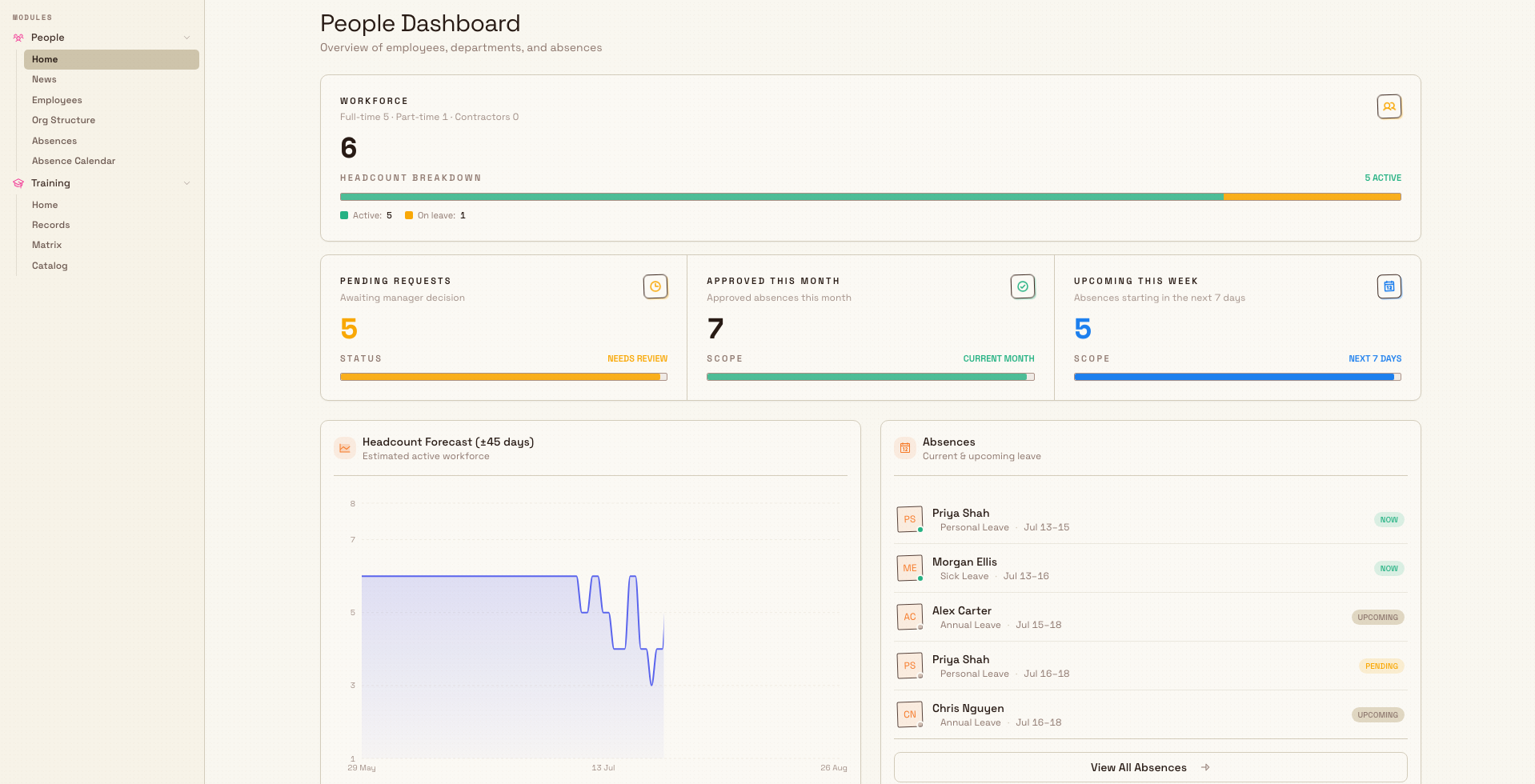
Open People from the sidebar to land on the People home, an overview of employees, departments, and absences. From there the group's items are:
-
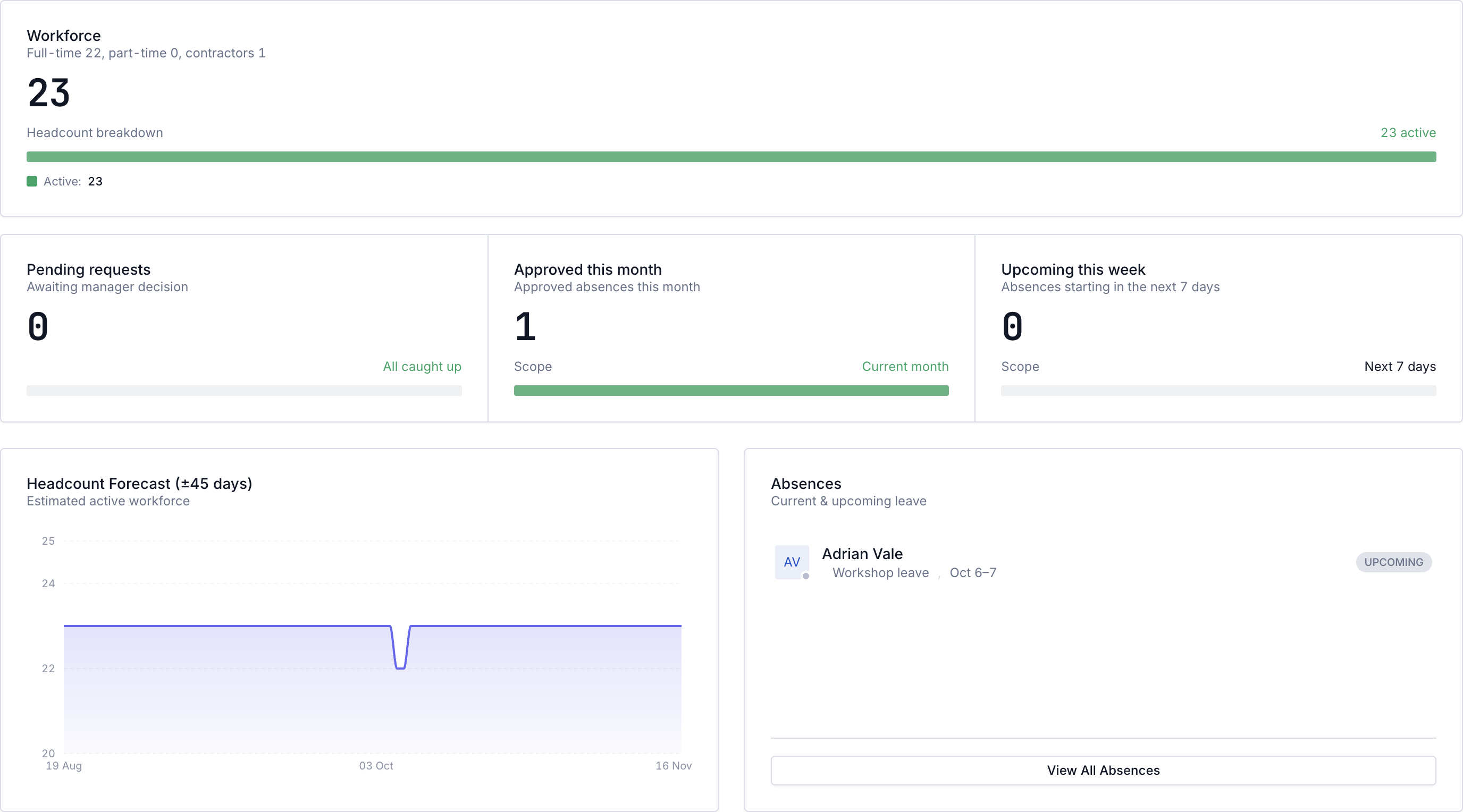
Home — the People home, with today's attendance, a workforce summary, absence counts, a headcount forecast, and upcoming absences.
-
News — company announcements posted to your team. See Company news.
-
Employees — the Employees page, where you manage your workforce directory. Open a person to see their full record. See Create an employee and Employee record.
-
Org Structure — a visual of your reporting lines where you can also draft hypothetical reorganization scenarios without changing live records. See Organization structure.
-
Absences — the Absence Management page, to review requests, track absences, and plan team availability. See Record an absence.
-
Absence Calendar — a calendar view to plan team availability and track scheduled absences. See Absence calendar.
-
Attendance — today's time-clock board and employee timesheets.
The master data behind the directory — Departments, Job titles, and Shifts — is managed from Settings.
The Training module
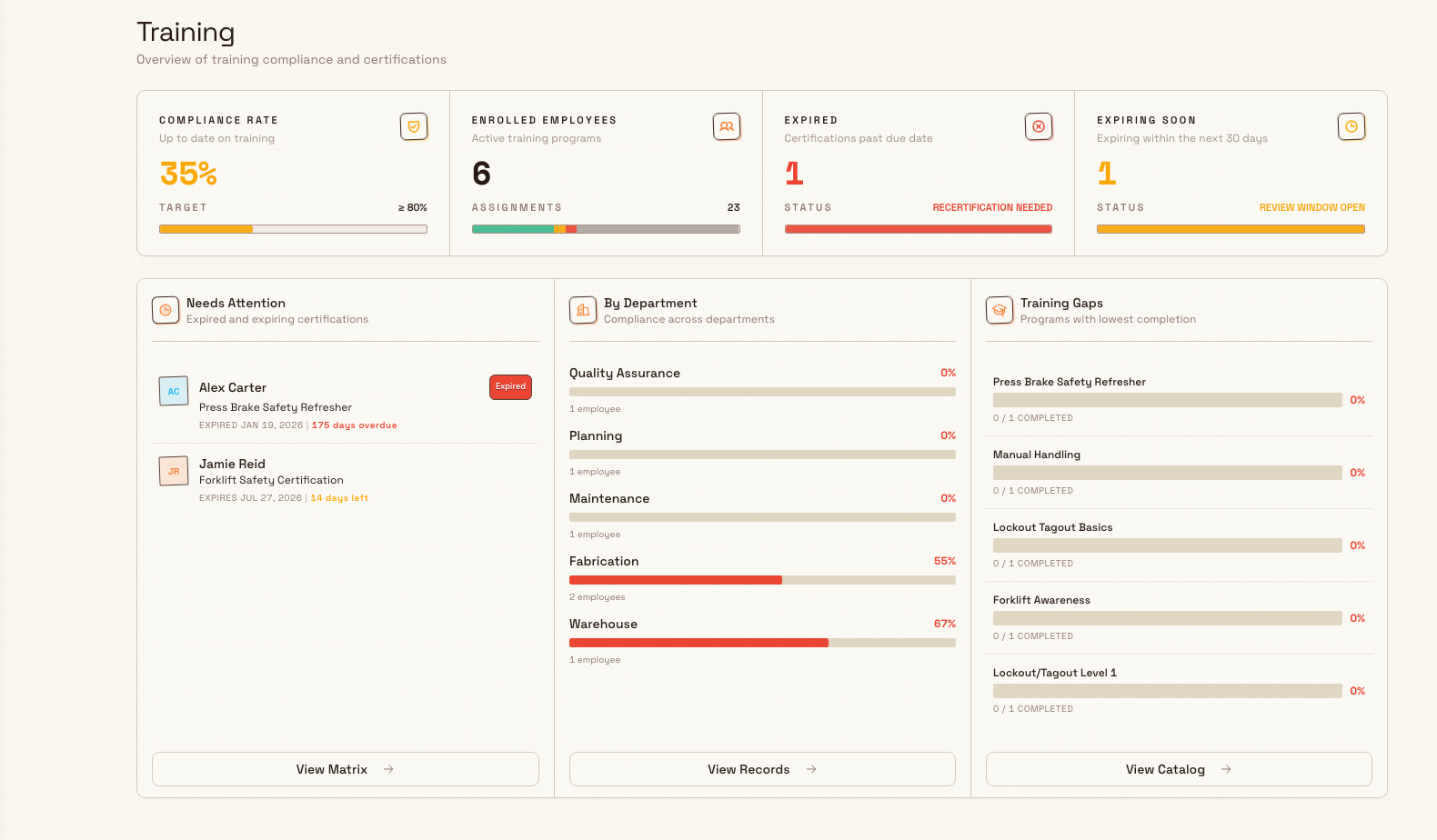
Open Training from the sidebar to land on the Training home, an overview of training compliance and certifications. The group's items are:
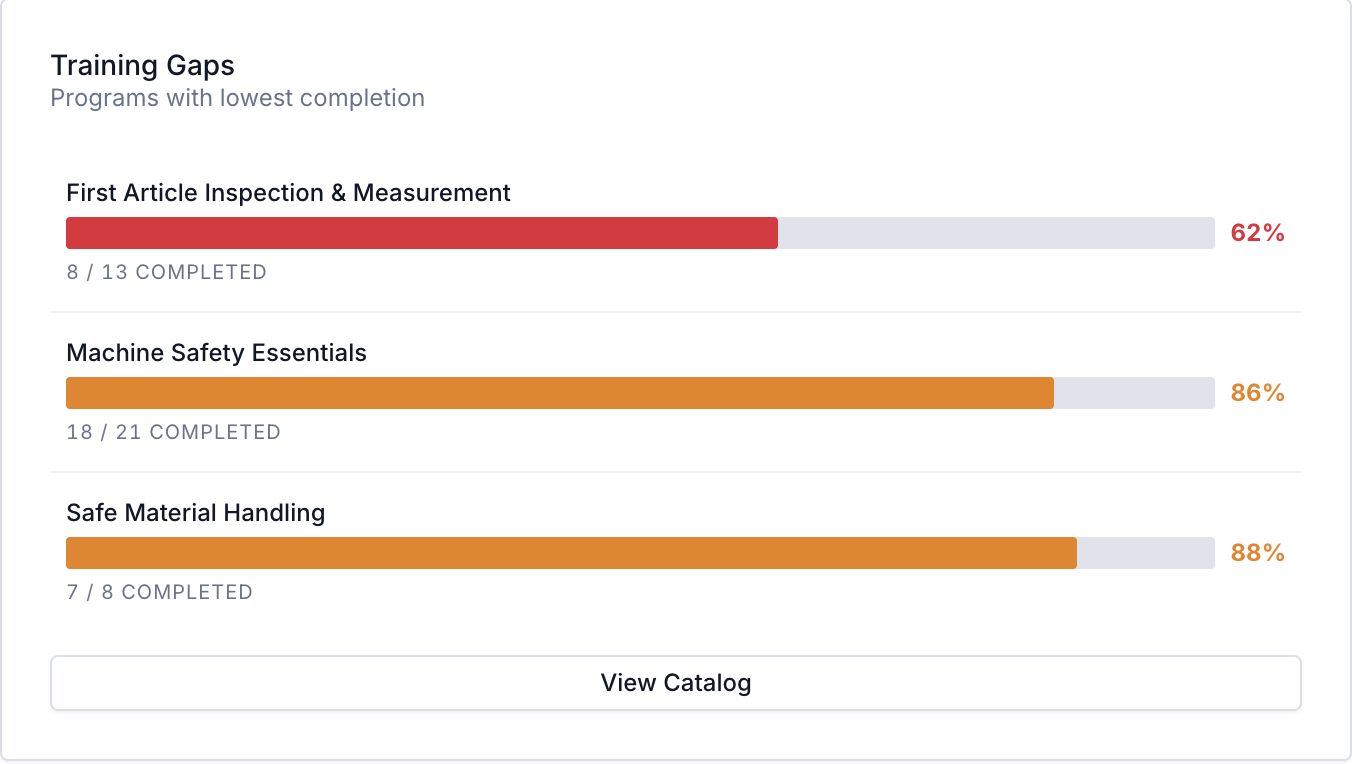
- Home — the Training dashboard, with a summary strip and Needs Attention, By Department, and Training Gaps widgets.
- Records — the Records page, which tracks current employee training status from matrix assignments. See Employee training records.
- Matrix — the Versatility Matrix, a grid of trainings against people that shows who is competent on what. You can open the full matrix or a saved layout. See Training matrix and Save a matrix layout.
- Catalog — the Training Catalog, where you organize and manage training programs by category. See Training catalog, Create a program, and Categories.
Day-to-day training work — assigning a program, recording a completion, renewing an expiring one, and setting prerequisites — is covered in Assign training, Record a completion, Renew training, and Prerequisites.
An example at Wayne Corp
Say you run the shop floor at Wayne Corp's Gotham Applied Sciences and you are onboarding a new press-brake operator, Priya.
- In People, you open Employees, add Priya to the workforce directory, and set her job title and department. In Org Structure you attach her to her shift supervisor's reporting line.
- In Training, you open the Training Catalog and confirm the plant's Press Brake Operation and Manual Handling programs exist. You assign both to Priya.
- On the Versatility Matrix you can see, at a glance, that Priya now has two open assignments while the rest of the press-brake team is fully in date. As she completes each program, her cell turns competent.
- A month later, the Training home flags that two operators' Manual Handling certificates are expiring. You renew them before they lapse, so scheduling never has to pull an untrained operator onto the brake.
- Meanwhile, when Priya requests time off, it appears in Absence Management, and the Absence Calendar shows you whether her shift still has cover.
Within one workflow you have recorded a new hire, made her training visible, and kept the team both compliant and adequately staffed.
Expected result
When people and training are kept current you can, at any time:
- see who works at a plant, their reporting lines, and who is absent today;
- see who is trained and in date for each task, and who has gaps;
- act on expiring or missing training before it blocks production; and
- give scheduling, quality, and production a trustworthy picture of workforce readiness.
Feature state
People and training is generally available — it is a standard, supported part of Bulk, and neither the People nor the Training module carries a Beta label. A few things are worth knowing:
- What you see depends on your role. The People and Training modules only appear for roles that include them. The Manager role, in particular, covers employee and absence management but not training, so a manager may see People without Training.
- Training status flows from the matrix. The Records view reflects current status from matrix assignments rather than being a separate list you edit directly, so keep the matrix as your source of truth.
- Org Structure scenarios are drafts. Drafting a reorganization on the Org Structure canvas is a planning exercise; it does not change live reporting lines until you deliberately apply changes to employee records.
Related guidance
- Manage workforce readiness — the end-to-end workflow that ties this area together.
- People and training reference — detailed reference for every screen in both modules.
- People reference and Training reference — the two module reference hubs.
- Administration: People — set up the departments, job titles, shifts, and absence types the area depends on.
- People and training tasks by role — the same tasks organized around what each job needs.
- Workflows — the other end-to-end guides across Bulk.
Run a compliance audit program
Set up audit templates, areas, and schedules, then run and review the recurring audits that keep your plant continuously compliant.
Manage workforce readiness
Keep people trained, competent, and available by combining Training and People: define required skills, monitor compliance, renew, and plan absences.