Set up a new organization or site
Understand how a Bulk organization and its sites fit together, then follow the setup journey — from standing up a new organization to choosing and working across its sites — with links to each task.
Setting up a new organization or site is how a Bulk workspace comes into being and grows. Bulk is a Manufacturing Execution System (MES) — the shared software your team uses to run production, quality, scheduling, and audits — and before anyone can record work, someone has to stand up the organization that holds it and at least one site to work in.
This is a workflow page: it maps the whole setup journey and links to a focused task article for each step, rather than repeating those steps here. Read it top to bottom to understand how the pieces fit, or jump straight to the task you need.
What an organization and a site are
Two ideas sit at the centre of setup, so it helps to be precise about them.
- An organization is your entire Bulk workspace — your company's account. Bulk also calls this a workspace, and internally it is a single tenant: one isolated container for all of your company's data. An organization has a name and its own web address, and everything else — sites, people, roles, and settings — lives inside it.
- A site is a single facility you operate — a factory, workshop, or fabrication plant. Bulk also calls these plants or entities. Each site is a self-contained workspace with its own orders, machines, quality records, and team.
The relationship is simple: one organization contains one or more sites. The organization is the shared account around them; the site is where day-to-day work actually happens. Almost everything you record in Bulk is scoped to the site you are currently working in, so choosing and switching sites is a routine part of using Bulk once setup is done.
Who sets this up
Setup is an administrator activity. A role is a named set of permissions, and a permission is a single thing you are allowed to do.
- The owner — Bulk's Super user role — holds full access to the organization. The owner creates the organization, completes its one-time setup, and is the only role that can add sites.
- An Entity admin has broad administrative access across the organization and can create and manage user accounts, but cannot add new sites.
- Everyone else works under a role such as Operator or Manager, scoped to the sites an administrator grants them.
If you are standing up a brand-new Bulk workspace, you are almost certainly its owner. If you were added to an organization that already exists, you can skip ahead to Select an entity.
Set up a new organization
A new organization is created together with its first owner account and its first site in a single step. That means when the organization exists, an owner can already sign in and there is already one site to work in.
Bulk does not offer open, self-service sign-up: there is no public "Create account" page, and the sign-in screen reads Welcome back. with only sign-in options. A new organization is provisioned rather than opened from a public form, so if you need one, that is arranged with Bulk during setup rather than through a button in the app.
Once the organization exists, the owner finishes standing it up:
- Sign in as the owner. See Sign in to Bulk.
- Complete onboarding. The first time anyone opens a new workspace, Bulk runs a short, guided setup wizard — reviewing modules, drafting key performance indicators (KPIs, the metrics you track against targets), building a daily-management board, and choosing a plan. Onboarding runs once per workspace and Bulk requires it before you can use the rest of the organization. See Complete onboarding.
- Add your team. Accounts are created for you by an administrator, not by self-service sign-up. See Create an account and, for administrators, Manage users.
Set up and organize its sites
Every organization starts with one site, created automatically when the organization is created. If no name is supplied, that first site is simply called Main; normally it is named for the facility it represents.
Working with sites breaks into a few tasks, each with its own article:
- Choose which site to work in. After signing in, if you can open more than one site, Bulk shows the Choose a plant screen with a card for every active site in your organization. If you can open only one, Bulk opens it for you. See Select an entity.
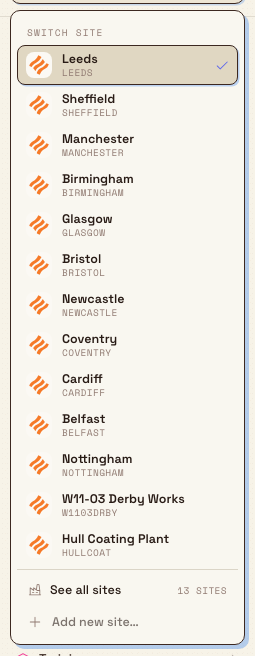
- Switch between sites. The site switcher at the top of the left sidebar shows your current site as Hub / [site name] with the site's short code beneath it. Open it to move to another site you can access, without signing out. See Switch operational context.
- Manage a site's details. Renaming a site, setting its time zone, or activating and deactivating it is administrative work covered in Manage entities.
workflow.setup-organization-site-01
Adding more sites is currently limited. In-app site creation is not yet a self-service action: the Add new site… control in the site switcher is present but turned off, and there is no create-a-site form elsewhere in the app. Adding a further site needs owner-level access and is arranged with Bulk during setup. Once a new site exists, everyone with access to it can select and switch to it in the usual way.
Configure the organization and its sites
With the organization and its sites in place, a few settings areas finish the setup. These are administrator tasks, each with its own reference:
- Organization-wide settings — the organization's name and general options. See Update organization settings.
- Localization — language, number, and time formatting for the organization. See Configure localization.
- Users, roles, and permissions — who can sign in and what they can do. See Manage users and Manage roles and permissions.
- Per-site settings — operating rules and options that apply to one site. See Update entity settings.
Example: standing up Granite Peak Manufacturing
Granite Peak Manufacturing is a UK precision-fabrication company. Dana Winters is setting it up in Bulk.
- Granite Peak's Bulk organization is provisioned with Dana as its owner, and its first site — the Leeds Fabrication Plant (code
LEEDSFABRI) — is created at the same time. - Dana signs in for the first time and Bulk opens onboarding. She drafts a few KPIs such as First Pass Yield and On-Time Delivery, lets Bulk build her daily-management board, and finishes the wizard. Onboarding will not run again for the organization.
- She opens Settings → Organization → Users and uses Add User to create accounts for her Leeds team, giving each person the right role and access to Leeds.
- She sets the organization's localization and reviews Leeds's operating rules.
Months later, Granite Peak opens a second facility, a Sheffield Machining Plant. Because adding a site needs owner-level access, the new site is arranged during setup rather than from a button. Once Sheffield exists and Dana is given access, she opens the site switcher, sees both sites listed, and switches between Leeds and Sheffield as her day moves between them.
Expected result
When setup is complete, you have:
- a working Bulk organization with a name and web address;
- at least one site to work in, created with the organization;
- an owner who has finished onboarding for the workspace; and
- the people who need Bulk, each with a role and access to the right sites, able to choose and switch between them.
Feature state and limits
The setup journey is generally available — these are the standard, supported ways to stand up and run a Bulk organization. A few boundaries are worth knowing:
- No public self-service sign-up. There is no open registration page. A new organization is provisioned with Bulk, and user accounts are created by an administrator rather than by people signing themselves up.
- The first site is created with the organization. You never start with an empty organization; one site always exists from the moment it is created.
- In-app site creation is turned off. The Add new site… control in the site switcher is disabled, and no other screen creates a site today. Adding more sites needs owner-level access and is arranged during setup.
- Onboarding runs once per workspace. After the owner completes it, no one in the organization sees it again, and everything it created stays editable in its own module.
- Single-site organizations skip the site picker. If your organization has only one site, Bulk opens it automatically and the switcher simply shows that site.
If something is not working
- You cannot find a way to sign up. There is no sign-up page — this is expected. Ask Bulk to provision your organization, or ask your organization's administrator to create your account. See Create an account.
- Onboarding keeps reopening when you try to browse. The workspace has not finished onboarding. Return to the wizard and complete its final step. See Complete onboarding.
- The site switcher shows only one site, or no picker appears after sign-in. Your organization has a single site, so Bulk opens it for you — there is nothing to switch to yet.
- A site you expect appears locked, marked "No access." You have not been added to it. Select Request access on its card and wait for an administrator to grant it. See Select an entity.
- You want to add a second site but see no button. Adding a site is not a self-service action today; the Add new site… control is turned off. Arrange the new site with Bulk during setup, using owner-level access.
Related guidance
Setup and connect
Get a new Bulk site ready to run — its organization settings, master data, team, and access — then connect Bulk to your other systems and automate routine work, with links to every setup guide.
Automate and integrate safely
Understand how Bulk's Workflows automation engine and connector integrations fit together, the roles and safeguards that keep them controlled, and where to set each one up.