Automate and integrate safely
Understand how Bulk's Workflows automation engine and connector integrations fit together, the roles and safeguards that keep them controlled, and where to set each one up.
Bulk is a Manufacturing Execution System (MES) — the shared workspace where your team runs production, quality, scheduling, and more. Once your plant is set up, two capabilities let Bulk work with the rest of your business instead of in isolation:
- Automate — build Workflows that watch for a change (a job, order, audit, or document) and respond on their own, so routine follow-up happens without anyone remembering to do it.
- Integrate — connect outside systems through the Integrations catalog, so data flows between Bulk and your ERP (Enterprise Resource Planning system, where sales orders and finance live), your sensors, and AI assistants.
This page explains how those two halves fit together and, just as important, the safeguards that let you turn them on without risk to live production. It is an overview: each detailed setup task has its own guide, and this page links to them. Do both parts well and Bulk stops being another screen to check and starts doing work for you.
Before you begin
Automation and integrations are organization-level settings, so they need an administrator. To reach the areas described here you must be:
- Signed in and working in a plant. A plant (Bulk also calls these sites or entities) is a single site you operate. See Navigate Bulk.
- Granted the right permissions. What you can open and change is controlled by your role. The most relevant permissions are:
- View workflows, Create workflows, Edit workflows, and Publish workflows — to see, build, and turn on automation.
- View API keys and Create API keys — to issue access tokens for outside systems.
- Manage D365 connector — to configure the Microsoft Dynamics 365 connection.
- Manage MCP settings and Approve MCP actions — to allow AI clients and review what they do.
If you are not sure which role you hold, see Understand access and visible navigation. Administrators can adjust these grants in Manage roles and permissions.
Automate work with Workflows
A Workflow is an automation you build in Bulk: when this happens, do that. You find them under Settings › Organization › Workflows. Workflows is a Beta feature — it works and is safe to use, but its screens and behavior may still change, so treat it as a preview and test each automation before you rely on it.
Selecting New workflow asks How should this workflow start? and offers two start methods:
- Business change (the recommended default) — start when one job, document, order, audit, or Dynamics 365 record changes.
- Overdue work — start when a job, routed item, or schedule has stayed in the same state past a threshold you set.
From there the full-screen builder lets you add filters and actions as a connected graph of steps. The Workflows area groups its screens into two sets of tabs: Workflows, Runs, and Incidents (what your automations are doing), and Starting changes, Waits, and Rate limits (how they are triggered and paced).
For the complete authoring reference — every start method, filter, and action, and how to read a run — see Manage workflow automation.

workflow.automate-integrate-safely-01
Creating jobs from a Workflow
The Queue Production jobs from Inbound document Action queues the same resumable background creation used when an approved document is promoted from Inbound. The Workflow step records a fixed queue-time acknowledgement that creation was scheduled; it does not turn into a live progress result or hold the Workflow run open while every job is created. The inbound document keeps the progress and retry state while Bulk creates and reconciles the order and jobs in the background.
Treat this Action's successful result as scheduled, not as confirmation that every job is already available to a following step. Review the source inbound document for completion or a failure that needs Retry job creation.
Connect outside systems with Integrations
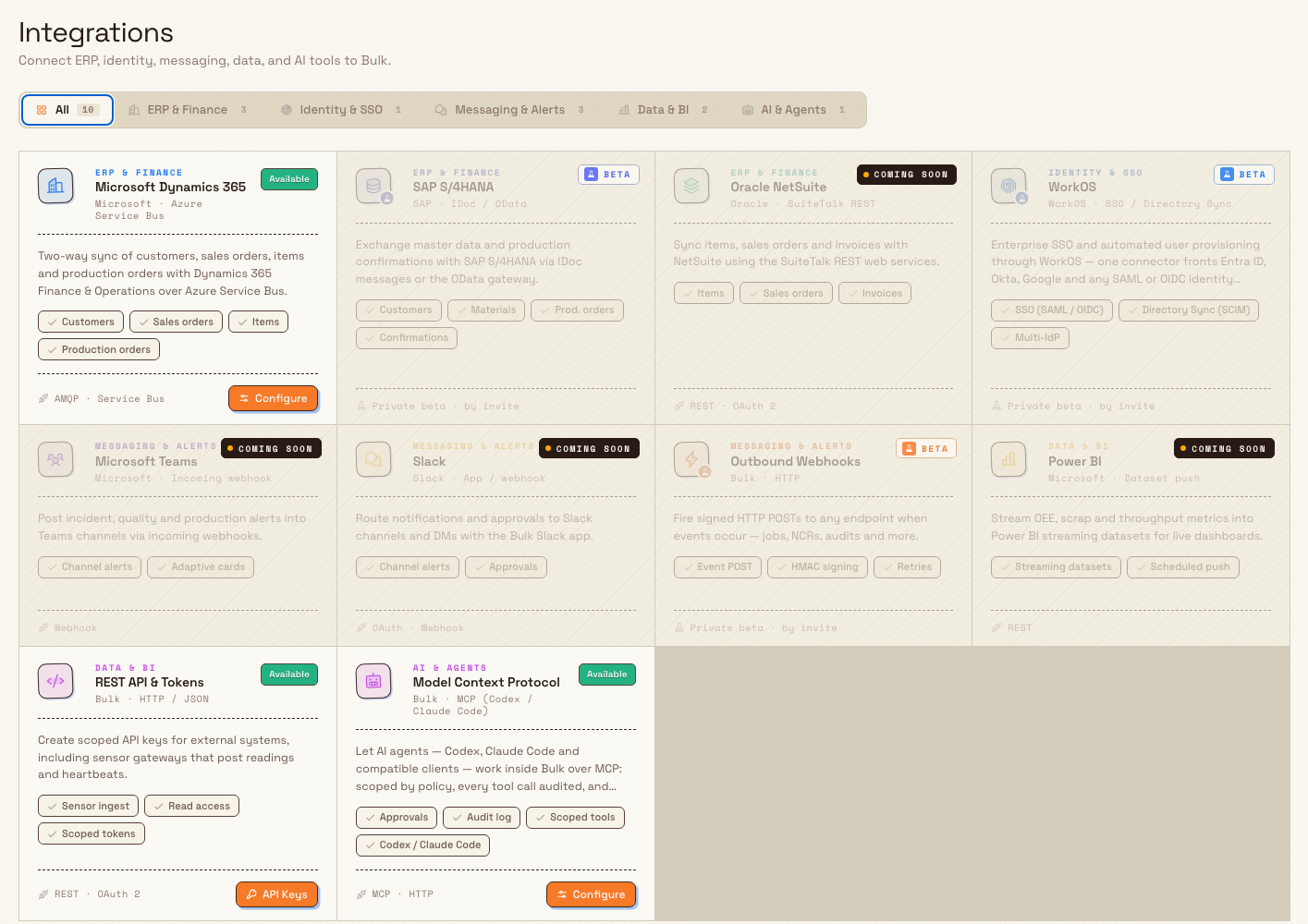
The Integrations catalog lives at Settings › Organization › Integrations. Its heading reads Connect ERP, identity, messaging, data, and AI tools to Bulk. A row of category filters — All, ERP & Finance, Identity & SSO, Messaging & Alerts, Data & BI, and AI & Agents — narrows the grid of connector cards, and each card shows a status such as Available or Beta so you can tell what you can use today.
workflow.automate-integrate-safely-02
Three connectors are available now and open a working destination directly from the catalog:
- Microsoft Dynamics 365 — two-way sync of customers, sales orders, items, and production orders with Dynamics 365 Finance & Operations. Its Configure button opens the connector console. See Configure Microsoft Dynamics 365.
- REST API & Tokens — create scoped API keys so external systems, including sensor gateways that post readings, can talk to Bulk over a standard web (REST) interface. Its API Keys button opens the key manager. See REST API access.
- Model Context Protocol — let AI agents such as Codex or Claude Code work inside Bulk over MCP, scoped by policy and audited. Its Configure button opens the MCP console. See Model Context Protocol connections.
Other cards — for systems such as SAP, WorkOS single sign-on (SSO), Microsoft Teams, Slack, Power BI, and outbound webhooks — appear with a Beta status or are listed as not yet available. They are shown so you can see the direction of travel; to learn what each status means before you plan around it, see Understand integration availability.
How Bulk keeps automation and integrations safe
"Safely" is the point of this page. Bulk builds several guardrails into both capabilities so you can connect the tools you need without exposing live production, safety, or quality records to a mistake:
- Permissions gate every action. Viewing, building, publishing, and connecting are separate permissions. A user can be allowed to see automations without being able to change them, and connecting an outside system is limited to administrators.
- Preview run before you commit. In the builder, Preview run shows exactly which steps would fire for a sample record. It does not start a live run and does not create tasks, notifications, or sign-offs — it is a dry run, so you can check your logic against real conditions with nothing happening.
- Draft, then publish. Your edits stay in a draft version until you choose Publish. Publishing validates the draft first; if there are blocking setup issues it is stopped and the active version keeps running unchanged. When you do publish, the new version replaces the previous active one — so you can always fix a draft and republish.
- Runs, Incidents, and Rate limits. Every automation execution is recorded under Runs; failures surface as Incidents you can review and re-drive; and Rate limits stop a noisy trigger from flooding your plant.
- Scoped, single-use tokens. An API key is shown once, when you create it, and is scoped to only what the outside system needs. If a key is ever exposed, you revoke it and issue a new one.
- AI actions are reviewed and logged. MCP connections run under a policy you set. Guarded actions are held as requests that a person must approve or reject before they touch production, safety, or quality records, and every tool call is written to an audit log.
Treat keys and AI access like keys to your plant
API keys and MCP connections let systems and AI agents act on your plant's data from outside Bulk. Store the secret an API key shows you somewhere safe, never paste it into a message or ticket, and revoke it the moment it is no longer needed. Before you publish an automation, use Preview run so it does not act on live records in a way you did not intend.
Example: Granite Peak Manufacturing wires up its Leeds plant
Granite Peak Manufacturing is a UK precision-fabrication company. Dana Winters administers its Leeds Fabrication Plant and wants three things connected without putting live work at risk.
First, orders. Dana opens Settings › Organization › Integrations, filters to ERP & Finance, and selects Configure on Microsoft Dynamics 365 so sales orders raised in the company's ERP appear in Bulk automatically.
Next, follow-up. Under Settings › Organization › Workflows she selects New workflow, chooses the Business change start method, and builds a small automation: when a Dynamics 365 sales order arrives, create a review task for the planning team. Before turning it on she uses Preview run and confirms the single review-task step is the only thing that would fire — nothing is created during the preview. Reassured, she selects Publish; validation passes and the automation goes live.
Then, sensors. Back in Integrations she opens REST API & Tokens, creates a scoped API key for the gateway at the laser-cutting station, copies the one-time secret into the plant's secrets store, and the gateway begins posting machine readings to Bulk.
Finally, an assistant. Dana enables a Model Context Protocol connection so the maintenance lead can ask Claude Code to summarize open quality issues. She sets the policy so any action that would change a record is held for approval, and checks the MCP audit log the next morning to see exactly which read-only calls the assistant made.
By the end of the day, Dana has automation and three integrations running — and at each step a safeguard (a scoped token, a dry run, an approval, an audit log) meant she was never one careless click away from disrupting the floor.
Expected result
When this is set up you can:
- build automations that respond to changes and overdue work, and turn them on through a draft → Preview run → Publish path;
- watch what they do under Runs, Incidents, and Rate limits;
- connect Dynamics 365, issue scoped API keys, and allow AI clients over MCP from one Integrations catalog; and
- rely on permissions, previews, approvals, and audit logs to keep every one of those connections controlled.
Feature state and what to expect
- Workflows is in Beta. The automation engine is usable and safe, but its screens and behavior may still change. Test each automation with Preview run and treat the area as a preview rather than a finished feature.
- Connectors differ in availability. Only cards marked Available — Microsoft Dynamics 365, REST API & Tokens, and Model Context Protocol — open a working destination today. Cards marked Beta or listed as not yet available are shown for planning; Understand integration availability explains what each status means.
- Connecting a system is a separate step from listing it. Opening a connector's console does not by itself move data — Dynamics 365 and MCP both need a connection and policy configured before anything flows. Follow each connector's own guide.
If something does not work
- You cannot see Workflows or Integrations. These are organization settings that require an administrator role. Check your access in Understand access and visible navigation, and ask an administrator to grant the relevant permissions from Manage roles and permissions.
- Publish is blocked. If the builder shows Review issues instead of Publish, the draft has blocking setup problems. Fix each listed item, then publish; until you do, your current active version keeps running unchanged.
- An AI action seems stuck. If a guarded MCP action does not take effect, it is likely waiting for approval. Someone with Approve MCP actions must approve or reject the request in the MCP console. See Manage MCP policy and connections.
Related guidance
- Setup and connect
- Set up a new organization or site
- Manage workflow automation
- Integrations
- Understand integration availability
- REST API access
- Create and scope an API key
- Model Context Protocol connections
- Manage MCP policy and connections
- Configure Microsoft Dynamics 365
- Manage roles and permissions
- For administrators
Set up a new organization or site
Understand how a Bulk organization and its sites fit together, then follow the setup journey — from standing up a new organization to choosing and working across its sites — with links to each task.
Plan and produce
How Bulk carries work from a production order through planning, workstation execution, and material tracking — with links to the end-to-end workflow for each stage.