Configure localization
Set your organization's default timezone and review the fixed English (UK) display language and regional format on the Localization tab of Organization settings.
The Localization tab is where you set the default timezone for your whole organization and see the display language and regional format Bulk uses. A timezone is the regional clock Bulk reads a moment against — the same instant reads as a different wall-clock time in Leeds than in Chicago. The locale is the language and regional formatting (how dates, times, and numbers are written). Setting a clear organization timezone gives Bulk one sensible default clock to fall back on when no more specific timezone applies.
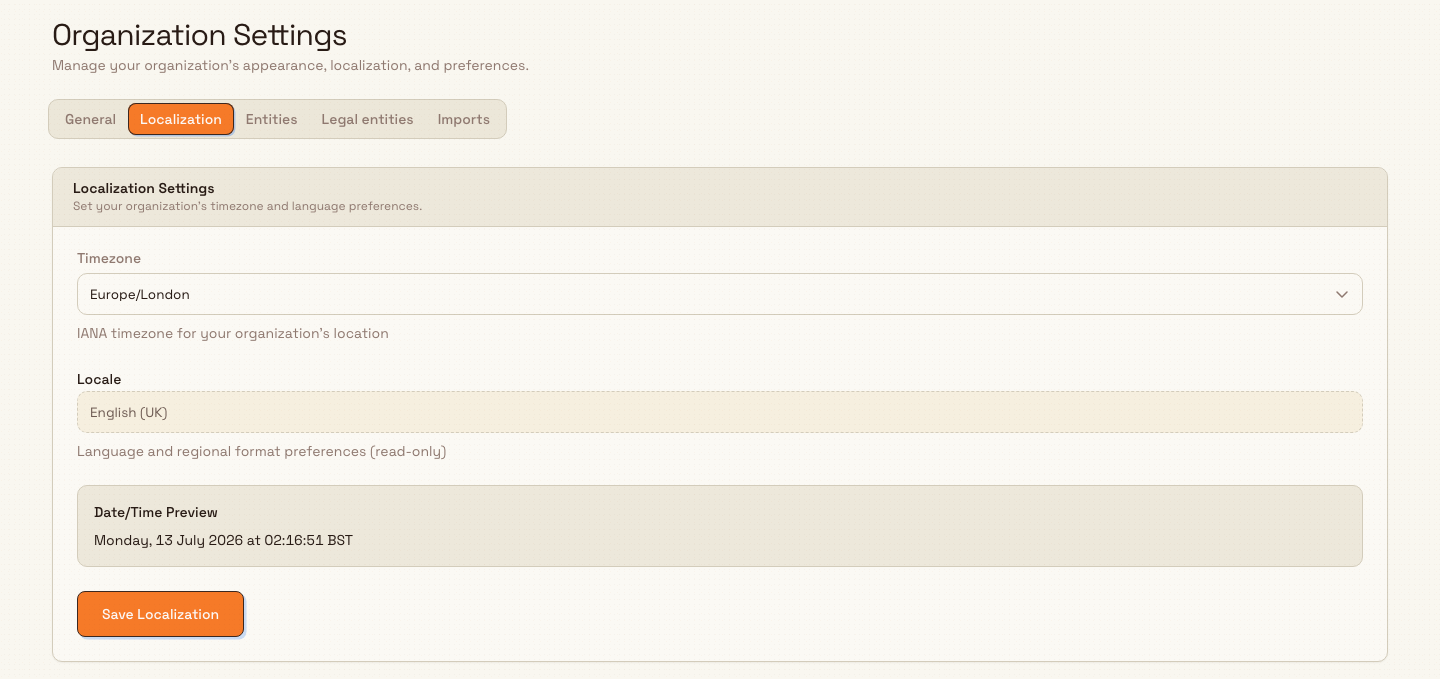
You reach it inside the Organization settings page. Open Settings › Organization › Settings (/settings/organization/settings) and select the Localization tab. The tab holds a single Localization Settings card whose subtitle reads Set your organization's timezone and language preferences.
administration.organization.localization-01
Before you start
You need permission to save changes. Saving on this tab requires the Edit organization settings permission (organization.update), which lets you change organization-wide settings such as the name and localization. In the default roles this permission belongs to the Super user (Owner) role. Other roles — including Entity admin — can open the tab and see the form, but their save will not go through. If you are unsure, ask an Owner to make the change or to grant you the permission.
This is an organization-wide default, not a per-plant setting. In Bulk a plant (also called an entity) is a single manufacturing site, and each plant carries its own timezone. The value you set here is the organization's default, which is separate from the timezone attached to any individual plant. See Manage entities for the per-plant list.
Each plant's timezone is fixed when that plant is created. Bulk uses it for records owned by that plant, so a building's calendar does not change later because an administrator edits a setting. The organization also has one shared rule for when a week starts; changing plants or plant timezones does not create different week numbers.
Calendar-only values such as required dates, due dates, and inspection dates stay on the selected YYYY-MM-DD day. They do not move when someone opens the record or prints it from a computer in another country. Event values that include a time, such as received, completed, or approved timestamps, keep their exact recorded moment and are displayed in the appropriate timezone. Personal schedules use your saved user timezone when available, with the organization timezone as the fallback.
What you can set
Timezone
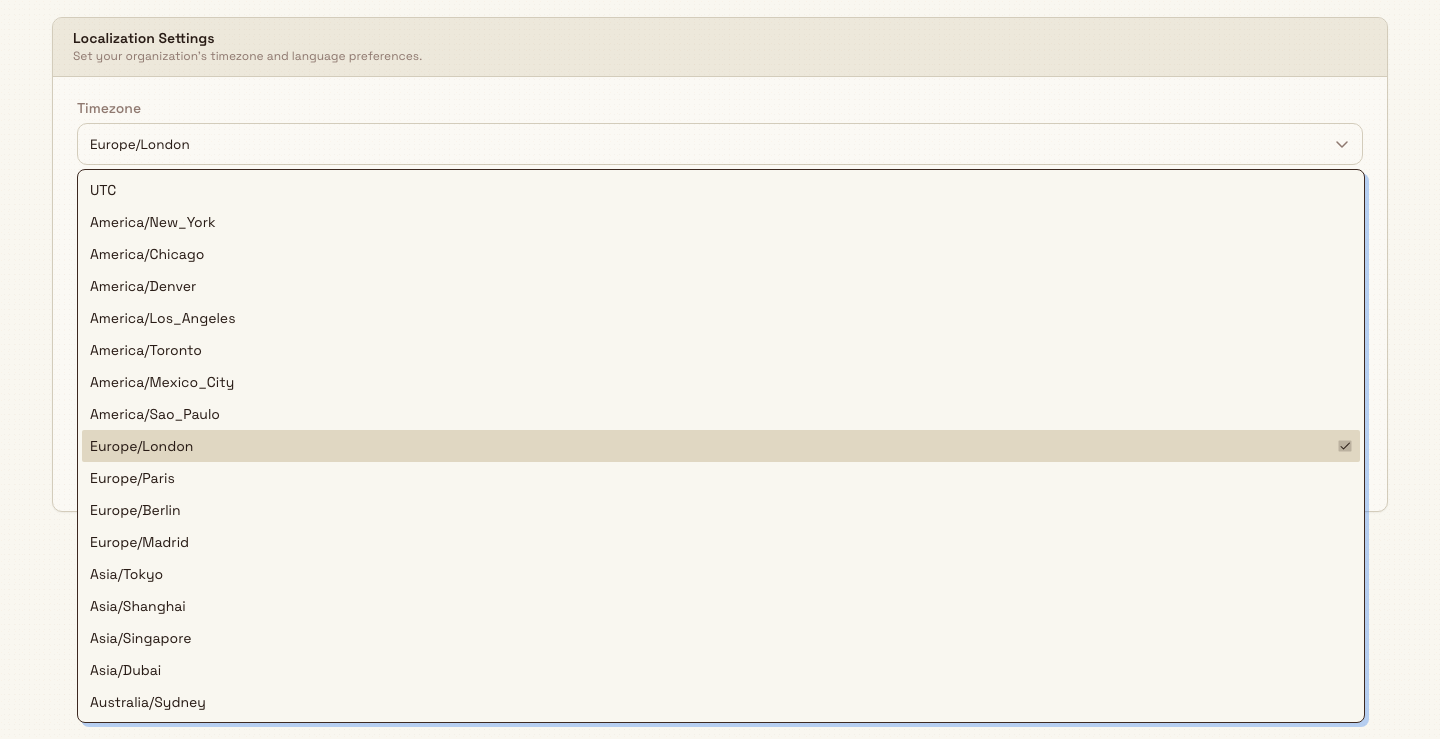
The Timezone selector holds a curated list of common IANA timezones. IANA is the standard timezone database, where each zone is written as region and city, such as Europe/London or America/New_York, plus plain UTC. The field's description reads IANA timezone for your organization's location. Open the selector and choose the zone that matches where your organization is based.
The list is a common subset — for example UTC, Europe/London, Europe/Paris, Europe/Berlin, America/New_York, America/Chicago, America/Los_Angeles, Asia/Tokyo, Asia/Singapore, and Australia/Sydney — rather than the full IANA database. If your exact city is not listed, pick the nearest zone that shares the same offset and daylight-saving rules.
administration.organization.localization-02
Language and regional format
Below the timezone is a Locale field. It is read-only: it shows English (UK) and its helper text reads Language and regional format preferences (read-only). The display language and regional format are fixed to English (UK) and cannot be changed from this tab. You do not need to do anything with this field; it is shown so you can confirm the format Bulk applies.
Date/Time Preview
The Date/Time Preview panel shows the current date and time written out in the timezone you have selected, using the English (UK) format. It updates as soon as you pick a different timezone, so you can confirm at a glance that the zone reads the way you expect before you save.
Save your changes
- Open the Timezone selector and choose your organization's zone.
- Check the Date/Time Preview panel — it should now show the current time in that zone.
- Select Save Localization. The button reads
Saving...briefly while the change is written. - A
Localization updatedmessage confirms the save. The change is recorded in your organization's activity log.
Every change here is logged
Saving localization records an entry in your organization's activity log, noting who made the change and when. You can review it later on the Activity logs page.
Example: Granite Peak Manufacturing
Granite Peak Manufacturing runs its Leeds Fabrication Plant in the United Kingdom and coordinates the business from there. When the organization is first configured, an Owner sets a sensible default clock:
- They open Settings › Organization › Settings and select the Localization tab.
- In the Timezone selector they choose
Europe/London, because the business is run from Leeds. - They glance at the Date/Time Preview, which now reads the current British time, and confirm it looks right.
- They leave the Locale field as
English (UK), since that is the only supported format today, and select Save Localization. ALocalization updatedmessage appears.
Later, Granite Peak opens a second site in the United States. That new plant carries its own timezone (for example America/Chicago), set on the plant itself rather than here — the organization default stays Europe/London as the fall-back clock for the business as a whole.
Expected result
After you save, your organization's default timezone is stored and the Date/Time Preview reflects the zone you chose. The display language and regional format remain English (UK). The change is written to your organization's activity log, so there is a record of who set it and when. This organization timezone acts as a tenant-wide default, distinct from the timezone each individual plant carries.
Limitations and feature state
This feature is generally available. Keep these behaviours in mind:
- The display language is fixed. The Locale field is read-only and set to English (UK). You cannot change the language or regional format from this tab; only the timezone is editable.
- The timezone list is a curated common set. It does not include every IANA zone. If your exact city is missing, choose the nearest zone with the same offset and daylight-saving rules.
- Organization timezone is a default, not a per-plant override. Each plant carries its own timezone. This tab sets the organization-wide default and does not change any plant's own timezone.
- The Save control is always shown. A user whose role lacks the Edit organization settings permission still sees an editable form and the Save Localization button, but the save will fail rather than being hidden in advance.
Troubleshooting
- Saving shows "Failed to update localization." Your role does not hold the Edit organization settings permission. Ask an Owner (Super user) to make the change or to grant you the permission, then try again.
- Your city is not in the Timezone list. The selector offers common zones only. Pick the nearest zone that shares the same UTC offset and daylight-saving behaviour; the wall-clock time will match.
- A plant shows a different local time than the organization default. That is expected — plants use their own timezone. Adjust the plant's timezone from its own settings rather than here. See Manage entities.
Related guidance
- Organization general settings — the neighbouring General tab, where you set your organization's name.
- Manage entities — the plants that each carry their own timezone.
- Working hours — the daily operating hours that sit alongside your localization defaults.
- Activity logs — review who changed localization, and when.
Update organization settings
Set your organization's name, timezone, and language, review your sites, manage the legal entities used on invoices, and control which import types your team can use.
Manage entities
Review every site in your organization and assign each one to the legal entity it invoices under, from the Entities tab of Organization Settings.