Configure import availability
Choose which spreadsheet import types your team can use, from the Imports tab of Organization settings.
Import availability controls which kinds of spreadsheet data your team is allowed to load into Bulk. Bulk is a Manufacturing Execution System (MES) — the software that runs and records work on the shop floor. A data import is the process of creating records in bulk from a CSV or Excel file instead of typing them in one at a time. Bulk ships with a fixed catalogue of import types (parts, customers, production jobs, and more), and this screen lets an administrator decide which of them are switched on for the organization.
Use this area when you want to control what your team can bulk-load. When you are onboarding a new organization or a new site, you might enable the master-data types (the reference records the shop floor depends on, such as parts and customers) so people can load them from spreadsheets, while leaving other types off to keep the import screen focused. A type you leave off never appears as an option when someone starts an import, so nobody can create those records by mistake.
This setting applies to the whole organization
Import availability is stored per organization, not per site. When you enable or disable an import type here, the change applies across every site (in Bulk, the entity) in your organization. There is no per-site override for import availability.
Where to find it
Open the area from the left sidebar under Settings → Organization → Settings. This opens the Organization Settings page, which is split into tabs. Select the Imports tab (the last tab, after General, Localization, Entities, and Legal entities).
The tab shows a single Import Settings card headed Manage which import types are available to your team. Each import type in Bulk's catalogue appears as its own row.
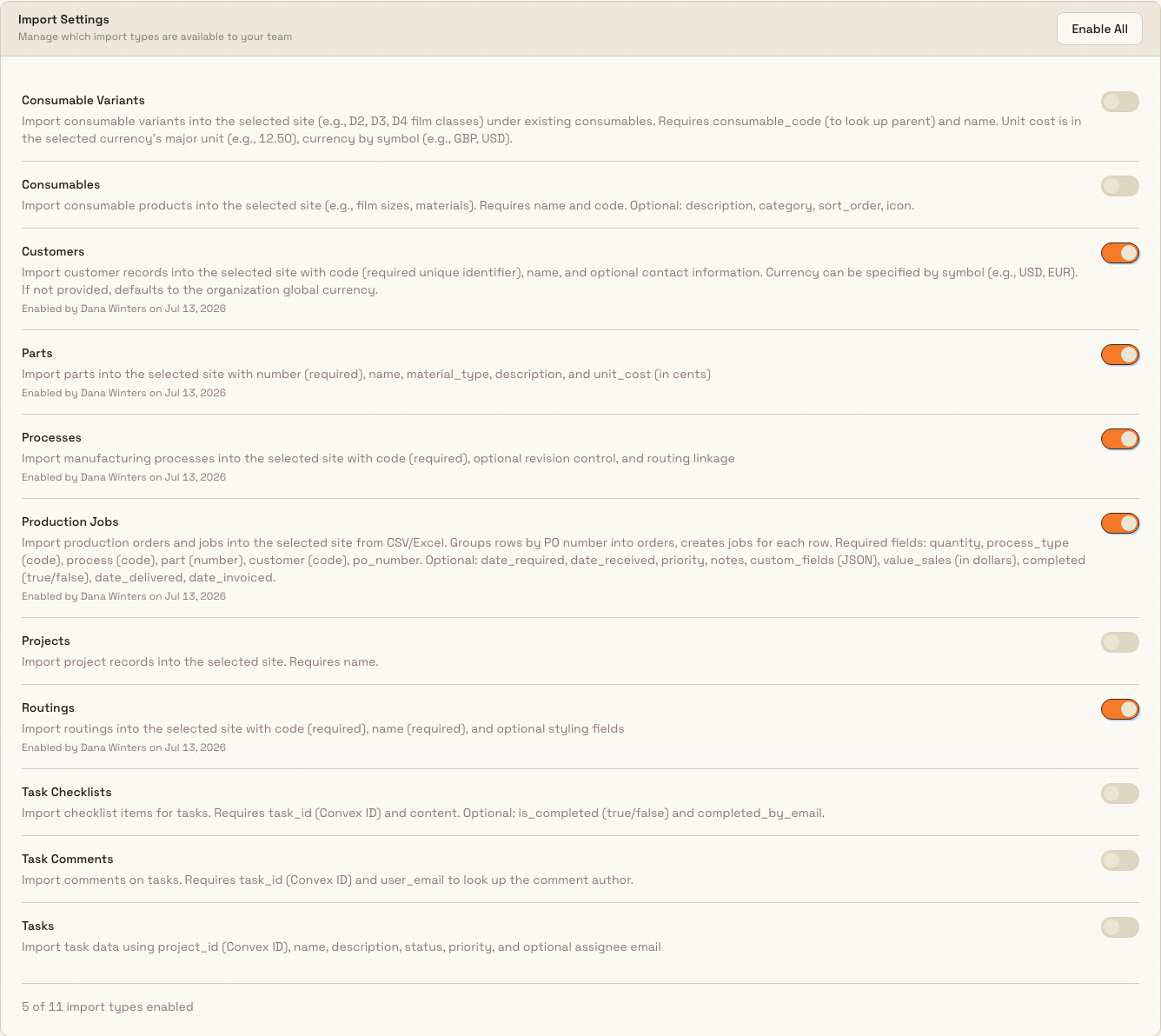
administration.organization.import-availability-01
Who can change it
Changing import availability requires the Manage imports permission. Roles that carry it by default are Super user, Entity admin, and Master data. The standard Manager and Operator roles do not include it.
If you cannot open or change this tab, ask an administrator to grant you the Manage imports permission, or to make the change for you. To review or adjust which roles hold it, see User roles and permissions.
What you can do here
Each row on the Import Settings card represents one import type and gives you:
- A label and description — the name of the record type and a short note on what it loads (for example, its required fields).
- An on/off switch — turn the type on to make it available, or off to hide it. When a type is on, the row also shows an
Enabled by [name] on [date]line, so you can see who last switched it on and when.
Above the list, the card header shows an Enable All button whenever some types are still off. Select it to switch on every remaining type at once. At the bottom of the card, a summary line reads n of m import types enabled so you can see the current total at a glance.
Bulk's current catalogue has eleven import types. Listed alphabetically as they appear on the card, they are:
- Consumable Variants — variants under an existing consumable (for example, film classes).
- Consumables — consumable products such as films or materials.
- Customers — customer records with a code, name, and optional contact details.
- Parts — parts by part number, with optional name, material type, and unit cost.
- Processes — manufacturing processes, optionally linked to a routing.
- Production Jobs — production orders and jobs, grouped into orders by purchase-order number.
- Projects — project records.
- Routings — routings (the ordered sequence of manufacturing steps a part follows), by code and name.
- Task Checklists — checklist items attached to existing tasks.
- Task Comments — comments attached to existing tasks.
- Tasks — task records, linked to a project.
To change a type, select its switch. Bulk saves the change immediately and confirms it with a short message — for example, Parts import enabled with the note This import type is now available to your team, or Parts import disabled with the note This import type is no longer available. Using Enable All confirms with a count, such as 5 import types enabled.

administration.organization.import-availability-02
How enabling changes what your team sees
Import availability decides what appears when someone runs an import. When a person with permission starts a new import (under Settings → Imports) and reaches the Select Import Type step, Bulk shows only the types you have enabled here. A type you switch off is removed from that step. If nothing is enabled, the import screen shows a No Import Types Available message that points the person to an administrator.
This screen controls only availability. It does not upload files or run imports — that happens in the import screen itself. For the end-to-end steps of loading a file, mapping its columns, and reviewing the results, see Run data imports.
Example: preparing imports for the Leeds Fabrication Plant
Granite Peak Manufacturing is bringing its Leeds Fabrication Plant onto Bulk. The team already keeps its parts, routings, processes, and customers in spreadsheets, and it wants to load its recent production history too — but it manages tasks directly in Bulk and does not want anyone bulk-loading task records.
Dana Winters, an administrator, opens Settings → Organization → Settings and selects the Imports tab. On the Import Settings card, Dana switches on Parts, Routings, Processes, Customers, and Production Jobs, and leaves Tasks, Task Comments, Task Checklists, Projects, Consumables, and Consumable Variants off. The footer now reads 5 of 11 import types enabled, and each enabled row shows Enabled by Dana Winters on [date].
Later, when a data lead at Leeds starts a new import, the Select Import Type step offers exactly those five types — the reference data and production history the plant needs — and nothing else. Because the setting is organization-wide, the same five types are available at every Granite Peak site.
Expected result
After you enable a type, it becomes available to everyone in the organization who can run imports, and it appears in the import screen's type picker. After you disable a type, it disappears from that picker. Enabling or disabling a type does not create, change, or delete any records, and it does not affect imports that have already run — it only controls which types can be chosen for a new import.
Feature state and limits
- Import availability is a generally available part of Organization settings; the Imports tab carries no Beta label.
- The change is organization-wide. There is no per-site setting for import availability.
- The catalogue of import types is fixed in Bulk. You can turn the eleven built-in types on or off, but you cannot add a new import type or edit a type's fields from this screen.
- Each type is off until it is enabled. A brand-new organization starts with every type disabled, so an administrator must switch on the types the team needs before anyone can use them.
- Changes here are recorded in the organization's activity history, and the row's
Enabled by [name] on [date]line shows the most recent change inline. See Activity logs.
Troubleshooting
- A colleague can't find the data type they need when starting an import. The type is probably switched off. Open the Imports tab and enable it; it will then appear in the import screen's Select Import Type step.
- The switch didn't save. If a change fails, Bulk shows an error message with a Retry action. Select Retry to try the same change again.
- You can't change the switches. Changing import availability requires the Manage imports permission. Ask an administrator to grant it or to make the change for you.
Related guidance
- Run data imports — upload a file and load records for an enabled import type.
- User roles and permissions — grant or review the Manage imports permission.
- Activity logs — the organization-wide record of administrative changes, including availability changes.
- Organization settings — the other settings on this page, such as General and Localization.
Manage entities
Review every site in your organization and assign each one to the legal entity it invoices under, from the Entities tab of Organization Settings.
Configure working hours
Set each site's open and closed hours for every day of the week so Bulk can measure how long production work waits and takes inside your operating windows.