Manage currencies
Set your organization's global display currency and maintain dated conversion rates between the currencies you trade in.
The Currencies page is where you choose the single currency Bulk shows by default and where you keep the exchange rates that convert amounts between the currencies your business uses. In a manufacturing business you often quote, buy, and invoice in more than one currency: you might price a job in pounds, pay a European material supplier in euros, and bill an overseas customer in dollars. This page gives Bulk the one default currency to fall back on and the rates it needs to convert between them.
The global currency also seeds new customer records. Each customer can then have its own allowed currencies and one required default currency under Settings › Master Data › Customers.
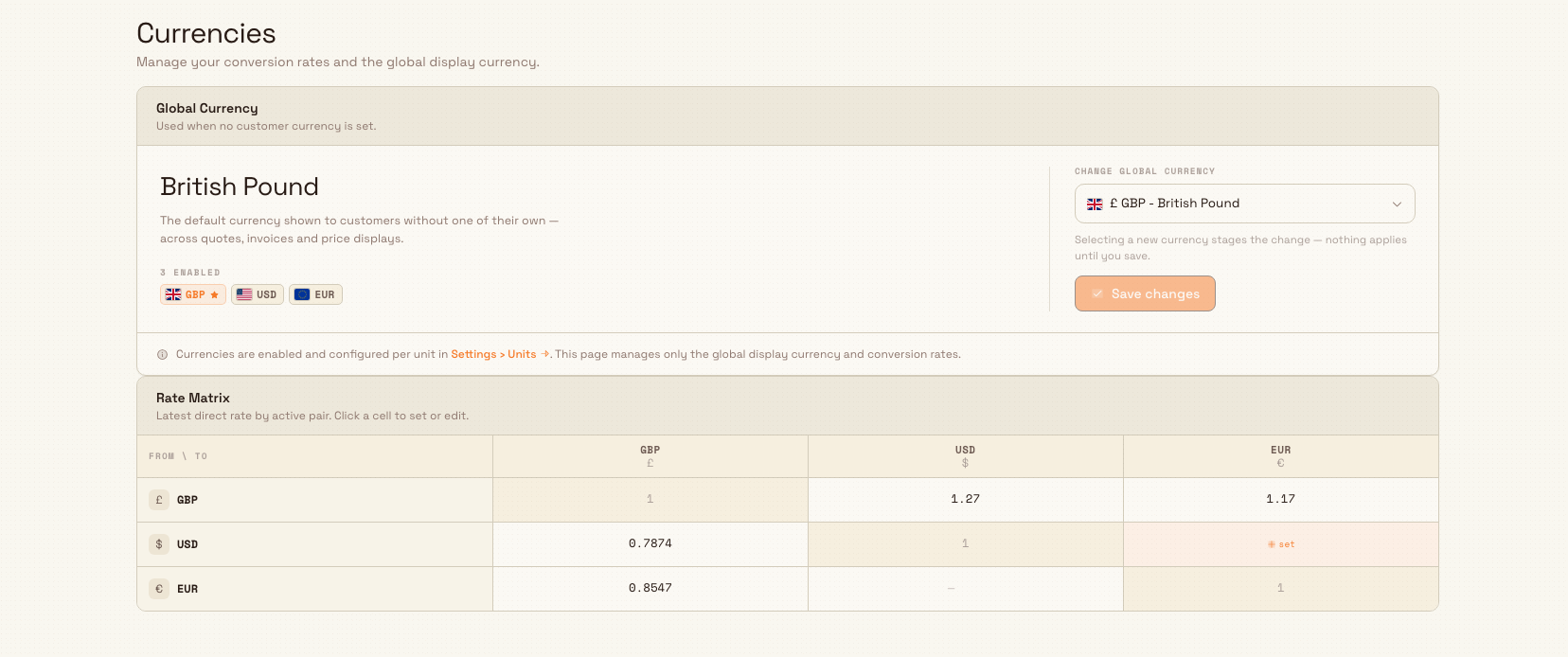
You reach it at Settings › Organization › Currencies (/settings/organization/currencies). The page has two parts: the Global Currency card and the Rate Matrix, each in a framed settings card under the shared page header. A direct rate tells Bulk how many units of the to currency one unit of the from currency buys. Bulk multiplies the source amount by that rate. Open a matrix cell to review that pair's rate history in a sheet.
administration.organization.currencies-01
Before you start
Two things need to be in place before this page is useful.
Enable your currencies as units first. Currencies are configured one by one in Settings › Organization › Units. Only active units whose Category and Display Type are both set to Currency appear on this page. Configure Symbol, Display Symbol, Display Position, and Decimal Places there. The Currencies page only manages the global display currency and rates between those active currency units. If none are active, it shows No currencies enabled and directs you back to Settings › Units.
You need the right permission. Viewing this page requires units.view; changing the global currency or a rate requires units.update. In the default roles, Super user, Entity admin, Manager, and Master data can make changes. Dashboards has units.view only. The page does not hide every edit control from a view-only user, but the server rejects a save without units.update.
Set the global display currency
The Global Currency card sets the currency Bulk uses when no other currency applies. Its subtitle states this plainly: Used when no customer currency is set. This default appears across quotes, invoices, and price displays for any customer who does not have their own currency assigned.
To change it:
- Open the Change global currency dropdown and pick a currency. Selecting one only stages the change — the card shows a staged indicator and the hint that nothing applies until you save. Use Reset to discard a staged choice.
- Select Save changes. A confirmation dialog titled Change global currency? appears, labelled
System-wide change. - Review the before-and-after, then select Confirm change. A
Global currency updatedmessage confirms the switch.
The card also shows how many currencies are enabled and marks the current global currency with a star.
Changing the global currency does not re-convert existing amounts
The confirmation dialog spells this out: the new currency replaces the old one as the default shown to customers without their own currency, across every quote, invoice, and price. Amounts already recorded are not recalculated — only the default display currency changes. Switch back the same way if you picked the wrong one.
Maintain conversion rates
The Rate Matrix holds the direct rates Bulk uses to convert between currencies. Its subtitle reads Latest direct rate by active pair. Click a cell to set or edit. Each row is a from currency and each column is a to currency:
- The diagonal, where a currency meets itself, is always 1 and cannot be edited.
- A filled cell shows the row with the most recent Valid from date for that pair. It is the latest configured row, not necessarily the rate that covers today.
- An empty cell shows a dash and a set prompt, inviting you to add the first rate.
Add or edit a rate
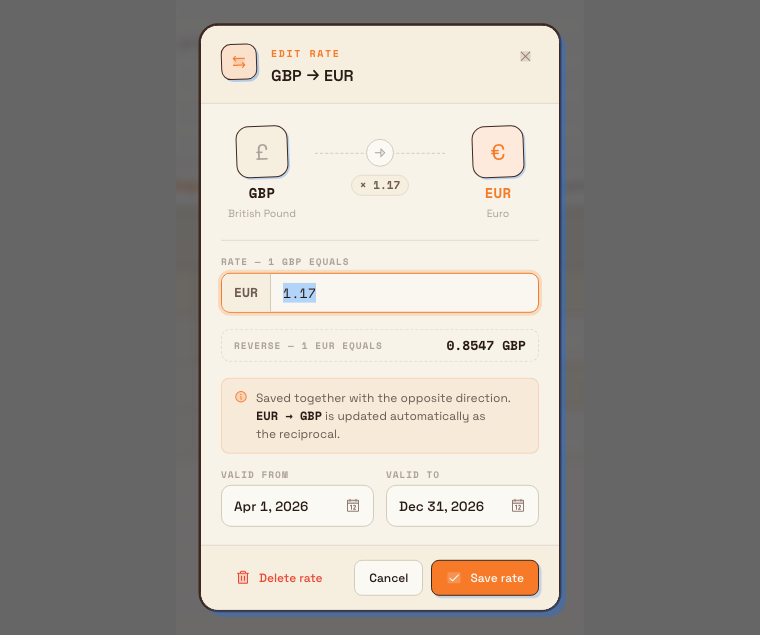
Select any editable cell to open the rate dialog (New rate when the pair has none yet, Edit rate when it already has one). In the dialog:
- Enter the rate in the field labelled with how many of the to currency equal one of the from currency. For example, if 1 GBP = 1.17 EUR, enter
1.17in the GBP row and EUR column. A GBP amount is then multiplied by 1.17 when this rate applies. - Bulk shows the Reverse value directly beneath, calculated as one divided by your rate. You do not enter the opposite direction yourself.
- Set the required Valid from and Valid to dates. Both endpoints are included: a rate is eligible when the record's value date is on or between them.
- Select Save rate. A
Rates updatedmessage confirms the change.
Rates are saved as a matched pair for the same validity range. The dialog notes that the opposite direction is created or updated automatically as the reciprocal, so setting pounds-to-euros also writes euros-to-pounds in the same step. Deleting works the same way: choose Delete rate, then Confirm — remove both directions, and the displayed rate plus its matching reverse row are removed (confirmed by a Rates deleted message). Older dated rows, if any, are not all deleted.
administration.organization.currencies-02
A few rules the page enforces when you save:
- A rate must be greater than zero.
- Valid from must not be after Valid to.
- Date ranges for the same pair cannot overlap. If they do, saving fails with a message naming the range you clash with, so you can adjust your dates.
Rate values are shortened in the matrix
The matrix and Reverse preview show rates to at most four decimal places. Bulk keeps the forward value you entered and stores the generated reciprocal rounded to 10 decimal places. Converted values are calculated to six decimal places before money is displayed using that currency unit's Decimal Places setting.
This page edits only the latest dated row
A filled matrix cell opens the row with the most recent Valid from date. Saving edits that row; the current page does not show the full history or provide a separate Add period action for a populated pair. Do not replace the latest row when you need to retain it as a separate historical period.
When coverage has gaps
The matrix flags a pair with no rate as an empty set cell. It cannot show a subtler problem: a pair that has dated rows with a gap between them. When that happens, a coverage gaps notice appears below the matrix and lists each gap, for example that a pair has a rate gap before a specific date. Conversions dated inside a gap have no direct rate to use and cannot be calculated. Because the current page only edits the latest row, it may identify a historical gap that you cannot repair by adding another period here.
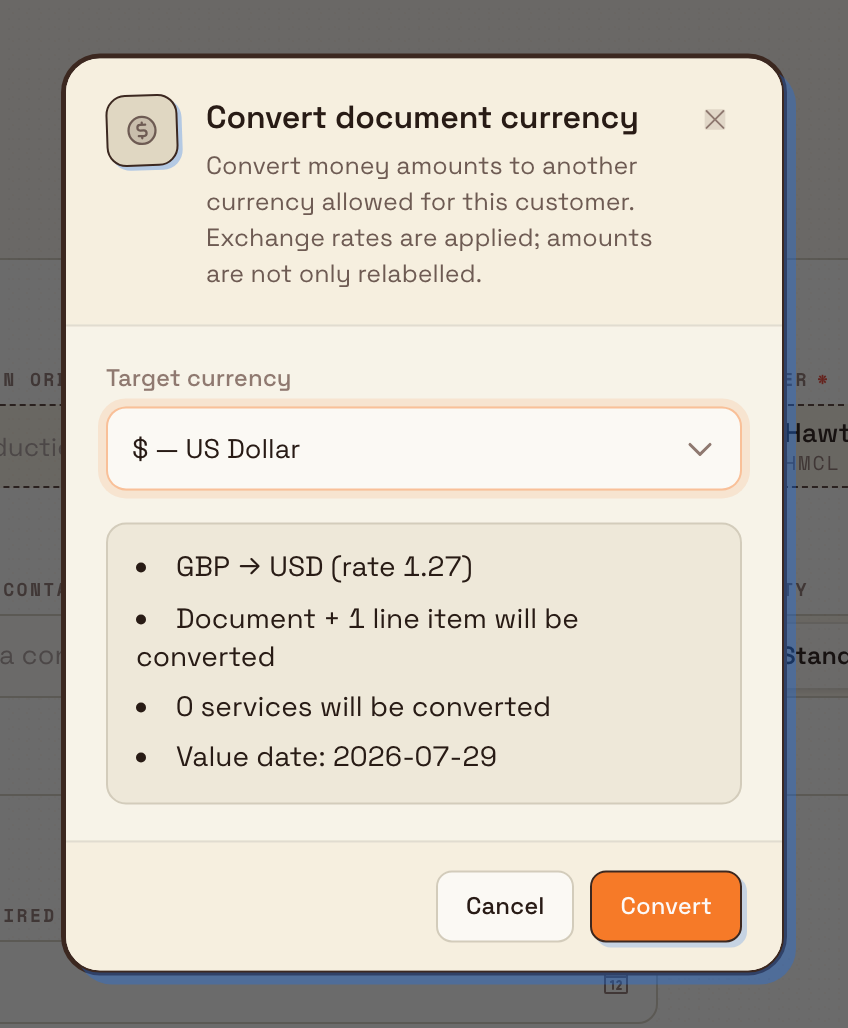
Inbound documents and production orders use this coverage when a user chooses Convert currency. Bulk checks the relevant value date, normally the record's received date, before starting. If no direct rate covers that date, the preview explains the missing rate and leaves the start action disabled. A successful conversion recalculates stored amounts and updates their currency stamps; changing only the global currency never does this.
Preview a currency conversion
Open an inbound document or production order and choose Actions › Convert currency. Select one of the currencies allowed for that customer. Before anything changes, Bulk shows the direction, direct rate, affected records, and value date it will use.
Review that preview carefully. If the rate or value date is wrong, choose Cancel and correct the currency setup first. Choose Convert only when the preview matches the transaction you intend to update.
administration.organization.currencies-03
Example: Granite Peak Manufacturing
Granite Peak Manufacturing runs its Leeds Fabrication Plant in pounds, but it buys aluminium extrusion from a supplier priced in euros and invoices a long-standing customer in Chicago in US dollars. An administrator sets this up once:
- In Settings › Units, they make sure GBP, EUR, and USD are active currency units.
- On the Currencies page, they set GBP as the global currency, because most customers are UK-based and should see prices in pounds.
- In the Rate Matrix, they select the GBP-to-EUR cell and enter that one pound equals 1.17 euros, valid from the start of the quarter to the end of the year. Bulk writes the euros-to-pounds reciprocal automatically.
- They repeat for GBP-to-USD at 1 pound to 1.27 dollars over the same dates.
When the finance team reviews rates, the matrix shows the configured row with the latest Valid from date for each direction. Their Chicago customer, who has USD set as their own currency, sees dollars; customers without their own currency fall back to the global pounds.
Expected result
After setup, your organization has one clear default display currency and a set of dated, two-directional conversion rates. Each customer can have allowed currencies and one default; Bulk falls back to the global currency where no customer currency applies. Explicit conversions use the rate whose date range covers the record's value date. Every change you make here is recorded in your organization's activity log.
Limitations and feature state
This feature is generally available. Keep these behaviours in mind:
- Rates are entered manually. Bulk does not fetch live exchange rates from an external feed; you keep them current yourself.
- Conversion depends on date coverage. An amount converts only when a rate's validity range covers its value date. If no rate covers that date, the amount cannot be converted until you add one.
- The matrix is not a history view. It shows and edits only the row with the latest Valid from date for each direction. The page does not currently offer a separate action to add another dated period to a populated pair.
- Displayed rates are rounded for readability. Matrix cells and the reverse preview show at most four decimal places; currency amount formatting follows the unit's Decimal Places setting.
- The global currency is a display default, not a re-pricing action. Switching it changes what customers without their own currency see going forward; it does not recalculate stored amounts.
- If no global currency is set, Bulk falls back to GBP when that currency is active, and otherwise to your first active currency.
Troubleshooting
- The page shows "No currencies enabled". No currency units are active. Open Settings › Units, activate the currencies you need, then return here.
- Saving reports
Access denied: you need the "Update Units" permission. Your role can view the page but cannot change currency settings. Ask an administrator forunits.update. - Saving a rate reports an overlap. The date range you entered overlaps an existing rate for the same pair. Adjust Valid from or Valid to so the ranges do not overlap — usually by ending the previous rate a day before the new one begins.
- A coverage gap warning appears. A pair has dated rows on either side of a missing stretch. The current page can edit only the latest row, so a gap in older history may need to be corrected outside this screen.
Related guidance
- Manage units — enable and configure the currency units this page draws on.
- Manage customers — set the currencies a customer may use and choose its default.
- Manage pricing — the prices and rates that conversions are applied to.
- Activity logs — review who changed the global currency or a rate, and when.
Manage units
Create, import, and format the units of measurement and currency symbols Bulk uses to display quantities, prices, and KPI values across your organization.
Manage displays
Pair shop-floor screens to Bulk and choose exactly which board or dashboard each display shows, then monitor and manage the whole fleet from one page.