Manage workflow automation
Build, publish, and monitor no-code automations from Organization settings so Bulk reacts automatically to shop-floor changes and overdue work.
Workflow automation lets you turn routine, rules-based responses into steps that Bulk runs for you. Bulk is a Manufacturing Execution System (MES) — the software that runs and records work on the shop floor — and a workflow watches for a change in that work, checks a few conditions, and then carries out Actions that have been individually certified and made available in the Action catalog. You build workflows visually, without writing code.
Use this area when you find yourself repeating the same automation around an existing business process: reacting when an inbound document reaches its next standard status, updating work through the same production operation a user would run, or waiting before a follow-up step. A workflow does that consistently and keeps a record of what happened. It does not add a second approval or human sign-off process on top of the process the record already follows.
Workflows is a Beta area
In Bulk, the Workflows entry under Organization settings carries a Beta label. The framework and each Action are certified before deployment, but screens, available Actions, and behavior can still change. Always use Preview run to check a workflow against a sample record before you publish it.
Key terms
Three words appear throughout this area:
- Trigger — the starting change that begins a workflow. It is either a business change (one job, document, order, audit, invoice, or Microsoft Dynamics 365 update changes) or overdue work (a job, routed item, or schedule stays in the same state past a threshold you set).
- Condition — an optional test that decides whether to keep going. You can branch by record status, customer, resource, asset type, or details of the starting change.
- Action — a certified standard operation that Bulk can perform from a workflow. The catalog only shows Actions that are available in the deployed version; unavailable or uncertified Actions cannot be published.
A single pass of a published workflow is called a run. When an action inside a run fails, Bulk records an incident so you can fix the cause and try again.
Who can use it
Open the area from the left sidebar under Settings → Organization → Workflows. The Workflows shell uses a page header and underline page tabs (for example Workflows and Starting changes) so you can move between the builder and the event log without leaving Settings. Access is controlled by workflow permissions, and those permissions apply to the site (in Bulk, the entity) you currently have selected. If you manage more than one site, switch to the correct site first.
| Permission | What it allows |
|---|---|
| View workflows | See definitions, runs, steps, waits, and incidents |
| Create workflows | Create draft workflows |
| Edit workflows | Edit a draft and its settings |
| Publish workflows | Publish a version so it can run |
| Pause workflows | Pause a workflow, its triggers, and execution |
| Run workflows | Manually run or replay allowed events |
| Cancel workflow runs | Cancel active runs |
| Administer workflows | Manage incidents, redrive controls, and operational settings |
By default, the Super user, Entity admin, and Manager roles can build and publish workflows; Manager and Master data roles carry most controls but not the administer permission; the standard Operator role has no workflow access. Confirm the exact grants for your site under User roles and permissions.
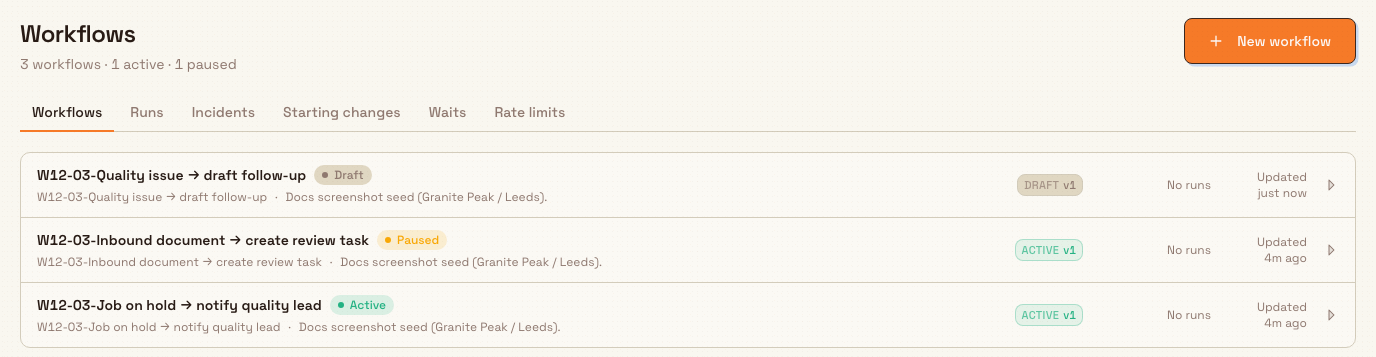
administration.organization.workflows-01
The Workflows area at a glance
The area has six tabs, split into building and monitoring:
- Workflows — every workflow definition, its status (Active, Paused, Draft, or Archived), its trigger, its active and draft version numbers, its last run, and any open incidents.
- Runs — a row each time a published workflow starts, with the starting record, when it started, how long it took, its recorded results, and the status of each step.
- Incidents — failures that need attention. Open the run, fix the cause, then resolve or dismiss the incident.
- Starting changes — what started, or tried to start, workflows and why. Integration messages, user actions, and workflow timers appear here after Bulk receives them.
- Waits — runs that are paused on a timer or waiting for another starting change, shown until they resolve.
- Rate limits — a read-only view of the limits that protect notifications, Dynamics 365 queues, webhooks, and workspaces from too much workflow activity at once, with live counters for each.
Build a workflow
- Select New workflow.
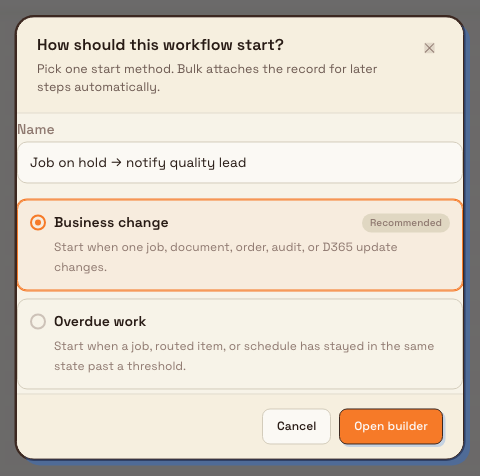
- In How should this workflow start?, give the workflow a name and choose one start method — Business change (recommended) or Overdue work. Bulk attaches the matching record so later steps can use it.
- Select Open builder to open the full-screen visual builder, seeded with a trigger node for the start method you chose.
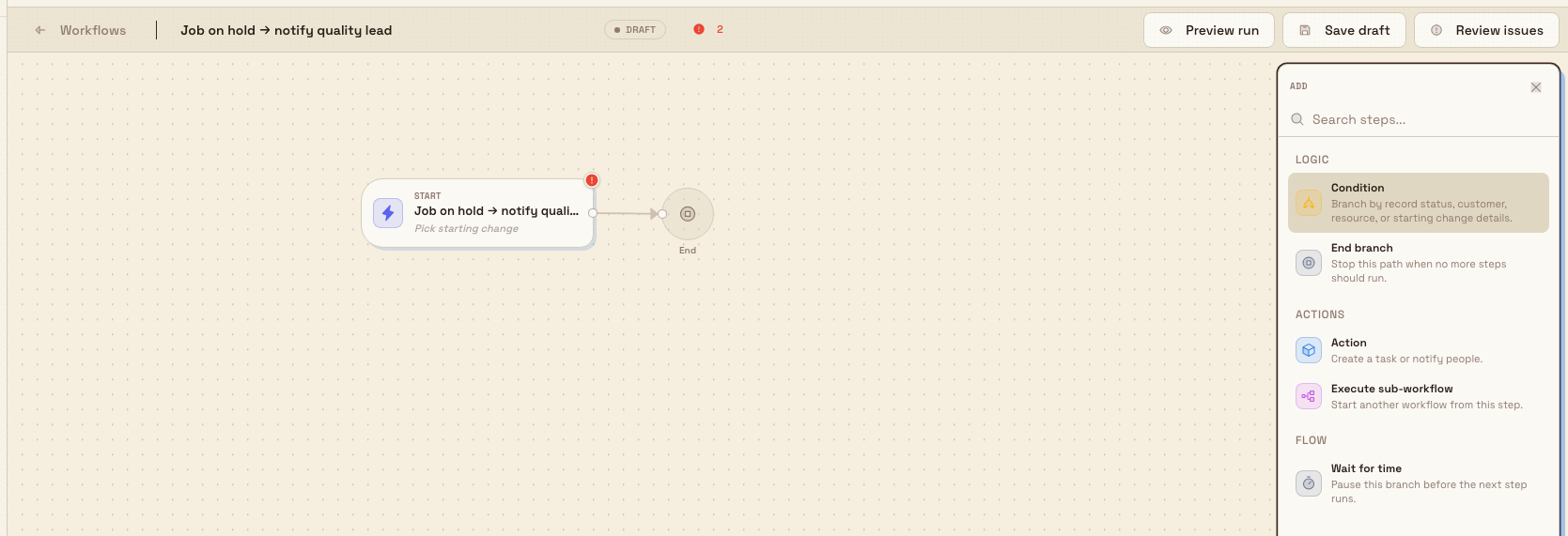
- Use Add step to place the steps you need between the trigger and the end of a branch:
- Condition — branch by record status, customer, resource, or starting-change details.
- Action — create a task, notify people, or run any other catalog action.
- Execute sub-workflow — start another workflow from this step.
- Wait for time — pause the branch before the next step runs.
- End branch — stop a path when no more steps should run.
- Configure each step in the panel on the right. Use Simple mode to pick a fixed value or a compatible value from the starting record or an earlier step. Use Expression mode for a more technical formula assembled from the same visual value and operator pickers. For Queue D365 outbound message, first select the Send payload, then choose a compatible source record. The list can include the starting record, a matching record output from an earlier step, or an approved exact lookup. You do not build a second
{}values object in the Workflow. - Watch the Checks indicator in the top bar. It counts blocking errors and non-blocking warnings and lets you jump straight to the step that needs attention.
- Select Save draft to keep your progress. Saving is blocked while any errors remain.
- Select Preview run to validate the draft. Choose a real eligible record from the searchable list; Bulk shows why deleted, inactive, out-of-scope, or otherwise ineligible records cannot be selected. The preview then lists the planned steps and evaluates the saved workflow with no side effects. For a D365 outbound step, Preview shows the exact generated message without adding it to the outbound queue.
- When the checks are clean, select Publish.
When an action sets a calendar-only job, task, safety, or quality date, Bulk keeps the selected day in the owning site's timezone. Actions that set a date and time, and the timestamps recorded for workflow and routing events, preserve the exact moment. Check the target field type in Preview run when a workflow copies a date between records. Weekly conditions use the organization's shared week-start rule regardless of the site's timezone.
administration.organization.workflows-02
administration.organization.workflows-03
Publishing makes a workflow act on live records
Publishing checks the draft, pins a new active version, and immediately starts responding to matching starting changes and overdue rules. Existing runs keep the version they started with, while new runs use the newly published version. Any catalog Action can change a real record through its standard Bulk operation, and those effects may not be reversible. Preview first and watch the first few runs.
Monitor and recover
After a workflow is Active, use the monitoring tabs to see what it did and to handle problems:
When a workflow changes an inbound document, inbound item, production order, or production job status, Bulk records the same status history as it does for a manual action. The entry includes the previous and new status, the responsible person, and the time of the change, so workflow-driven work remains visible in the record's audit trail and historical reports.
- Every Action calls the same underlying operation as the normal Bulk process. The workflow does not bypass status rules, validation, or the recorded user's permission. Missing rights fail the step and create evidence in the run log.
- On Runs, open a run to see its starting record, duration, recorded results, and the status of each step (Pending, Running, Waiting, Succeeded, Failed, or Skipped).
- On Incidents, each failure that is safe to retry shows a Retry control that starts a fresh run once you have fixed the cause. You can also Resolve an incident you have handled another way, or Dismiss one that needs no action. Open incidents also appear as a count on the Workflows list and as a badge on the Incidents tab.
- On Starting changes, check whether an expected change actually reached Bulk and whether it matched a workflow — useful when a run you expected never appeared.
- On Waits, see runs holding on a timer or on another starting change.
- On Rate limits, confirm whether an action is being throttled; a limit shown as near its cap explains why some actions are queued rather than run immediately.
Example: notify the quality lead when a job goes on hold
At Granite Peak Manufacturing's Leeds Fabrication Plant, supervisors want the quality lead told the moment a production job is placed on hold, and a follow-up task raised so the hold is not forgotten.
An admin builds one workflow:
- Start method Business change, trigger Production job status changed.
- A Condition that continues only when the record status is the plant's hold status.
- An Action — Send notification — addressed to the quality lead.
- A second Action — Create task — for the shift supervisor to record the reason for the hold.
After Preview run confirms the steps against a sample job, the admin publishes the workflow. From then on, each job that moves to the hold status creates a run under Runs: the quality lead is notified, the follow-up task is created, and every step is recorded. If the notification cannot be delivered, an Incident appears that the admin can Retry once the cause is fixed.
Feature state and limits
- The Workflows area is labelled Beta in Bulk. Behavior and screens can still change; rely on Preview run before publishing.
- The Action catalog is deployment-specific. Only individually certified, versioned Actions are shown and publishable.
- Workflows and their permissions are scoped to the site (entity) you have selected. A workflow you build for one site does not automatically apply to another.
- Dynamics 365 configuration is a delivery and inbound-message centre. It keeps payload setup and exact column mappings, but does not choose or perform Bulk business updates. Assign the inbound payload to a workflow, then configure every business Action in that workflow. The message and workflow logs show success or failure and support retry.
- The Rate limits tab is read-only. It shows the limits that are in effect and their live usage, but you cannot add or edit a limit from this screen.
- The current screens let you create, edit, preview, and publish workflows, and retry, resolve, or dismiss incidents. Paused and Archived are recognised states, but this area does not yet surface a control to pause, cancel, or archive a workflow directly.
When a workflow creates production jobs from inbound items, those jobs inherit payable pricing that includes assigned order services in later analytics totals.
Troubleshooting
- Publish is blocked and shows Review issues. The draft has one or more blocking errors. Open the Checks list in the top bar, jump to each flagged step, resolve every error, then publish. Your current active version is unchanged while errors remain.
- A change happened but no run appeared. Open Starting changes to confirm Bulk received the change and see whether it matched a workflow. Check that the workflow is Active for the correct site, and that a rate limit is not holding the action back.
- An action keeps failing. Open the run from Incidents, read the recorded error, fix the underlying cause (for example, a missing recipient or an unreachable integration), then use Retry. Retry starts a new run rather than resuming the old one.
Related guidance
- User roles and permissions — grant or review the workflow permissions above.
- Activity logs — the tenant-wide record of administrative changes.
- Notifications — how the notifications a workflow sends reach people.
- Create a task — the tasks a Create task action produces.
- Configure Dynamics 365 — set up the connection a queue-message action uses.
- Integrations — the API keys and webhooks that can start or receive workflow messages.
Manage displays
Pair shop-floor screens to Bulk and choose exactly which board or dashboard each display shows, then monitor and manage the whole fleet from one page.
Review activity logs
Find, filter, and inspect the organization-wide audit trail of who changed what and when across your Bulk tenant, for compliance reviews and investigations.