Manage pricing
Build reusable rate templates, keep a shared service catalogue, ingest per-customer agreements from pricelists, and register the accounting codes your invoices are matched by — all from one Pricing page.
The Pricing page is where you set the prices your business charges for work. It gathers four related pieces of pricing data in one place: reusable rate templates, a shared service catalogue, per-customer agreements ingested from pricelists, and the accounting service codes your invoices are matched by. Instead of pricing every job by hand, you define your rates once here and reuse them wherever pricing is needed.
You reach it at Settings › Master Data › Pricing (/settings/master-data/pricing). The page header reads Pricing, with the summary "Reusable rate templates, a shared service catalogue, and per-customer agreements." Below it, a tab strip splits the page into four sections — Templates, Catalogue, Agreements, and Service Codes — each showing a count of what it holds. The tab you are on is remembered in the page address, so you can link straight to a section.
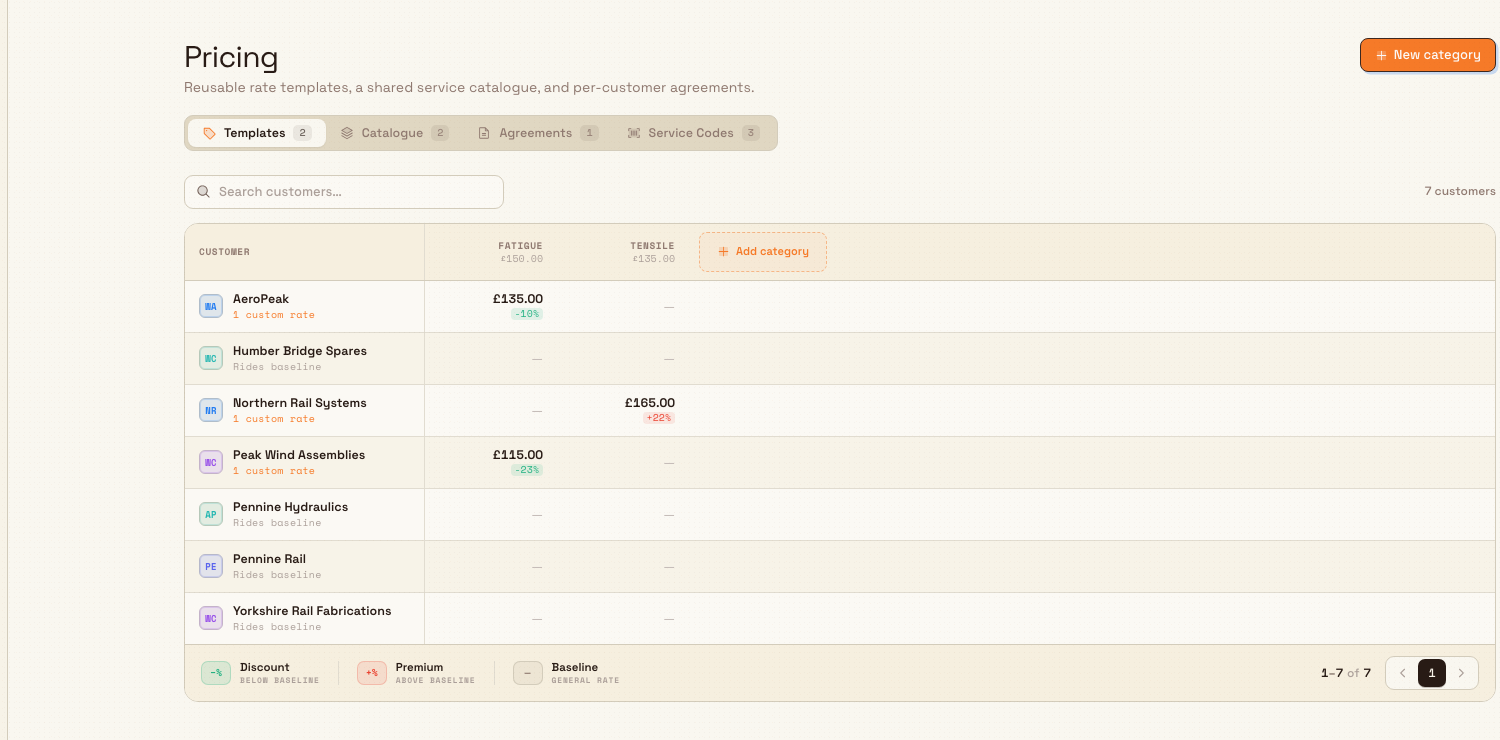
administration.master-data.pricing-01
Before you start
Two permission pairs control this page.
The Templates, Catalogue, and Agreements tabs share one permission. Viewing them requires the pricing view permission; creating or changing anything on them — a template, a catalogue service, or an agreement — requires the pricing manage permission.
The Service Codes tab is gated separately. Viewing it requires the service codes view permission; adding, editing, importing, or deleting a code requires the service codes manage permission. Because the two are independent, someone can manage rate templates without touching service codes, or vice versa. If you lack the service codes view permission, the tab still appears so you can find it, but its panel shows a permission notice instead of the list.
In the default roles, Super user, Entity admin, Manager, and Master data hold all four permissions and can do everything on this page. The Invoicing role can view pricing and service codes but not change them. The Operator role can see service codes only. If a control is missing or a save is refused, ask an administrator to grant the permission you need.
The four tabs
Templates — the rate matrix
The Templates tab shows a rate matrix. Each row is a customer, each column is a pricing category (a group of related work such as a test or process), and each cell is that customer's effective price for that category, with the percentage difference from the shared baseline. A rate template is the reusable rate card behind a cell: it bundles catalogue services as line items and adds charges (fixed amounts and percentage uplifts) on top.
Two kinds of template sit behind the matrix:
- A General baseline is the entity-wide default price for a category. It is the column header, and every customer without their own rate "rides" it.
- A customer rate overrides the baseline for one customer — a negotiated price. The matrix shows how far it sits above (a premium) or below (a discount) the baseline.
Select a column header to set or edit the General baseline. Select a cell to open that customer's rate; select an empty cell to create one, cloned from the baseline when there is one. Use New category (the page action) or Add category in the matrix to start a new pricing category. The template editor opens in a dialog with a Pricing tab (services, charges, and a live Calculated unit total) and a History tab. Customer rate cards are named automatically from the category and customer and cannot be renamed; only General baselines are named freely. A template that relies on a bundled service that has since drifted or gone missing is flagged as needing review.
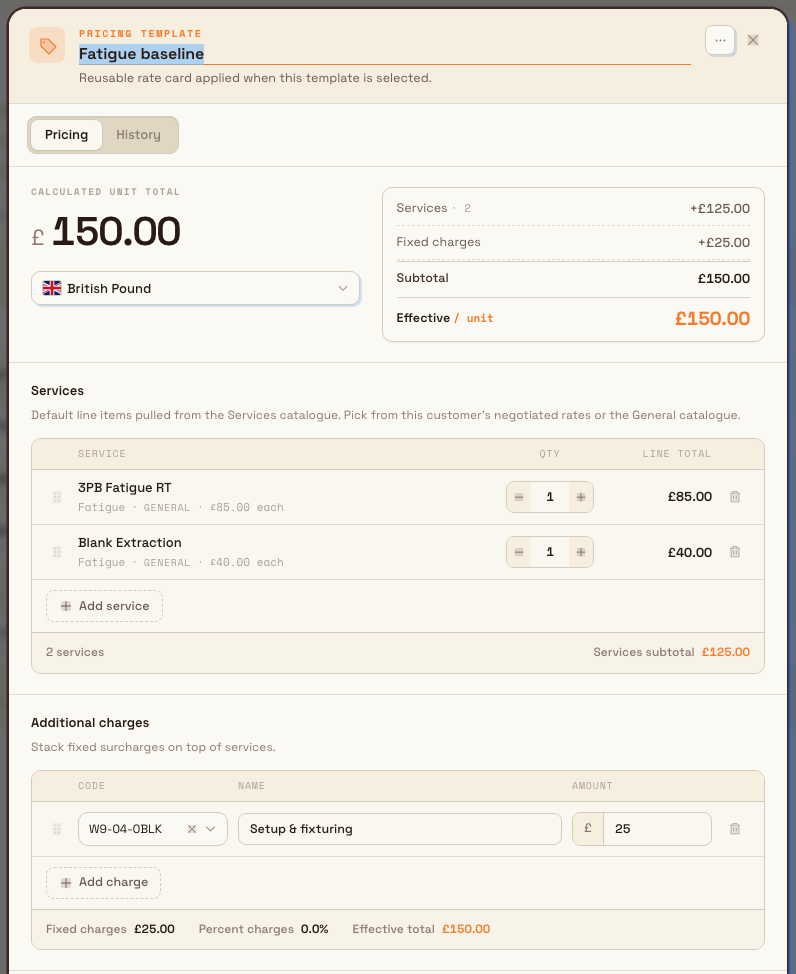
administration.master-data.pricing-02
Catalogue — shared and per-customer services
The Catalogue tab lists your pricing scopes as cards. The General catalogue holds the base rates shared by every customer — the services you offer, grouped into categories, each with its own rate table. Below it, one card per customer shows that customer's negotiated catalogue, measured against the General baseline, with a count of how many services are included. Selecting a card opens its catalogue view, where you add, edit, or remove the services in that scope. Rate templates draw eligible fixed-price and hourly line items from these catalogues. Timed / process hours services are excluded because a template has no production jobs whose time it could price.
Charge from real production time
Use the Timed / process hours pricing model when a service should be billed from time recorded against production jobs. For example, a machining service can charge only for hours recorded on machining steps, even when the order also passes through inspection and packing.
- Open the Catalogue tab and select the General catalogue or a customer's catalogue.
- Add a service, or edit an existing service.
- Under Pricing model, select Timed / process hours.
- Enter the Hourly rate.
- Under Resources (chargeable steps), choose All resources or Selected resources. If you choose selected resources, tick every resource whose job-step time should count.
- Under Time sources (charged hours), choose at least one source: Timers (productive time), Manual time entries, Time adjustments, or OEE downtime events.
- Check the invoice preview, then select Save service.
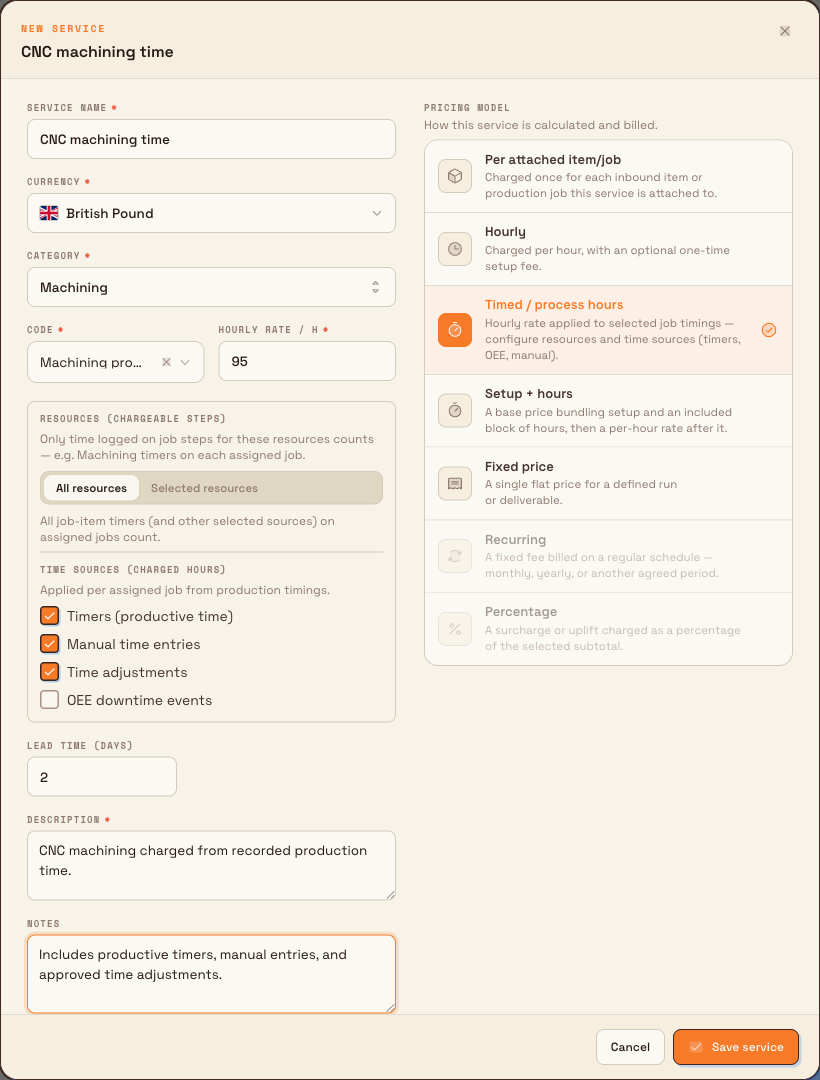
administration.master-data.pricing-04
The catalogue shows the saved service as per process hour. If you limited it to particular resources, it also shows how many resources count.
Timed and Hourly are different
An Hourly service uses a quantity entered by a user. A Timed / process hours service fills its quantity from real production timings on the jobs assigned to that service. Users can inspect the hours and amount for each job from the production order.
The amount updates when relevant production time changes — for example, when a timer stops, someone records manual time, a time adjustment is saved, or an included OEE downtime event closes. Only time from the sources and resources selected on the catalogue service is counted.
Agreements — ingest a pricelist with AI
The Agreements tab turns a customer's pricelist into structured pricing for you. Select New agreement (or the upload zone titled "Create an agreement from a contract"), pick the customer, name the agreement, and drop in the pricelist PDF (up to 20 MB). Bulk's AI then reads the document and extracts the line items, rates, testing sites, units and currency, and validity terms — no manual data entry. You watch the extraction progress, then choose Review contract to open the generated agreement. If the customer already has an agreement, the upload is added as a new revision instead of a new agreement, so you keep a history of price changes. The negotiated rates from an agreement flow into that customer's catalogue and their column of the rate matrix.
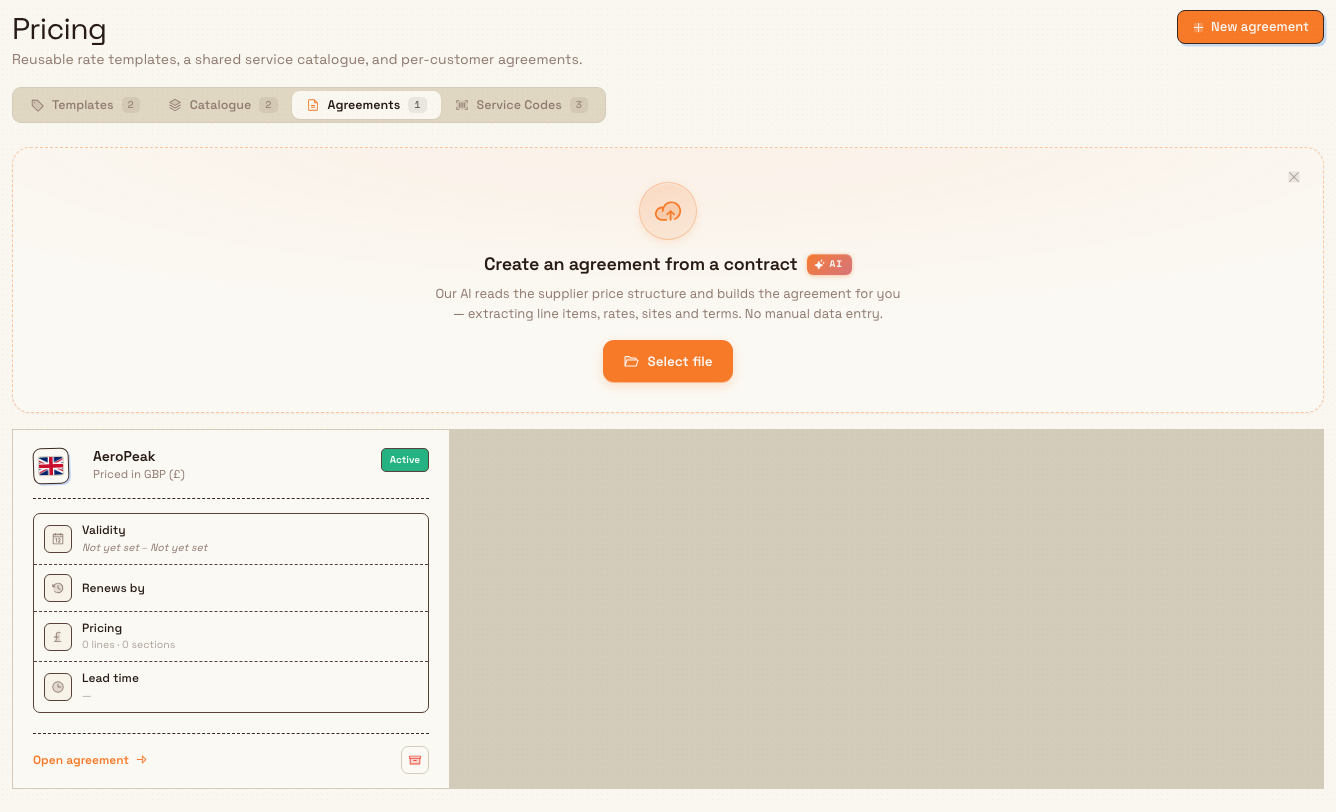
administration.master-data.pricing-03
Service Codes — the accounting match key
The Service Codes tab is a registry of the accounting item codes — for example the codes an external accounting system such as Microsoft Dynamics 365 uses — that land on an invoice line and are matched by that system. Each code has a short Code and a plain-language Name. Codes are picked, not typed, wherever a service or charge is defined, which keeps invoicing consistent. Add codes one at a time with New code, or paste a two-column Code and Name list with Import (tab- or comma-separated, one per line; existing and duplicate codes are skipped). A code is the accounting match key, so it is fixed once created: you can rename it or mark it inactive, but you cannot change the code itself. Deleting a code only removes it from future pickers — invoices already using it keep the code.
Example: Granite Peak Manufacturing
Granite Peak Manufacturing runs mechanical testing at its Leeds Fabrication Plant and prices work like this:
- In the Service Codes tab, an administrator imports the accounting codes finance already uses — pasting a list such as
03PBLC/ "3PB Fatigue RT" and0BLK/ "Blank Extraction" so every invoice line maps to a known code. - In the Catalogue tab, they build the General catalogue: categories like Tensile and Fatigue, each with the services Granite Peak offers and a base rate per unit.
- In the Templates tab, they set a General baseline for each category. A national aerospace customer negotiated a 12% discount on fatigue testing, so they open that customer's fatigue cell and save a customer rate — the matrix now shows it 12% below baseline as a discount.
- When a new customer sends a signed pricelist PDF, the team uploads it in the Agreements tab. The AI extracts the customer's line items and rates into an agreement, and those negotiated prices appear as that customer's catalogue and matrix column — ready to use on the next job, without anyone retyping the pricelist.
Expected result
After setup, your Pricing page holds a matrix you can read at a glance — every customer's price against every category, with discounts and premiums called out — backed by reusable templates, a shared and per-customer catalogue, AI-ingested agreements, and a clean list of accounting codes. Downstream, work is priced from these rates instead of ad hoc numbers, and invoice lines carry a service code the accounting system recognises.
Limitations and feature state
This feature is generally available. Keep these behaviours in mind:
- Templates, Catalogue, and Agreements need the pricing manage permission to change; Service Codes needs the service codes manage permission. View-only roles can open the page but not save.
- A service code cannot be changed after it is created. You can rename it or deactivate it, but the code value itself is the accounting match key and is fixed. Deleting a code removes it from pickers only; invoices already using it keep it.
- Deleting a category or a customer rate is a soft delete. The rate is hidden from the matrix but stays recoverable — an empty cell that was deleted offers to restore the previous rate, and a deleted baseline column can be restored from its header.
- Agreement extraction depends on a readable pricelist. The AI reads structured pricing from the uploaded PDF; if it cannot read the document, extraction fails and no data is imported, so you retry with a different file.
- Exporting an agreement's line items is not yet available. On an open agreement, the Actions menu lists an Export line items option that is disabled; downloading the original source PDF and editing validity dates do work.
- A timed service needs at least one time source. If you choose Selected resources, it also needs at least one active resource. A resource that does not appear in the picker must be added or reactivated under Settings → Master Data → Resources first.
Troubleshooting
- The Service Codes tab shows a permission notice instead of the list. Your role lacks the service codes view permission. Ask an administrator to grant it; the other three tabs use the separate pricing permission.
- A New, Add, or save control is missing or refused. Your role can view but not manage this area. Pricing changes need the pricing manage permission; service-code changes need the service codes manage permission.
- A template shows a "needs review" flag. A service it bundles has drifted from the catalogue or gone missing. Open the template and re-pick the affected line from the current catalogue.
- An agreement upload finished but reports a failure. The AI could not read structured pricing from that PDF. Try a cleaner or text-based pricelist; nothing is imported from a failed extraction.
- A customer's cell shows "Rides baseline" and you expected a negotiated price. No customer rate exists yet for that category — select the empty cell to create one from the baseline, or ingest the customer's pricelist in the Agreements tab.
- A timed service shows no process hours on an order. Make sure the service is assigned to the correct jobs and that those jobs have stopped timer time, manual time, adjustments, or OEE downtime matching the service's selected sources and resources.
Related guidance
- Manage customers — customers are the rows of the rate matrix and the owners of agreements and per-customer catalogues.
- Manage currencies — the global display currency a General baseline defaults to, and the rates that convert between the currencies your customers price in.
- Master data — the wider hub of reference data this page belongs to.
- Roles and permissions — grant the pricing and service-code permissions this page checks.
- Invoicing profile — where the service codes on this page feed invoice lines.
- Configure Dynamics 365 — the accounting integration that matches invoices by service code.
Manage customers
Add, edit, and organize the customer records that Bulk reuses across inbound documents, production jobs, invoices, and pricing for the selected site.
Manage assets and layouts
Set up the equipment on your shop floor in Bulk — asset types, asset lines, individual assets, multi-stations, and sensors — and design the operator screen layouts each asset type uses.