Configure naming conventions
Set per-site number formats for inbound documents, items, production orders, jobs, invoices, and credit notes from reorderable segments, and learn when a format locks.
Naming conventions control the reference numbers Bulk prints on the records your plant creates — the code you see on an inbound document, a production order, a job, an invoice, or a credit note. Each number format is a small template built from ordered segments (a year, a counter, a random code, or fixed text) that Bulk renders every time it creates a new record of that type. Configuring naming conventions lets you match Bulk's numbers to the scheme your team, customers, or auditors already expect — for example a readable, padded sequence such as LEEDS-PRD-00001 instead of a random code.
Number formats are set per site (called an entity in Bulk — a single plant or location). Each site keeps its own formats, so your Leeds plant and your Rotherham plant can number their orders differently. You configure a format once, before the first record of that type is created for that site; after that the format is fixed there (see When a format locks below).
Use this page when you are setting up a new site — before any inbound documents, orders, jobs, or invoices exist — or when you want a record type at a new site to follow a particular numbering scheme.
Before you start
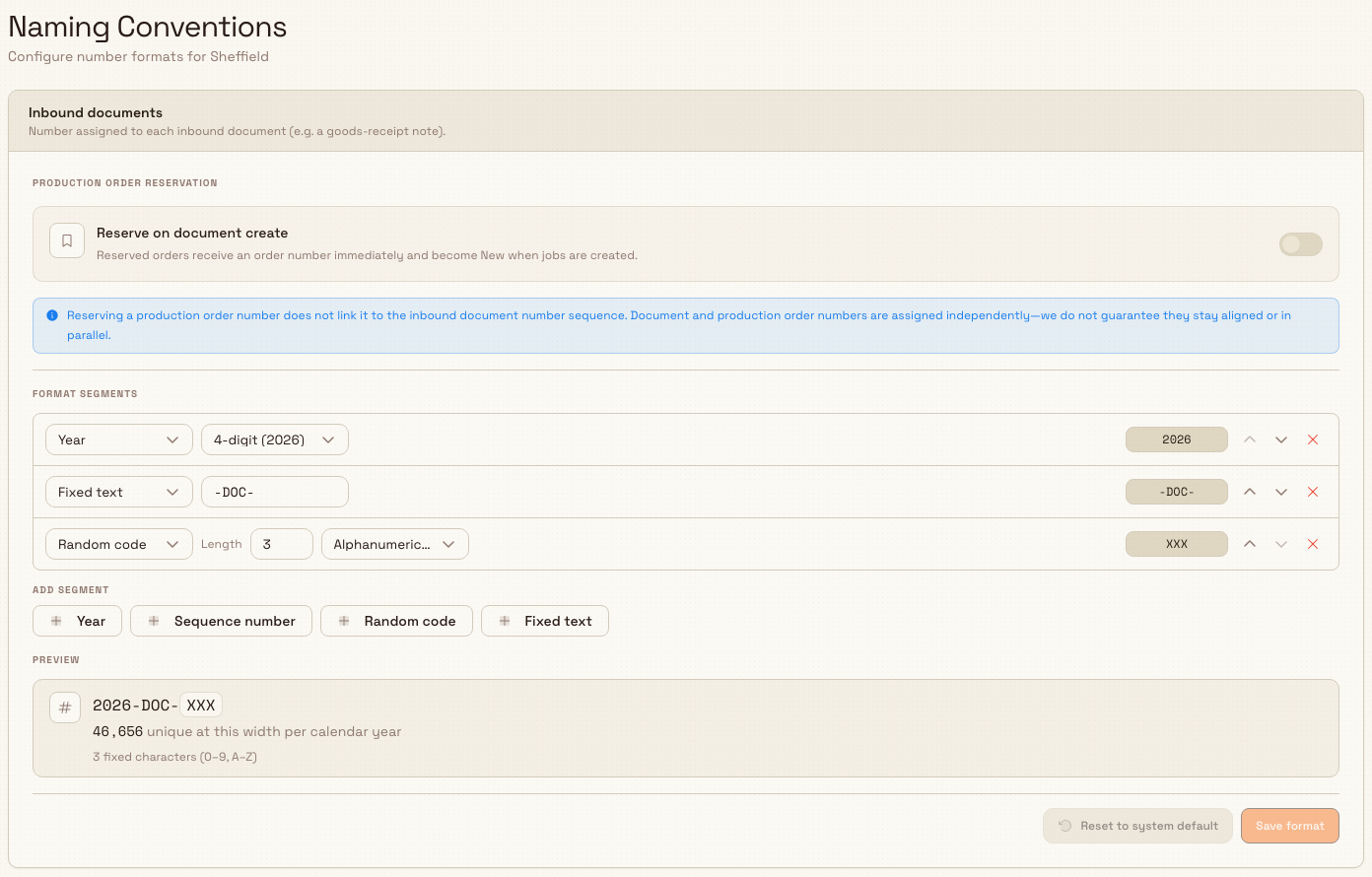
The Naming Conventions page lives in Master Data settings. To open it, go to Settings, open the Master Data group, and select Naming Conventions. The page header reads Naming Conventions with a subtitle that names the site you are configuring. Each numbering type appears in a framed settings card so locked and editable formats stay visually consistent with other Master Data settings.
Because formats are per site, first choose the site with the site switcher. If no site is selected, the page shows a No site selected empty state and asks you to pick one from the switcher.
You need permission to work with number formats:
- View the page requires the
numbering_settings.viewpermission. - Change and reset formats, and toggle order reservation, require the
numbering_settings.updatepermission.
These permissions are granted by the built-in Super user, Entity admin, Manager, and Master data roles. If you can open the page but every card shows a View only notice with no editable controls, your role has view access but not update access; ask an administrator to adjust your role.
administration.master-data.naming-conventions-01
The record types you can number
The page stacks one card per numbered record type, in this order:
- Inbound documents — the number on each inbound document (a document received into the plant, such as a goods-receipt note). Default
YYYY-DOC-XXX, for example2026-DOC-A7K. - Inbound document items — the number on each line item of an inbound document. By default this is derived: the document number followed by a two-digit line number, for example
2026-DOC-A7K-01. - Production orders — the number on each production order (the record of work to be made). Default
YYYY-PRD-XXX, for example2026-PRD-X7K. - Production jobs — the number on each production job (a unit of work within an order). Default
YYYY-XXXX, for example2026-X7K9. - Invoices — the number on each invoice. Default
YYYY-INV-NNNNNN, for example2026-INV-000123. - Credit notes — the number on each credit note. Default
YYYY-CRN-NNNNNN, for example2026-CRN-000045.
Invoices and credit notes default to a gapless sequential format — a zero-padded counter that increases by one with no gaps and resets each calendar year. Many tax jurisdictions legally require gap-free invoice and credit-note numbers, which is why these two types start on a counter rather than a random code. You can override any type to a different scheme for a site, but keep your local tax rules in mind before you move invoices or credit notes off a gapless sequence.
How a number format is built
Each card holds a segment builder. A format is an ordered list of 1 to 8 segments, and Bulk renders them left to right. Under the Format segments heading (or Suffix segments for a derived item format), each row is one segment. Add a segment from the Add segment row at the bottom, reorder rows with the up and down arrows, and remove a row with the X button.
There are four segment kinds:
- Year — the calendar year, shown as 4-digit (2026) or 2-digit (26).
- Sequence number — a counter that climbs by one for each new record. Set Digits (the zero-padded width, 1 to 10) and the character set: Numbers (0-9) or Alphanumeric (0-9, A-Z). A format can hold at most one sequence segment.
- Random code — a random string. Set Length (1 to 12 characters) and the same character-set choice. Use this when you want unpredictable codes rather than a running count.
- Fixed text — literal text or separators, up to 16 characters. Allowed characters are letters, numbers, spaces, and the symbols
- _ / . # :. This is where labels such asDOCorPRDand separators such as-live.
As you edit, the Preview panel shows an illustrative example of the next number: a sequence appears as 1 and a random code appears as a run of X characters, because Bulk assigns the real counter value and random code only when it creates a record. The preview also reports how many unique numbers the format can produce at its current width (for example noting when the pool resets each calendar year), which helps you avoid running out of codes.
Some types must keep a required label
Four record types must always contain a fixed label so the code stays recognizable: inbound documents must contain DOC, production orders PRD, invoices INV, and credit notes CRN. Put the label inside a Fixed text segment. If it is missing, Bulk blocks saving with a message such as Inbound document numbers must include "DOC". Every format other than a derived item also needs at least one Sequence number or Random code segment, so two records never receive the same number.
administration.master-data.naming-conventions-02
Edit, save, and reset a format
To change a format:
- Choose the site, then find the card for the record type.
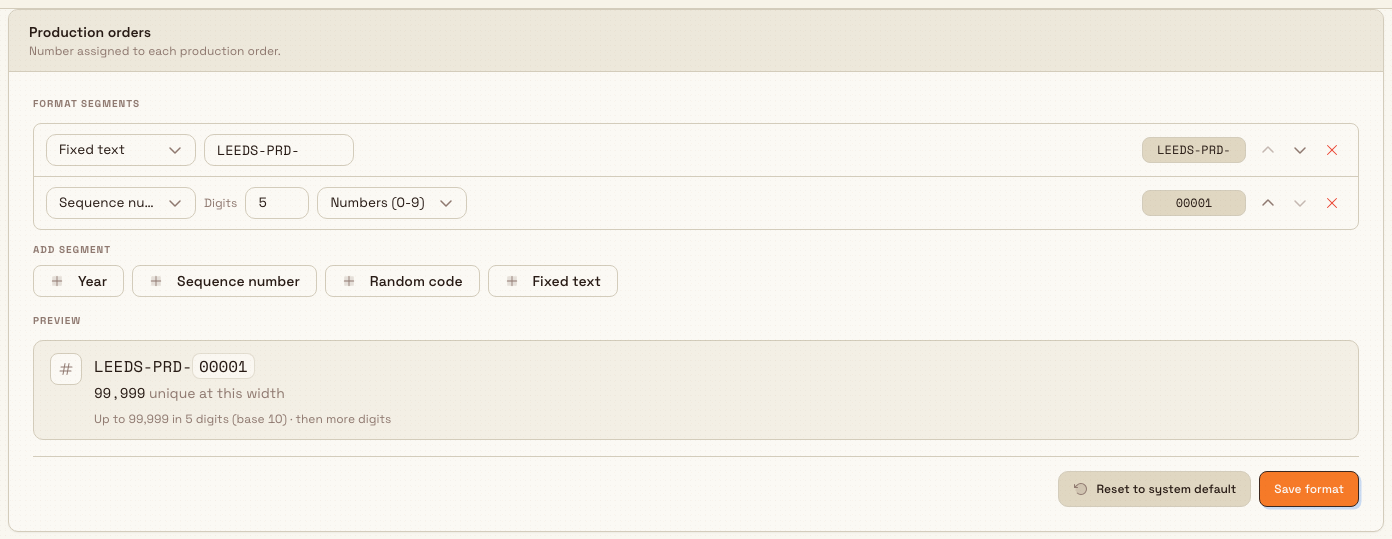
- Adjust the segments — change a kind, edit its options, reorder, add, or remove — until the Preview shows the number you want.
- Select Save format. Bulk re-checks the format and confirms with Number format updated.
Save format stays disabled until you make a change and the format is valid. An invalid format shows the reason in red beneath the preview and blocks the save.
Reset to system default does one of two things. If you have unsaved edits on a type that is still using Bulk's default, it discards your edits (Reverted to system default). If the card already uses a saved custom format, it clears that custom format and the type returns to Bulk's built-in default (Reset to system default). Reset is available only while the type is unlocked.
Item numbering: derived or independent
The Inbound document items card offers a Numbering style choice with two options:
- Based on document number (the default) — each item number is its document's number plus a suffix you configure. Because the suffix follows the document number, this card shows Suffix segments and a live example of the parent document number as a prefix. A derived format must include a Sequence number segment, which renders the line number.
- Independent — item numbers use their own standalone format, just like the other record types.
Switching the style resets the segments to a sensible starting point for that style, so check the preview before saving.
Production order reservation
The Inbound documents card also holds a Production order reservation setting with a single toggle, Reserve on document create. When it is on, creating an inbound document immediately reserves a production order and assigns its order number; the order becomes New once jobs are created against it. Turn it on when your process should earmark an order number the moment paperwork arrives.
Reserving an order number does not tie the document and order number sequences together — Bulk assigns them independently and does not keep them aligned or in parallel. This setting locks once inbound documents or production orders already exist for the site.
When a format locks
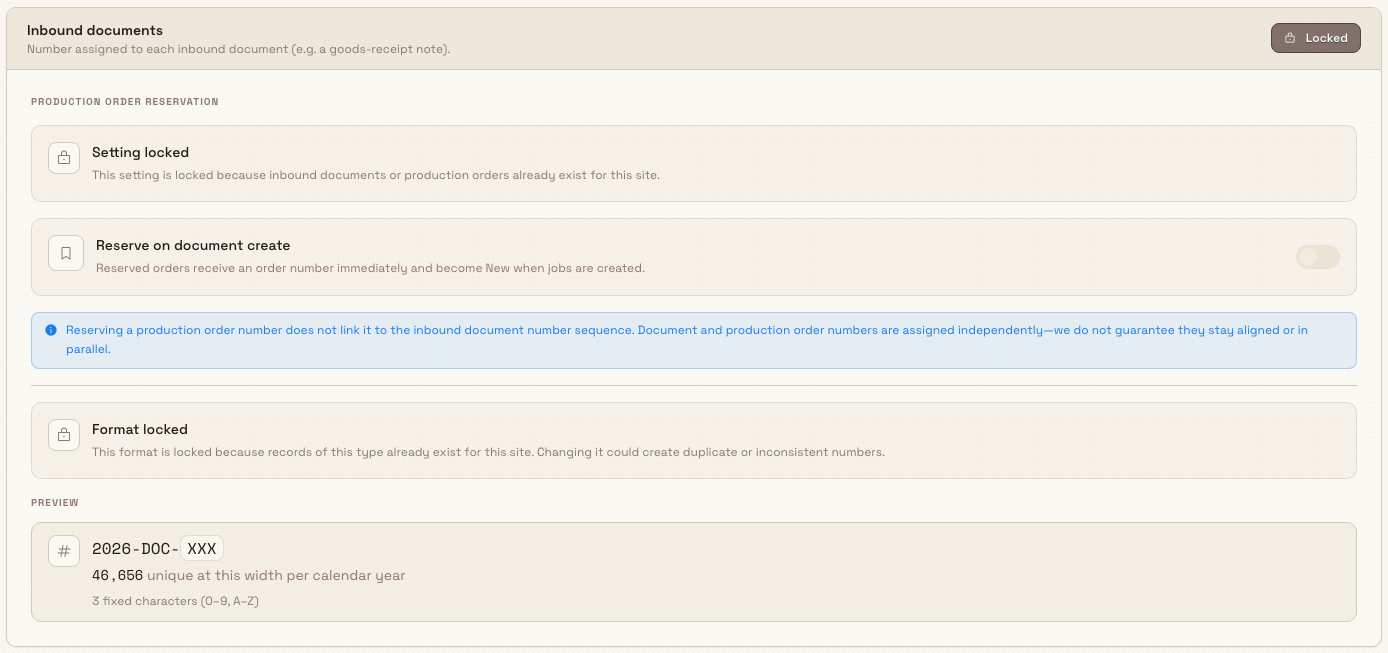
A number format can only be changed before the first record of that type exists for the site. As soon as a record is created, that type's card locks: it shows a Locked badge and a Format locked notice, and the segment builder is replaced by a read-only preview. This protects historical numbers from colliding with a re-configured format.
Two details matter:
- Deleted records still count. Once a number has been issued, the format stays locked even if that record was later deleted, so old numbers can never be reused by a new format.
- Invoices and credit notes lock only when issued. A draft invoice or draft credit note does not lock the format; only an issued one does. You can still adjust invoice and credit-note formats while everything is still in draft.
Locking is permanent for that record type at that site
Once the first record of a type is created — or the first invoice or credit note is issued — you cannot change or reset that type's number format for that site. There is no unlock. Decide on the format before you start creating records, and preview it on the new site first if the scheme is critical.
administration.master-data.naming-conventions-03
Example: numbering at Granite Peak Manufacturing
Granite Peak Manufacturing is bringing its Leeds Fabrication Plant online. Because no inbound documents, orders, or jobs exist there yet, every card is still editable, and Dana Winters — who holds the Entity admin role — sets the numbering before the first record is booked.
Dana selects Leeds Fabrication Plant in the site switcher and opens Settings, then Master Data, then Naming Conventions.
On the Production orders card she wants readable, sequential order numbers instead of the random default. She removes the Random code segment and builds a Fixed text segment with the value LEEDS-PRD-, then a Sequence number segment set to 5 Digits and Numbers (0-9). The Preview panel shows LEEDS-PRD-00001. Because the fixed text contains PRD, the required-label rule is met, so she selects Save format and sees Number format updated.
On the Inbound documents card she turns on Reserve on document create, so the moment a goods-receipt note is logged, Leeds reserves the matching production order number. She leaves the default YYYY-DOC-XXX document format in place.
She leaves Invoices and Credit notes on their gapless-sequential defaults to satisfy UK tax rules.
The next morning the first goods-receipt note is booked. Returning to the page, Dana finds the Inbound documents and Production orders cards now show a Locked badge and the Format locked notice — the formats are fixed for Leeds from here on, exactly as intended.
Expected result
After you save, every new record of that type at that site uses the new format immediately — the next inbound document, order, job, invoice, or credit note is numbered with your segments. Records created earlier keep the numbers they were already given. The card keeps showing your custom format, and offers Reset to system default, until the first record locks the type.
Feature state and limits
Configuring naming conventions is a generally available feature. Keep these limits in mind:
- Formats are per site; a change here affects only the selected site, not your whole organization.
- A format takes 1 to 8 segments, with at most one Sequence number segment.
- Fixed text is capped at 16 characters and allows only letters, numbers, spaces, and
- _ / . # :. - Sequence number width is 1 to 10 digits; Random code length is 1 to 12 characters.
- Inbound documents, production orders, invoices, and credit notes must keep their required label (
DOC,PRD,INV,CRN). - The preview is illustrative: Bulk assigns the real sequence value and random code when it creates each record.
- Once records exist for a type (or the first invoice or credit note is issued), that type's format is locked for the site and cannot be changed.
Troubleshooting
- Every card shows View only — your role has
numbering_settings.viewbut notnumbering_settings.update. Ask an administrator to grant update access or a role such as Entity admin, Manager, or Master data. - A card shows Format locked and you cannot edit it — a record of that type already exists for this site (for invoices and credit notes, an issued one). This cannot be undone; formats must be set before the first record, and deleted records still hold the lock.
- Save is blocked with a required-label message (for example Production order numbers must include "PRD") — add a Fixed text segment containing that label. The label must sit inside contiguous fixed text, not split across a year, sequence, or random segment.
- "Add a sequence or random segment to keep numbers unique" — the format has no variable part; add a Sequence number or Random code segment so two records never get the same number.
- "Use at most one sequence segment" — remove the extra Sequence number segment; a format may contain only one.
- The item card asks for a line-number segment — a Based on document number item format must include a Sequence number segment. Add one, or switch the style to Independent.
- The Reserve on document create toggle is disabled — inbound documents or production orders already exist for the site, which locks the reservation setting.
Related
- Master data settings — the full set of master-data configuration pages.
- Manage entities — the sites (entities) whose number formats you set here.
- Manage roles and permissions — grant
numbering_settings.viewandnumbering_settings.update. - Issue or confirm an invoice — issuing an invoice is what locks the invoice number format.
- Configure an invoicing profile — other invoice-level settings for a site.
Master data
Set up the shared records and templates — parts, assets, customers, routings, forms, and more — that the rest of Bulk relies on, either across your whole organization or for a single site.
Manage production modes and items
Define your organization's operational production modes and the tracking buttons operators press to record good output, defects, and inspections on the shop floor.