Manage datasheets
Create, build, publish, and archive spreadsheet-style datasheet templates with formulas, validation, and version history for production records.
A datasheet is a spreadsheet-style template you design once and attach to production work. Operators fill in input cells (measurements, checks, choices); formulas calculate results; validation and conditional formatting flag values that need attention. Each template is versioned: you edit a draft grid, publish it as a numbered live version, and every filled copy (instance) pins to the published layout it started with so later template edits never rewrite history.
Manage datasheets when you need calculated inspection sheets, tensile or dimensional checks, or any grid of readings that forms alone do not cover. Datasheets live in master data and are then attached on production records (starting with production orders). When a datasheet binds to a process, that binding follows the process itself — it does not inherit or imply a routing from the process.
Datasheets is in beta
In the Settings sidebar, Datasheets shows a Beta badge. The area is available for day-to-day setup, but the builder, options, and wording can still change. Prefer Archive over permanent delete while you settle templates, and treat early sheets as editable starting points rather than fixed plant standards.
Before you start
Open Settings, expand the Master Data group, and select Datasheets. The page address ends in /settings/master-data/datasheets. Opening a datasheet takes you to the builder at /settings/master-data/datasheets/<datasheet-id>.
You need permission to work with datasheets:
- View the list and open the builder requires
datasheets.view. - Create and duplicate require
datasheets.create. - Edit the grid, publish, restore versions, rename, and archive/restore require
datasheets.update. - Delete a datasheet with no filled instances requires
datasheets.delete.
These management permissions are granted by the built-in Super user, Entity admin, Manager, and Master data roles. If New datasheet or card actions are missing, ask an administrator to adjust your role.
Datasheets are per site. Templates, versions, and instances belong to the entity (site) you are working in. Switch site first if you need to manage another plant’s datasheets.
What the Datasheets page shows
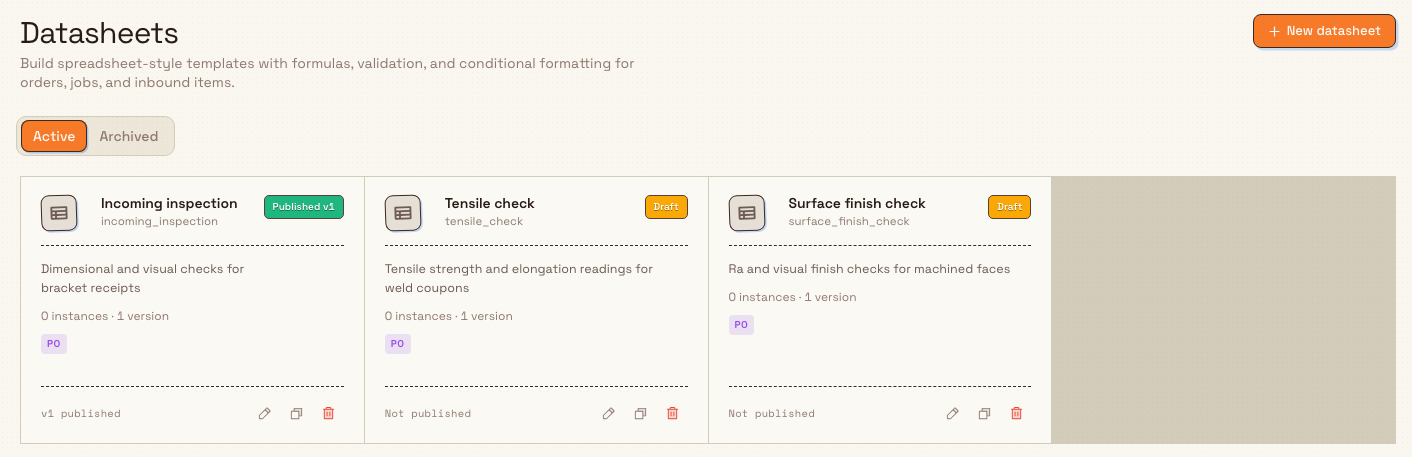
The page header is titled Datasheets, with the description: “Build spreadsheet-style templates with formulas, validation, and conditional formatting for orders, jobs, and inbound items.” The main action is New datasheet.
Below the header, Active and Archived tabs filter the list. Active templates are available to open and (once published) to attach as instances; archived templates stay on the Archived tab until you restore them.
Each datasheet is a card in a grid. A card shows:
- The datasheet name and short code.
- A status badge: Draft, Draft · vN live (a draft is open while a published version still exists), Published vN, or Archived.
- An optional description, or “No description yet.”
- How many filled instances and how many versions exist.
- Scope badges for where the template is intended to apply (for example Production Orders).
- Footer meta: vN published or Not published.
- Icon actions to Edit, Duplicate, and Archive (or Restore when archived).
Select a card to open that datasheet in the builder. If the site has no active datasheets yet, the page shows No datasheets yet with New datasheet and the prompt to create a first template for measurements, checks, and calculations. On the Archived tab with nothing stored, you see No archived datasheets.
administration.master-data.datasheets-01
How versions work
Each datasheet has a durable header (name, code, description, active/archived) and one or more versions that store the grid.
| State | Meaning |
|---|---|
| Draft | The editable working grid. New templates start here at version number 0 until published. |
| Published | A frozen numbered version (v1, v2, …). New instances use the latest published version. |
| Archived (template) | The datasheet header is inactive (is_active off). It no longer appears under Active until restored. |
Important rules:
- There is at most one draft and one published pointer on the header at a time.
- Publish freezes the current draft as the next version number and clears the draft slot.
- Editing a datasheet that only has a published version branches a new draft (a deep copy of the live grid). The toast reads “Draft created — publish when ready.”
- Filled instances keep the grid snapshot from the published version they were created with. Publishing a new version does not change existing filled sheets.
Create a datasheet
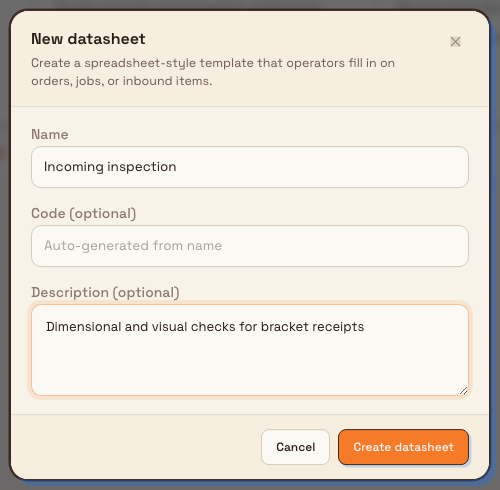
- Select New datasheet. The New datasheet dialog opens.
- Fill in:
- Name (required) — for example
Incoming inspection. Placeholder: “e.g. Incoming inspection”. - Code (optional) — short code used as an identifier. Leave blank to auto-generate from the name (letters, numbers, and underscores; unique on the site). Placeholder: “Auto-generated from name”.
- Description (optional) — what the sheet is for. Placeholder: “What is this datasheet for?”
- Name (required) — for example
- Select Create datasheet.
Bulk creates an active datasheet with a first draft grid (blank 24×8 by default), shows “Datasheet created”, and opens the builder. New templates default to applying on Production Orders and manual attachment (operators add the sheet when needed).
administration.master-data.datasheets-02
Build the grid
The builder is a full-page spreadsheet surface:
- Header — name, code, save state, History, Names, Sources, Print setup, Preview PDF, and Publish.
- Ribbon — undo/redo, show formulas (
fx), bold/italic/strikethrough/wrap, alignment, fill colour, borders, Row / Col insert, Merge, and show/hide input setup. - Formula bar — selected cell address (or named range) and the cell’s text or
=formula. As you type, Bulk suggests functions and shows the active function signature, argument help, example, and result preview. - Grid — the working sheet; changes auto-save while you are on a draft.
- Input setup (right panel, when expanded) — configures the selected input’s label, type, required state, options, unit, validation, and default value.
- Worksheet tabs — add, rename, reorder, or move between sheets in the workbook.
If you open a published version with no draft, the banner reads: “Viewing published vN. Start editing to branch a new draft you can publish.” Use Edit as new version or simply start typing; the first edit branches a draft.
Cell kinds
Commit values from the formula bar or by typing into a cell:
| What you enter | Result |
|---|---|
| Plain text or numbers | Static label or constant. |
Text starting with = | Formula (calculated when the sheet is filled or previewed). |
=input or =input(number), =input(date), and similar | Input cell operators will fill. Data types: Text, Long text, Number, Select, Date, Yes / No, File. |
Leading ' | Force static text (so values that look like formulas stay text). |
Use Names to make formulas readable, for example width_mm instead of B2. Use Input setup for an input’s data type, options, default, unit, required state, and validation.
Array formulas and connected rows
Use an ordinary ARRAY when you only need a calculated, read-only spill:
=ARRAY(jobs, job_number, part_number)Use BINDARRAY when the Datasheet must create editable operator inputs for every connected record:
=BINDARRAY(jobs, job_number, part_number, INPUT("result"), INPUT("notes"))The important difference is identity:
ARRAY(...)displays source values. It does not own connected rows and cannot store an input against a source record.BINDARRAY(...)generates one row for every matching production-order record. Its source values are read-only, while eachINPUT("key")stores the operator value against that record’s stable source ID.- If an order has 20 jobs, the bound array automatically creates 20 rows. The striped region below the formula is reserved, so fixed cells, row insertion, and deletion cannot collide with an unknown future row count.
- Sorting, filtering, and source reordering move an entered value with its job; they do not attach it to a visible row number.
- If a source record disappears after an operator entered data, its generated entry remains visible with DELETED status. It can be removed as an orphan, or reconnects automatically if the same source ID returns.
Wrap the formula in TRANSPOSE to generate columns instead:
=TRANSPOSE(BINDARRAY(jobs, job_number, part_number, INPUT("result")))This creates one column per job and reserves the band to the right. The same stable-ID rule applies in either orientation.
Connected sources are selected from Sources and are limited to approved production-order data. The Datasheet itself still lives only on the production order; it is not attached directly to jobs, inbound documents, or inbound items.
No separate array builder
Enter connected arrays as formulas in the normal formula bar. Type =BIND to see the signature and argument help. There is no separate Array Setup panel.
You do not need arrays for every sheet: static labels, normal input cells, and a few formulas cover most inspection checklists.
Publish a version
When the draft is ready for operators:
- Select Publish. The Publish version vN dialog opens (N is the next free number).
- Optionally enter a Release note (“What changed in this version?”).
- Select Publish vN.
Bulk freezes the draft, assigns the version number, points the template at that published version, and shows “Published vN”. Publish is disabled when you are not on an editable draft (for example while only viewing a published grid). New instances use this published layout; earlier instances keep their own snapshots.
Version history
Select History (or Version history in the more menu). The Version history dialog lists drafts and numbered versions, marks the current published version Live, and lets you:
- Restore a non-draft version into the working draft (toast “Restored into draft”). If a draft already exists, its grid is replaced; otherwise a new draft is created. The restore note records which version was restored.
- Compare two versions — select Compare on each; the dialog shows counts of cells added, removed, and changed, and whether layout meta changed.
Manage an existing datasheet
From the list
On each card:
- Open (click the card) — open the builder.
- Edit (pencil) — Edit datasheet dialog: change Name, Code, and Description. Select Save changes (toast “Datasheet updated”).
- Duplicate — Duplicate datasheet (“Copies the layout and current grid into a fresh draft.”). Default new name is
\<name\> (copy); optional new code. Toast “Datasheet duplicated”; the new template opens in the builder as a draft. - Archive / Restore — moves the template between Active and Archived (toasts “Datasheet archived” or “Datasheet restored”).
From the builder menu
- Edit details — same rename dialog as the list.
- Duplicate — same as list.
- Version history — same as History.
- Archive / Unarchive — same active flag as list archive/restore.
- Delete — available only when the datasheet has no filled instances (
can_delete). The confirm dialog warns that delete “permanently removes the datasheet and all its versions” and “cannot be undone.” If instances exist, the dialog explains that the datasheet cannot be deleted and to archive instead; the backend message is “Cannot delete a datasheet that has filled instances. Archive it instead.” Toast on success: “Datasheet deleted”.
Prefer Archive for templates that have been used on the floor. Deletion is for unused shells only.
Example: incoming inspection at Granite Peak Manufacturing
Granite Peak Manufacturing runs the Leeds Fabrication Plant. Dana Winters needs a repeatable sheet for dimensional checks on inbound brackets that feed production orders.
She opens Settings, then Master Data, then Datasheets, and selects New datasheet. She names it Incoming inspection, leaves the code blank so Bulk generates one, adds a short description, and selects Create datasheet.
In the builder she types column headers as static text (Part, Width mm, Height mm, Pass?), marks measurement cells with =input(number), and adds a pass/fail formula that compares width and height to limits. She names key cells on the Cell tab so formulas stay readable. When quality agrees the layout is ready, she selects Publish, adds the note “Initial dimensional checks”, and publishes v1.
Planners then attach Incoming inspection on production orders as instances of v1. Months later Dana branches a draft to add a surface-finish input, publishes v2, and existing order instances stay on v1 while new attachments use v2.
Expected result
A published datasheet shows Published vN (or Draft · vN live if you already opened a new draft) on its card, with vN published in the footer. Operators and planners can attach that published version on supported production records. Draft-only templates stay Not published until you publish. Archived templates leave the Active tab but keep their versions and instance history until deleted (if ever eligible).
Feature state and limits
Datasheets are available with a Beta badge in navigation. Keep these behaviours in mind:
- Templates are per site (entity); they are not shared across plants.
- New templates default to Production Orders scope and manual creation mode.
- Only a draft grid can be edited; publish freezes a numbered version for new instances.
- Instances pin to the published version’s grid snapshot at creation time.
- Grid size is capped (20 000 populated cells and about 1 MB of grid JSON). Oversize saves return a clear validation error.
- Connected arrays are formula-first and production-order-only. Their runtime capacity is controlled by the deployment’s Datasheet limit setting.
- Locking an instance freezes its connected source snapshot and calculated results.
Troubleshooting
- Publish is disabled. — you are viewing a published grid without an open draft. Select Edit as new version or make an edit so Bulk branches a draft, then publish.
- “Only a Draft version can be edited…” — a save targeted a non-draft version. Branch a draft from the published version first.
- “Cannot delete a datasheet that has filled instances. Archive it instead.” / Delete is disabled. — one or more instances exist. Archive the template if it should no longer be used; delete only empty unused templates.
- Code already in use / unexpected
_2suffix. — codes must be unique on the site; Bulk appends a number when the slug is taken. Edit the code in Edit datasheet if you need a specific value. - Grid save fails with a cell or size limit message. — the sheet has too many cells or is too large. Remove unused cells, simplify formulas, or split into two templates.
#SPILL!appears on an array formula. — another authored cell, merged range, name, or generated region blocks the result. Move the formula or clear the conflicting area.- A striped area cannot be edited. — it is reserved by a
BINDARRAYformula. Edit or move the anchor formula instead of writing inside its generated region. - A generated row says DELETED. — its source record disappeared, but Bulk kept the row because it contains operator data. Remove the orphan if it is no longer needed.
- A connected array shows stale or capacity status. — Bulk kept the last successful materialization because refresh failed or exceeded the configured limit. Correct the source/formula or raise the deployment limit before refreshing.
- “This datasheet no longer exists.” — the id is missing or was deleted. Use Back to datasheets and open another template.
- New datasheet or edit actions are missing. — you have view-only access. Ask an administrator for datasheet create/update/delete permissions.
Dates and time zones
A datasheet Date cell stores a calendar day and stays on that day in the owning plant, including after publish, export, and PDF generation. Use a date-and-time field when the exact moment matters; those values keep the recorded instant.
Related
- Manage forms — structured field templates for inbound and production work (complementary to spreadsheet-style datasheets).
- Manage processes — controlled work instructions that often sit alongside inspection data.
- Manage custom fields and dates — extra attributes on master-data records.
- Roles and permissions — grant datasheet view, create, update, and delete permissions to a role.
Manage forms
Create and maintain form templates for inbound documents, production orders, inbound items, and production jobs — sections, fields, categories, and the form builder.
Manage PDF templates
Create, design, publish, and export reusable PDF layouts for production orders, production jobs, inbound documents, and inbound items.