Review Value Flow
Read the live Value Flow dashboard to see where work-in-progress money sits across your routings, stations, and machines — and which jobs to chase next.
Value Flow is a money-first dashboard that shows where the value of your unfinished work is sitting right now — across your routings, your stations, and your machines — and ranks the jobs most worth chasing. In Bulk, work in progress (WIP) is any job that has started but is not yet delivered, and a routing is the ordered set of steps a job travels through on its way to done. Value Flow adds up the money tied to that in-progress work and lets you drill from the whole plant down to a single machine to see why the money is stuck.
Use it when you want to protect revenue and cash flow, not just watch machines. It answers questions a shift lead or plant manager asks every day: how much value is overdue, which routing is holding the most money, which station is the bottleneck, and which few jobs would free up the most value if you unblocked them next.
The board updates automatically from Bulk's latest production analytics snapshots, and a Live indicator in the header confirms that refreshes are active. In the Dashboards picker its card is titled Value Flow with the code DASH-FLOW.
Value Flow changes only when the normal production process changes its jobs and orders. A Dynamics 365 message does not write to Value Flow or its production records directly; when an incoming message should cause a business change, assign its Receive Payload to a Workflow and use the relevant Workflow Action. That Action follows the same production rules and permissions as the standard screen, and the next analytics snapshot then reflects the result.
dashboards.value-flow-01
When to use Value Flow
Open Value Flow when the question is about money and flow rather than raw machine effectiveness:
- Start a production or sales-and-operations stand-up by seeing total WIP value, how much is overdue, and how much shipped recently.
- Find the routing and the station holding the most value so you know where to add capacity or attention first.
- Decide which jobs to expedite by reading the ranked Worth attention list instead of guessing.
- Spot value that is stuck because it has no plan or is not yet on a machine, and hand it to scheduling.
For machine- or operator-level effectiveness over a day, use the OEE assets and OEE people dashboards instead. Value Flow is about where the money is, not minute-by-minute run states.
Before you start
You need two things in place:
- Permission to view production. Every panel on Value Flow reads the
production.viewpermission. The built-in Super user, Entity admin, Manager, Operator, Tablet user, Invoicing, Dashboards, and Master data roles all include it. Without it, the dashboard cannot load its data. - At least one routing with priced, in-progress work. Value Flow maps money across routings, so it needs routings defined and jobs moving through them. If your plant has no routings yet, the page shows a No routings defined message with a Set up routings button instead of a map.
The money figures use each job's saved payable value: its base price plus its share of any order services assigned to that job. An order service is divided across its assigned jobs once, so Value Flow never adds the full service amount to every job. Services that are not assigned to a job stay at order level and do not appear in job-based Value Flow totals.
Job values are converted into one display currency for the site. Jobs that have no price show up as unvalued, and priced jobs that cannot be converted into the display currency show up as unconverted. Neither is ever folded into a money total — they are counted separately and shown as honesty chips (for example "3 unvalued") so a total is never quietly inflated.
No routings yet?
If Value Flow shows "No routings defined", your plant has no routing to map value across. Choose Set up routings to open the routings area, or see Set up routings. Once a routing exists and jobs run through it, the map appears automatically.
Open the dashboard
Value Flow opens as its own full-screen page, separate from the main app chrome:
- From the Home screen, open the Dashboards tile to reach the picker.
- Find the Value Flow card (code
DASH-FLOW) and open it. The board opens full-width with no sidebar, at an address ending in/dashboards/production-flow. - Use the back arrow (labelled Back to dashboards) in the top-right to return to the picker.
Before you open it, the Value Flow card gives you a compact current-location snapshot. Every open or in-progress job is counted once at its current station. The card ranks up to five locations by converted WIP value, falls back to job count when no value is available, and keeps Unassigned and Other rows so the displayed totals cover all active work. It also calls out jobs whose value or currency conversion is missing rather than treating them as zero-value work.
The board's analysis state lives in the page address, so a link you copy carries the exact routing, time window, station, machine, and filter you were looking at. Anyone with permission who opens that link lands on the same view.
Set the time window
A pill in the header switches the analysis window between Today, 7d (the default), and 28d. The window sets the period for flow and delivery figures — such as value delivered and rework percentages. Your WIP value is always an as-of-now snapshot: it is the money in progress at this moment, regardless of the window.
A Live dot next to the pill confirms that the dashboard is refreshing automatically. A new production change can take a few seconds to appear while the next analytics snapshot is prepared.
Read the money band (the hero)
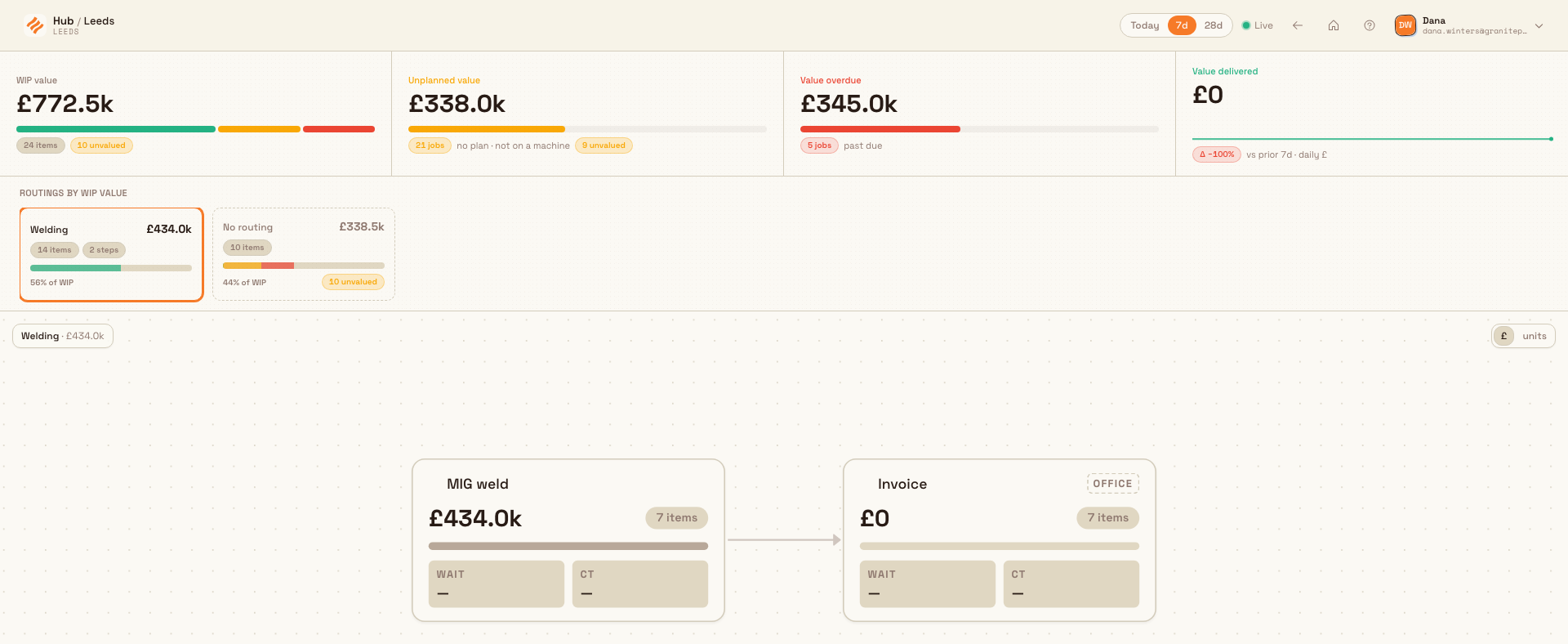
The top band holds four money tiles, each with a headline figure, a small bar, and a chip row:
- WIP value — the total value of all work in progress, with a bar split by age: green for 0–7 days, amber for 7–30 days, red for 30+ days, so you can see how much money is ageing. A chip counts the active items (individual pieces of work) behind that value. Selecting this tile scrolls you down to the routing rail.
- Unplanned value — value tied to jobs with "no plan · not on a machine". Selecting it sends you to Scheduling to plan that work.
- Value overdue — value on jobs already past their due date. Selecting it applies an Overdue filter to the rest of the board so you see only late work.
- Value delivered — value completed within the window, with a daily sparkline and a change figure (for example "Δ +8%") versus the prior window. This tile is informational.
Wherever a tile has jobs it could not price or convert, an "unvalued" or "unconverted" chip appears so the headline number stays honest.
Find where the value sits by routing
Below the hero, the Routings by WIP value rail shows one card per routing, sorted with the most valuable first. Each card carries the routing name and its WIP value, an items count and a steps count, a share-of-WIP bar tinted by the same age colours, and the routing's percentage of total WIP.
Select a card to load that routing's map below. Value Flow opens on the highest-value routing by default, so you start where the most money is. When there are more routings than fit, a dashed N more routings · Show all → card expands the rail inline, and routings with no work in progress are summarised as "N idle routings".
Read the routing map
The map draws the selected routing left to right: each step (a station in the routing, such as a machine or an inspection point) is a node, joined by arrows showing how work flows. A dashed Not started node collects jobs that have not entered the routing yet, and dashed amber return arrows mark rework — work sent back to an earlier station — each labelled with the rework percentage.
- Pan and zoom with the on-canvas controls; a minimap appears once the routing has ten or more nodes.
- A scope label in the top-left names the routing and its total value, and notes any value at steps that are not drawn on this map.
- A currency / units toggle in the top-right swaps every number on the map between money and item counts.
- The bottleneck — the step holding the most queued value — is highlighted so it is easy to find.
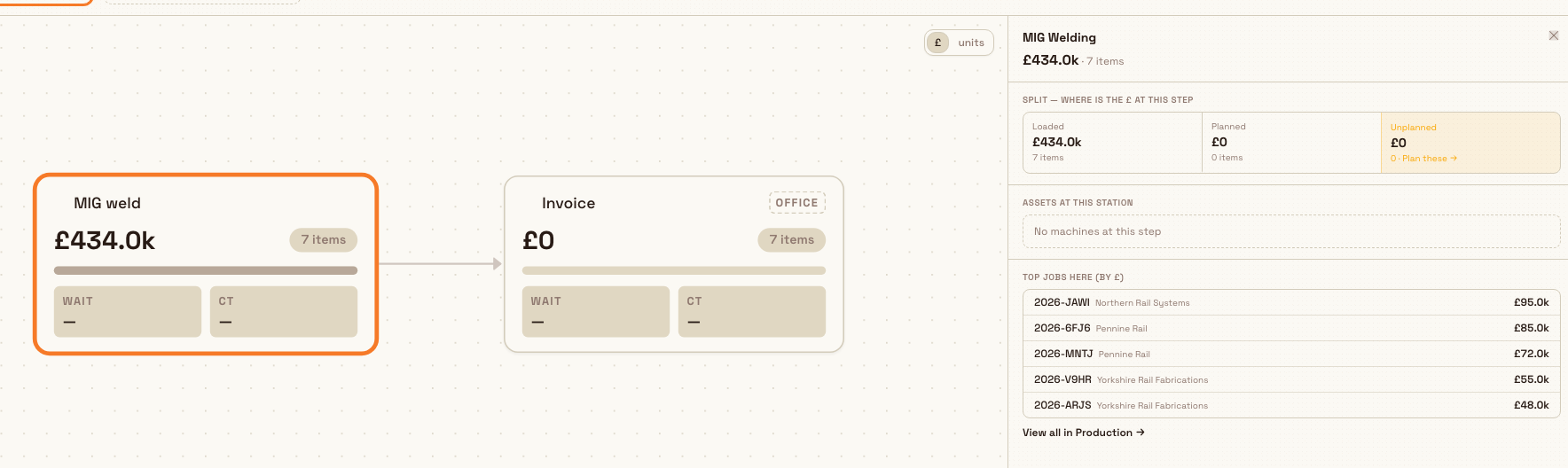
Selecting a step node opens a detail panel to its right.
dashboards.value-flow-02
Drill into a station, then a machine
The step panel breaks one station's value down so you can see why it is holding money:
- A three-part split — Loaded, Planned, and Unplanned — shows how much value and how many items are actually on a machine, scheduled, or waiting with no plan. The unplanned segment offers Plan these → to hand that work to scheduling.
- Assets at this station lists the machines there. A Bottleneck badge appears when this station holds the most queued value in the routing.
- Evidence summarises quality and availability for the window — first-pass yield (the share of units that pass the first time), scrap, availability today, and the oldest job waiting here.
- Top jobs here ranks the highest-value jobs at the station; select one to open its detail, or choose View all in Production →.
Selecting a machine opens the asset panel: its live state (for example "PAUSED · 22m"), the operator on it, an open downtime reason if one is logged, today's touch time and output, and the jobs loaded on it. From there you can Open asset → to go to the machine's own page.
Decide what to chase
The bottom band turns the whole picture into a to-do list and a summary.
Worth attention lists the top jobs by money at stake for whatever you have in scope — the current routing, station, machine, and any filter. Each card shows a rank, the job number and customer, the value at risk, short reason chips (such as late, due, unplanned, or waiting), and the due date. Select a card to open the job, or View all N in Production → to see the full filtered list. When there is nothing to chase in the current scope, the panel says "Nothing needs chasing in this scope — flow is healthy".
Where the value sits summarises the same scoped value three ways: By age in WIP (a bar split 0–7d / 7–30d / 30d+), By due status (Overdue, Due this week, On track), and Top customers by value in WIP. Selecting any segment, chip, or customer applies it as a filter — a lens — that narrows the Worth-attention list to match; selecting it again clears the filter. This is how you go from "a large slice of value is 30 days old" to the exact jobs behind it in two clicks.

dashboards.value-flow-03
Granite Peak example
At Granite Peak Manufacturing's Leeds Fabrication Plant, the operations manager opens Value Flow before the Monday production review with the window on 7d. The hero reads WIP value 312,000, with the age bar showing a worrying red slice, Value overdue 48,000 across 9 jobs, and Value delivered up 8% on the prior week.
They select the Value overdue tile. The whole board narrows to overdue work. The routing rail now shows that the Laser · Form · Weld routing holds most of the overdue money, so they select its card. On the map, the Weld station carries a Bottleneck badge. Opening its step panel, the split shows a large Unplanned figure — real jobs with no plan and not on a machine.
In Worth attention, the top card is job JOB-4821 for the customer Pennine Rail: chips reading "late" and "unplanned", due three days ago. The manager selects it to open the job, then uses Plan these → from the step panel to send the unplanned weld work to scheduling. They finish by copying the page link — overdue filter, Laser · Form · Weld routing, Weld station and all — into the review notes so the shift lead lands on exactly the same view.
Expected result
For any window and any routing, Value Flow gives you a truthful, money-first picture: total value in progress and how it is ageing, how much is unplanned, overdue, and delivered, which routing and which station hold the most value, and a ranked list of the jobs most worth acting on — all filtered to whatever scope and lens you have chosen. Because the analysis lives in the page address, that exact view is shareable.
Limitations and feature state
- Value Flow is available (generally released), not a beta.
- It is read-only. It shows where value is stuck and links out to act — to Scheduling, to a job, or to a machine — but you do not edit production data on this board.
- Money totals exclude jobs that are unvalued (no price) or unconverted (no rate into the display currency). Those are counted and shown as separate chips, never merged into a total, so a headline figure can understate reality — the chips tell you by how much.
- The picker preview uses a compact current-location snapshot so it stays bounded even for sites with large job volumes. The full Value Flow board reads complete analytics snapshots. A newly saved production change can take a few seconds to appear in the next snapshot.
- The board scopes to the one site you have selected and to routings that carry work in progress. Routings with no in-progress value appear only as an "idle" count.
- The board's page address uses
production-floweven though the board is named Value Flow; both refer to the sameDASH-FLOWdashboard.
Troubleshooting
- "No routings defined." Your plant has no routing for Value Flow to map. Choose Set up routings and define at least one, then run jobs through it. See Set up routings.
- The map says "Nothing in WIP for this window." Every routing is idle — there is no in-progress value to draw right now. The map fills in as soon as work starts moving.
- A recent change is not visible yet. Wait a few seconds for the next analytics snapshot. If a temporary refresh fails, Value Flow keeps the last successful view on screen and tries again automatically.
- A tile shows "N unvalued" or "N unconverted". Some jobs have no price, or a price that cannot be converted into the site's display currency. Add prices or a currency conversion so that value is counted. See Manage currencies.
- A shared link opens on a different view than expected. If the routing, station, or machine in a shared link was since deleted, Value Flow drops that part of the link and falls back to the highest-value routing rather than showing an error.
- The dashboard will not load at all. A persistent failure usually means your account lacks the view permission — ask an administrator for a role that includes View production.
Money on Value Flow uses payable job and order totals that include assigned order services.
Dates and time zones
Today, overdue, due-this-week, and delivered windows are calculated in the selected plant's timezone, not the viewer's computer timezone. Calendar due dates stay on their stored day, event times preserve their exact moment, and weekly windows use the organization's shared week-start rule.
Related guidance
- Dashboards — the full dashboard picker and the other built-in boards.
- Review OEE assets and Review OEE people — machine and operator effectiveness over a day.
- Review the Asset Board — a live wall-board of station states.
- Scheduling — where the Unplanned and "Plan these" actions take you to plan work.
- Orders and jobs — the jobs whose value this board follows.
- Set up routings — define the routings Value Flow maps money across.
- Manage currencies — the display currency and conversions behind every money figure.
Review production flow
Read the Value Flow dashboard to trace where the money in your work-in-progress sits across routings, steps, machines, and jobs, and see what to chase first.
Review parts performance
Read the Parts Performance dashboard to rank every part by output volume, first-pass yield, scrap, and movement over a chosen window, then drill into one part's weekly yield, top defects, and recent jobs.