Comment on production orders and jobs
Post a handover note on the correct order or job, read the same thread from Prioritisation, and correct or remove your own comments.
Last updated
Open a production order or job and find its Comments card. Use this thread for a handover, question or planning decision linked to that work. These are production comments, separate from task comments.
Anyone who can view the order or job at the selected site can post on that record. Comments stay attached to the existing work; they do not change its status, routing, priority or completion evidence.
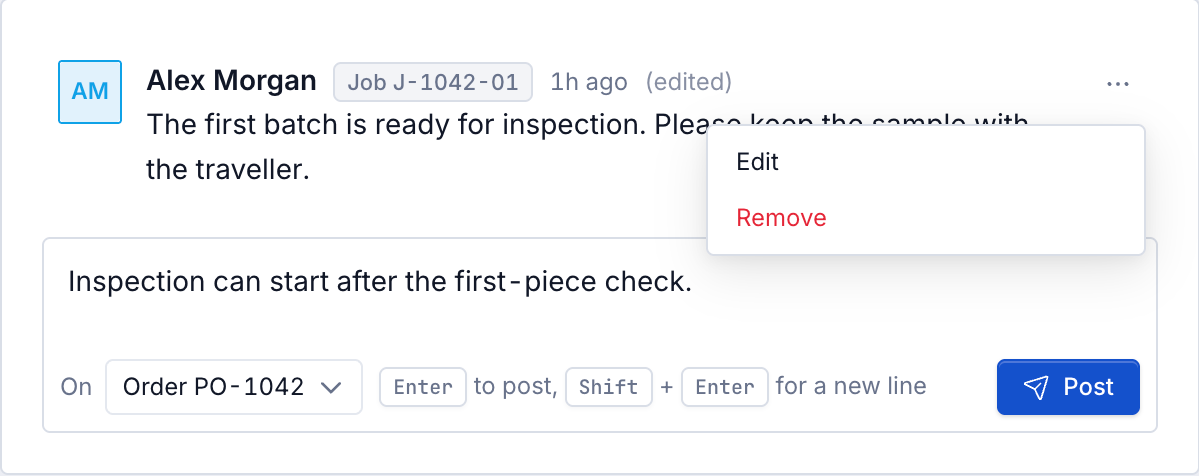
Choose where the note belongs
An order's Comments card brings together notes on the order and, when you can view jobs, its jobs. Posting there targets the order. A job's thread includes that job's comments and any parent-order comments you are allowed to read.
When the composer shows On, choose the named Order or Job before posting. The target label on a comment tells you which record owns it. A note on the order is visible in its jobs' combined threads; a note on one job is not copied onto its siblings.
For example, put “Use the revised packing instruction for the whole order” on the order. Put “Keep this batch's inspection sample with the traveller” on the specific job.
Post and find a comment
- Open Production → Orders or Production → Jobs, then the record.
- In Comments, read the existing discussion. Newest comments appear at the bottom.
- Check the target in On where shown. Type a non-empty note of up to 4,000 characters.
- Select Post or press Enter. Use Shift+Enter for a new line.
- Wait until Posting... finishes and your note appears in the thread. On a failed post, the draft stays in the box so you can correct the problem and try again.
Each comment shows its author and time. Hover the time to see the full timestamp. The record label appears when needed to distinguish the job/order in a combined thread. Very long discussions show a bounded recent history; absence from the visible thread is not proof that no older evidence exists.
Read or post from Prioritisation
On a ranked work chip, select its comment-count button to open the thread. You can also right-click the chip and choose Comments, or Add comment when there are none. Loaded work uses the same comment action. Comment access requires production_jobs.view and normal site access.
A group can open a thread spanning several jobs and their orders. Read the dialog's job list, then check On before posting. A multi-job group from one order defaults to the order, so the note is visible on each of those jobs. If jobs belong to different orders, choose the intended target explicitly. One post belongs to one selected record; it is not a broadcast to every job in the group.
The same comments appear on the production job/order pages. Closing the dialog returns you to the board. A 99+ count is a capped badge, not an exact total. Large planning groups show a bounded set of jobs; use the individual record for a specific note.
Edit your own note
- Hover the comment, or focus its actions control, and open Comment actions.
- Choose Edit. Only the author can edit the text, while they can still view its record.
- Change the text and select Save, or press Enter. Shift+Enter adds a line. Cancel or Esc abandons the edit.
- Check the saved note. (edited) indicates a correction; hover it to see when it was edited.
The audit log keeps the old text and the change. Editing a comment does not replace the production history it discusses. Use the normal production action to correct an operational record.
Remove a comment
Open Comment actions → Remove, read Remove comment, then select Remove. Comment removed confirms success. A failed removal leaves the confirmation open for retry.
Authors can remove their own comments while they can still view the record. People with the owning order's or job's update permission can remove another person's comment; this does not let them rewrite that person's text. Removed comments leave the visible discussion, while the audit log and retained record preserve evidence of the removal.
Related guidance
Review production orders and jobs
Find, filter, and inspect customer production orders and their jobs on the Production Orders and Production Jobs screens, then open either in full.
Edit a production routing
Change one job's step sequence without editing the shared routing template, and skip an optional step that has not started by recording a reason.