Review work in progress
Find work at its current resource, compare waiting value and age, open transactions, and read movement history without changing the jobs.
Last updated
Open Production → WIP to reach Work In Progress. It shows where Open, In Progress and On Hold jobs sit now, at the resource of their current step. Select a resource to open its Overview, Transactions and Movements tabs.
You need access to the site and production.view. Opening a linked job, order or transaction also requires that record's normal access. This is a review screen: viewing the map or changing its arrangement does not load, move or complete a job.
WIP and Value Flow answer different questions
| Screen | Use it for |
|---|---|
| Production → WIP | The current resource holding each open job, including jobs on hold; resource age, transactions and movements |
| Value Flow | Money across routings, steps and assets, delivered value and work worth chasing; its WIP scope includes Open and In Progress jobs and excludes On Hold |
Their totals can differ because they use different scopes. The arrows between WIP resource cards show the shared resource arrangement, not the routing of an individual job.
Read the current resource flow
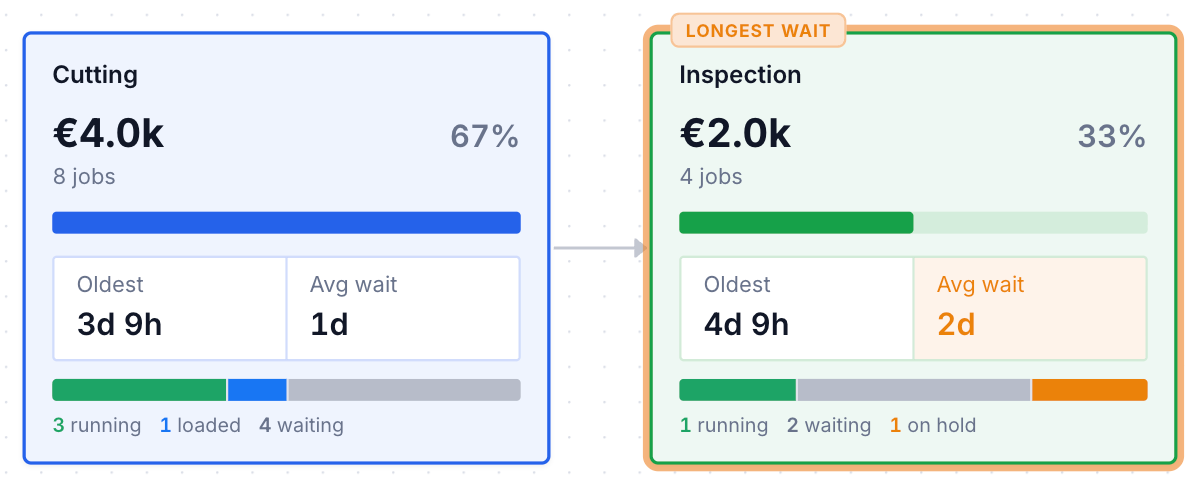
The headline tiles show WIP value, On a machine, Waiting and On hold. On a machine combines running and loaded work. Each resource card shows its value or units, its share of the site total, job count and state split.
- Running: the current step is in progress.
- Loaded: on a machine, but the current step has not started.
- Waiting: at the current resource and not loaded.
- On hold: the job's hold status takes priority over its step state.
Use the currency-symbol / units toggle to change the card headlines. Use the map's zoom and fit controls to inspect a crowded flow. A minimap appears for larger flows. The WIP by process type panel groups the same work by its process type and shows how each group is spread across resources.
Money uses each job's current payable value, including its assigned share of order services, converted to the site's display currency. Jobs without a price or a usable conversion rate remain in job counts but contribute no amount to the money total. A zero value therefore does not prove there is no work.
Use Refresh, or the Updated time button, to request a fresh overview. These analytics reads can follow production changes after a short delay. If No work in progress appears, no jobs meet this page's current-resource scope; it does not mean all production records have been deleted.
Reorder resources for everyone
- Drag a resource card left or right, then release it in the desired position.
- Alternatively, focus a card and use Alt+Left or Alt+Right to move it one position. Enter opens the resource.
- Wait for the refreshed order. If saving fails, Bulk shows an error and restores the previous arrangement.
This changes the organization's shared resource order, including Resources settings, resource pickers and Value Flow, for other users and sites that use those resources. It is not a personal view. The WIP reorder action requires production.view; it does not require the separate Resources settings update permission. The change is audited. It does not rewrite a routing or transfer work between resources.
Only resources holding WIP have cards here. Reordering the visible cards preserves the other resources in the shared ordering.
Open a resource's Overview
Select a card to open that resource. Its Overview contains:
| Figure or panel | Meaning |
|---|---|
| WIP value | Current value at this resource, its share of site WIP and any jobs without a value |
| Jobs | Job count and associated units |
| Oldest here | Longest known elapsed time since a job arrived at this resource |
| Avg wait | Average elapsed time since arrival for jobs with a known arrival |
| State split | Running, Loaded, Waiting and On hold counts and values |
| By process type | This resource's WIP grouped by process type |
| WIP trend here | This resource's value at each day end over the last 30 site days; today is So far today |
| Oldest transactions here | Up to ten longest-waiting current jobs, with their transaction details |
Age is time since arrival, including time subsequently loaded or running; it is not a measurement of queue-only delay. Unknown arrival data shows Unknown, not zero waiting time.
The trend values past WIP membership using current job prices and the current conversion basis. It shows changes in how much work was held, not a historical price ledger. Earlier days are end-of-day snapshots; today's point is the current partial day.
Use the header's Previous resource and Next resource arrows to work through the shared flow. They keep the current tab and movement date range/filter. Table search, column filters, sorting and paging start afresh on the next resource. The back arrow returns to WIP. If the resource no longer holds eligible work, No work in progress here offers Back to WIP.
Find the waiting transactions
- Open the resource's Transactions tab.
- Use Search transactions and supported column filters to narrow the current work. This list contains the current step of each eligible WIP job at this resource, not every historical transaction there.
- Read Time here and WIP value alongside the transaction, job and order fields. Hover a known Time here value to see its Arrived timestamp. Use Columns and saved views when offered.
- Select a row or job number to open the job in a floating window over the WIP page.
- Right-click a row for the job actions or Open transaction. Close the window or dialog to continue reviewing the resource.
The general Transactions guide explains the shared transaction fields. This resource tab keeps its WIP scope even while you search.
Review movements over a period
Open Movements, then choose a date range. The default is the last 30 site calendar days, including today. Both chosen dates are included. The available read ends at today and covers at most 92 days; Bulk displays the resolved range if a longer or future range is shortened.
The summary shows:
| Figure | Meaning |
|---|---|
| In | Arrival events at this resource, with their current job value |
| Out | Completed or skipped step departures, with their current job value |
| Net change | In minus Out, in both event count and value |
| Avg time here | Arrival-to-completion duration for completed steps with a known arrival; skipped departures do not enter this average |
These are step movement events, not necessarily distinct jobs. A job that visits the resource for multiple steps can contribute multiple movements. Values use the current job value; they are not invoices, revenue or amounts earned at each step.
The In and out per day chart uses daily bars for up to 31 days. Longer periods use the organization's business weeks, with partial weeks at the range edges. Today's bucket only includes events so far. This is a flow chart, while the Overview trend is a stock snapshot at each day end.
Under the summary, choose In and out, In, Out or All events. All events also shows Loaded, Started and Reset activity, which does not add to In/Out totals. Search, sorting, paging and these event filters narrow the table; the summary/chart still covers the full selected resource and date range.
Read the event time, job, step, person, asset, time here and current value. Missing historical person/asset information can be blank. Select a row to open the job in a floating window; right-click and choose Open transaction to inspect its step. The previous/next resource arrows keep this date range and event filter so you can compare resources.
If the trend, totals or movement list fails, use its Try again control. A visible previous result while the next page loads is not proof that a new request has completed; check the loading state and the displayed range.
Related guidance
Review production transactions
Search and review every production step across your jobs, inspect its output, time, quality, and history, and complete or undo steps in one place.
Respond to a blocking pre-use check
Clear a workstation that Bulk has blocked from production by completing its compulsory pre-use check, or by requesting a time-limited supervisor override.