Manage workforce readiness
Keep your people trained, competent, and available for the work ahead by combining Bulk's Training and People modules into one readiness workflow — from defining required skills to monitoring compliance, renewing expiring certifications, and planning around absences.
Your plant can only run the work in front of it when the right people are trained, currently certified, and actually available for their shifts. In Bulk — the Manufacturing Execution System (MES) your team runs production in — keeping that true is what we call workforce readiness.
Readiness is not a single screen. It is a workflow that spans two modules:
- Training answers are your people trained and current for the work? — which programs each person is qualified on, how deep that skill goes, and what is about to expire.
- People answers who do you have, and are they available? — your employee directory, shifts, absences, and reporting structure.
This page shows how those pieces fit together into one loop and links to the focused guide for each task. Use it when you are standing up a new production cell, onboarding operators, preparing for a customer or compliance audit, or simply keeping day-to-day production covered.
Before you begin
To work this whole loop you need a few things in place:
- Access to the Training and People modules. Bulk controls what you can open with roles and permissions. Seeing training needs the View training permission; seeing your workforce needs the View employees permission. Bulk bundles these into roles such as Manager, People, and Training, and an owner or admin account has them by default. If a module is missing from your sidebar, it is almost always an access matter — see Understand access and visible navigation.
- Your master data set up. Readiness is only as good as the setup behind it. Before you assign or monitor anything, make sure your departments and job titles, your training catalog (the programs people can be qualified on), your shifts, and your absence types exist. See People configuration to set these up.
Employees are not user accounts
In Bulk an employee is a workforce record — a person on your floor who can be scheduled, trained, and marked absent. That is separate from a user account, which is a login. A contractor or operator can have an employee record without ever logging in. This workflow is about employees.
The readiness picture at a glance
Two dashboards give you the state of readiness before you dig into any one person.
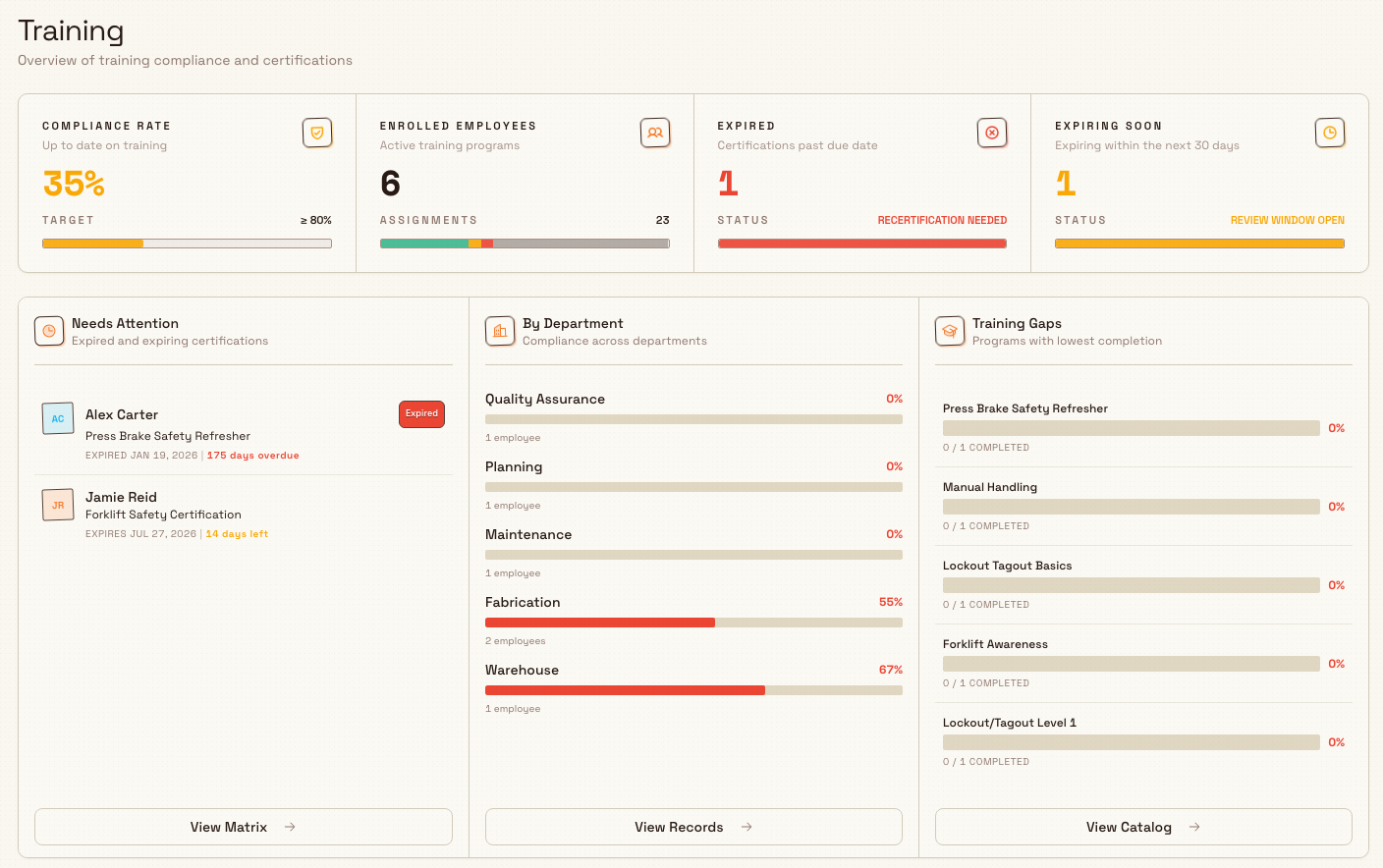
Training opens on a home dashboard titled Training ("Overview of training compliance and certifications"). Across the top, a summary strip tracks the numbers that matter most:
- Compliance rate — the share of assignments that are up to date on training, measured against a target (Bulk's default is ≥ 80%).
- Enrolled employees — how many people are on active training programs.
- Expired — certifications that are past their due date and need recertification.
- Expiring soon — anything expiring within the next 30 days, so you can act before it lapses.
Below the strip, three widgets break the picture down further: Needs Attention (what is expiring), By Department (compliance per department), and Training Gaps (programs where coverage is thin).
workflow.workforce-readiness-01
People opens on a People Dashboard ("Overview of employees, departments, and absences") with a Workforce summary (headcount, split into Active and On leave) and an absences summary. Together the two dashboards answer both readiness questions at once: are people qualified, and are they available.
Work the readiness workflow
Readiness is a loop, not a one-off. The stages below each link to the step-by-step guide that owns them.
1. Define what "ready" means
Decide what a person must be qualified on before they can do a job, and how strict that requirement is. In your training catalog, each program carries a requirement level — mandatory, recommended, or optional — so the system knows which gaps are blocking and which are nice-to-have.
2. Assign training and map competency
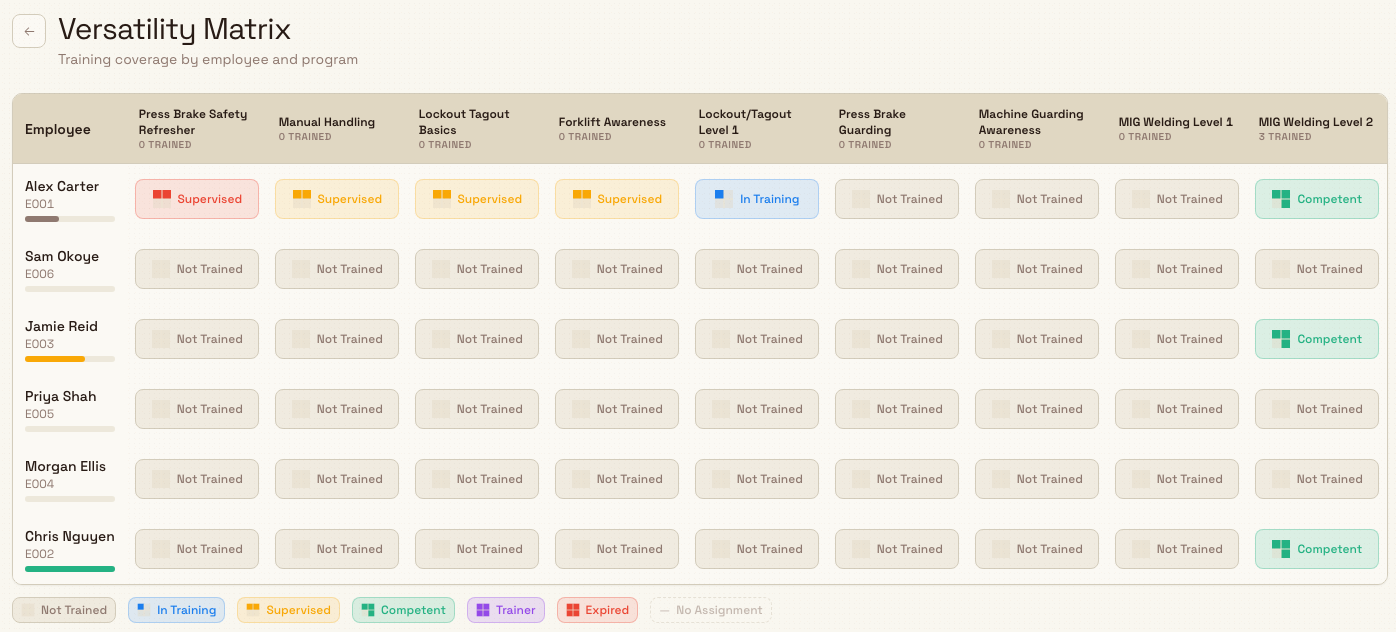
Assign the right programs to the right people, then read the result on the training matrix — a grid of every employee against every program that Bulk calls the Versatility Matrix ("Training coverage by employee and program"). Each cell shows how far that person has progressed, using five competency levels:
- Not Trained → In Training → Supervised → Competent → Trainer
Cells also flag when a qualification has Expired or when there is No Assignment at all. You can save focused views of the matrix (for example, one department's welders) as layouts to reuse later.
workflow.workforce-readiness-02
3. Record completions and evidence
When someone finishes a course or passes an assessment, record the completion so their competency and expiry date update — and attach the certificate or sign-off as evidence for audits.
4. Monitor readiness
Watch the numbers from the readiness picture above. The Records page ("Track current employee training status from matrix assignments") lets you filter people by compliance status and department to find exactly who is behind, and each person's record carries a Training Summary with their compliance and risk signals.
5. Renew before things lapse
Use Expiring soon (the next 30 days) as your early-warning list and renew qualifications before they expire, so a certification never quietly lapses mid-production.
6. Keep track of who is available
A fully qualified operator is no help if they are on leave. Keep your employee directory current, log and approve absences, and use the absence calendar to plan coverage. The organization structure shows reporting lines when you need to reassign or escalate.
- Create an employee
- Record an absence
- Use the absence calendar
- View the organization structure
- Manage shifts
Example: readiness for a new laser-cutting cell
Granite Peak Manufacturing, a UK precision-fabrication company, is opening a second laser-cutting cell at its Leeds Fabrication Plant. Dana Winters, who manages the plant, needs the cell staffed with qualified, available operators by the end of the month.
She starts in the training catalog and confirms the Laser Cutter Operation program is set to mandatory, because no one should run the machine without it. On the Versatility Matrix she filters to the fabrication department and sees the reality at a glance: two operators are Competent, one is only Supervised, and three show No Assignment — a clear readiness gap.
Dana assigns the Laser Cutter Operation program to the three unqualified operators and books the supervised operator for a sign-off assessment. As each person completes their training she records the completion, attaching the certificate; their matrix cells move up toward Competent and their compliance rate ticks up on the Training dashboard.
A week before go-live she checks Expiring soon and spots that one of her already-competent operators has a forklift certification lapsing in 20 days, so she renews it before it can block them. Finally, she opens the absence calendar and sees one qualified operator is booked off for the launch week, so she adjusts the shift plan to keep the cell covered. By launch day the cell has enough Competent operators scheduled and on site — it is ready.
Expected result
When you work this loop, you can:
- see, in one place, whether your people are qualified (Training) and available (People);
- know exactly who is Expired, Expiring soon, or shows No Assignment, and act before it stops production;
- move people up the competency levels — Not Trained through Trainer — with recorded, audit-ready evidence; and
- plan coverage around absences instead of discovering a gap on the day.
Feature state and what to expect
The Training and People modules are generally available — they are the standard way Bulk plants manage qualifications and workforce.
A few things are worth knowing:
- This is a workflow, not a single screen. There is no page literally called "Workforce readiness"; readiness is the outcome of using the Training and People modules together, as laid out above.
- What you can do depends on your permissions. Viewing is one thing; changing another. For example, saving and editing reusable matrix layouts needs the Manage matrix layouts permission, and approving absences needs the Approve absences permission. If an action is missing, it is usually a role or permission matter.
- Figures reflect your own plant's data. Compliance rates, headcount, and expiry counts are specific to the selected plant and to what you have set up.
Troubleshooting
- The matrix says "No matrix data." There is nothing to plot yet. Create training programs and assign them to employees first — see Create a training program and Assign training.
- Records shows "No training assignments." The same cause: people need assignments before their status can be tracked. Add assignments to get started.
- A person looks trained but their compliance is low. Compliance is driven by recorded completions with valid expiry dates, not by assignment alone. Make sure completions are recorded — see Record training completion and evidence.
- A module is missing from your sidebar. You may not have the View training or View employees permission, or your plant may not use that module yet. See Understand access and visible navigation.
Related guidance
- People and training — the full module reference
- Training — every training task
- People — every workforce task
- People configuration — departments, job titles, shifts, and absence types
- For people and training teams — this area organized by role
- For managers — a manager's view across Bulk
People and training
How Bulk's People and Training modules work together to keep your workforce directory current and your team qualified for the work, with links to every task and reference guide.
Insights and finance
Understand how Bulk turns shop-floor activity into numbers you can act on and completed work into invoices, with links to the analytics, dashboards, Atlas, and Finance guides.