Manage safety risk
Run the full safety-risk cycle in Bulk's Safety module: assess and score hazards on the risk matrix, control them with measures and approvals, report and investigate incidents, and keep equipment safe with pre-use checks.
Managing safety risk is the ongoing work of finding what could hurt someone on the shop floor, deciding how serious it is, putting controls in place, and learning from anything that goes wrong. Bulk brings that whole cycle into one place — the Safety module — so hazards, controls, incidents, and equipment checks live together instead of in scattered spreadsheets and paper folders.
This is a workflow page. It explains how the pieces of Safety fit together and, at each step, links to the focused task article that walks you through the details. Read it top to bottom to understand the full cycle, or jump to the stage you need.
Bulk supports your safety process — it does not replace it
The Safety module helps you record, score, and track risk, but it is a management tool, not a substitute for your workplace's safety procedures, training, or legal duties. In an emergency, follow your site's emergency procedures — never a screen. Treat any risk score or status in Bulk as an input to a competent person's judgement, not the final word.
What managing safety risk covers
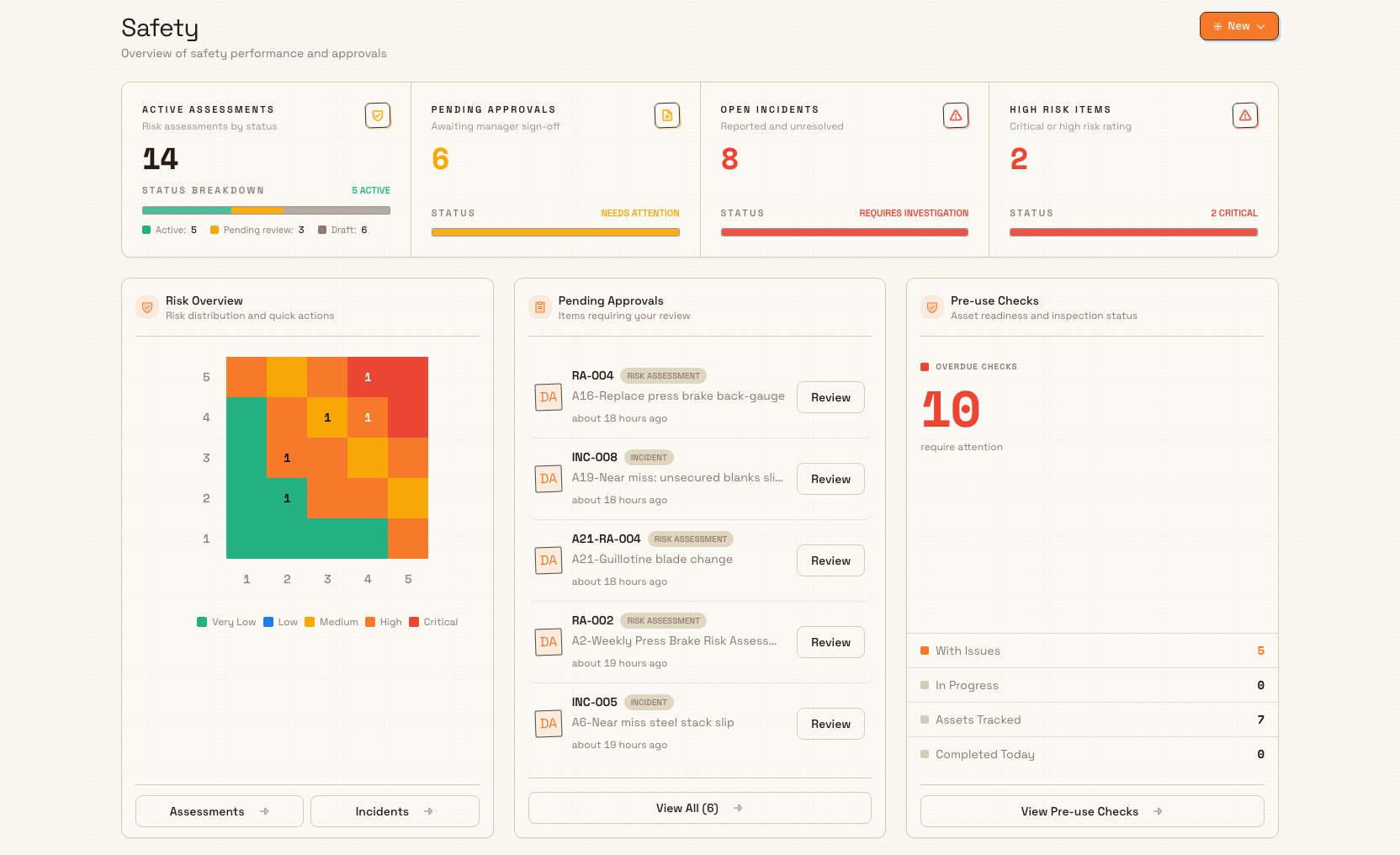
Bulk splits safety work into four connected areas, each with its own page in the Safety module:
- Risk Assessments — record a hazard tied to a task or area, score how risky it is, and list the measures (the controls) that reduce it. A hazard is anything with the potential to cause harm; a measure is a control you put in place, such as a guard, a procedure, or protective equipment.
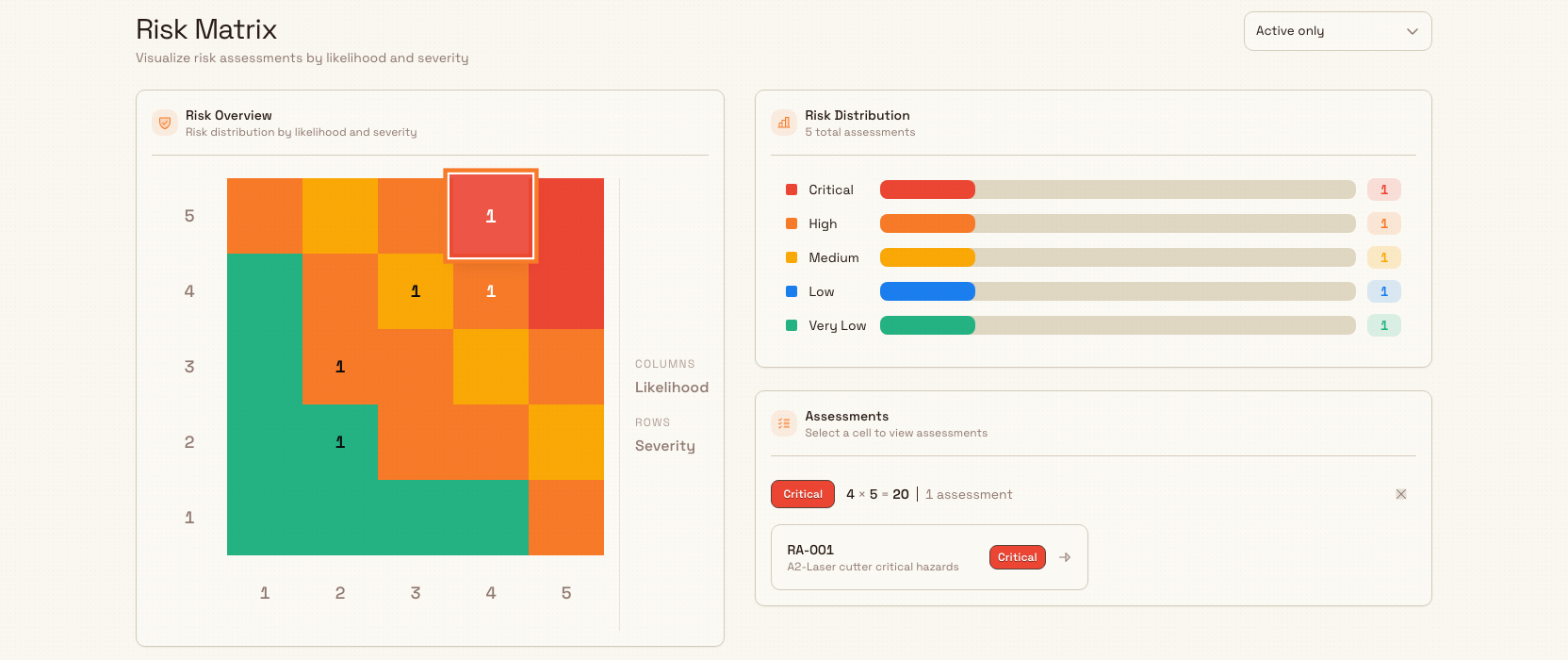
- Risk Matrix — see all your assessments plotted by how likely harm is against how severe it would be, so you can spot where the biggest risks sit.
- Incidents — report, investigate, and close out things that actually happened, including near misses (events that could have caused harm but did not).
- Asset Readiness — track the pre-use checks that confirm each machine is safe to run. An asset is a machine or piece of equipment; a pre-use check is the inspection an operator completes before using it.
The Safety home page pulls these together into one overview of performance and approvals.
workflow.manage-safety-risk-01
Before you begin
To work in Safety you need to be signed in and working in a plant (Bulk also calls a plant a site or entity — a single factory or workshop). See Getting started.
What you can do in Safety depends on your role and its permissions. Bulk uses granular safety permissions, and a role can hold some without the others:
- View safety lets you open the Safety module and read assessments, incidents, and readiness.
- Create risk assessments lets you add and edit assessments and their measures.
- Approve risk assessments lets you approve or refuse an assessment so it becomes Active.
- Create incidents lets you report and edit incidents.
- Approve incidents lets you approve or refuse a reported incident.
- Manage types lets you configure incident types and safety settings.
Several built-in roles carry the full set — Super user, Entity admin, Manager, and the dedicated Safety role. If you can open Safety but a button such as New Assessment or an approval action is missing, you likely hold view access without the matching create or approve permission; ask an administrator to adjust your role. Administrators can review the safety roles and settings in Safety types and settings.
Assess and control workplace risk
Risk assessment is the heart of the cycle. Open Safety › Risk Assessments to see every assessment in a table with its Document ID, Task Name, Status, Risk Level, and number of Measures. Select New Assessment to start one.
An assessment moves through clear statuses:
- Draft — you are still building it.
- Pending Approval — submitted and waiting for a reviewer.
- Active — approved and in force.
- Archived — retired and kept for the record.
- Refused — a reviewer sent it back.
You score each risk two ways — once for the raw hazard and again for the residual risk that remains after your measures — using likelihood (how likely harm is, rated 1 to 5) multiplied by severity (how bad it would be, rated 1 to 5). That product, from 1 to 25, sets the Risk Level:
- Critical (20–25) — immediate action required.
- High (15–19) — senior management attention needed.
- Medium (10–14) — management responsibility.
- Low (5–9) — manage by routine procedures.
- Very Low (under 5) — acceptable risk level.
The Risk Matrix page shows all your assessments plotted on this five-by-five grid so you can see, at a glance, where your most serious risks cluster and which need attention first. This shared scoring language keeps every assessment comparable across the plant.
workflow.manage-safety-risk-02
Along the way Bulk helps you keep assessments complete and current:
- Measures capture each control you rely on and the residual risk that remains once it is in place. See Create a risk assessment and Score a risk.
- A built-in Draft Assistant can suggest hazards and measures to speed up a first draft, which you then review and edit. See Draft a risk assessment with AI.
- Approval turns a completed draft into an Active assessment. See Review a risk assessment and Approve a risk assessment.
- Scheduled reviews keep an assessment honest over time, marking it up to date or revision required so nothing silently goes stale. See Keep risk assessments under review.
Respond to incidents
When something happens — an injury, damage, or a near miss — record it under Safety › Incidents (titled Incident Reporting). The table lists each incident by Incident #, Title, Type, Location, Status, Reported By, and Date. Select New Report to start one.
An incident works through its own lifecycle: Draft while you write it up, Awaiting Approval once submitted, then Approved or Refused by a reviewer, and finally Closed when the follow-up is complete. Reporting captures the details and evidence; investigation records what you learned and the actions you are taking — grouped as Immediate Actions, Preventive Measures, and System Changes — and closing confirms the work is done.
Follow the task guides for each stage:
Incidents feed back into assessments: a near miss on a machine is a strong signal to revisit that machine's risk assessment and tighten its measures.
Keep equipment safe to use
Controls only work if the equipment is fit to run. Safety › Asset Readiness shows the pre-use check status for each asset — Not Started, In Progress, Completed, Due, or Expired — and each completed check records a result of Passed, Failed, or Passed with Issues. A check that is overdue or failed can block work at a workstation until it is resolved, which keeps an unsafe machine from being run by mistake.
For the detail, see Track asset readiness and Read pre-use check results. The pre-use checks themselves are built as audits, so administrators set them up alongside your other audit programs — see Run a compliance audit program.
A worked example at Granite Peak Manufacturing
Granite Peak Manufacturing, a UK precision-fabrication company, has just installed a new hydraulic press brake at its Leeds Fabrication Plant. Dana Winters, who administers the plant, uses Bulk to manage the risk around it end to end.
- Assess. Dana opens Safety › Risk Assessments, selects New Assessment, and creates one for Operating the No. 3 press brake. She lets the Draft Assistant suggest hazards — crush injury at the tooling, for example — then edits the list. She scores the crush hazard at likelihood 4 and severity 5, giving a raw score of 20 (Critical).
- Control. She adds measures — a light-curtain guard, a two-hand control, and a documented setup procedure — and scores the residual risk at likelihood 2 and severity 5, a score of 10 (Medium). She submits the assessment; a colleague with approve rights reviews it and it becomes Active.
- Watch the portfolio. On the Risk Matrix, the press brake now sits in a Medium cell alongside the plant's other assessments, so Dana can see it no longer stands out as a top risk.
- Learn from a near miss. A week later an operator reports, under Incident Reporting, that a workpiece slipped but no one was hurt. The incident is investigated: an Immediate Action adds a location stop, and a Preventive Measure updates the setup procedure. Dana revisits the risk assessment to reflect the change.
- Keep it safe to run. Each shift, Asset Readiness shows the press brake's daily pre-use check. When a check comes up Due, the operator completes it; a Failed result would keep the machine from being loaded until a supervisor clears it.
Within one tool, Granite Peak has moved from a brand-new hazard to a controlled, monitored, and reviewable risk.
Expected result
Once you are using Safety to manage risk, you can:
- record every hazard as a risk assessment, score it by likelihood and severity, and control it with measures;
- read the Risk Matrix to see where your most serious risks sit;
- move assessments from Draft through Pending Approval to Active, and keep them current with scheduled reviews;
- report, investigate, and close incidents and near misses, and feed the lessons back into your assessments; and
- confirm equipment is safe to run through pre-use checks on the Asset Readiness page.
Feature state and what to expect
The Safety module and everything described here — risk assessments, the risk matrix, incidents, and asset readiness — is generally available and is the standard way to manage safety risk in Bulk.
A few things are worth knowing:
- Permissions shape what you see. Safety uses separate view, create, approve, and manage permissions, so two people may see different buttons on the same page. A missing action is almost always a permissions matter, not a fault.
- The Draft Assistant produces suggestions. AI-suggested hazards and measures are a starting point for a competent person to review and edit — never an approved assessment on their own.
- Pre-use checks are configured as audits. Their templates and schedules live in the Audits and Safety settings, so what appears on Asset Readiness reflects how your plant has set them up.
If something looks wrong
- The Safety module or a page is missing from your menu. You may not have view safety access, or your plant may not use that area yet. See Understand access and visible navigation.
- You cannot create or approve. Creating and approving need their own permissions (for example create risk assessments or approve incidents). If those buttons or actions are absent, ask an administrator to adjust your role.
- An operator cannot start work at a station. An overdue or Failed pre-use check can block a workstation. Open Safety › Asset Readiness, find the asset, and complete or clear the check to unblock it.
- A risk assessment shows as needing revision. A scheduled review has come due. Open the assessment, complete the review, and update its measures or score so it returns to up to date.
Related guidance
- Quality and compliance — the workflows in this area.
- Safety module reference — detailed reference for every Safety screen.
- Quality and safety, by role — day-to-day tasks for quality and safety roles.
- Resolve a quality problem — the parallel workflow for quality issues.
- Run a compliance audit program — set up the audits and pre-use checks that feed asset readiness.
- Safety types and settings — administrator setup for incident types and safety configuration.
Resolve a quality problem
Take a quality problem from first report to closure in Bulk: capture the defect, investigate the root cause, decide a disposition, then resolve and close the issue.
Run a compliance audit program
Set up audit templates, areas, and schedules, then run and review the recurring audits that keep your plant continuously compliant.