Skip or complete a production phase
Finish the routing step a job is on at a workstation with Complete Stage or Complete Step, understand when items are skipped, and undo a completed phase if you need to.
What completing a production phase means
In Bulk, every production job follows a routing — an ordered set of steps (the operations a job passes through, such as cut, weld, and inspect). As a job moves across the shop floor, an operator loads it onto a workstation (an asset, such as a machine or a bench), does the work for the current step, and then marks that step finished so the job can move to the next one.
Bulk calls this action completing a production phase. The permission that controls it is named Complete production phase, and in the operator screens the same action appears as two buttons:
- Complete Stage — finish every job currently loaded on one workstation in a single pass.
- Complete Step — finish the current step for specific jobs you choose.
Completing a phase records that the step is done, stops the running timer, and passes the work forward. You do this many times a shift; it is the normal way work progresses through production.
Phase, stage, and step
"Phase", "stage", and "step" all describe the operation a job is currently on. Complete Stage completes that step for everything loaded on the workstation. Complete Step completes that step only for the jobs you select. On the operator (operate) screen, both are governed by the Complete production phase permission.
Before you start
To complete a phase you need:
- The Complete production phase permission. It is included in the Tablet user, Entity admin, and Master data roles, and in any custom role that grants it. Shop-floor operators normally sign in with the Tablet user role.
- A job loaded on the workstation. If nothing is loaded, load a job or an order first.
- Time recorded for the work. A job item that has no time assigned cannot be completed until you record time on it — start and stop the timer, or add a manual time entry.
production.complete-phase-01
Complete a phase for a whole workstation (Complete Stage)
Use Complete Stage when you have finished the current step for the jobs on the workstation and want to move them forward together.
- Open the workstation's operate screen and finish the physical work for the loaded jobs.
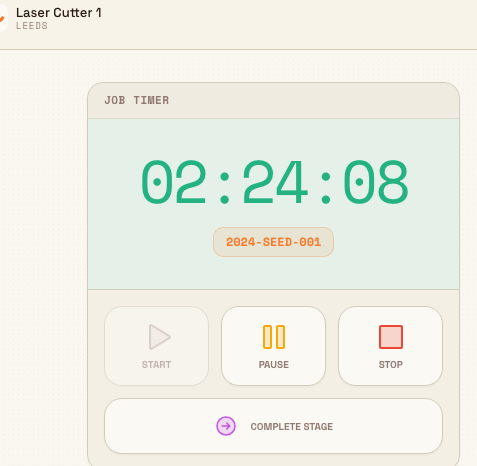
- In the timer panel, select Complete Stage. The Complete Stage wizard opens.
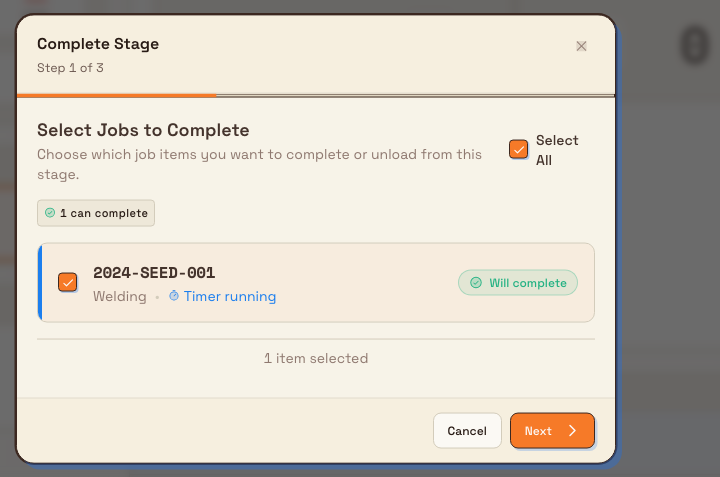
- On the Select Jobs to Complete step, review each loaded item and choose which ones to complete. Every item shows a status chip:
- Will complete — the item is ready and will be completed here.
- Unload only — the item is loaded on another workstation as well, so here it is only unloaded, not completed.
- Needs time — the item has no recorded time, so it cannot be completed yet. Record time first, then return.
- If a timer is running or paused, the wizard adds a step confirming the timer will be stopped as part of completion.
- On the Review Actions step, check the summary of what will happen — which items complete, whether the timer stops, and whether a signature is required.
- If the workstation type has confirmation scanning turned on (common on bench and peaking stations), scan one of the selected job barcodes when prompted.
- If any selected item requires a sign-off, capture the signature on the signature step. One signature applies to all items in the batch.
- Select Complete. Bulk completes the current step for each selected item, stops the timer, closes any open downtime events, sets the workstation to idle, and unloads the completed items.
When it finishes, the wizard shows Completion Successful with a count of how many items were Completed and Unloaded. If some items could not be completed, it lists them under a failures section with the reason for each, so you can fix those and try again.
production.complete-phase-02
Complete a phase for specific jobs (Complete Step)
Use Complete Step when you want to finish the current step for particular jobs rather than everything on the workstation. On the operator screen it appears as Complete Step on the order card and is governed by the Complete production phase permission — the steps below describe that operator flow. The same "finish the current step" action is also reachable from a job's Routing tab and the Transactions screen, where the control is labelled Complete and requires the Edit production jobs permission instead.
- Select the jobs whose current step you want to complete.
- Select Complete Step.
- In the confirmation dialog, review the selected jobs and select Complete Step.
Bulk marks the current step complete for each selected job and confirms how many succeeded. Some selected items may be reported as skipped rather than completed — for example Completed 6 step(s), 1 skipped. An item is skipped when it is already complete, or when it is blocked because an earlier step it depends on is not finished yet (Dependencies must be completed first). Skipped items are left unchanged so you can address them separately.
What "skip" means today
Bulk does not currently expose a dedicated one-tap control that skips a phase outright. There is a Skip production phase permission reserved for that purpose, but no operator button is wired to it yet, so treat skipping a phase as unavailable for now. In day-to-day work you will meet skipping in two grounded ways:
- Automatic skipping during Complete Step. As described above, items that are already complete or blocked by unfinished dependencies are skipped and reported in the result, rather than forcing you to deselect them by hand.
- Skipping an optional quality check. Quality steps that are not marked required can be passed with Skip & Record while still recording production. That control lives with quality steps.
Optional quality checks are skipped separately
Skipping an optional quality check is different from completing a production phase and is done on the quality check dialog with Skip & Record. See the related guidance below for how quality steps work.
Granite Peak Manufacturing example
At Granite Peak Manufacturing's Leeds Fabrication Plant, job JOB-4821 produces a batch of steel mounting brackets. Its routing runs Laser Cut, then Deburr, then Weld, then Powder Coat, then Final QA.
An operator loads the brackets onto the Laser Cutter 2 workstation, starts the timer, and cuts the batch. When the cut is done they stop the timer and select Complete Stage. On Select Jobs to Complete, JOB-4821 shows Will complete. They review the actions — the timer will be stopped and one item will be completed — and select Complete. The Laser Cut phase is now recorded as done, the brackets are unloaded from Laser Cutter 2, and the job advances to Deburr, ready for the next operator to load.
Later that shift, a user with the Edit production jobs permission opens the Transactions screen, selects three finished jobs, and uses Complete to close their current step in one go. Two complete; one is reported as skipped because that step is blocked by an earlier step it depends on that is not finished yet. They finish the earlier step first, then re-run Complete for the remaining job.
Expected result
After you complete a phase:
- Each completed job item's current step is marked complete and time-stamped, and the job moves toward its next routing step.
- The running timer is stopped and its time is distributed to the completed items.
- Completed items are unloaded from the workstation, and the workstation returns to idle.
- The completion is written to the audit trail and appears on the Transactions screen.
Undo a completed phase
If you complete a phase by mistake, you can reverse it. On a job's Routing tab, or in bulk on the Transactions screen, select the item and choose Undo. The Undo Step dialog lets you send the step back to in progress or pending and choose whether to reverse the production values recorded against it. Undoing a phase uses the same Complete production phase permission.
Reversing production values discards recorded output
When you undo a step, choosing to reverse its production values removes the output quantities recorded against that step. Only reverse values when the recorded output was genuinely wrong, and confirm the numbers first — this is not restored automatically.
Troubleshooting
- An item shows "Needs time" and will not complete. The item has no recorded time. Record time on it first with the timer or a manual entry, then complete the phase.
- Complete Step reports items as skipped. Skipped items are already complete or are blocked by an unfinished earlier step (Dependencies must be completed first). Finish the earlier step, then re-run Complete Step for the remaining jobs.
- The wizard says nothing is loaded. You see "No job items are currently loaded on this asset" (or, at a bench station, "None of the selected jobs are currently loaded on this station"). Load a job or order onto the workstation before completing a phase.
- You cannot see the Complete Stage or Complete Step button. On the operate screen these need the Complete production phase permission; the Complete control on the Routing tab and Transactions screen needs Edit production jobs. Ask an administrator to grant a role that includes the permission you need.
Feature state
Completing a production phase — both Complete Stage and Complete Step — and undoing a completed phase are generally available. A dedicated action that skips a phase outright is not yet available in the operator screens, even though the Skip production phase permission exists; do not rely on a skip-phase button being present.
Related guidance
Complete production documentation steps
Understand documentation steps on production items — the photo, signature, or text-note prompts you attach to a production button — how to configure them, what Bulk stores, and the current capture status.
Unload production work
Take finished or paused work off an asset — one job, all jobs, or a single routing step — to free the machine for the next job and stop any running timer.