Select an asset or workstation
Pick the asset or workstation you'll operate to enter Bulk's production floor — search, filter, read live status, and open the right operator screen.
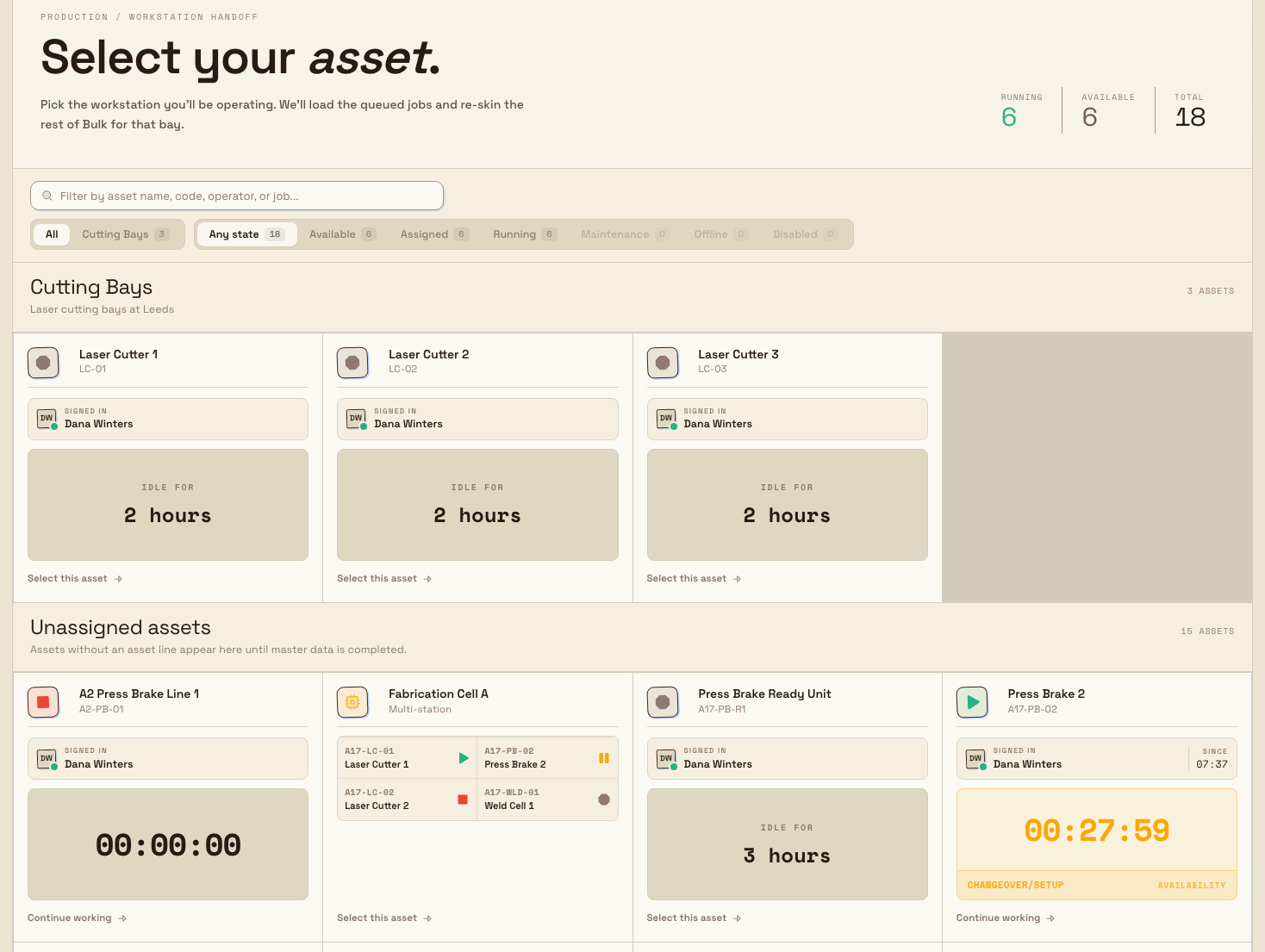
The Select Asset screen is the front door to Bulk's production floor. Before you can load jobs, run timers, or record output, you first pick the piece of equipment you are standing at. In Bulk an asset is a single machine, workstation, or bench — a laser cutter, a press brake, a packing bench — and a workstation is the operator screen that an asset opens into. This screen lists every asset in your plant as a tile, shows what each one is doing right now, and hands you off to the matching operator screen once you choose one.
You use it at the start of a shift, when you move from one machine to another, or whenever you tap the Select asset home button inside a workstation. It is designed for a shop-floor tablet: large tiles, live status, and a single tap to begin.
production.select-workstation-01
When you use this screen
Reach for Select Asset whenever you need to start working at a machine:
- Starting a shift. Open the Production area and pick the asset you are operating today.
- Switching machines. Inside any workstation, the header's Select asset home button returns you here to choose a different one.
- Checking the floor at a glance. The tiles show which assets are running, who is signed in, and how long the current job has been going — useful even when you are not about to operate one yourself.
Selecting an asset does not change any production data. It simply opens the operator screen for that asset; you can come back and pick a different one at any time.
Before you start
Two things need to be in place.
- Permission to view production jobs. The screen is built from the
production_jobs.viewpermission. By default that permission is included in the Super user, Entity admin, Operator, Tablet user, and Invoicing roles. The Manager role does not include it out of the box, so a manager who needs the operator floor has to be granted it by an administrator. If the screen shows an error instead of the asset grid, this permission is the first thing to check. - Assets set up in master data. The grid only shows assets that exist for your current plant (called an entity in Bulk). If none have been created, you see No assets assigned to this entity with a shortcut to Open asset settings. Assets are usually grouped into asset lines — a named group such as a production line or a cell — and each line becomes a section on this screen.
You are always working in one plant
Select Asset shows the assets for the entity you are currently in. If you expect to see a machine that is missing, confirm you are in the right plant before assuming it has not been set up.
Find the asset you need
At the top of the screen, the header shows three live counts — Running, Available, and Total — so you can gauge the floor before you start scanning tiles. Underneath sits the filter toolbar.
- Search. The box filters tiles as you type. It matches on asset name, asset code, the signed-in operator's name, and the jobs loaded on the asset — the placeholder reads "Filter by asset name, code, operator, or job...".
- Filter by asset line. A row of tabs starting with All lets you narrow to a single asset line. Each tab shows how many assets it holds. This row only appears when you have more than one line to choose between.
- Filter by state. A second row of chips filters by what the asset is doing: Any state, Available, Assigned, Running, Maintenance, Offline, and Disabled. Each chip carries a count, and a state with no assets is dimmed.
- Clear. When any search or filter is active, a Clear button resets everything back to the full list.
If your search or filters match nothing, the screen shows No assets match these filters with a Clear filters action to start over.
Read a tile
Each tile stands for one asset (or one multi-station group). Its badge, colour, and body tell you at a glance what you are looking at and whether you can use it.
Kind — the label and icon in the corner describe the asset's role, which comes from its configured workstation type:
- Production — a standard machine or tablet workstation.
- Peaking Station — a scan-and-book recording bench.
- Viewing — a fulfillment workstation.
- Invoicing — an invoicing workstation.
- Multi-station — a group of assets an operator runs together as one screen.
State — the tile's status label and styling reflect its live state:
- Available — idle and ready to pick.
- Assigned — an operator is signed in at the station. Their name, initials, sign-in time, and online or away presence appear on the tile.
- Running — one or more jobs are loaded and a timer is active. The tile shows the loaded job count and, on a Peaking Station, the loaded jobs with their elapsed time or an overdue tag.
- Maintenance, Offline, and Turned off — the asset is unavailable. These tiles are dimmed and cannot be selected (see below).
Select and open an asset
Selecting is a two-step, tap-to-confirm flow so you do not open the wrong machine by accident:
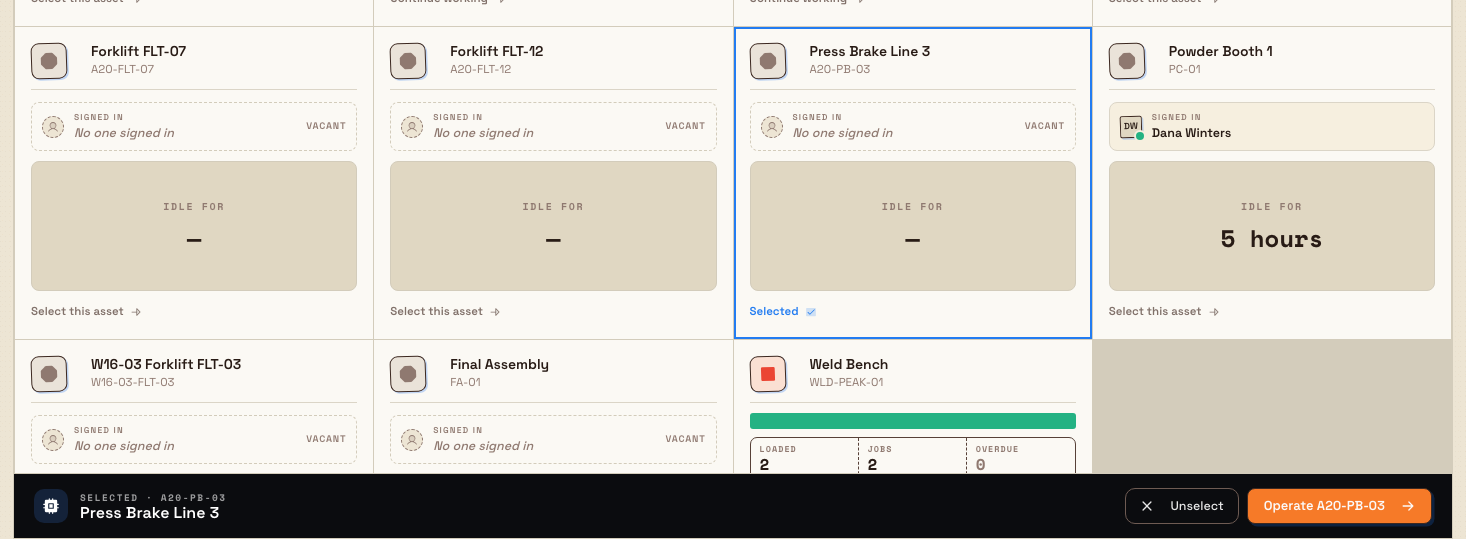
- Tap a tile once to select it. A sticky action bar slides up from the bottom showing Selected · [asset code] with the asset's name, an Unselect button, and an Operate [asset code] button.
- Tap Operate [asset code] to open it. Bulk takes you to that asset's operator screen. If you picked the wrong tile, tap Unselect first, or just tap a different tile.
If you already know exactly which asset you want, double-tap the tile to open it directly — that skips the confirm bar and does the same thing as Operate.
Where you land depends on the asset's workstation type: a production tablet or fulfillment asset opens its tablet home for that asset, a Peaking Station opens its scan-and-book screen, and a multi-station opens its grouped operator screen. From any of these, the header's Select asset button brings you back here.
On a production tablet, Home shows the board configured for that asset type. Find the Jobs widget and select Load a job to open the searchable job table. Stage the rows you need in Station capacity, then load them to enter Operate.
Home does not put a job on the asset by itself. Selecting Load a job also does not change production until you confirm the staged rows.
production.select-workstation-02
Assets you cannot select
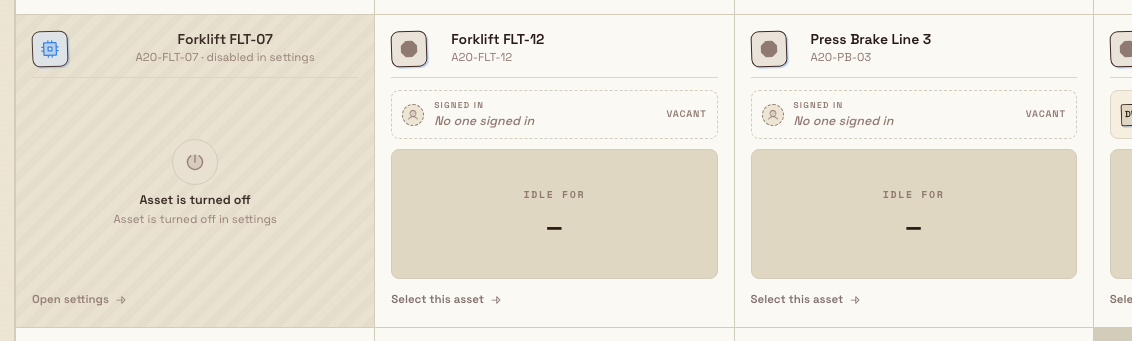
Some tiles are shown but cannot be picked. An asset is unavailable when it is:
- In maintenance — its status is set to maintenance ("Asset is in maintenance").
- Offline — its status is set to offline ("Asset is offline").
- Turned off — the asset has been deactivated in settings ("Asset is turned off in settings").
These tiles appear dimmed, carry a Maintenance, Offline, or Turned off label, and do not respond to a tap — no action bar appears and you cannot open them. This is intentional: it keeps operators off machines that are down or retired. To make one selectable again, an administrator changes the asset's status or re-activates it in Settings → Master Data → Assets.
production.select-workstation-03
Example: starting a shift at Leeds Fabrication Plant
Marcus, a machine operator at Granite Peak Manufacturing's Leeds Fabrication Plant, arrives for the early shift on the Laser Cutting line. He picks up the line's tablet and opens Production, landing on Select Asset.
The header tells him three assets are Running and four are Available across the plant. Because the floor has several lines, he taps the Laser Cutting asset-line tab to hide everything else, then taps the Available state chip to show only the machines free to take. He sees Laser Cutter 2 as an Available Production tile and taps it once. The action bar rises with Selected · LC-02, and he taps Operate LC-02 to open the machine's tablet home, where the day's queued jobs are waiting.
Next to it, Laser Cutter 1 shows a Running tile with his colleague Priya signed in and a live job timer, so Marcus knows it is already covered. Weld Bay 3, pulled out of service that morning, shows a dimmed Maintenance tile that does not respond when he taps it — exactly what he expects. When he later moves to the press brake, he taps the header's Select asset button to come straight back to this screen.
What you should see
After you tap Operate (or double-tap a tile), Bulk opens the operator screen for that asset — its tablet home, Peaking Station, or grouped multi-station view — with that asset's queued and loaded jobs. Nothing about the asset changes until you take an action on the workstation itself. The header on the workstation keeps a Select asset button so you can return and switch at any time.
Feature state and limits
Select Asset is generally available and is the standard entry point to the production floor.
- Only assets in your current plant appear. The grid is scoped to the entity you are working in; assets in other plants are not shown.
- Unavailable assets are visible but not selectable. Maintenance, offline, and turned-off assets stay in the grid, dimmed, so you can see the whole floor — but you cannot open them.
- Assets with incomplete master data are grouped separately. An asset that has not been assigned to an asset line appears in an Unassigned assets section until its line is set. An asset that has no asset type is not shown at all.
Troubleshooting
- The screen shows an error instead of the asset grid. You most likely lack the View production jobs (
production_jobs.view) permission, or you are signed in with a role — such as Manager — that does not include it by default. Ask an administrator to grant it. - "No assets assigned to this entity." No assets have been created for this plant yet. Use Open asset settings to add asset lines and assets in master data, or confirm you are in the correct plant.
- "No assets match these filters." Your search or filters have hidden everything. Choose Clear filters to show the full list again.
- A tile will not respond when I tap it. The asset is in maintenance, offline, or turned off, so it cannot be selected. An administrator changes its status or re-activates it in Settings → Master Data → Assets.
- An asset I expect is missing. It may have no asset type set, or you may be in the wrong plant. Check the asset in master data.
Related guidance
Production
Understand how the Production area organizes manufacturing work into orders and jobs, and where operators run those jobs at a workstation on the shop floor.
Load a job
Assign one or more production jobs to the asset you are working at so they appear on the operate screen, ready for timing, output, and step completion.