Work across multiple assets
Understand grouped multi-station boards and how the same production step can remain loaded on more than one asset.
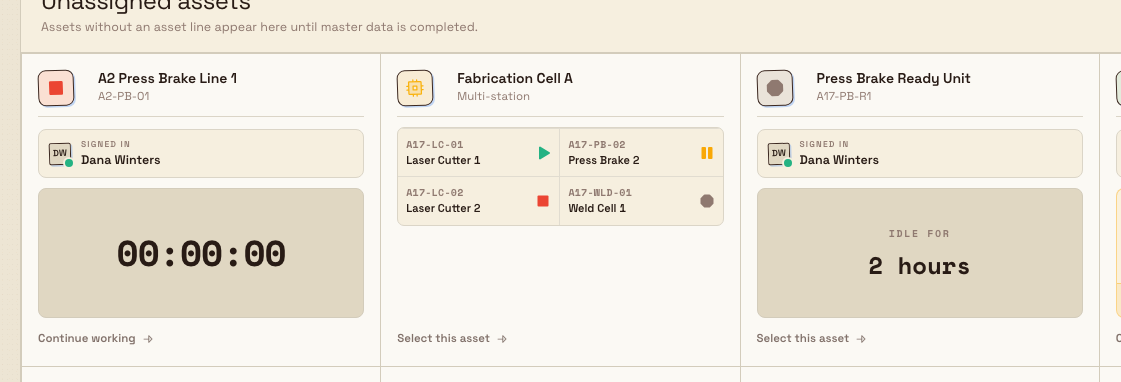
A multi-station board brings several physical assets onto one operator screen. Use it when one person watches or runs a group of machines, bays, or benches during the same shift.
The terms are simple:
- An asset is one physical workstation.
- A multi-station is the board that groups those assets.
- A tile is the live card for one asset on that board.
For the complete Start, Pause, Stop, drill-in, permissions, and troubleshooting procedure, see Work across multiple stations.
Before you start
You need production_jobs.view to open a multi-station board. Timer actions use their normal permissions:
- Start and Resume require
production_operate.timer_play. - Pause, changing a downtime reason, recording idle downtime, and ending downtime require
production_operate.timer_pause. - Stop requires
production_operate.timer_stop. Stopping a tile that represents manual downtime also requires the Pause permission, because Bulk ends downtime instead of stopping a timer.
Board membership is separate. Creating a multi-station uses assets.create; changing its member assets or their order uses assets.update.
production.multiple-assets-02
What the board shows
Each tile updates with the asset's current state:
- Running — a production timer is active.
- Paused — a timer is paused, or manual downtime is active. An open OEE event adds its reason and live downtime duration. A pause without OEE tracking has no recorded downtime reason. This state also includes manual downtime recorded without a loaded job or timer session.
- Loaded — work is loaded but no timer is running.
- Not loaded — the asset is idle.
Tiles also show loaded job numbers and whether the asset is unavailable. An asset that is turned off, in maintenance, or offline is dimmed, shows the reason, cannot be selected for a board action, and cannot be opened.
What you can do from the board
Use Start, Pause, or Stop to change eligible assets together:
- Choose an action. The board enters selection mode and dims tiles that cannot perform it.
- Select individual tiles, or choose Select all to select every eligible tile.
- Select Proceed (n) and complete any prompt.
Each action has different eligibility:
- Start starts loaded assets and resumes eligible paused timers. A new timer cannot start with no loaded job. Starting an asset that has open manual downtime closes that downtime at the start time. If an asset type uses an adjustable timer, Bulk can start all selected assets now or collect an earlier start time for each adjustable asset.
- Pause applies one OEE downtime reason to every selected asset. It can pause a running timer, change the reason on a paused timer, or begin downtime on a loaded or idle asset, including one with no jobs. The asset type must have OEE downtime tracking enabled. A tile already in manual downtime is not selectable for Pause because there is no timer session to pause and a second downtime event would double-count the same time.
- Stop stops running or paused timers. On a Paused tile that represents manual downtime only, it ends the downtime event instead. Adjustable timers can use the current time or a separate earlier stop time per asset; an optional shared OEE reason can account for the gap after an earlier stop.
One bulk request supports at most 40 assets.
Bulk keeps successful changes if one asset fails and tells you which result needs attention. Stopping a downtime-only Paused asset needs the pause permission because the action ends downtime rather than a timer.
The board does not load or unload work, record output, complete routing steps, or change the board layout. Detailed work still happens on one asset:
- A Running tile, or a Paused tile with loaded work, opens that asset's Operate screen.
- A Paused tile with no loaded work opens Home so you can review or end its downtime.
- A Loaded or Not loaded tile opens the asset's normal workstation Home.
The opened station keeps the board in its return path, so Back returns to this multi-station rather than the full asset list.
When one step runs on several assets
The same job step can be loaded on more than one compatible asset when several machines perform it in parallel. Unloading it from one asset does not remove it from another asset where it is still loaded.
This is separate from a multi-station board. Parallel loading decides where the work is active; the board gives an operator one place to monitor and control a configured group of assets.
How the board is configured
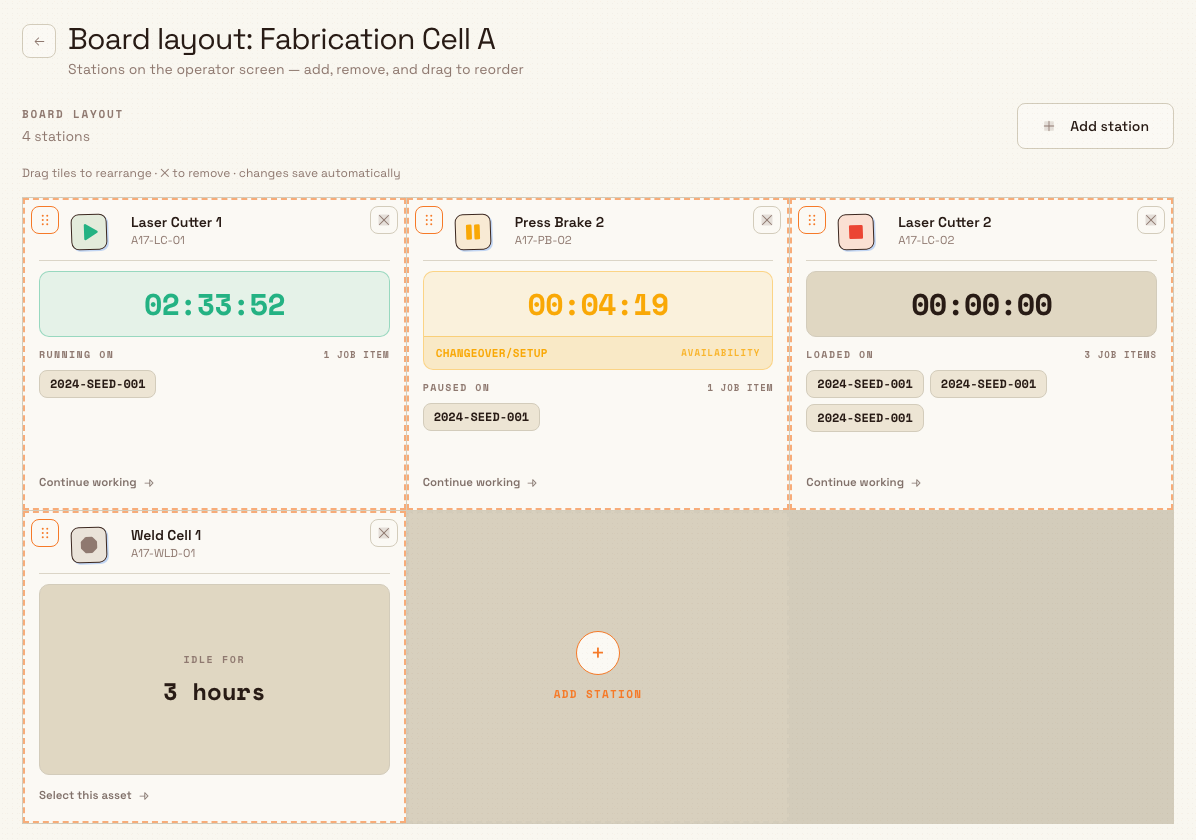
An administrator creates the multi-station and chooses its member assets under Settings → Master Data → Assets → Multi-stations. Operators can use permitted timer actions, but they cannot add, remove, or reorder tiles from the operator board. Those controls appear only on Board layout, where changes save automatically.
Each asset can belong to only one multi-station at a time, and every member must belong to the same plant.
production.multiple-assets-03
Related guidance
- Work across multiple stations — the complete operator procedure.
- Manage assets and layouts — create the board and arrange its assets.
- Run production timers — timer and downtime behavior on one asset.