Record production output
Record how many units a job produces at a workstation using the on-screen production counters and the Record Output dialog.
Production output is the running count of units a job produces at a workstation — the machine or bench where the work happens. You record output on the Production Operate screen as parts come off the line, so Bulk keeps each job's progress current, works out yield (the share of output that is good), and feeds shop-floor reporting. Recording is built for speed: most output is a single tap on an on-screen counter.
This page explains where to record output, how the counter and the Record Output dialog work, how to correct a miscount, and what to check when the controls are unavailable. A "job" here is one unit of production work loaded onto a workstation; a job can contain several job items (the individual operations or lines being worked).
When you record output
Record output whenever a unit — or a batch of units — is finished at your workstation: good parts as they pass, and, when a counter is set up for it, rejects or rework. Counters are the intended tool for high-volume, hands-busy recording, so you can keep one hand on the work and tap with the other.
Before you start
You need each of the following:
- The "Record production output" permission. Recording is gated by the
production_operate.production_addpermission. The system roles that include it are Super user, Entity admin, Tablet user (the shop-floor tablet role), and Master data. The baseline Operator and Manager roles do not include it by default, so if the plus button does nothing, ask an administrator to check your role. - A job loaded onto the workstation. Output is always recorded against a loaded job. See Load a job and Select a workstation.
- Configured production counters. Counters are defined per workstation type in the operate layout, and the grid is empty until an administrator adds them. Each counter is tied to a production item (the output type it records, such as good parts) and to one or more production modes.
- A running timer, for some counters. A counter can require an active timer before it will accept output. See Timers.
Where to record output
- Open Production and select your workstation.
- Open the loaded job to reach the Operate screen.
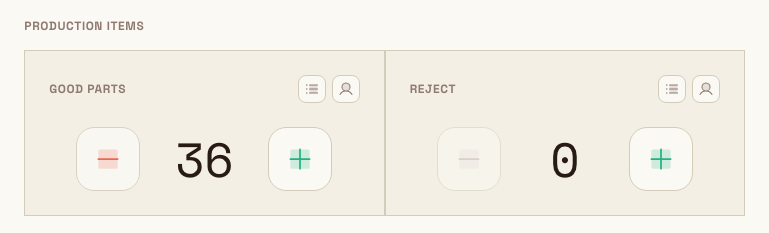
- On the job card, find the production counter grid. Each counter is a card showing a title (for example, "Good Parts"), a large running count, and two buttons: a minus (labelled Decrease count) that opens a correction, and a plus (labelled Increase count) that adds output.
production.record-output-01
Record a unit
Fast path — one tap. Select the plus (+) button on the counter. If the counter has no extra fields, Bulk records one unit immediately, the count increases by one, and a Production recorded confirmation appears.
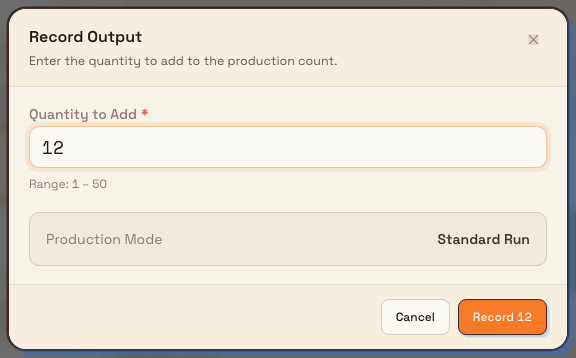
Guided path — the Record Output dialog. If the counter is set up with workflow steps, selecting the plus button opens a dialog titled Record Output (or Workflow Check when several fields are configured). Complete the fields, then choose the confirm button, which reads Record followed by the quantity (for example, Record 5):
- Quantity to Add — type how many units to record. A counter can define a valid range, shown beneath the field as, for example,
1 – 50; values outside the range are rejected. - Quality Check — where configured, choose a quality category tile, and add a note if the counter asks for one.
- Consumable — where configured, pick a consumable and variant; recording then also deducts that consumable from stock.
While the record saves, the button shows Recording…; on success you see Production recorded and the counter updates. Recording is safe to retry — if the connection drops and you tap again, Bulk will not double-count the same action.
Counters set up with more than one production mode show a separate sub-counter for each mode — a named variant of the same output, such as "Standard" and "Rework". Each mode keeps its own count and its own plus and minus buttons.
Grouped jobs share the count
When several jobs are loaded and worked as one batch, Bulk splits the quantity you enter evenly across the job items in that batch. A single loaded job receives the whole amount; a batch of three splitting one unit records a third against each. The batch total is what you see and what feeds reporting.
production.record-output-02
A Granite Peak example
At Granite Peak Manufacturing's Leeds Fabrication Plant, an operator runs a bracket-bending job on the Press Brake 2 workstation. The job card shows two counters: Good Brackets, with Standard and Rework modes, and Rejects.
As each finished bracket passes inspection, the operator taps the plus button on Good Brackets under Standard. A bracket that needed a second pass is counted under Rework instead, so the split between first-pass and reworked parts stays visible. When a bracket cracks, the operator taps the plus button on Rejects; because that counter is set up for scrap, the dialog opens to capture a scrap reason before the count is recorded. By the first break, Good Brackets reads 48, Rejects reads 2, and the job's yield updates on its own — no spreadsheet, no end-of-shift tally.
Review what you recorded
Open the job's Output view to see the totals your counting produced. Output Summary shows Total Produced, Good Units, Scrap Units, and Yield as a percentage. Below it, Output by Phase breaks the counts into Good, Scrap, and Inspection for each phase of the routing. Before any output exists, the panel reads No Output Recorded.

production.record-output-03
Correct a miscount
Recording is reversible. To fix an over-count, select the minus (−) button on the counter; it becomes active once the count is above zero. For good output this opens Production Output Details, which lists the Adjustable Batches and the Net Quantity. Adjusting or removing a batch here posts an offsetting record rather than erasing history, so the full trail stays intact for auditing. Counters set up for scrap or rejects open the matching quality correction instead. For the underlying record trail, see Production transactions.
Expected result
After you record output, the counter reflects the new total, the job's Output Summary updates its Total Produced, Good Units, and Yield, and Bulk writes a batch transaction that captures who recorded it, the quantity, the workstation, and the linked timer session if one was running. That transaction is what later corrections offset, and it is what reporting reads.
Limitations and feature state
Recording production output is generally available. A few boundaries apply:
- Manual scrap entry from the Output view is not available yet. The Record Scrap button in the Scrap Records panel is disabled, with a tooltip noting the feature is not yet released. Record rejects through a counter configured for scrap, or through quality steps, instead. See Quality steps.
- Counters must be configured first. If no counters appear on the job card, none have been added to the workstation's operate layout, and there is nothing to tap. An administrator sets these up per workstation type.
- Quantities cannot be zero, and good output cannot drop below zero. A correction that would take a counter below zero is rejected.
Troubleshooting
- The plus button is greyed out. The counter may require a running timer. If the timer is stopped or paused, start it — you may see Timer must be running to add items. On counters set to start the timer on the first tap, tapping the plus button starts it for you. The plus button is also disabled briefly while a previous tap is still saving.
- You see "Select a visible batch before recording production." No batch is selected in the batch-initiated timer mode. Choose a visible batch first, then record.
- Tapping the plus button shows "Please wait, loading…". The counter or timer configuration is still loading. Wait a moment and tap again.
- No counters appear on the job card. The workstation's operate layout has no counters configured. Ask an administrator to add them for that workstation type.
Related
Run production timers
Start, pause, resume, and stop a workstation timer, use adjusted times, and record downtime without double-counting time.
Record consumable use
Record the consumables an operator uses against the jobs loaded at a workstation, using the Log Material tool on the production operate screen.