Complete production quality steps
Log a defect or quality reason on the tablet by completing the Quality Check step that appears when you record production output.
A quality step is a workflow step of type Quality Check that runs while you record production output on the tablet. When a production item (the button you tap to add a count) has a Quality Check step configured, tapping its counter opens a short dialog that asks you to classify the output against a quality category — a named defect or quality reason such as "Surface scratch" or "Dimension out of tolerance" — before the count is saved. Completing the step keeps every recorded quantity tied to a consistent quality reason, so shop-floor observations feed reporting instead of living on paper.
You complete quality steps as part of normal recording at a workstation. You do not need to open a separate quality screen: the step is built into the Record action for that production item.
Before you start
- You need the Tablet user role, or another role with the "Add production" permission. The shop-floor Tablet user role grants this permission and is the intended role for recording at a workstation. The standard Operator role can view production but cannot record output, so it cannot complete a quality step. An administrator can adjust roles under Settings.
- A job must be loaded on the asset. You record output — and therefore complete quality steps — against the job items currently loaded on the workstation. If nothing is loaded, the counter will not record. See Load a job.
- The production item must have a Quality Check step, and quality categories must exist. An administrator configures both. Quality categories are created under Settings > Quality > Categories, and the Quality Check step is added to a production item under Settings > Master Data > Production Items on the Workflow Steps tab. If a step has no categories, the dialog shows "No quality categories configured" and you cannot classify the output.
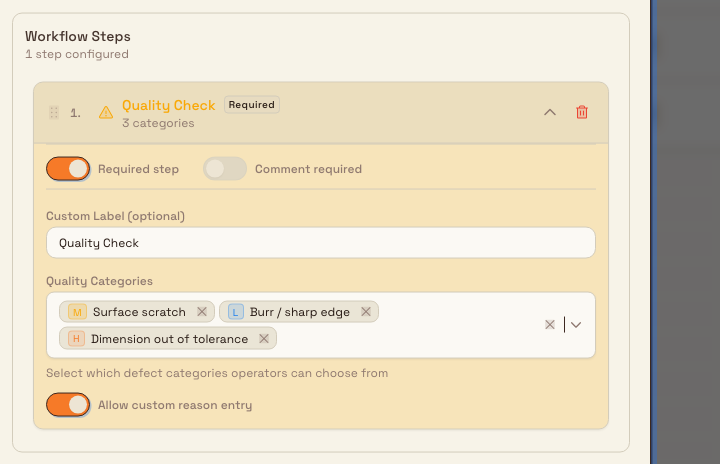
production.quality-steps-02
Complete a quality step
- Open the Production area and select your asset or workstation. The operate screen shows a counter for each production item configured for that workstation. See Select an asset or workstation.
- Tap the plus control on the counter you want to record against. When the production item has a Quality Check step, a dialog opens instead of recording immediately. The dialog is titled with the step's label (Quality Check by default), or Workflow Check when the counter combines more than one step.
- Select a quality category by tapping its tile. Each tile shows the category name and description; a required step is marked with a red asterisk next to the title.
- If a notes field is shown, type any additional notes. The field appears when the step allows a custom reason, and it is mandatory when the step has Comment required turned on.
- Tap Record to save. The button shows the quantity being added (for example, Record 1). Choose Cancel to close without recording.
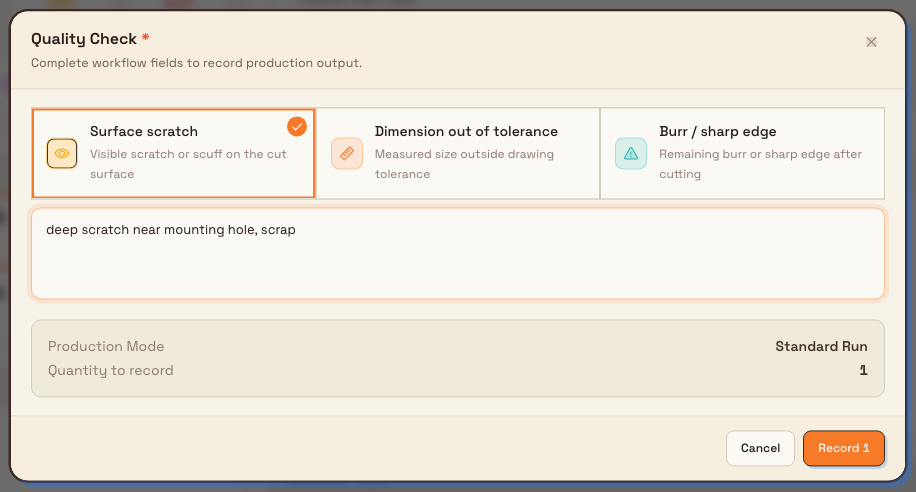
production.quality-steps-01
Required versus optional steps
When can you record without choosing a category?
A required quality step (marked with a red asterisk) blocks the Record button until you select a category. An optional step lets you record without one — leave every tile unselected, or tap a selected tile again to clear it. If Comment required is on, you must still enter notes before Record becomes available, whether or not the step is required.
Example: reject on a laser-cutting cell at Leeds
At Granite Peak Manufacturing's Leeds Fabrication Plant, operator Marcus is running a job producing steel mounting brackets on the asset "Laser Cutter L2". The workstation has a Reject production item whose workflow includes a required Quality Check step. The step offers three categories the plant tracks for cut parts: Surface scratch, Burr / sharp edge, and Dimension out of tolerance.
Marcus finds a bracket with a deep scratch near the mounting hole. He taps the plus on the Reject counter, and the Quality Check dialog opens. He taps the Surface scratch tile, types "deep scratch near mounting hole, scrap" into the notes field, and taps Record 1. The reject is saved with its category and note, and the count on the Reject counter increases by one. Because the category is captured at the moment of recording, the plant's quality reporting can later show how many rejects came from surface scratches versus dimensional issues — without anyone re-keying a tally sheet.
Expected result
When you tap Record, Bulk saves the count together with the quality category you selected and any note you entered, and shows a "Production recorded" confirmation. The workstation counter updates immediately. The recorded quality category rolls up into Bulk's quality reporting, where output is summarised by category, so the reasons you log on the tablet become the plant's quality data.
Limitations and scope
- Quality steps are configured, not ad hoc. You can only classify output using the categories an administrator added to that specific Quality Check step. You cannot create a new category from the tablet dialog.
- The tablet step captures a category and a comment only. Root cause and disposition (for example, scrap or rework) are not set while you record. They are managed later from Bulk's quality tools, not from the Quality Check dialog on the counter.
- The step belongs to a production item. A workstation shows a Quality Check dialog only for counters whose production item includes that step. Other counters record without prompting.
- Feature state: completing production quality steps is a generally available part of production recording. It has no beta gating.
Troubleshooting
- "No quality categories configured" in the dialog. The Quality Check step has no categories attached. Ask an administrator to create categories under Settings > Quality > Categories and add them to the step on the production item's Workflow Steps tab.
- The Record button stays disabled. Either a required category is not selected, or Comment required is on and the notes field is empty. Select a category and complete the note, then try again.
- "Timer must be running to add items." The counter requires an active timer. Start the workstation timer, then record again. See Run production timers.
- Tapping the counter records with no dialog. That production item has no Quality Check step, so nothing needs classifying. To add one, configure the step under Settings > Master Data > Production Items.
Related guidance
Record consumable use
Record the consumables an operator uses against the jobs loaded at a workstation, using the Log Material tool on the production operate screen.
Complete production documentation steps
Understand documentation steps on production items — the photo, signature, or text-note prompts you attach to a production button — how to configure them, what Bulk stores, and the current capture status.