Work across multiple stations
Monitor several production stations from one live operator screen and drill into any station to act on it.
A multi-station is a single operator screen that groups several physical stations together and shows one live tile for each. Instead of opening each machine or bench on its own, one person watches the whole group from one place, sees which stations are running, paused, or idle, and taps through to any station to start, pause, or finish work.
Use a multi-station board when one operator is responsible for more than one station at once. A shift lead watching a bank of presses, a bench operator covering two finishing cells, or a supervisor on a wall-mounted tablet all benefit from seeing every station's status side by side, updated live, without walking the floor.
When to use this
Open a multi-station board when you want to:
- See the current status of several stations at a glance, on one screen.
- Start, pause, or stop the eligible stations you select in one action.
- Spot a station that needs individual attention and go straight to it.
- Move between stations you operate without returning to the full asset list each time.
If you only ever work one station, open that station directly from the asset-selection screen instead. See Select an asset or workstation.
Before you start
A multi-station groups member assets — the physical stations it displays. Two kinds of access are involved:
- To open and use a board, you need permission to view production jobs. The Operator and Tablet user roles include this, as do Entity admin and Super user. This is the operator experience described on this page.
- To control timers, you also need the permission for the action you choose: Start production timer, Pause production timer, or Stop production timer. The board still shows the actions when a permission is missing, but Bulk rejects the affected operation and reports the error. Stopping a downtime-only Paused station needs both Stop and Pause permission because that action ends downtime rather than a timer.
- To set up or change a board — its name and which stations belong to it — you need asset-management permission. The Entity admin, Manager, Master data, and Super user roles include this. Configuration happens in Settings, not on the operator screen; see Assets and layouts.
A board only appears once an administrator has created it and added member stations. Each physical station can belong to only one multi-station board, so a station shown on one board will not appear on another.
Open a multi-station board
Multi-station boards live alongside individual stations on the Production asset-selection screen. A board appears as its own tile, labelled Multi-station, with a small preview grid of its member stations and their live status icons.
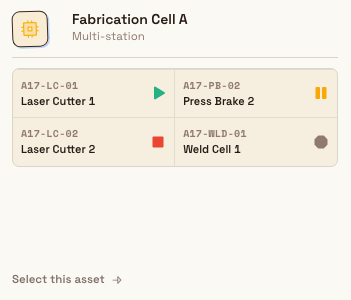
production.multiple-stations-01
To open a board, tap its tile. The board fills the screen and shows one tile per member station. The board's own back control returns you to the asset-selection screen.
Read the board
Each tile represents one member station and updates live. The tile header shows the station name and code with a status icon. The status is one of four values:
- Running — a timer is active. The tile shows a live station clock counting up and the loaded job items.
- Paused — a timer is paused, or manual downtime is active. When there is an open OEE event, the tile shows its live downtime clock, reason, and OEE category. A pause without OEE tracking has no recorded downtime reason. A paused timer or manual downtime can appear even when no work is loaded.
- Loaded — job items are loaded but no timer has started yet.
- Not loaded — nothing is loaded. The tile shows how long the station has been idle, for example "25 min" or "2 hours".
When a station has loaded job items, the tile lists them as chips (each showing its job number) and a count such as "3 job items". If more items are loaded than fit, a "+n" chip shows the remainder. A downtime-only Paused tile has no job chips.
A tile can also be unavailable. If a station is turned off in settings, in maintenance, or offline, its tile is dimmed and shows the reason instead of an action, and you cannot open it from the board. Bring the station back online, or take it out of maintenance, to make it available again.
Control several stations from the board
The board header has Start, Pause, and Stop actions. Each action opens a selection mode. Tiles that cannot perform that action are dimmed and cannot be selected or opened while selection mode is active.
- Select Start, Pause, or Stop.
- Select the station tiles to change, or use Select all for every eligible station. When all eligible tiles are selected, the control changes to Clear all. Use Cancel to leave selection mode without applying anything.
- Select Proceed (n).
- Complete any prompt, then wait for the result message.
Proceed (0) is disabled. Select all affects eligible stations only, and Bulk rechecks eligibility before applying the action.
Start selects stations that can start or resume. A new timer needs loaded work. A paused timer can resume when its paused session has job items or work is currently loaded; resumes always use the current time. A downtime-only Paused tile with loaded work starts a new timer and closes its open downtime.
If any selected idle or Loaded station allows an adjustable start, Bulk opens Start Selected Stations. Choose Start all at current time or Set start times per station. Each earlier time must fall inside that station's allowed window. Paused resumes and selected non-adjustable stations still use the current time.
Pause requires OEE downtime tracking. It can pause a running timer, change the reason on a paused timer, or start idle downtime on a Loaded or Not loaded station. A tile that already has manual downtime without a paused timer cannot be paused again; use Stop to end that downtime. Bulk asks for one downtime reason, plus optional notes, and applies them to every selected station.
Stop ends running or paused timers. It can also end a downtime-only paused station with no work loaded. If a selected Running station allows an adjustable stop, Bulk opens Stop Selected Stations. Choose Stop all at current time or Set stop times per station. Earlier times must be between the timer's start and now. If an earlier stop leaves a gap, choose No, leave gaps or Yes, fill with OEE and apply one downtime reason to all filled gaps. Paused and non-adjustable stations stop at the current time.
Bulk reports how many stations changed and how many failed. A partial failure does not undo successful changes. The message reports the applied and failed counts and includes the first error. If every station fails, Bulk shows the first error without claiming that anything changed. Stop results also distinguish stopped timers from downtime that was ended.
Selection never changes the board layout
Bulk timer actions are available on the operator board. Adding, removing, and reordering member stations is still done in Settings under Board layout.
Open one station
Tapping an available tile opens that station's own screen so you can act on it:
- A Running station, or a Paused station with loaded work, opens Operate.
- A Peaking Station always opens its normal peaking screen instead of Operate.
- A Paused station with no loaded work opens Home, where its downtime can be stopped.
- A Loaded or Not loaded station opens its normal workstation Home.
Selecting a tile during Start, Pause, or Stop mode never navigates away. Outside selection mode, the station screen you open keeps the board ID in its route, so its back control returns you to the same board.
Example: the Press Shop board at Leeds Fabrication Plant
Granite Peak Manufacturing runs four stamping presses in the press shop at its Leeds Fabrication Plant. An administrator groups them into a multi-station board named "Press Shop" with members PRESS-01, PRESS-02, PRESS-03, and PRESS-04.
At the start of a shift, the press-shop lead opens Production on the wall-mounted tablet and taps the Press Shop tile. The board shows all four presses at once:
- PRESS-01 — Running, clock at 02:14:37, job item J-10482.
- PRESS-02 — Paused, with the downtime reason "Tooling changeover".
- PRESS-03 — Loaded, job item J-10517 waiting, no timer started.
- PRESS-04 — Not loaded, idle for 25 min.
The lead selects Start, chooses PRESS-02 and PRESS-03, then selects Proceed (2). PRESS-02 resumes and PRESS-03 starts. Bulk confirms that both stations started, and their tiles immediately show live running clocks.
Expected result
You get one live view of the whole group. You can change eligible timers in bulk, or open a station when you need its full Operate screen. Each tile updates with the resulting status, reason, and live clock.
Limitations and feature state
Working across multiple stations is a generally available part of the Production area. Note the following boundaries:
- Bulk actions follow station eligibility. A tile is dimmed during selection when it cannot perform that action. For example, Start needs loaded work and Pause needs OEE tracking.
- One action can include up to 40 stations. Larger board selections must be applied in smaller groups.
- Configuration is separate. Adding, removing, and reordering member stations happens in Settings under the board's layout, and needs asset-management permission.
- One board per station. A physical station can belong to only one multi-station board at a time.
- Members must be physical stations. Only assets that have an asset type can be added to a board; a board cannot contain another board.
Troubleshooting
- "Multi-station Not Found." The board no longer exists, or it belongs to a different facility than the one you are signed in to. Use the back control to return to asset selection and pick an available board.
- The board says "No stations on this board yet." No member stations have been added. Ask an administrator to add them in Settings under the board's layout; see Assets and layouts.
- A tile is dimmed and will not open. The station is turned off in settings, in maintenance, or offline. The tile shows which one. Resolve that condition on the station or in settings, and the tile becomes available again.
- A tile is dimmed after you choose Start, Pause, or Stop. The station is not eligible for that action. Check its loaded work, timer state, OEE setup, and availability.
- The action fails for every selected station. Check that your role includes permission to start, pause, or stop production timers as needed.
- Some stations changed and others failed. The successful changes are kept. Read the result message, correct the failed station, then repeat the action for that station only.
Related guidance
- Select an asset or workstation — how operators reach the asset-selection screen and open a station.
- Load a job — choose the work an individual station runs.
- Timers — start, pause, and stop work on a station.
- Work across multiple assets — related overview of running work spread across several assets.
- Assets and layouts — create a multi-station board and configure which stations it contains.
- Production — the full production operator area.