Peak a job
Scan full job numbers at a Peaking Station, book them in, or record time and complete them from one station bench.
A Peaking Station is a scan-first production workstation. Operators scan or type full job numbers into a batch, then either book the jobs in or open a single-station recording bench to log time and complete work.
Use this flow at a physical bench that handles many jobs through the same kind of step, such as welding, powder coating, or inspection. The station accepts a job only when its current routing step is ready and uses a resource supported by the station.
Before you start
- An administrator must set the asset type's workstation type to Peaking Station and assign the resources the station can run. See Manage assets and layouts.
- You need View production jobs to resolve a job number. Loading ready work needs Load, whether you use IN or continue to the OUT bench. Completing a step needs Complete phase. The built-in Tablet user and administrator roles include these permissions. The base Operator role does not include Load or Complete phase by default.
- An administrator can require a confirmation barcode scan before completion. A step can also require a signature.
- The asset type controls how many jobs can be loaded at once. The default is
10, and an administrator can configure a value from1to999. Jobs already loaded on the station count towards that limit.
A Peaking Station opens without an operator sign-in step.
Open the station and choose a mode
From Production, select an asset whose workstation type is Peaking Station.
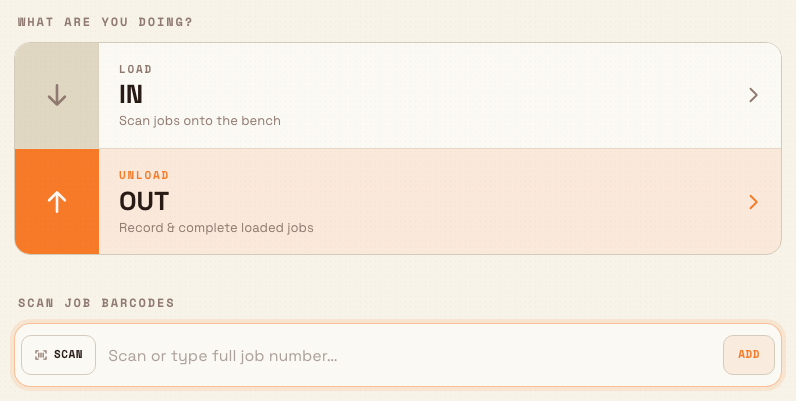
The route is /production/peaking/<asset-id>. The home screen opens with OUT
selected and asks What are you doing?:
- IN — labelled Load, with the description Scan jobs onto the bench. Use it to load ready work onto the station.
- OUT — labelled Unload, with the description Record & complete loaded jobs. Use it to open the recording bench for ready or already-loaded work.
Switching between IN and OUT clears the current on-screen scan list so the two modes cannot be mixed accidentally.
production.peak-job-01
Build a scan batch
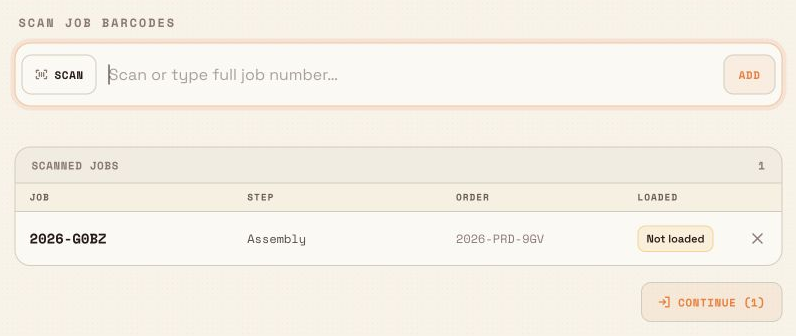
Under Scan job barcodes, scan or type an exact full job number in the field labelled Scan or type full job number…. Press Enter or Add to resolve it. Bulk trims scanner line endings and also tries uppercase when a typed lowercase number does not match.
Each accepted job appears under Scanned jobs with these columns:
- Job
- Step
- Order
- Loaded, shown as Loaded or Not loaded
Use the remove button at the end of a row if the wrong job was added. A job can appear only once in the list.
The batch follows these rules:
- Every job must use the same resource as the first accepted job. If a later job needs another resource, Bulk tells you to finish the current batch first.
- Jobs can belong to different production orders.
- IN accepts ready, loadable work. A job already on this station is rejected with a prompt to switch to OUT.
- OUT accepts ready work and work already booked in on this station. Ready work is loaded when you continue to the bench.
- Work waiting on an earlier routing step, assigned to another station, or using an unsupported resource is rejected with a short reason and is not added.
While Bulk displays Looking up job…, the scan field and confirm control are disabled. Wait for the lookup to finish before confirming.
Confirm the batch
The action below the list shows the accepted count:
- Book in (N) in IN mode
- Continue (N) in OUT mode
The button stays disabled when no job is accepted, while a lookup is running, or while the previous confirmation is still being submitted. The batch is the jobs you scanned; there is no longer an order-wide selection table.
production.peak-job-02
If booking the new jobs would exceed the station's concurrent-job limit, Bulk rejects the load and reports how many jobs are already loaded, the configured maximum, and how many the request tried to add. Remove jobs from the batch or ask an administrator to review the asset-type limit.
Book jobs in
Choose IN and press Book in (N). Bulk loads the accepted jobs onto the station. The result screen shows:
- Booked in
- N jobs booked in
- Loaded to station and ready for production.
- Book in more and Done
Book in more returns to an empty scan list at the same station. Done returns to the station's idle home route.
Record work on the bench
Choose OUT and press Continue (N). The recording bench is limited to that scan session, even if unrelated jobs are also loaded on the asset.
The first panel summarises the order or shows Multiple orders. It includes the On bench count and these controls:
- Back to scan — leaves the current bench view and clears the on-screen session. It does not unload jobs that are already on the station.
- Add time to all — shown only when time recording is enabled. It opens a Log time for all jobs keypad and applies the entered minutes to every job in this bench session.
- Print all — uses configured order templates for a single-order session when they are available. Otherwise it uses the configured per-job templates, as it does for a mixed-order session.
- Complete all — opens the completion dialog for every job in this bench session.
The Loaded jobs panel shows each job number and step. When time recording is
enabled, each row shows total Time logged, quick actions +15m, +30m,
and +1h, plus Enter custom time. The keypad accepts up to four digits,
or 9999 minutes. Each row also has its configured print action and Complete
step.
Time entry is a production write. Enter it only for work that was actually done.
Review completion before signing off
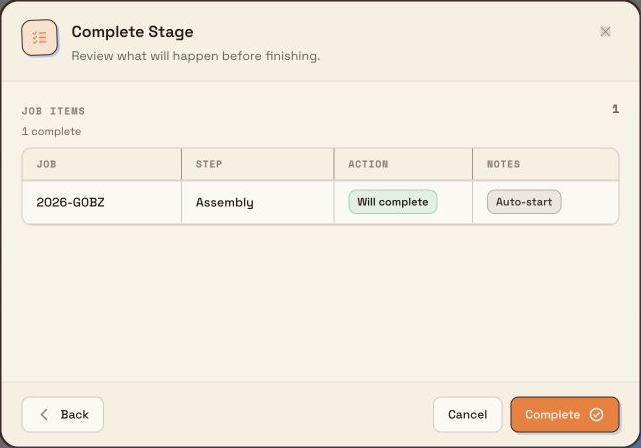
Complete step or Complete all opens Complete Stage. On the first step, Bulk shows only jobs from the current bench session.
- Jobs that can complete are pre-selected and marked Will complete.
- If time recording is required, a job without recorded time is marked Needs time, disabled, and not pre-selected. Close the dialog, add the time, and open it again.
- A job also loaded on another asset is marked Unload only. It can be selected, but Bulk does not pre-select it.
- Select all selects only actionable rows.
Press Next to review the summary. If a timer is running, Bulk inserts a timer step first. The summary lists each selected job's action and any effects, such as stopping the timer or closing an open OEE event. A station configured for confirmation scanning then adds Scan a job barcode to confirm completion. A required signature adds a signature step.
Use Back to review an earlier step, Cancel to close without completing, and Complete on the final confirmation step to sign off the selected work.
production.peak-job-03
Complete is the production sign-off
Pressing Complete records the work, stops applicable timers, unloads or completes the selected items, and advances completed jobs to their next routing step. A job with no later step finishes.
Understand large completion results
Bulk submits large completion selections in groups of up to 8 items. The
dialog shows Completing job items… N of N and a Jobs progress bar while the
groups run. If a group exceeds the backend read budget, Bulk retries it in
smaller groups automatically.
If processing stops part-way through, the result remains open as Partially completed and shows the completed, unloaded, and error counts. Choose Retry remaining to continue with untouched items, or Close to stop. An item too large to complete even by itself is skipped with a message to contact support; retrying does not include that skipped item.
Per-item failures show Completed with errors and list the failed jobs. The successful items stay completed; review the failures before closing.
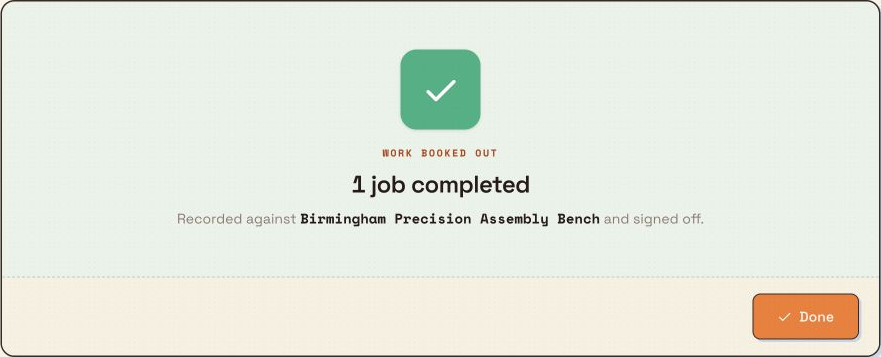
After a fully successful OUT run leaves no work loaded on the station, the page shows:
- Work booked out
- N jobs completed
- Recorded against station and signed off.
- Done
OUT no longer shows a New order button on this result screen.
production.peak-job-04
Limitations
- A scan batch uses one resource, but it can contain jobs from several orders.
- Only a job's current ready step can enter the batch.
- The configured concurrent-job limit is enforced when Bulk loads the batch;
the allowed range is
1to999and the default is10. - Add time to all processes large benches in groups of
50. Completion uses groups of up to8and can reduce the group size after a read-budget failure. - Time controls appear only when the station layout has time recording enabled. When enabled, recorded time is required before a job can be selected for completion.
- The recording bench is single-station. Use Work across multiple stations for a multi-station board.
Troubleshooting
- A scan is rejected. Confirm that it is the full active job number, the current step is ready, and the station supports its resource. Scan another job only after resolving the reason shown.
- The next job needs a different resource. Finish or clear the current one-resource batch before scanning it.
- Book in or Continue is disabled. Wait for Looking up job… to finish, or remove jobs that are not accepted in the selected mode.
- Bulk says the station is at its job limit. The new batch plus currently loaded jobs exceeds the asset type's maximum. Reduce the batch or ask an administrator to review the limit.
- A job says Needs time. Close Complete Stage and record time on the bench, then reopen the completion dialog.
- The result says Partially completed. Use Retry remaining for untouched jobs. If an individual job says it is too large to complete, contact support.
- The controls are missing. Ask an administrator to grant the relevant View production jobs, Load, or Complete phase permission.
- The asset opens another workstation. Its asset type is not configured as Peaking Station.