Complete production documentation steps
Understand documentation steps on production items — the photo, signature, or text-note prompts you attach to a production button — how to configure them, what Bulk stores, and the current capture status.
A documentation step is one type of workflow step you can attach to a production item in Bulk. A production item is a configurable button an operator presses on the shop-floor tablet to record output — for example a Good button that adds to the production count, or a Scrap button that adds to the defect count. Each production item can carry an ordered list of workflow steps that define what data Bulk collects when that button is pressed. A documentation step is the step type meant to capture supporting evidence alongside the count: a photo, a signature, or a text note.
Use a documentation step when a count on its own is not enough proof of what happened — you want a photograph of a finished part, a hand-written operator sign-off, or a short written note travelling with the recorded output.
Configuration today, tablet capture not yet
You can define and save documentation steps on any production item right now, and Bulk's recording backend stores the photo, signature, or note against the output. The shop-floor tablet counter flow does not yet prompt operators to capture that media when they press a button. Read the Current capabilities and limitations section before you rely on operator capture.
Where documentation steps live
Documentation steps are configured per production item, not per job or per routing. You manage them in the workspace settings:
Settings → Master Data → Production Items (/settings/master-data/production-items)
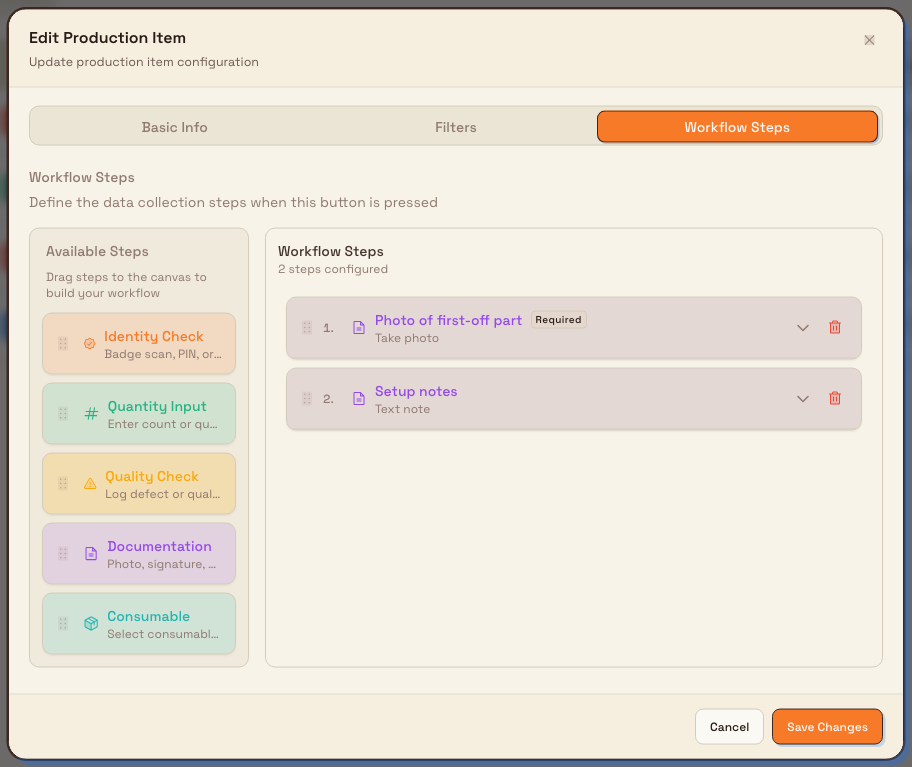
Open an existing production item or create a new one, then switch to the Workflow Steps tab. Production items are scoped to a single plant (entity), so the documentation steps you add apply to that plant's tablets only.
production.documentation-steps-01
Who can configure them
Configuring documentation steps is a master-data task, so it needs the permission to edit production items rather than the permission to run a tablet.
| You want to | Permission needed | Roles that have it by default |
|---|---|---|
| View production items | production_items.view | Super user, Entity admin, Manager, Master data, Tablet user |
| Add or change a documentation step | production_items.update (and production_items.create for a new item) | Super user, Entity admin, Manager, Master data |
If Production Items does not appear under Settings → Master Data for you, your role does not carry these permissions — ask a workspace administrator to grant them or to make the change for you.
Configure a documentation step
From the Workflow Steps tab of a production item:
- In the Available Steps panel, find the Documentation tile (described as Photo, signature, or note). Drag it onto the workflow canvas. The prompt above the canvas reads Define the data collection steps when this button is pressed — the order of steps top to bottom is the order Bulk intends to collect them.
- Open the new step to reveal its configuration.
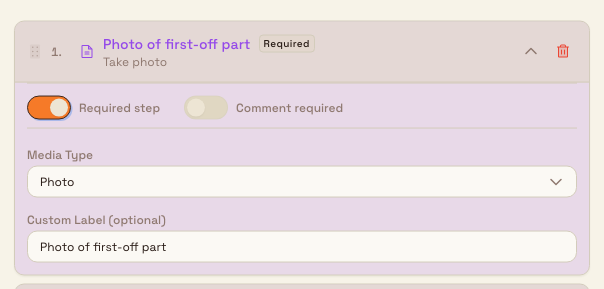
- Choose a Media Type. This is the single most important setting — it decides what the step captures:
- Photo — an image, stored against the output as a photo attachment.
- Signature — a captured signature image, stored as a signature attachment.
- Text Note — free text, stored as the output's comment.
- Optionally set a Custom Label (for example
Photo of first-off part). The label is the prompt the operator is meant to see; leave it blank to use the default. - Set the shared toggles as needed:
- Required step — the step is intended to be mandatory before the button records.
- Comment required — a written comment must accompany the step.
- Save the production item.
The step now appears in that item's workflow list in the position where you dropped it. You can reorder or remove it at any time from the same tab.
production.documentation-steps-02
What Bulk stores
When a documentation result is recorded against production output, Bulk maps it onto the output record by media type:
| Media Type | Stored as |
|---|---|
| Text Note | The comment on the production output record |
| Photo | A photo attachment on the output record |
| Signature | A signature attachment on the output record |
Because the note, photo, or signature lives on the output record itself, it travels with that specific recorded quantity rather than with the job as a whole. That is what makes a documentation step useful for per-count evidence.
Example: first-off photo at Leeds Fabrication Plant
Granite Peak Manufacturing runs metal fabrication at its Leeds plant. On a press-brake cell, the team wants a photograph of the very first part produced after every new setup, kept with the inspection record.
Dana Winters, a plant administrator, opens Settings → Master Data → Production Items and edits the plant's First Off button, an Inspection item that records a check without changing the production or defect count. On the Workflow Steps tab she drags a Documentation step onto the workflow, sets its Media Type to Photo, labels it Photo of first-off part, and turns on Required step. She adds a second Documentation step below it with Media Type set to Text Note, labelled Setup notes, so an operator can record the die and gauge settings used.
After saving, the First Off production item's workflow now lists both documentation steps in order. The intent is clear to anyone who edits the item later: a first-off check on this cell should carry a photo and a setup note.
Expected result
- The documentation step appears in the production item's Workflow Steps list, in the order you placed it, with the media type and label you chose.
- The configuration is saved to that plant's production item and is visible to anyone with
production_items.view. - Bulk's recording backend accepts and stores a photo, signature, or text note supplied for that step against the production output.
Current capabilities and limitations
The feature state differs between configuration and shop-floor capture, so treat them separately.
Available now
- Adding, ordering, editing, and removing documentation steps on production items.
- Choosing the media type (Photo, Signature, Text Note), a custom label, and the Required step and Comment required toggles.
- Storage of a supplied photo, signature, or text note against production output.
Not yet available
- Operator capture at the tablet. When an operator presses a production button, Bulk's counter recording flow collects quantity, quality, and consumable steps only. Documentation steps are not shown to the operator and no photo, signature, or note is captured through that flow today. A documentation step you configure is saved on the production item, but it is not yet part of what an operator is asked to complete when recording a count.
Because of this, configuring a documentation step records your intent for a production item; it does not yet change what appears on the shop-floor tablet. Plan your process with that gap in mind and check back as the capture experience is built out.
Supervisor sign-off is a different feature
Capturing a supervisor signature when finishing a production phase is handled by the stage-completion flow, not by documentation steps. See Skip or complete a production phase for that sign-off.
Troubleshooting
- Production Items is missing from Settings → Master Data. Your role lacks
production_items.view. Ask a workspace administrator to grant it, or to configure the step for you. Configuring steps additionally needsproduction_items.update. - You configured a documentation step but operators never see it. This is expected current behaviour: the tablet counter flow does not present documentation steps. Nothing is broken — the step is saved and will apply once tablet capture is available. To collect a written reason with a count today, a Quality Check step with Comment required captures operator text through the recording flow; use Complete production quality steps for that path.
- The wrong media is captured. Check the step's Media Type. Photo, Signature, and Text Note are stored differently (attachment versus comment), so a step set to Text Note will never produce an image.
Related guidance
- Manage production modes and items — the full production item setup, including behavior types and workflow steps.
- Complete production quality steps — the quality step type, which captures a category and comment during recording.
- Record production output — how counts are recorded at a workstation.
- Record consumable use — the consumable step type.
- Production — overview of the shop-floor production experience.
Complete production quality steps
Log a defect or quality reason on the tablet by completing the Quality Check step that appears when you record production output.
Skip or complete a production phase
Finish the routing step a job is on at a workstation with Complete Stage or Complete Step, understand when items are skipped, and undo a completed phase if you need to.