Run production timers
Start, pause, resume, and stop a workstation timer, use adjusted times, and record downtime without double-counting time.
A production timer records hands-on work at a workstation. It links the elapsed time to the loaded job items and turns that time into permanent time entries when you stop. Those entries feed labour totals, costs, and OEE (Overall Equipment Effectiveness) reporting.
Run the timer from the workstation's Operate screen. Review the result on the job's Timers tab.
Before you start
- Select a workstation and load at least one job. See Select an asset or workstation and Load a job.
- Complete any compulsory pre-use check. A blocking check prevents both a new start and a resume.
- Make sure your role has the action you need: Start and Resume require
production_operate.timer_play; Pause, Change Reason, and ending an open downtime event requireproduction_operate.timer_pause; Stop requiresproduction_operate.timer_stop.
The built-in Super user, Entity admin, Tablet user, and Master data roles include all four timer permissions, including manual entry. The built-in Operator role does not include timer controls. Roles can be customised, so your tenant's grants may differ.
One active timer state per workstation
A workstation cannot start a second timer while it is running or paused. Bulk shows Timer is already running for a running timer, or Resume the paused timer or stop it before starting a new one for a paused timer.
Run a timer
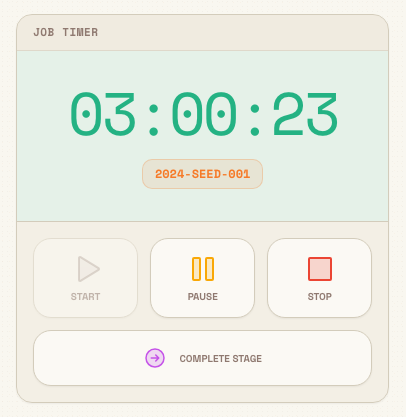
The Job Timer widget shows an HH:MM:SS clock and three action tiles.
- Load the work, then select Start. Bulk confirms Timer started. The workstation becomes running, and the timed job items and their parent job and order move to in progress where needed.
- Select Pause to choose a downtime reason. Bulk freezes productive time, closes the current running segment, opens downtime when OEE tracking is enabled, and shows Timer paused.
- While paused, select Change Reason to recategorise the open downtime, or Resume to continue. Resume closes open downtime and creates a new running segment with the same job items. Bulk confirms Timer resumed; if it closed events, the message includes their count.
- Select Stop when work is finished. Review the time split, then select Stop & Save Time.
If no valid work is loaded, Start is unavailable and Bulk explains Load at least one job before starting the timer. An invalid or unavailable batch can show a more specific batch message instead.
production.timers-01
What pause, resume, and stop change
Pause does not leave one running database segment open. It ends that productive segment at the pause time so the clock cannot keep adding work time. When OEE tracking is enabled, it also opens a downtime event and puts the workstation in the paused state.
Resume closes the open downtime and starts a new running segment with the same job items. This keeps productive time and downtime separate.
Stopping from either running or paused completes the timer. If stopped while paused, Bulk keeps the productive duration frozen at the pause time, closes the open downtime, creates the time entries, and returns the workstation to idle.
Choose a pause reason
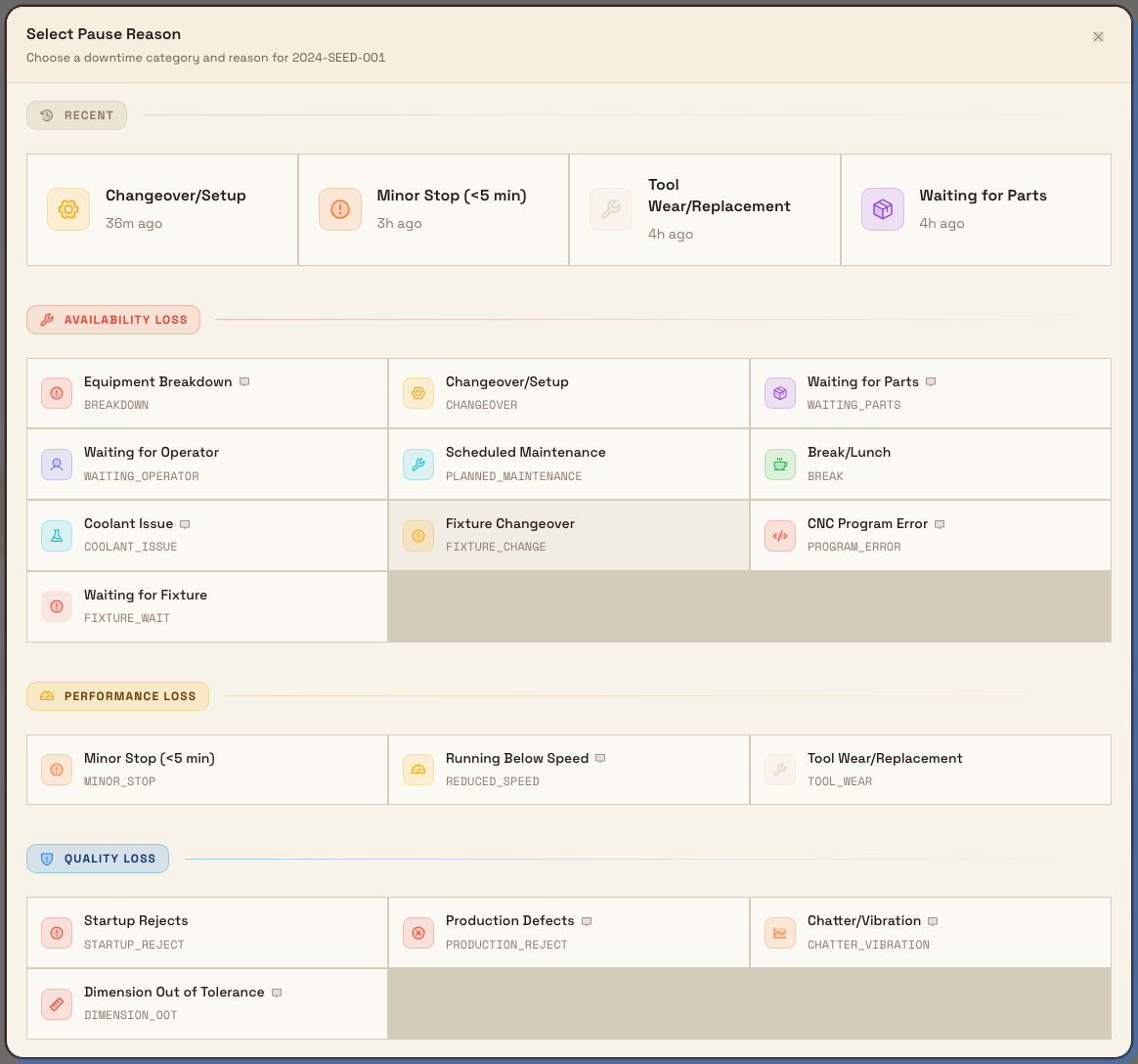
The current Job Timer opens Select Pause Reason when you select Pause. Choose a configured reason. A reason marked as requiring a comment also asks for notes before confirmation. Recent reasons appear first for quick access.
With OEE downtime tracking enabled for the asset type, the selected reason is required and is recorded as open OEE downtime. With OEE tracking disabled, the server can pause without creating an OEE event; the reason is not recorded as OEE downtime.
While paused with OEE tracking enabled, Change Reason replaces the reason on the same open downtime event. If another window changed it first, Bulk warns Reason changed in another window. Reopen to continue. A timer paused without OEE tracking has no downtime reason to change.
production.timers-02
Use an adjusted start or stop time
An administrator can set the Timer widget to Start / Stop (Adjustable) and allow adjusted starts, adjusted stops, or both. A workstation without that layout uses current time only.
Start and Stop share one maximum lookback. When adjusted Start is enabled, the administrator can set it; the default is 2 hours. An End-only configuration currently uses that 2-hour default. Bulk accepts whole-hour values from 1 through 72, clamps values outside that range, and falls back to 2 hours when a saved value is missing or invalid.
Adjust the start
When adjusted start is enabled, selecting Start opens Start Timer:
- Start at current time starts now and closes open downtime now.
- Select start time manually opens Select Start Time. Choose when work actually began, then select Start Timer.
The earliest valid start is the latest of these limits:
- the configured lookback from now;
- the end of the previous completed timer session;
- the end of the latest closed downtime; and
- the start of every currently open downtime event.
The picker shows that effective limit. Because it works in whole minutes, Bulk can snap the earliest displayed minute forward to the exact allowed instant. It also allows for the lookback window moving while the dialog is open. It never moves a choice backwards or through a previous session or downtime.
A backdated start closes open downtime at the chosen start, not at the current time. The new timer then owns the interval from the chosen start onwards. Bulk also blocks any start that would overlap another timer session.
Common messages are Start time is earlier than allowed, Start time cannot be in the future, and This asset's timer layout does not allow choosing a custom start time. If a bad record sits ahead of the clock, Bulk asks you to correct that future timer or downtime record first.
Adjust the stop
Adjusted stop is available only while the timer is running. Selecting Stop opens Stop Timer:
- Stop at current time opens the normal Stop Timer? confirmation.
- Select stop time manually lets you choose a time from the session start up to now. The same configured lookback also applies on the server.
If the chosen stop is earlier than now, Fill Gap with OEE? offers two paths:
- No, leave gap records productive time only up to the chosen stop and does not create downtime for the remaining interval.
- Yes, fill with OEE asks for a downtime reason and records the remaining interval as closed downtime. If open downtime already covers part of that interval, Bulk gives that specific event priority and fills only the uncovered part, so downtime is not counted twice.
An adjusted stop changes both the saved session end and the productive duration used for time entries. It cannot be before the session start, in the future, or older than the configured lookback. A paused timer uses its already-frozen end; you cannot give it a custom stop time.
Common messages are Stop time cannot be before the session start, Stop time cannot be in the future, Stop time cannot be more than N hours before now, and A custom stop time can only be used while the timer is running.
Adjusted time uses normal timer permissions
Choosing an adjusted start still uses the Start permission. Choosing an adjusted stop still uses the Stop permission. The separate Manual time entry permission is for adding or editing saved time and OEE timeline records after the fact; it does not grant adjusted Start or Stop.
Record downtime without running work
When the Home layout includes the Downtime widget and OEE tracking is on, you can record downtime without opening Operate.
- On Home, select Set downtime reason.
- Choose a reason and confirm Pause Timer or Record Downtime, depending on the current state.
- When downtime ends, select Stop, review Stop OEE Event?, then confirm Stop Downtime.
Bulk handles the starting state as follows:
- If a timer is running, it pauses the timer and opens downtime.
- If work is loaded but the timer is idle, it creates paused downtime linked to the loaded work.
- If no work is loaded, it creates an asset-only manual downtime event.
The first two paths require the Pause permission. Creating an asset-only event
with no loaded work requires production_operate.timer_manual_entry. Closing
an open downtime event requires the Pause permission.
Stopping downtime also respects how it began. A paused timer with loaded work saves the productive time earned before the pause, closes downtime, and returns the workstation to idle. An asset-only event simply closes the event and returns the workstation to idle.
The Home widget shows the active reason and a live downtime duration. Multi-station tiles use the same downtime state: a tile is Paused when it has a paused timer or any open manual OEE event, even with no job loaded. Its main clock then shows live downtime from the newest open event, and the reason strip uses that event's OEE category colour.
Stop and save time
The Stop Timer? confirmation shows Total Time, Job Items, and Time Per Item. Bulk splits the productive duration equally across valid tracked job items. Any indivisible millisecond remainder goes to the first item.
Select Stop & Save Time to complete the session, create one time entry per valid job item, close open downtime, and return the workstation to idle. Bulk confirms with Timer stopped - N time entries created.
Stop is the save point
The live clock is not yet a permanent job time entry. Pause freezes productive time and records downtime state; Stop creates the job time entries.
Review recorded time
Open a job and select Timers. The tab can include:
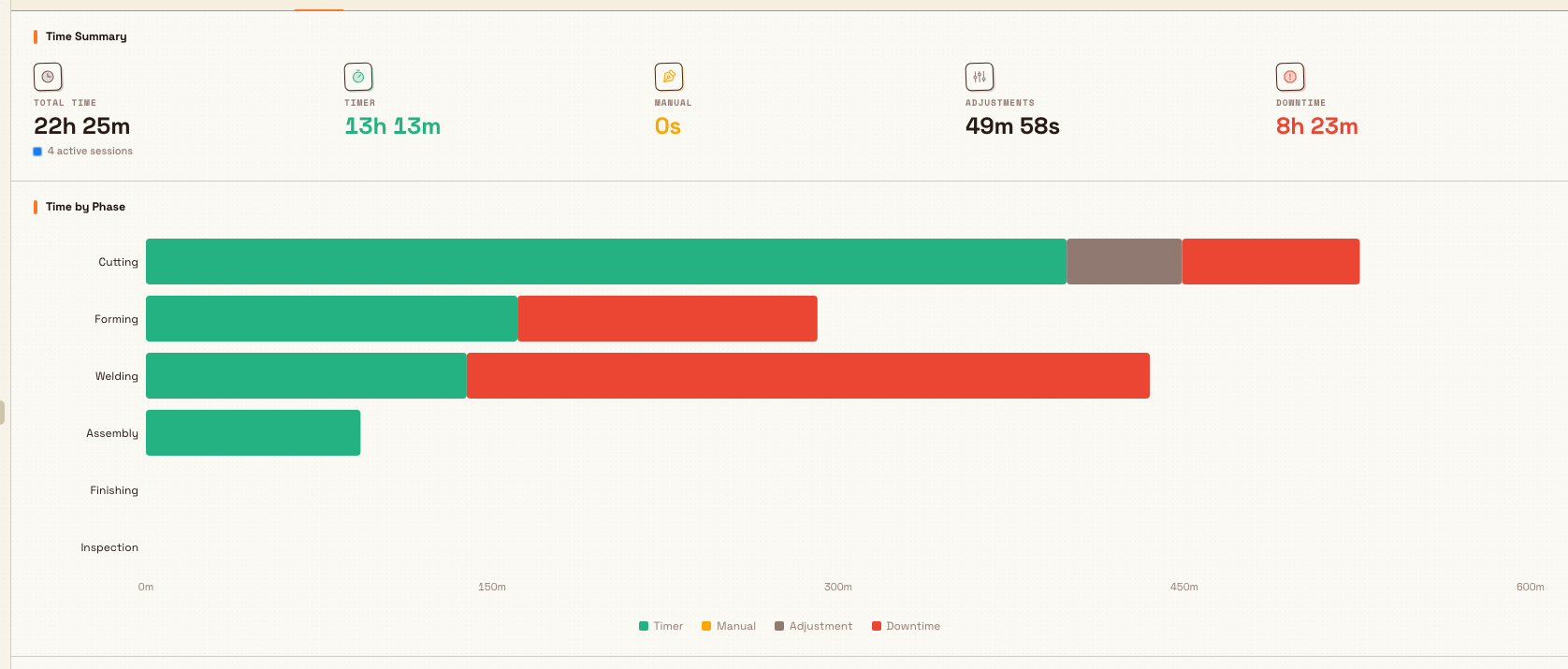
- Time Summary — Total Time, Timer, Manual, Adjustments, and Downtime, plus a count of active sessions.
- Time by Phase — timer, manual, adjustment, and downtime totals by routing phase.
- Daily Activity — recorded time grouped by day.
- Downtime by Reason — OEE downtime grouped by reason.
- Time Entries — sessions, downtime, manual entries, and adjustments by operator.
Sections with no matching data can be hidden. The same shared timer view is available for production orders and invoices.
production.timers-03
Troubleshooting
- Start is unavailable. Load at least one valid job. If work is loaded, check for a paused or running timer and complete any blocking pre-use check.
- An adjusted time is refused. Stay inside the layout's lookback and the session boundaries shown above. The server rechecks the layout and current time when you confirm.
- Pause has no reasons to choose. Ask an administrator to configure active downtime reasons. OEE tracking must be enabled for the asset type to record a reason as OEE downtime.
- The Downtime widget is missing. The asset type's Home layout may not include it, or OEE tracking may be off.
- A timer changed in another window. Reopen the action and use the current state. Bulk treats repeated resume requests safely and can report Timer already running instead of creating another segment.