Prepare and run a workstation safely
The end-to-end path for a shop-floor operator: open a workstation, clear its required pre-use checks, run the loaded work, and unload — with the safety checks that gate production explained.
This workflow walks you through a full session at a workstation, from opening it to unloading your finished work — and it puts the safety step where it belongs, at the start. In Bulk a workstation is the focused, shop-floor view for one asset: a single machine, bay, or bench you operate. Opening a workstation means choosing the asset you will work at; Bulk then shows that asset's queued jobs and arranges the workspace around it.
The reason this guide exists is the word safely. Before you can start production at many assets, Bulk requires you to complete one or more pre-use checks — short safety, calibration, or maintenance audits that confirm the machine is fit to run. When a required check is outstanding, Bulk shows Production blocked and stops work until the check is done or a supervisor authorizes a documented exception. This page ties those pieces together and links to the detailed task article for each step, so you can read it top to bottom or jump straight to what you need.
What this workflow covers
A normal session follows the same path every time:
- Open your workstation — choose the asset you will operate.
- Clear its required checks — complete any outstanding pre-use, safety, or maintenance checks so the asset is cleared for production.
- Load your work — pull the queued job or production order onto the asset.
- Run the work — start timers, record what you produce and consume, and complete each phase.
- Unload — finish and hand the asset back so the next operator starts clean.
Each step below is a standalone article. This page organizes them and explains how the safety gate fits in; it does not repeat every field and button — the linked articles do that.
Before you begin
Two things decide what you can do at a workstation:
- Access to the plant. You can only open assets in a plant (also called a site or entity) you have access to. If you cannot see any assets, you likely do not have access to that site yet — ask your administrator.
- Your role. Bulk grants each shop-floor action separately. Completing a
pre-use check needs
audits.execute, which the built-in Operator and Tablet user roles include. The built-in Tablet user role also includes load, output, consumables, phase, timer, and unload permissions. The built-in Operator role can view production but does not receive those operate controls. A Manager can authorize production overrides but does not receive timer controls by default. Tenant roles can be customised, so check the actual grants rather than relying on a role name.
For a fuller picture of what an operator sees and does day to day, see For operators.
Open your workstation
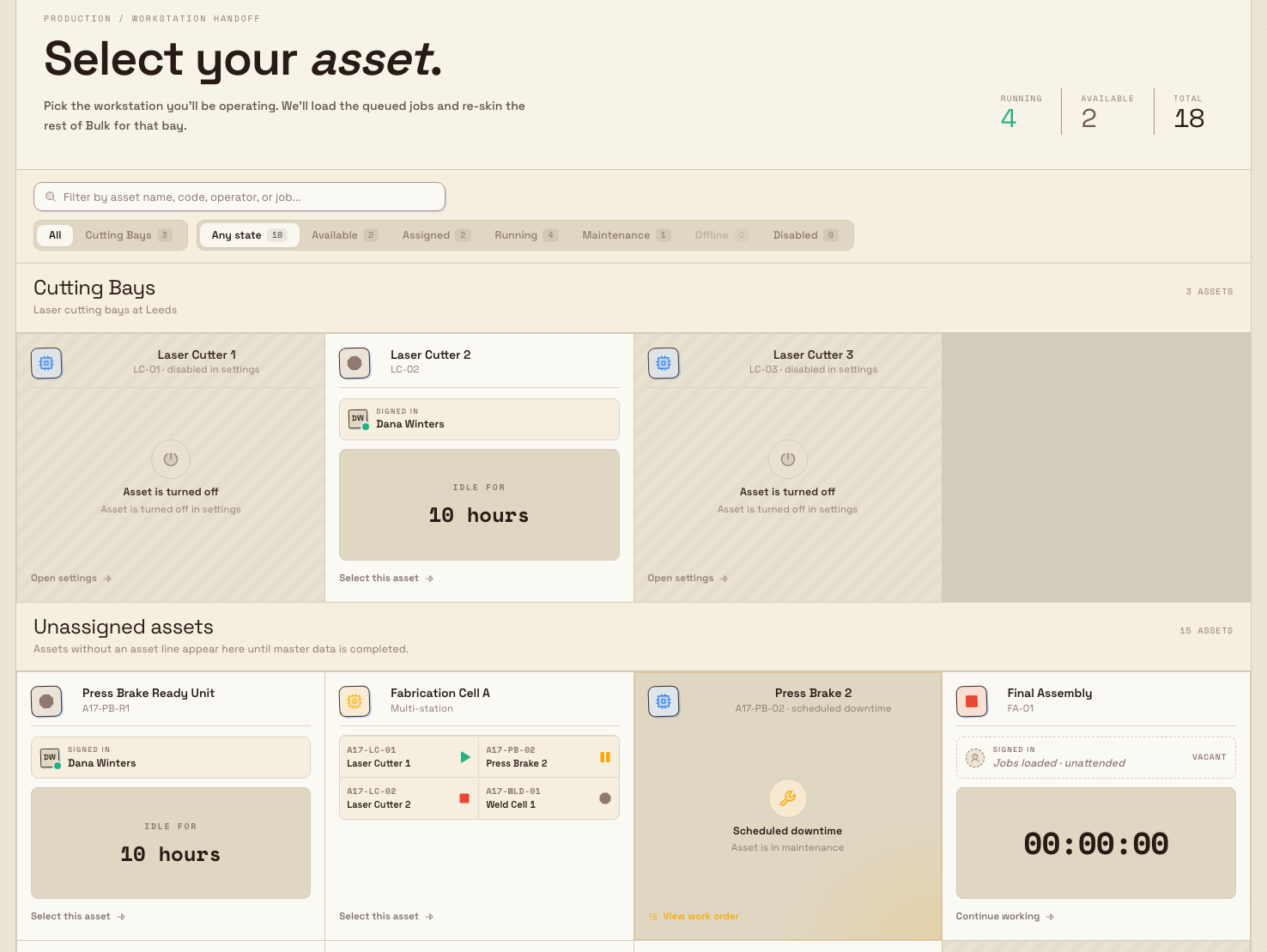
Open the Workstations item in the PLATFORM group of the left navigation. This takes you to the Select your asset screen, headed Production / workstation handoff. The screen lists the assets you can operate, with a running total of how many are Running, Available, and Total across the plant. You can search by name and filter by asset line or state.
Choose the asset — the machine or bay — you are about to work at. Bulk opens that asset's workstation Home and shows its queued work. Nothing is loaded onto the asset until you choose work and confirm it.
workflow.run-workstation-safely-01
See Open a workstation for the first-run walkthrough and Select an asset or workstation for the full reference on the selection screen, filters, and workstation types.
Clear safety checks before you start
This is the part that makes the workflow safe. A pre-use check is a short audit — a safety, calibration, or maintenance check — that an asset must pass before work can begin. An administrator configures which checks an asset requires and how often they fall due.
When you open an asset with one or more outstanding compulsory checks, its workstation Home shows a Production blocked state. The banner reads Production blocked with the line Complete N compulsory audit(s) to start production, and each blocking check has a Compulsory badge. Production stays blocked until the compulsory checks are complete.
To clear it, complete each listed check. As you pass the required checks, the asset's readiness moves from blocked to Cleared for production, and you can load and run work.

workflow.run-workstation-safely-02
Do not work around a safety check to save time
A required pre-use check exists to confirm the machine is safe to run. Completing it honestly is part of running the workstation safely — never mark a check passed just to clear the block, and never operate an asset that shows Production blocked without a completed check or an authorized override. Bulk's checks supplement your workplace safety procedures and legal duties; they do not replace them.
For the step-by-step on responding to the block, see Respond to a blocking pre-use check.
When a check genuinely can't be completed: supervisor override
Sometimes a required check cannot be completed right now — a calibration tool is being serviced, or an urgent order must start while a not-yet-due check is arranged. For these cases a supervisor can authorize a production override: a documented, time-limited exception that clears production without losing the record of why.
On the blocked card, a user with override permission chooses Request override to open the Request Production Override dialog. It requires:
- a Reason — one of Equipment Issue, Urgent Production, Audit Pending, Maintenance Scheduled, or Other;
- an Override Duration — 1 Hour, 2 Hours, 4 Hours, 8 Hours, or 24 Hours; and
- an Approver Signature, drawn on screen.
Choosing Create Override clears production for the chosen window. The workstation then shows Supervisor override active with the time remaining, the reason, and who authorized it. A supervisor can end it early with Revoke.
An override is a supervisor decision, not a shortcut
Requesting an override is limited to the Manager and administrator roles because it accepts responsibility for starting production before a required check is complete. Use it only when it is genuinely safe to continue, and complete the outstanding check as soon as you can. Overrides are recorded with the reason, duration, and signing supervisor.
Run the workstation
Once the asset is cleared, you load and run work. Each of these is its own task article:
- Load a job — pull one or more queued job items onto the asset.
- Load a production order — load work for fulfillment-style workstations.
- Run production timers — start, pause, and stop the timers that record run time against the job.
- Check Attachments and Instructions — open Attachments for job, order, and source-document files. PDFs and images open in Bulk; other file types download through the browser. Open Operator Tools → Instructions for the separate PDF attached to the exact process revision used by the loaded job.
- Record production output — book the good and scrap quantities you produce.
- Record consumable use — record materials and consumables the job uses.
- Complete production quality steps and documentation steps — finish the quality and paperwork built into the routing.
- Skip or complete a production phase — move the job through its routing phases.
- Unload production work — finish at the asset and hand it back for the next operator.
If your shift covers more than one machine at once, see Work across multiple stations and Work across multiple assets. For a recording-bench flow, see Peak a job.
Run and pause time safely
The Job Timer has separate Start, Pause, and Stop controls. Start
and Resume require production_operate.timer_play; Pause, Change Reason, and
ending downtime require production_operate.timer_pause; Stop requires
production_operate.timer_stop.
- Start begins productive time for the loaded job items. A compulsory check still blocks Start and Resume, even when a custom start time is available.
- Pause freezes productive time by completing the current run segment. With OEE enabled, Bulk opens downtime under the chosen reason.
- Resume closes open downtime and creates a new running segment with the same work. It does not extend the old productive segment through the pause.
- Stop closes the timer, splits productive time equally across its valid job items, creates the time entries, closes open downtime, and returns the asset to idle. Stopping while paused keeps the productive duration frozen at the pause time.
The Stop confirmation shows Total Time, Job Items, and Time Per Item before Stop & Save Time. If another screen changed the timer first, reopen the action and use the current state instead of repeating a stale confirmation.
See Run production timers for the exact confirmations, messages, and state effects.
Use adjusted start or stop times
An adjustable Timer layout can allow an earlier start, an earlier stop, or both. The same configured lookback applies to both sides. It defaults to 2 hours and is limited to 1 through 72 hours.
For an adjusted start, choose current time or the time work actually began. Bulk never allows a start before the configured lookback, through a previous timer session, or through recorded downtime. Starting closes open downtime at the accepted start time.
For an adjusted stop, choose current time or an earlier time within the running session and lookback. If an early stop leaves a gap to now, choose whether to leave it unrecorded or fill it with one OEE downtime reason. Existing open downtime takes priority so the gap is not counted twice. A paused timer already has a frozen end and cannot use a custom stop time.
The server rechecks the asset layout, current time, lookback, and overlap when you confirm. A time the layout does not allow, a future time, or a time outside the session is refused without changing the timer.
Record downtime without starting production
When the workstation Home layout includes Downtime and OEE tracking is on, select Set downtime reason to record a stoppage before a timer is running. If work is loaded, Bulk links the downtime to it. With no loaded work, Bulk creates an asset-only downtime event. Use Stop Downtime to close the event; this returns the asset to idle rather than resuming production.
If downtime began by pausing running work, Stop Downtime also keeps and
saves the productive time earned before the pause. Creating asset-only downtime
with no work requires production_operate.timer_manual_entry; recording idle
downtime against loaded work and ending downtime use the Pause permission.
Control eligible Multi-station members
On a Multi-station board, select Start, Pause, or Stop first. Bulk then makes only eligible station tiles selectable. Choose the tiles, or Select all, then select Proceed (n).
- Bulk Start starts loaded idle stations and resumes eligible paused stations. If selected idle stations allow adjusted start, Start Selected Stations lets you start all now or set a start time for each adjustable station.
- Bulk Pause applies one downtime reason to every selected station. It can pause running work, change the reason on a paused timer, or log idle downtime. A station already carrying asset-only downtime cannot be paused again.
- Bulk Stop stops running or paused timers. Stop Adjustable Timers collects per-station times for adjustable running members and can fill early-stop gaps with one shared OEE reason. For a tile paused only by asset downtime, Stop ends that downtime instead of claiming that a timer stopped.
Each bulk action supports up to 40 selected stations. Bulk reports applied and failed counts, keeps successful changes when another selected station fails, and names the first error. Stopping a downtime-only tile also needs the Pause permission, even though the bulk action began under Stop.
Loading work, recording output, and completing steps still happen after you open an individual station. See Work across multiple stations for tile eligibility, live running/downtime clocks, and board troubleshooting.
A shift at Granite Peak Manufacturing
Priya runs the laser-cutting bay on the early shift at the Leeds Fabrication Plant, part of Granite Peak Manufacturing, a UK precision-fabrication company.
- She opens Workstations and picks Laser Cutter 2 on the Select your asset screen.
- The workstation Home opens showing Production blocked — Complete 1 compulsory audit to start production — with a Morning Safety Check badged Compulsory. Priya walks the check, confirms the guarding and extraction, and completes it. The asset flips to Cleared for production.
- She loads the first job, checks its process PDF under Instructions, and opens its source drawing in Attachments. She starts the timer. A material delay makes her pause with a downtime reason; Resume closes that downtime and starts a fresh productive segment. She cuts the batch, stops and saves the timer, then records the output and sheet stock used.
- Mid-shift, a not-yet-due maintenance check comes due while an urgent order is waiting. Priya's supervisor opens Request Production Override, selects Urgent Production, sets 2 Hours, signs, and chooses Create Override. The bay shows Supervisor override active, and Priya continues while the check is arranged.
- At the end of the run she completes the phase and unloads the job, leaving Laser Cutter 2 clean for the next operator.
Every start on that shift was either behind a completed safety check or a signed, time-boxed supervisor override — with a record of which.
Expected result
Working through this path, you can:
- open the correct asset as a workstation and see its queued work;
- recognize the Production blocked state and clear it by completing the compulsory checks, so the asset reads Cleared for production;
- understand when and how a supervisor authorizes a time-limited override instead; and
- load, run, and unload work at the asset, then hand it back cleanly.
Feature state and what to expect
Preparing and running a workstation is generally available and is the standard shop-floor flow in Bulk.
Whether you see a safety gate depends on setup: the Production blocked state only appears when an administrator has configured a compulsory pre-use, safety, or maintenance check for that asset and it is due or failed. An asset with no compulsory checks configured opens ready to load, with no blocking card — that is expected, not a missing feature. Which run-the-workstation controls you see (timers, output, unload) depends on your role's operate permissions.
Troubleshooting
- The asset stays on "Production blocked." Complete every check marked Compulsory on the card. Production clears only when all compulsory checks are done. If a check truly cannot be completed now, ask a supervisor to authorize an override.
- You do not see a "Request override" button, or the request is refused. Requesting an override needs supervisor permission (Manager or an administrator role). Bulk will tell you You do not have permission to request production overrides. Ask a supervisor to request or revoke the override.
- You cannot load a job or see the run controls. Loading, timer actions, output, consumables, phases, and unload have separate operate permissions. The built-in Tablet user has the full shop-floor set; the built-in Operator and Manager do not have timer controls. Ask an administrator to check the actual role grants or see For operators.
- An adjusted time is refused. Use the window shown for that station. The time must also fit its configured layout, lookback, current timer session, and existing downtime/session history.
- Some Multi-station tiles changed and others failed. Successful members are not rolled back. Read the first error in the result, correct that station, then retry only the failed members. A downtime-only Stop needs both Stop and Pause permissions.
Related guidance
- Plan and produce — the wider planning-to-production workflows this page belongs to.
- Turn customer work into production — how orders become the jobs you run at a workstation.
- Production — the full reference for the production module and every workstation task.
- Review production orders and jobs — where the work you load at a workstation comes from.
- Run production timers — exact adjusted-time, downtime, pause/resume, and Stop behavior.
- Work across multiple stations — bulk timer controls and member-tile eligibility.
Turn customer work into production
Follow a customer's incoming work through Bulk — capture it in Inbound, turn it into a production order and jobs, schedule the jobs, and run them at a workstation.
Manage materials through production
Follow consumable materials end to end in Bulk — define them, receive stock, consume them at the workstation, and replenish — and see which screens and permissions each stage uses.