Turn customer work into production
Follow a customer's incoming work through Bulk — capture it in Inbound, turn it into a production order and jobs, schedule the jobs, and run them at a workstation.
This guide follows the whole path a piece of customer work takes in Bulk — from a purchase order or job request that arrives from a customer, to jobs running on the shop floor. It is a journey that crosses several modules, so instead of repeating each screen's steps, this page maps the stages in order and links to the canonical how-to guide for each one.
Use this page when you want to see the entire route, understand how the pieces connect, or hand the process to someone new. If you already know which stage you are on, jump straight to the linked guide for that step.
Two terms recur throughout. A production order is the header that groups all the work for one customer request — it carries the customer, the purchase-order number, and the required date. A job is the work to make one part through its routing — the ordered sequence of steps (cut, form, inspect, and so on) that the part follows on the floor. One order usually contains several jobs.
The journey at a glance
Turning customer work into production moves through five stages:
- Capture the customer's work in Inbound, where a purchase order or job sheet becomes structured lines.
- Turn the document into an order and jobs by submitting it — Bulk creates one production order and the jobs beneath it.
- Schedule the jobs on the planning board so the floor knows what runs when.
- Run the work at a workstation, recording output, quality, and time.
- Track the work to completion and hand the finished work to invoicing.
Different people usually own different stages — a coordinator captures the paperwork, a planner schedules, operators run the work — but they all share one set of records for the same order.
Before you start
Two things need to be in place before customer work can flow through to production.
The master data behind the work must exist. Bulk builds each job from your configured master data, so every line of customer work has to resolve to real records:
- The customer must exist. See Manage customers.
- Each line needs an active part (the item being made). See Manage parts.
- Each line needs a process and its process type, which decides the routing the job will follow. See Manage processes and Manage routings.
If any of these is missing when you try to submit, Bulk blocks the submission and tells you which line is incomplete.
You need the right access. The journey spans the Inbound, Production, and Scheduling modules, and permissions are usually split across roles:
- Capturing and submitting inbound work uses the Inbound permissions; the Operator, Manager, and Entity admin roles all include them.
- Viewing and updating orders and jobs uses the Production permissions; Operator, Manager, and Entity admin can do this, while the Tablet user role can view orders but not change them.
- Scheduling jobs on the planning board needs the scheduling permission, held by Operator, Manager, and Entity admin.
If a module is missing from your navigation, your role does not include it — ask an administrator. See Roles and permissions.
Stage 1 — Capture the customer's work in Inbound
Inbound is where paperwork that arrives from customers — purchase orders, job sheets, drawings — is captured and turned into structured order lines. You upload or scan the document, and Bulk reads it to pull out the customer, each part, its quantity, the price, and the required date. You then confirm the customer and currency, and check that every line has matched to the right part and process.
This is where accuracy is set for everything downstream: the lines you confirm here become the jobs the floor produces. For the detailed steps, see:
- Review an inbound document — check and correct a single captured document.
- Review an inbound import — work through a batch of uploaded files.
- Manage inbound services and items — set the part, process, quantity, and pricing on each line.
Stage 2 — Turn the document into an order and jobs
Once every line is complete, you mark each item Ready and Submit the document. Bulk checks that each line can become a job — it needs an active part, a process type, and a quantity greater than zero — and that the document has a customer and currency. The check is all-or-nothing: if any single line cannot become a job, the whole submission is blocked so you never get a half-built order.
When the document passes, Bulk creates one production order and the jobs beneath it, then links them back to the source document. You do not create orders by hand — an order always comes from an inbound document. (Once an order exists, you can add further jobs to it from the order's detail page.)
Some routings require sign-off before work can begin. This is Bulk's routing-driven approval: if a job's routing needs approval, that job is created with the status Awaiting approval and stays locked until someone with approval rights approves it. Every other job is created as Open — released and ready to schedule.
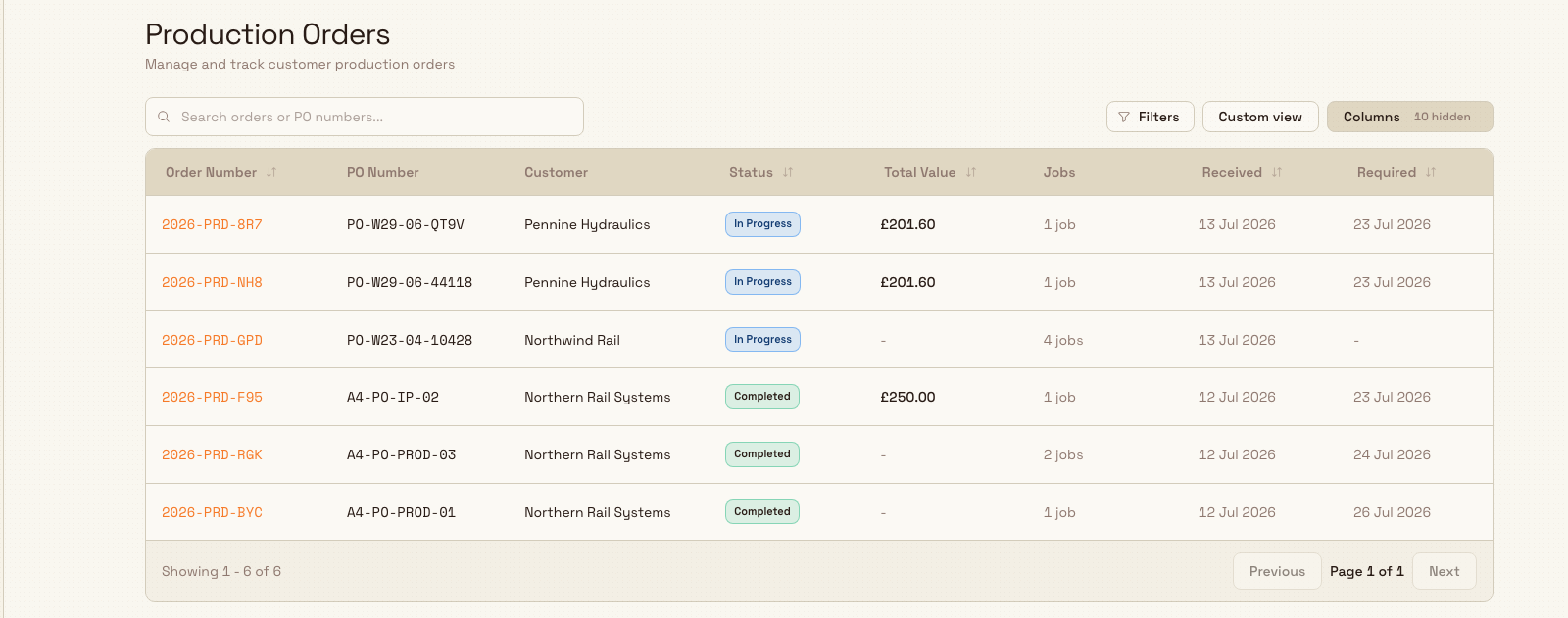
You can watch the whole picture on the Production Orders list, under Production → Orders. Each row shows the order number, the customer, its status, the required date, and how many jobs it contains.
workflow.customer-work-production-01
For how to read and work an order and its jobs, see Review production orders and jobs.
Stage 3 — Schedule the jobs
New jobs are ready to be produced, but the floor still needs to know when each one runs and on which equipment. That happens in Scheduling, on the planning board, where you place each job into a time window on an asset. Scheduling makes capacity and clashes visible before work starts, and hands the planned work to production.
Open Scheduling from the navigation, then use these guides:
- Use the planning board — the board layout and how to read it.
- Place or move a job — schedule a job onto an asset and time window.
- Hand planned work to production — release the schedule to the floor.
Stage 4 — Run the work at a workstation
A workstation is a place on the shop floor, tied to equipment, where operators book jobs and record what they produce. On the day, an operator opens their workstation, loads the order or job, works through the routing steps, and records output, quality checks, and time as they go.
The first time a job from an order is loaded at a workstation, the order moves to Open; as operators work, it moves to In Progress. For the operator's side of this stage, see:
- Select an asset or workstation — choose where you are working.
- Load a production order and Load a job — bring the work onto the station.
- Record production output — book quantities as you make them.
Two companion workflows sit alongside this stage: Prepare and run a workstation safely covers pre-use checks and running the station, and Manage materials through production covers consuming stock against the work.
Stage 5 — Track the work to completion
As each job finishes, Bulk rolls the change up to the order. The order status reflects where its jobs are: it starts as New, becomes Open once the first job is loaded, moves to In Progress while work continues, and reaches Completed when every job is finished. (Before the order itself is created, its number can appear as Reserved against the inbound document.)
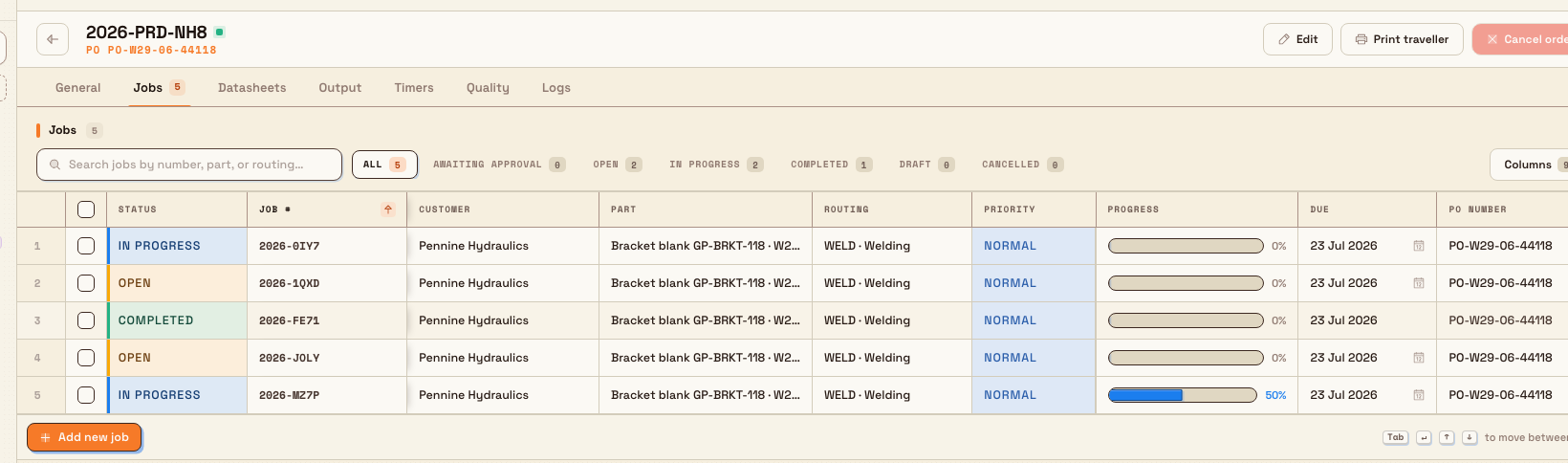
Open any order and choose the Jobs tab to see every job it contains, each with its status, priority, progress, and due date. This is the single view that tells you how far a customer's work has moved.
workflow.customer-work-production-02
When the work is done, completed jobs feed the commercial side of Bulk, where finished production becomes an invoice. That is the next journey: Close the commercial loop.
Example: a rail-bracket order at Granite Peak Manufacturing
Granite Peak Manufacturing, a precision-fabrication company, runs Bulk at its Leeds Fabrication Plant. A regular customer, Pennine Rail Systems, emails a purchase order for 40 mounting-bracket sets, due in three weeks.
Marcus, a production coordinator, opens Inbound and uploads the purchase-order PDF. Bulk reads it and pulls out the lines; Marcus confirms the customer as Pennine Rail Systems, sets the currency, and checks that each line matched to the part Bracket, Mounting, 6 mm, the Laser cut and form process, and a quantity of 40. He marks the items Ready and selects Submit.
Because the forming routing at Granite Peak requires sign-off, that job is created Awaiting approval; the rest are created Open. Dana Winters, the plant manager, approves the routing, and Bulk finishes creating order 2026-0042 with its jobs beneath it. The order appears on the Production Orders list as New.
A planner opens Scheduling and places the jobs onto the laser cutter and press brake for the following week. On the day, an operator selects the laser workstation, loads the job, and starts cutting — order 2026-0042 flips to Open, then In Progress. As each job is completed over the next few days, the order climbs to Completed, and finance later turns the finished work into an invoice for Pennine Rail Systems.
What to expect
- Submitting a complete inbound document creates exactly one production order and its jobs, linked back to the source document.
- Jobs whose routing needs approval wait in Awaiting approval; all others start Open.
- The order's status tracks its jobs automatically — New, Open, In Progress, then Completed — so the Production Orders list always reflects real shop-floor progress.
- Completed work is ready to be invoiced.
Availability and limits
The whole journey — Inbound capture, order and job creation, scheduling, and production — is generally available in Bulk. A few things are worth knowing:
- Orders are not created by hand. Every production order originates from a submitted inbound document. If you want work in production, it starts in Inbound. You can, however, add extra jobs to an order that already exists.
- Submission is all-or-nothing. If any single line cannot become a job, Bulk blocks the entire submission rather than create a partial order.
- Approval gates real work. A job whose routing requires approval is fully locked in Awaiting approval and cannot be scheduled or started until it is approved.
If something blocks the handoff
Most problems appear when you try to submit an inbound document, and each carries a clear message and a fix:
- "… item(s) are still pending. Mark all items as ready before submitting." One or more lines are not marked Ready. Open each pending item, complete it, and mark it Ready, then submit again. See Manage inbound services and items.
- "Part is required" or "Process type is required." A line has not matched to an active part or a process. Set them on the line — a part without an active record, or a line with no process type, cannot become a job. See Manage parts and Manage processes.
- "Quantity must be greater than 0." Set a positive quantity on the line before submitting.
- "Customer and currency unit are required." Choose the customer and the currency on the document header first.
- A job is stuck in Awaiting approval. Its routing needs sign-off. A user with approval rights approves it, after which the job is released and can be scheduled. Until then it stays locked.
Cancelling an order
If a customer withdraws their work, cancelling the order also cancels its open jobs and removes the order from reporting — but the order stays visible in your lists with a Cancelled status and the reason recorded, so the history is never lost.
Related guidance
Plan and produce
How Bulk carries work from a production order through planning, workstation execution, and material tracking — with links to the end-to-end workflow for each stage.
Prepare and run a workstation safely
The end-to-end path for a shop-floor operator: open a workstation, clear its required pre-use checks, run the loaded work, and unload — with the safety checks that gate production explained.